Wedding QR codes: invitations, signs and the album

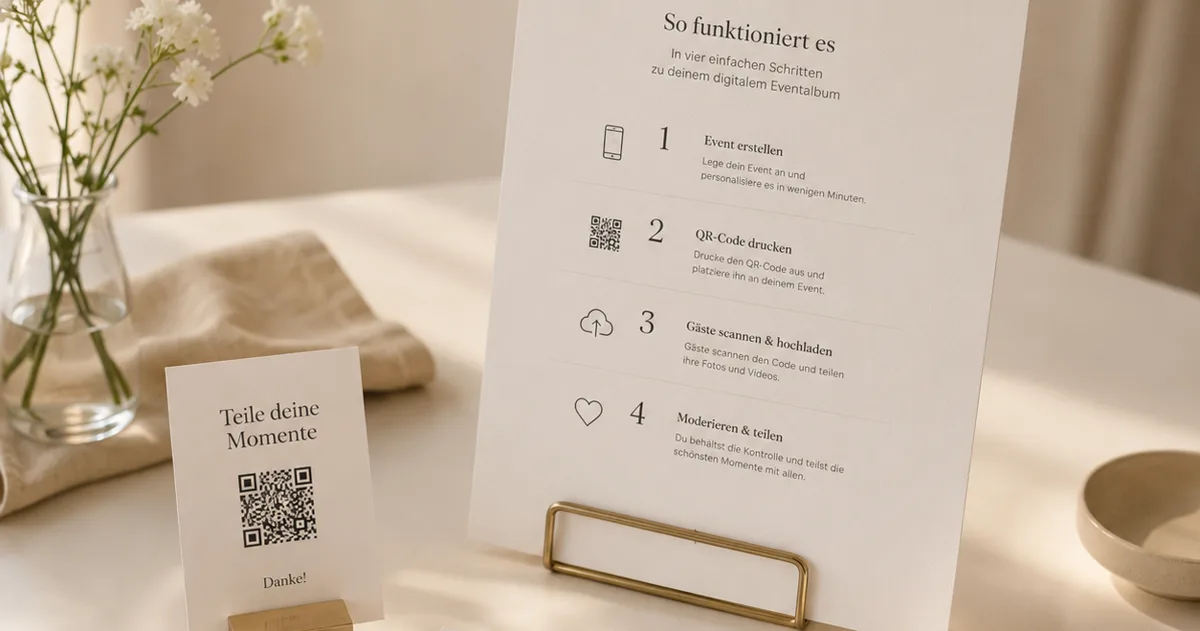
Use two different QR codes at a wedding, because they do two different jobs. The code on your save-the-dates and invitations informs: it points to the wedding website or the RSVP form. The code on your table signs collects, opening the album where guests upload photos, video and voice messages. Print rules and placement decide whether either one actually gets scanned.
QR codes have quietly become part of the wedding stationery suite. They appear on save-the-dates pointing to the wedding website, on invitations linking to the RSVP form, and -- the use that guests actually thank you for -- on table signs that collect every photo, video and voice message from the evening into one shared album. Done well, a QR code is invisible infrastructure: guests scan without thinking and everything just works. Done badly, it is a grey square nobody can scan in candlelight.
This guide covers both halves of doing it well: the print side (where the code belongs, how big it needs to be, what makes one scannable) and the album side (what the code on the night should actually point to, and how the collection works once guests start scanning). If you only take one thing away, take this: the code on your stationery and the code on your tables can do different jobs -- the first informs, the second collects.
What you will need
- Your wedding stationery plan (or at least the table-sign slot)
- A free Gathmo account for the photo-album QR code
- A printer, or a copy shop for the signs
Decide what each code points to
Before designing anything, separate the jobs. A code on the save-the-date or invitation usually points to your wedding website or RSVP page -- guests scan it once, at home, in good light. A code at the venue should point to your guest photo album, because that is the moment guests have something to contribute. Resist the urge to make one code do everything via a link list: every extra tap between scanning and uploading costs you photos.
Get your album QR code and signs
Create your wedding event on Gathmo and the QR code for your album is generated automatically, along with print-ready signs: a compact table card and an A4 poster, both designed to sit comfortably next to wedding stationery. You can also download the bare QR code as a PNG or SVG with transparent background to place into your own stationery design -- the SVG scales to any size without losing sharpness, which your stationer will thank you for.
Follow the print rules that make codes scannable
A QR code needs three things to scan reliably: size, contrast and quiet zone. Print it at least 2 x 2 cm -- bigger if guests will scan from a distance, roughly one tenth of the scanning distance as a rule of thumb. Keep strong contrast between the code and its background: a dark code on a light card is ideal, while gold foil on cream looks beautiful and scans terribly. And leave a clear margin around the code (the quiet zone) -- do not let florals or script lettering creep into it.
Place the codes where guests pause
On the night, placement beats quantity. One table card per table, one sign at the bar, one poster near the entrance covers the natural pauses in any reception. Add one at the guestbook table if you are running a digital voice guestbook -- the two share the same QR code, since voice notes, photos and videos all flow into the same album. Skip places where guests cannot stop and scan: the dance floor, the buffet line, the back of the order of service that gets left on chairs.
Let the album work during and after the wedding
As guests scan and upload, everything arrives in your private dashboard in real time, and you decide what appears in the shared album. On plans with the live wall, uploads appear on a screen during the reception, which reliably nudges the rest of the room to contribute. Afterwards, share the finished album with a single link and download the originals. The QR codes on your stationery have done their quiet job; see how the whole flow works and what each plan includes.
Quick recap
- Stationery code (website/RSVP) and venue code (album) decided separately
- Album QR code generated -- PNG/SVG download or ready-made signs
- Printed at 2 x 2 cm minimum with strong contrast and a clear quiet zone
- Proof scanned with two phones in dim light before the print run
- Table cards, bar sign and entrance poster placed where guests pause
- Album shared and originals downloaded after the wedding
Frequently asked
For a wedding website or RSVP link, any reputable QR generator works. For collecting guest photos, videos and voice messages, create a free Gathmo event -- the QR code and print-ready signs are generated for you, and the code opens your private album directly in each guest's browser, no app required. Which one you need depends on the job.
At least 2 x 2 cm for anything scanned at reading distance, and larger for signs scanned from further away -- a useful rule of thumb is one tenth of the expected scanning distance. Equally important: strong contrast against the background and a clear margin around the code. A slightly bigger, plainer code always beats a beautiful one that fails in candlelight.
At the venue. Guests cannot upload photos that do not exist yet, so a collection code on the invitation mostly creates confusion. Put the wedding-website code on your stationery if you need one, and save the album code for table cards and signs on the night -- that is the moment guests have photos to give you.
A static code pointing at a normal URL works as long as the page behind it exists. Gathmo codes link to a fixed event URL that does not change, so codes printed weeks in advance keep working through the wedding and afterwards -- guests who forgot to upload on the night can still scan the menu they took home and add their photos the next day.
No. Every modern phone camera scans QR codes natively, and the Gathmo album opens straight in the browser -- guests go from scan to uploaded photo in about ten seconds, without installing or signing up for anything. That ten-second path is precisely why a printed code on the table outperforms any link shared in a group chat.
Create your Gathmo event and download the QR code as a PNG or SVG with a transparent background. Place it into your invitation design using any design tool -- the SVG scales to any size without losing quality. Print the code at a minimum of 2 x 2 cm with strong contrast against the background, and leave a clear margin around it. Test the proof with two phones before the full print run. For invitations, the code should link to your wedding website or RSVP page, not the photo album; save the album code for table signs on the night.
At typical table-card scanning distance (30 to 50 cm), a QR code needs to be at least 2.5 cm square for reliable scanning on most phone cameras. At 3 to 4 cm square, scanning is reliable across all modern phones including older models with less precise autofocus. As a rule: the smaller the code, the closer the phone needs to be. For a floor-standing display viewed from 1 metre or more, use at least 8 to 10 cm square. Print at 300 dpi or higher in high contrast (black on white), and always test the printed card before the wedding -- a code that looks fine on screen can fail to scan on uncoated or textured card stock.
 Guide
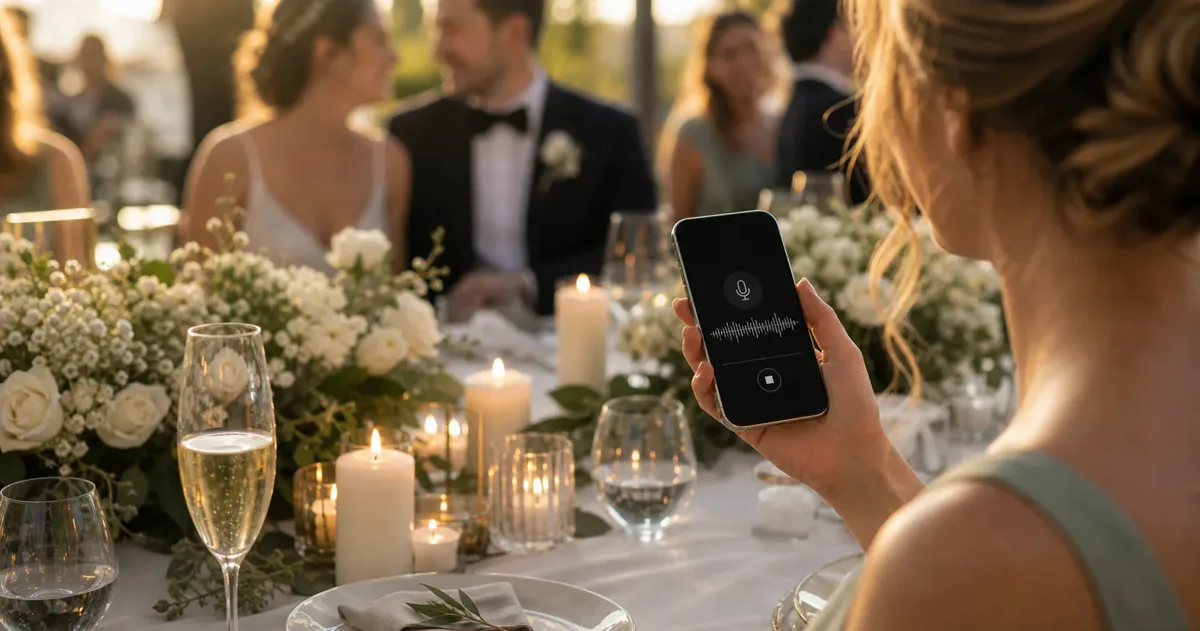
GuideWhat is an audio guestbook -- and how does it work?
Learn what an audio guestbook is, how phone and QR versions work, and when voice messages fit weddings, birthdays, and events.
 Ranking
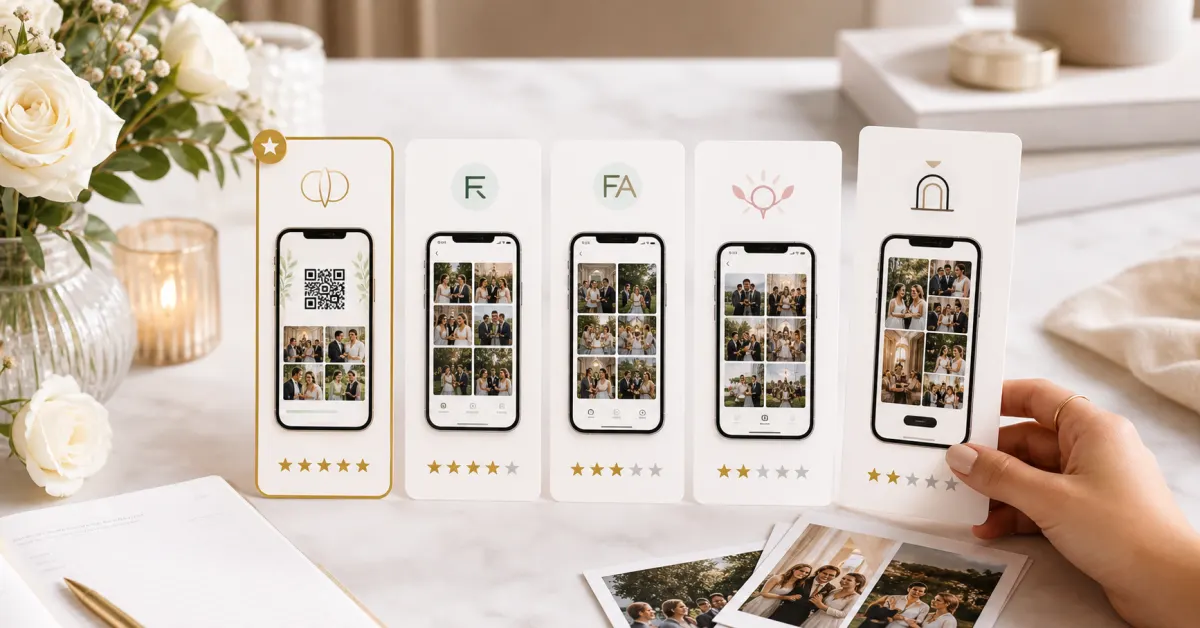
Best wedding photo sharing apps for guests (2026)
Seven wedding photo sharing apps compared on guest access, media, downloads, retention and price, including WeddingPhoto App from $39 USD.
 Story
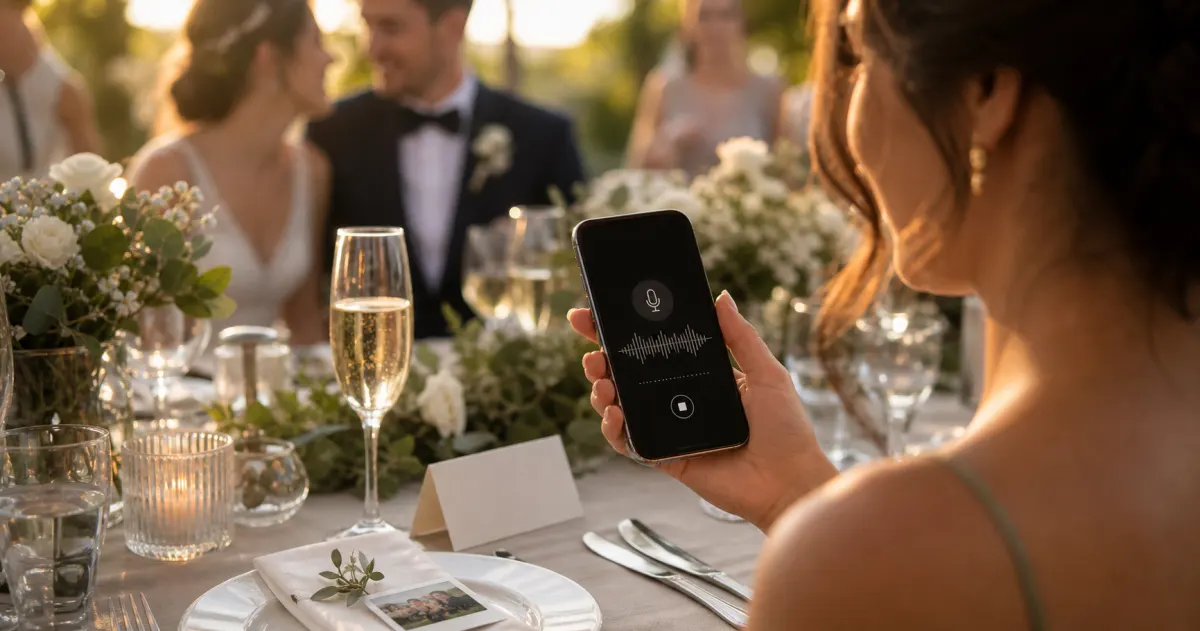
StoryThe most underrated wedding keepsake: guest voice messages
Guest voice messages are the wedding keepsake couples replay most -- real voices, real pauses, the things people said when they actually meant them.