Gallery and moderation
Review guest uploads before they appear
Use Gathmo moderation to review, approve, hide, or reject guest uploads before they appear in the shared gallery or live wall.

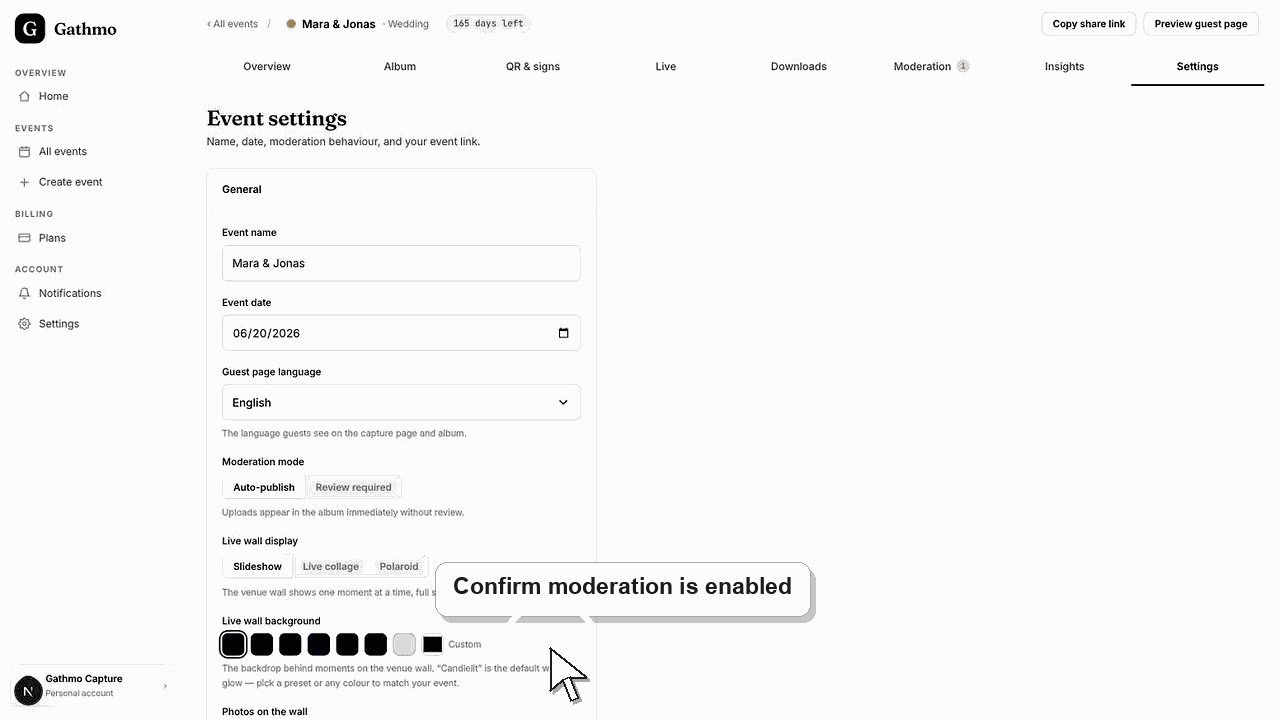
Enable moderation when you want to review guest uploads before they appear in the shared gallery or live wall.
Before you start
- Open the correct event in the Gathmo dashboard.
- Confirm moderation is enabled before guests start uploading.
- Decide who on the event team is allowed to approve, hide, or delete uploads.
- Open the correct Gathmo event, workspace, or account before making changes.
Steps
Open the moderation area
From the event dashboard, open the area where new guest uploads wait for review. Use the event name and date to confirm you are moderating the correct event.
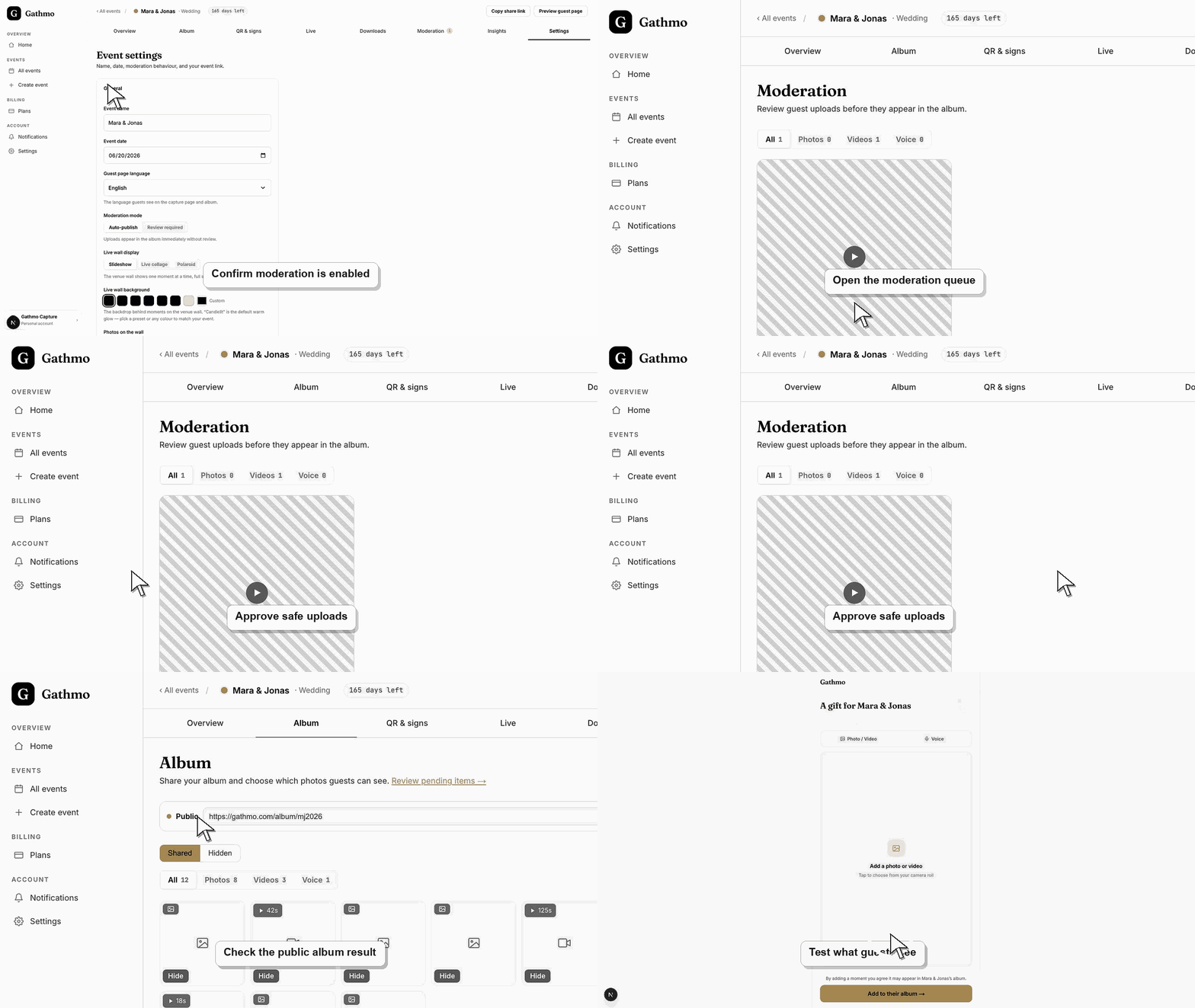
Review the upload context
Look at each pending photo, video, or voice message before approving it. Check whether the media is appropriate for the shared gallery, live wall, guests, and event host.
Approve safe uploads
Approve uploads that should appear publicly. After approval, check the gallery or live wall so you know the approved item reached the right guest-facing destination.
Hide or delete unwanted uploads
Hide uploads that should stay out of the public view. Delete only when the media should be removed from the event workflow rather than simply kept private.
Keep reviewing while guests upload
For live events, keep the moderation page open or assign someone to check it regularly. This prevents a public gallery or live wall from falling behind during busy moments.
What to do next
- Test the public gallery after approving the first upload.
- Use the hide/delete article if an upload should be removed after approval.
- Download event media after the event before making broader deletion or retention changes.
- Open the guest-facing gallery after changing moderation or visibility so you see exactly what guests and viewers will see.
Frequently asked questions
When should I turn on moderation?
Use moderation when uploads should be reviewed before they appear, especially for workplace events, children, public screens, or larger guest groups.
Do guests see uploads before approval?
If moderation is enabled, pending uploads wait in the dashboard review area before they appear in the shared gallery.
Can I hide an upload instead of deleting it?
Use the dashboard controls to keep unwanted media out of the shared view. Check the current product controls for whether hide or delete is the right action.
Why does an approved upload still not appear?
Refresh the gallery, check media filters, and confirm the album or live wall is showing the same event and visibility settings.
Troubleshooting
Refresh the public gallery, check whether the upload type is filtered, and confirm the item was approved for the same event that the gallery or live wall is displaying.
Open event settings and confirm moderation is enabled for the upload types guests are using. Then run a fresh guest test from the QR code to verify the updated behavior.
Hide the upload from the public view immediately, then decide whether it should be deleted. For sensitive situations, document the change and who requested it.
Refresh both views, check whether moderation or media-type filters are active, and confirm you are looking at the same event. Pending, hidden, and approved uploads can appear in different places.
Moderation is especially important for events involving children, employees, public screens, or guests who may not expect every upload to appear publicly.
Keep going