Gallery and moderation
Hide or delete uploads
Hide or delete guest uploads in Gathmo when media should not appear in the gallery, then review privacy and download implications.

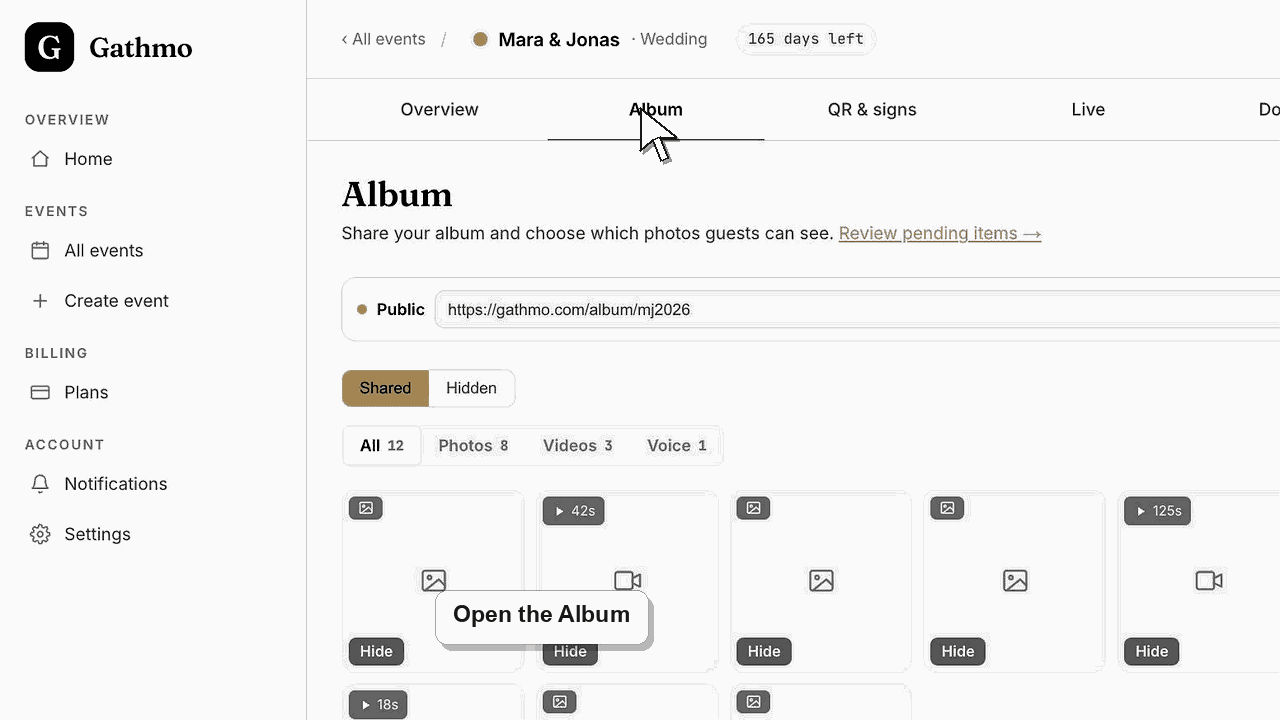
Hide an upload when it should not appear in the shared album. Delete an upload only when you want to remove it from the event media.
Before you start
- Open the correct event.
- Decide whether the upload should be hidden, rejected, or deleted.
- Use deletion carefully because it is harder to reverse than hiding.
- Open the correct Gathmo event, workspace, or account before making changes.
Steps
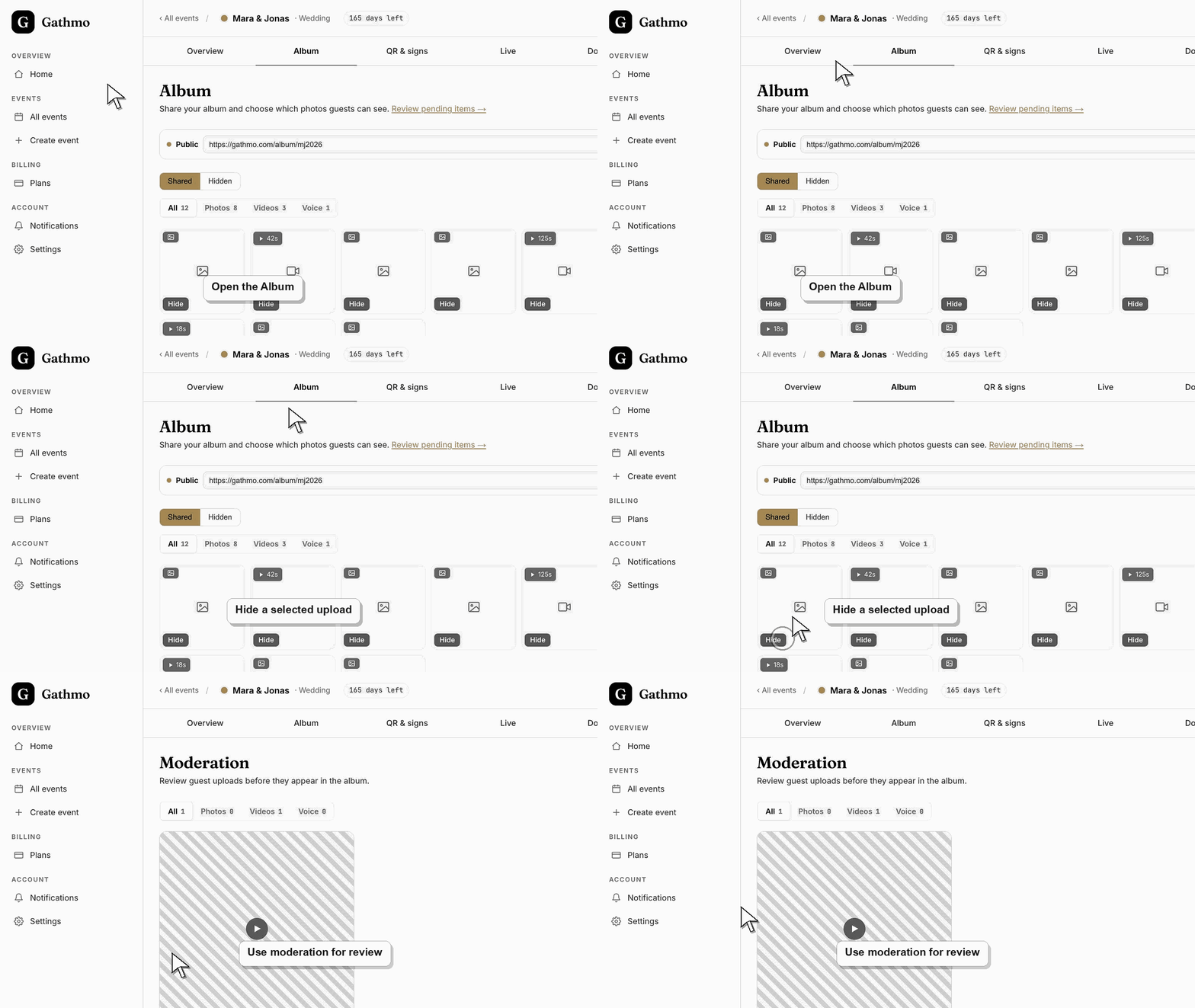
1. Open the album or moderation area
Use the album when the upload is already approved and visible. Use moderation when the upload is still waiting for review.
2. Hide an approved upload from the shared album
Select the upload and choose the hide action. Hidden uploads should no longer appear in the shared public album, but the host can still review them in the dashboard. Use this when the media is not suitable for guests but should remain available to the host.
3. Restore a hidden upload if needed
Open the hidden view or filter, select the upload, and show it again. Recheck the public album after restoring it.
4. Delete only when the media should be removed
Select the upload and use the delete action only when the file should be removed from the event media. Confirm the event and file before deleting.
5. Use moderation for future uploads
If unwanted uploads keep appearing, switch the event to review mode. Then uploads wait for approval before they appear in the album or live wall.
What to do next
- Hidden uploads stop appearing in the shared album. Deleted uploads should no longer be available as event media after deletion completes.
- Open the guest-facing gallery after changing moderation or visibility so you see exactly what guests and viewers will see.
- Assign one person to review uploads during live events if the gallery or live wall is visible to guests.
- Use the download article after the event so approved media is exported before any cleanup or deletion work starts.
Frequently asked questions
Is hiding the same as deleting?
No. Hiding removes the upload from the shared album view. Deleting is intended to remove the upload from the event media.
Can I hide several uploads at once?
The album supports selection and bulk actions. Use the current dashboard controls when selecting multiple uploads.
Should I hide or reject an upload?
Reject uploads that should not be approved during moderation. Hide uploads that were approved but should no longer appear in the shared album.
Troubleshooting
Refresh the album page and check whether you are viewing the public album or the host dashboard. Also check if the media was selected in the correct event.
Open the hidden view or filter in the album. Hidden items are separated from the shared visible set.
Turn on moderation for future uploads if media must be reviewed before guests see it.
Refresh both views, check whether moderation or media-type filters are active, and confirm you are looking at the same event. Pending, hidden, and approved uploads can appear in different places.
When you hide or delete an upload, it is removed from the album and the guest gallery right away. For exact retention and backup timing, follow your event's privacy documentation.
Keep going