Gallery and moderation
Publish or hide the album
Publish or hide a Gathmo album after an event, check who can access it, and confirm privacy settings before sharing with guests.

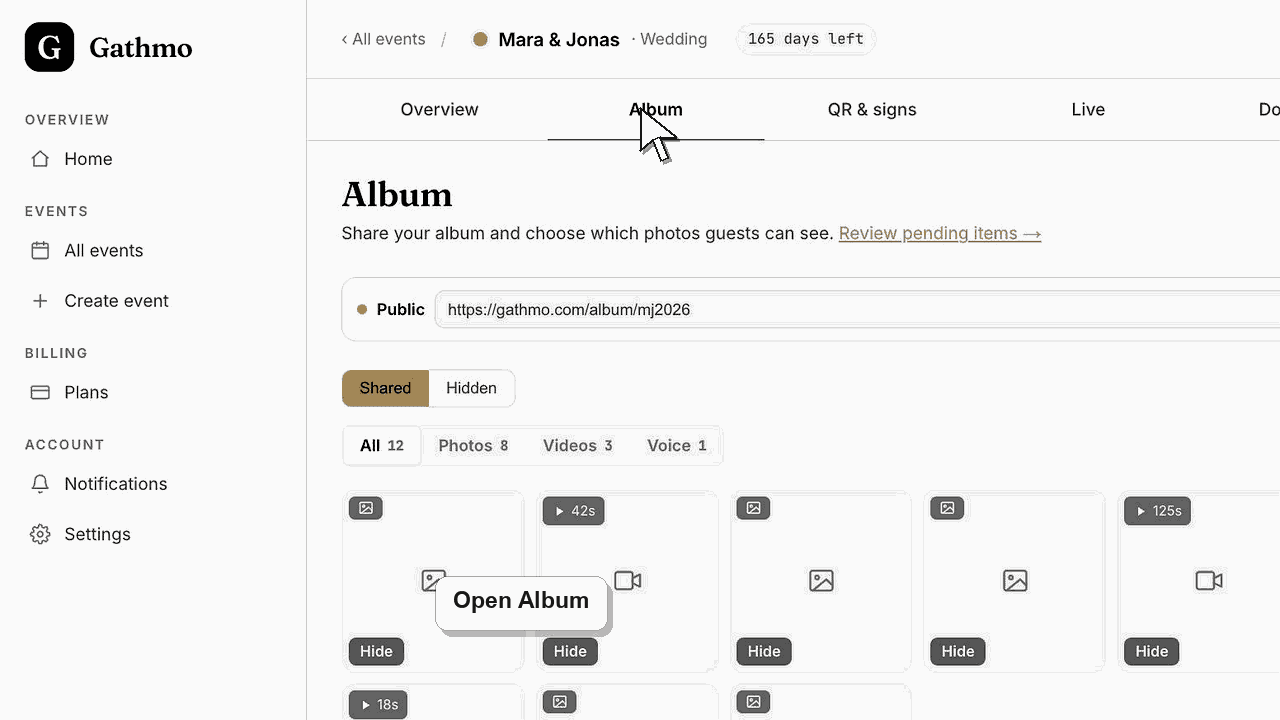
Use the Album options to make the public album visible or private. When the album is private, the link should show nothing until you publish it again.
Before you start
- Open the correct event.
- Decide whether guests should view the album now.
- Approve or hide uploads before publishing the album.
- Open the correct Gathmo event, workspace, or account before making changes.
Steps
1. Open Album
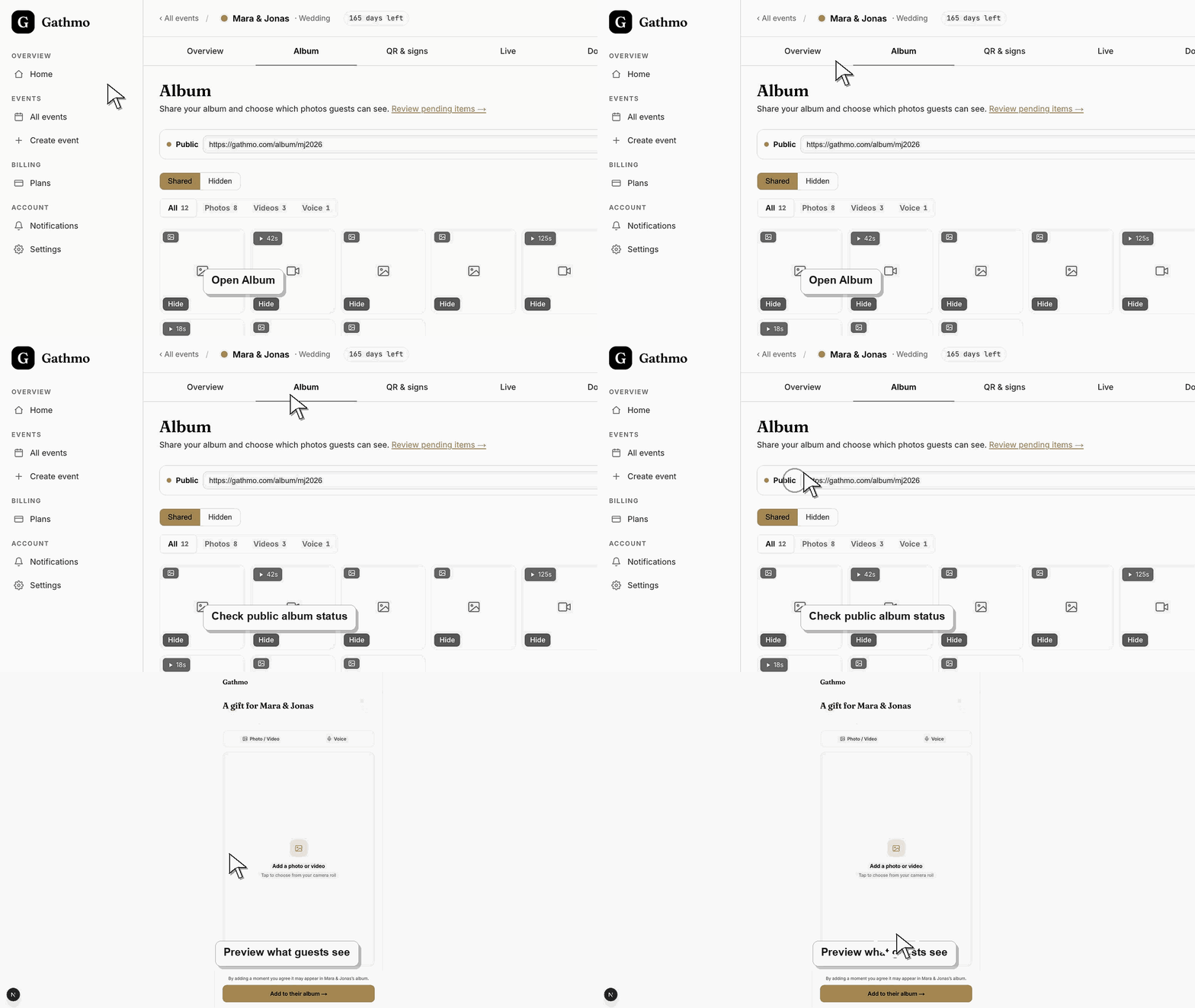
From the event dashboard, open the Album tab. The share area shows whether the album is Public or Private.
2. Open Options
Open the album sharing options. This area contains the Public album toggle and guest download settings.
3. Publish the album
Set the album to Public when guests should be able to view the shared photos through the album link.
4. Hide the album
Set the album to Private when guests should no longer view the shared album. This is useful before review is finished or after the event.
5. Test the album link
Open the album link in a private browser window or on a phone. Confirm what guests can actually see.
What to do next
- When public, anyone with the album link can view visible shared media. When private, the album link should not show the shared media.
- Open the guest-facing gallery after changing moderation or visibility so you see exactly what guests and viewers will see.
- Assign one person to review uploads during live events if the gallery or live wall is visible to guests.
- Use the download article after the event so approved media is exported before any cleanup or deletion work starts.
Frequently asked questions
Does hiding the album delete media?
No. It controls public album visibility. It does not delete event media.
Can I publish the album after the event?
Yes. Publish when the visible media has been reviewed and you want guests to view it.
Can guests download from the album?
Guest downloads are a separate album option and may require additional settings such as a password.
Troubleshooting
Check whether uploads are approved, hidden, or still pending moderation.
Host dashboard visibility is different from public album visibility. Test the album link as a guest.
Changing album visibility controls what the link can show, but it does not remove the link from messages already sent.
Refresh both views, check whether moderation or media-type filters are active, and confirm you are looking at the same event. Pending, hidden, and approved uploads can appear in different places.
Album visibility is a privacy control. Re-test the public album link after changing visibility so guests only see the intended media.
Keep going