Privacy, security, and trust
Keep an event private after the event
Keep a Gathmo album hidden, control the shared link, archive the event, and understand what deletion permanently removes after your event ends.

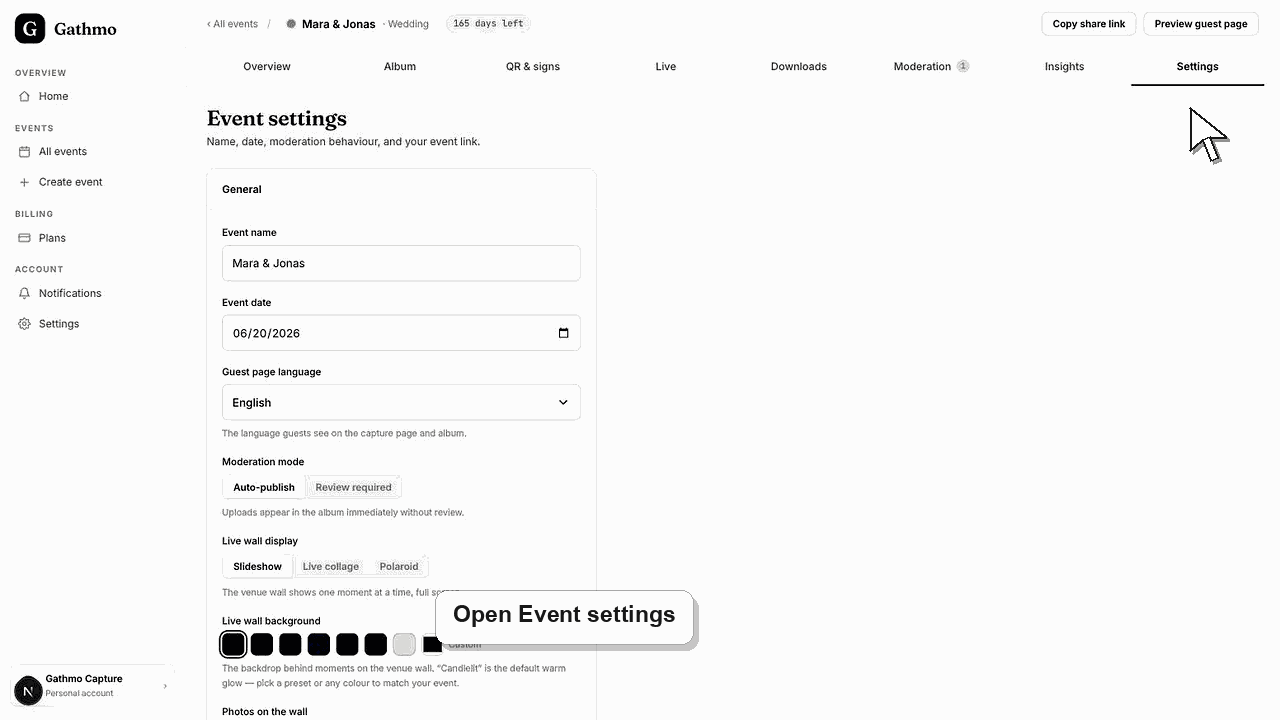
To keep a Gathmo event private after it ends, leave the Public album switch off so the shared link shows nothing, and archive the event to stop new uploads and close guest access. Your media stays stored until the retention date, and deleting the event removes everything permanently.
Access levers at a glance
| Action | Effect on guest access | Reversible |
|---|---|---|
| Album set to private | Album link shows nothing | Yes |
| Hide an item | That item is not shown to guests | Yes, restore it |
| Archive the event | Guest page and uploads stop; media kept | Media stays until retention |
| Delete the event | Everything removed permanently | No |
Before you start
- Decide whether you want to keep the media for yourself, or remove it entirely.
- Download anything you want to keep before you delete the event, because deletion is permanent.
- Have the event open in your Gathmo dashboard.
- Open the correct Gathmo event, workspace, or account before making changes.
Steps
1. Keep the album switched to private
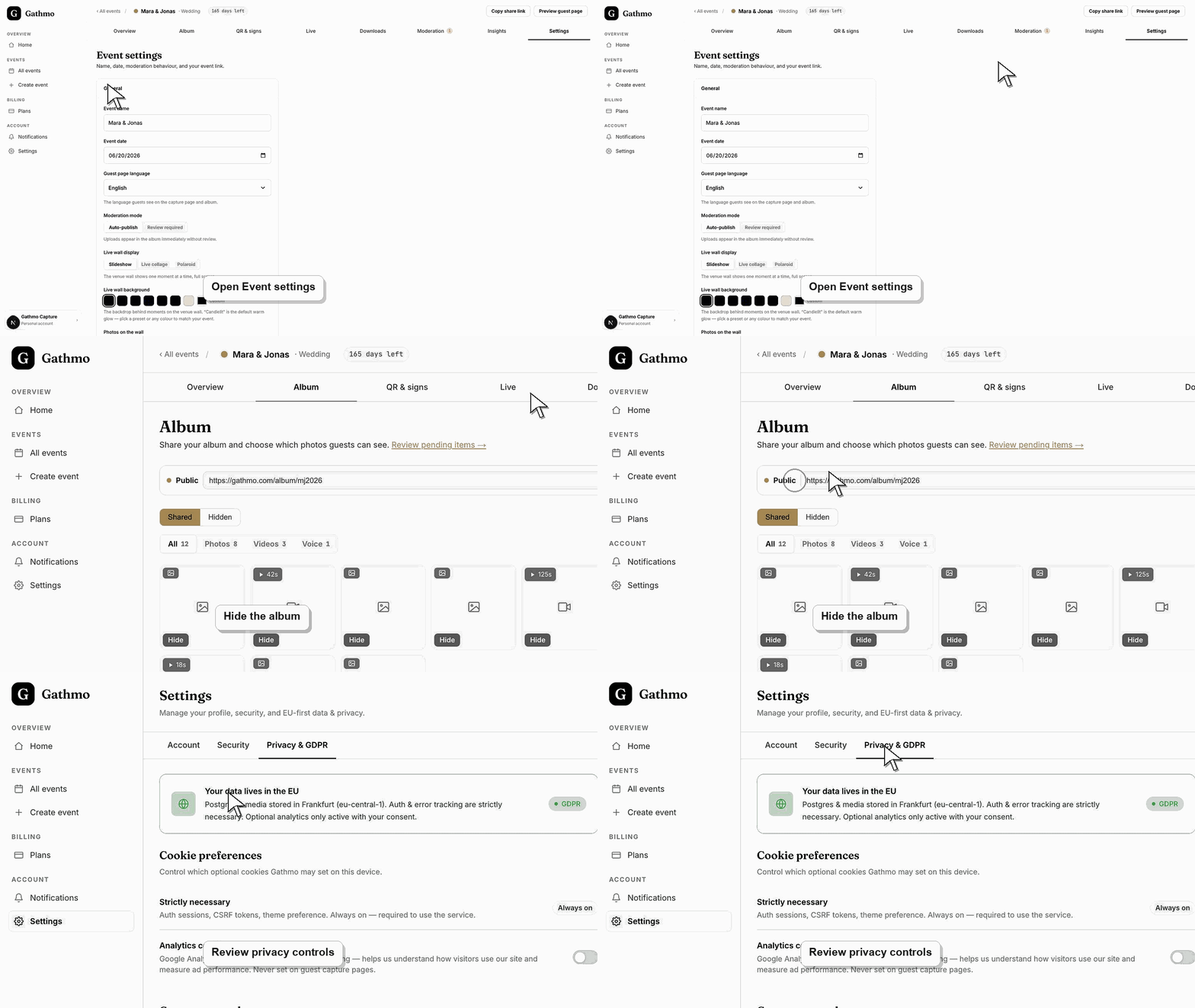
Open the Album tab, select Options, and confirm Public album is off. The status reads Private, which means the album link shows nothing to anyone until you deliberately publish it. This is the first lever that keeps the gallery closed.
2. Hide anything you do not want visible
If the album ever needs to go public, curate first. In the Album tab, hide individual items so they never appear to guests. Hidden media stays in your dashboard and is fully restorable, so you keep control without deleting anything.
3. Archive the event to close guest access
Open the Settings tab and choose Archive event. Guests can no longer open the guest page or upload, and the event leaves your active list. Your media stays stored until the retention date, and your own downloads keep working.
4. Control the shared link
Because the album link uses your event's short code, the only way it exposes media is when the album is public. Keeping it private, or archiving the event, means anyone holding an old link — including reshared ones — sees nothing.
5. Delete the event when you want it gone
For permanent removal, open Settings, choose Delete event, and type the event name to confirm. This deletes the event, all uploaded media, QR codes, and guest links. It cannot be undone, so export anything you need first.
What to do next
- A private, archived event is closed to guests but still yours to download. If you delete it, the media, QR codes, and guest links disappear for good and the event no longer appears anywhere in your dashboard.
- Review the event link, upload permissions, moderation state, and album visibility together because privacy depends on the full workflow.
- Download anything that must be kept before deleting, hiding, or closing access to event media.
- Use business privacy and DPA articles for workspace or procurement questions that go beyond a private host event.
Frequently asked questions
Does keeping the album private hide it from search engines?
Yes. A private album shows no content at its link, so there is nothing for anyone to browse or index. Only media you deliberately publish is viewable.
What is the difference between archiving and deleting?
Archiving closes guest access but keeps your media stored until the retention date, so it is reversible for your own downloads. Deleting permanently removes the event, media, QR codes, and guest links with no recovery.
Who can still reach the event after I archive it?
You can, from your dashboard, including your downloads. Guests cannot open the guest page or upload, and the album link shows nothing while the album stays private.
Troubleshooting
The album is public. Open the Album tab, select Options, and switch Public album off. If you also want to stop the guest upload page, archive the event in Settings.
Archiving keeps your media stored until the retention date, so your downloads still work. Open the Downloads tab to export the files before that date, then delete the event if you no longer need it.
Deletion is permanent by design. Once you confirm by typing the event name, the media, QR codes, and guest links are removed and cannot be recovered. Always download what you need beforehand.
Identify the exact event, upload, and requested outcome first. Then hide, delete, export, or escalate from the dashboard instead of making broad changes without knowing which media is affected.
Gathmo stores your media until the event's retention date, then removes it. Keeping the album private and archiving the event limits exposure while preserving your files. Deletion is the only action that erases everything immediately and permanently.
Keep going