Privacy, security, and trust
Delete an event and understand what is removed
Delete a Gathmo event and understand which uploads, links, albums, and dashboard records are removed or may need legal review.

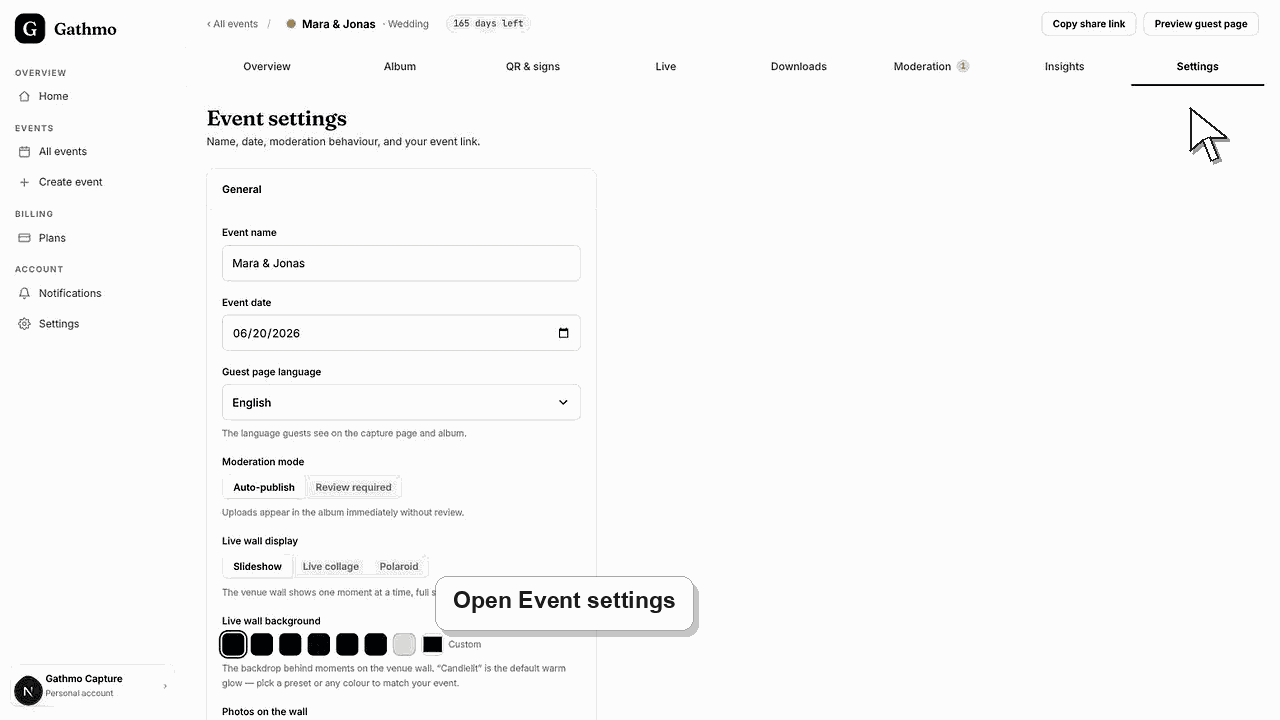
Deleting an event permanently removes the event, uploaded media, QR codes, and guest links. Export anything you need before confirming deletion.
Before you start
- Make sure you are deleting the correct event.
- Download any media you want to keep.
- Tell collaborators before deleting shared event material.
- Understand that deletion cannot be undone from the dashboard.
Steps
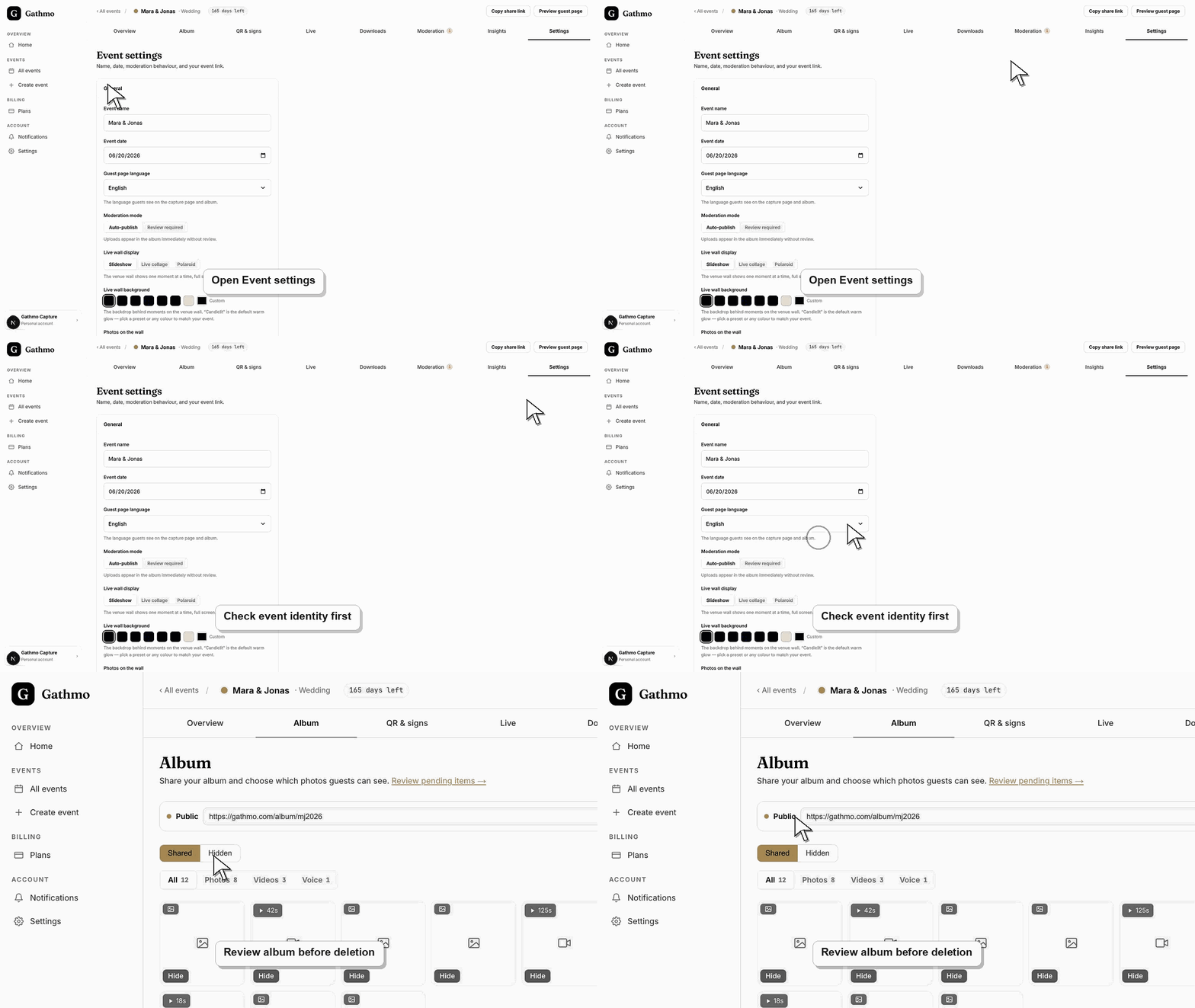
1. Open event settings
Go to the event dashboard and open Settings. Use the event name and date to confirm you are in the correct event.
2. Download media first
If you need a copy of the album, download the media before deleting the event. Deleting first can remove the files you wanted to keep.
3. Open the delete event area
Find the danger zone in event settings. The dashboard explains that deleting removes media, QR codes, and guest links.
4. Type the event name to confirm
The confirmation dialog asks for the event name. This protects against accidental deletion.
5. Confirm permanent deletion
Choose the final delete action only when you are sure. The dashboard will remove the event after the deletion completes.
What to do next
- The event should no longer be available to guests. QR codes and links tied to that event should stop working because the event has been removed.
- Review the event link, upload permissions, moderation state, and album visibility together because privacy depends on the full workflow.
- Download anything that must be kept before deleting, hiding, or closing access to event media.
- Use business privacy and DPA articles for workspace or procurement questions that go beyond a private host event.
Frequently asked questions
Does deleting an event delete guest uploads?
Yes. The dashboard wording says deleting the event deletes all uploaded media.
Does deleting an event delete my account?
No. It deletes the event, not the account.
Should I hide the album instead?
Hide the album when you only want guests to stop viewing it. Delete the event only when the event and media should be removed.
Troubleshooting
Refresh and try again. If deletion still fails, contact support with the event name and account email.
Contact support immediately, but do not assume recovery is possible. Deletion is designed to be permanent.
Old links may still exist in messages, but they should no longer lead to a working event after deletion.
Identify the exact event, upload, and requested outcome first. Then hide, delete, export, or escalate from the dashboard instead of making broad changes without knowing which media is affected.
Deleting an event removes its media, QR codes, and guest links from your dashboard. Backup and retention timing follows Gathmo's privacy documentation, so download anything you want to keep before you delete.
Keep going