Downloading and sharing
Share the final gallery with guests
Publish your Gathmo album after the event so guests can view and download every approved photo and video in original quality from one shared link.

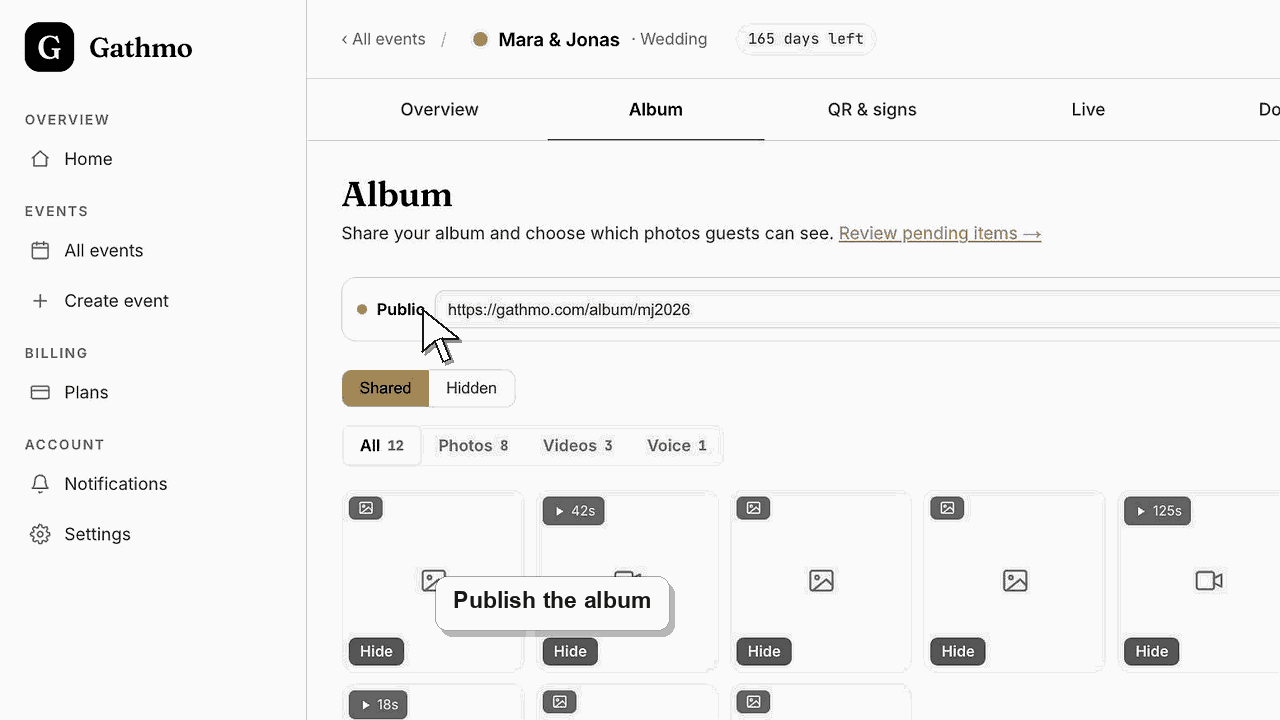
After your event, share the finished gallery by switching the album to Public in the Album tab. Guests then open the album at gathmo.com/album/ followed by your event's short code — the same code your QR points to — and view every approved photo and video. Turn on guest downloads and they can save the files in original quality.
Guest sharing options
| Setting | What guests can do |
|---|---|
| Public album, downloads off | View shared photos and videos in the browser |
| Public album, downloads on, no password | View and download all photos and videos as a ZIP |
| Public album, downloads on, with password | View freely, but need the password to download |
| Private album | See nothing — the link stays empty until you publish |
Before you start
- Approve the uploads you want guests to see in the Moderation tab first.
- Decide whether guests should only view the gallery or also download it.
- Have the event open in your Gathmo dashboard.
- Open the correct Gathmo event, workspace, or account before making changes.
Steps
1. Open the Album tab
In your Gathmo dashboard, open the event and select the Album tab. This is where you see every approved photo, video, and voice message, arranged in the shared grid guests will browse once the album is public.
2. Make the album public
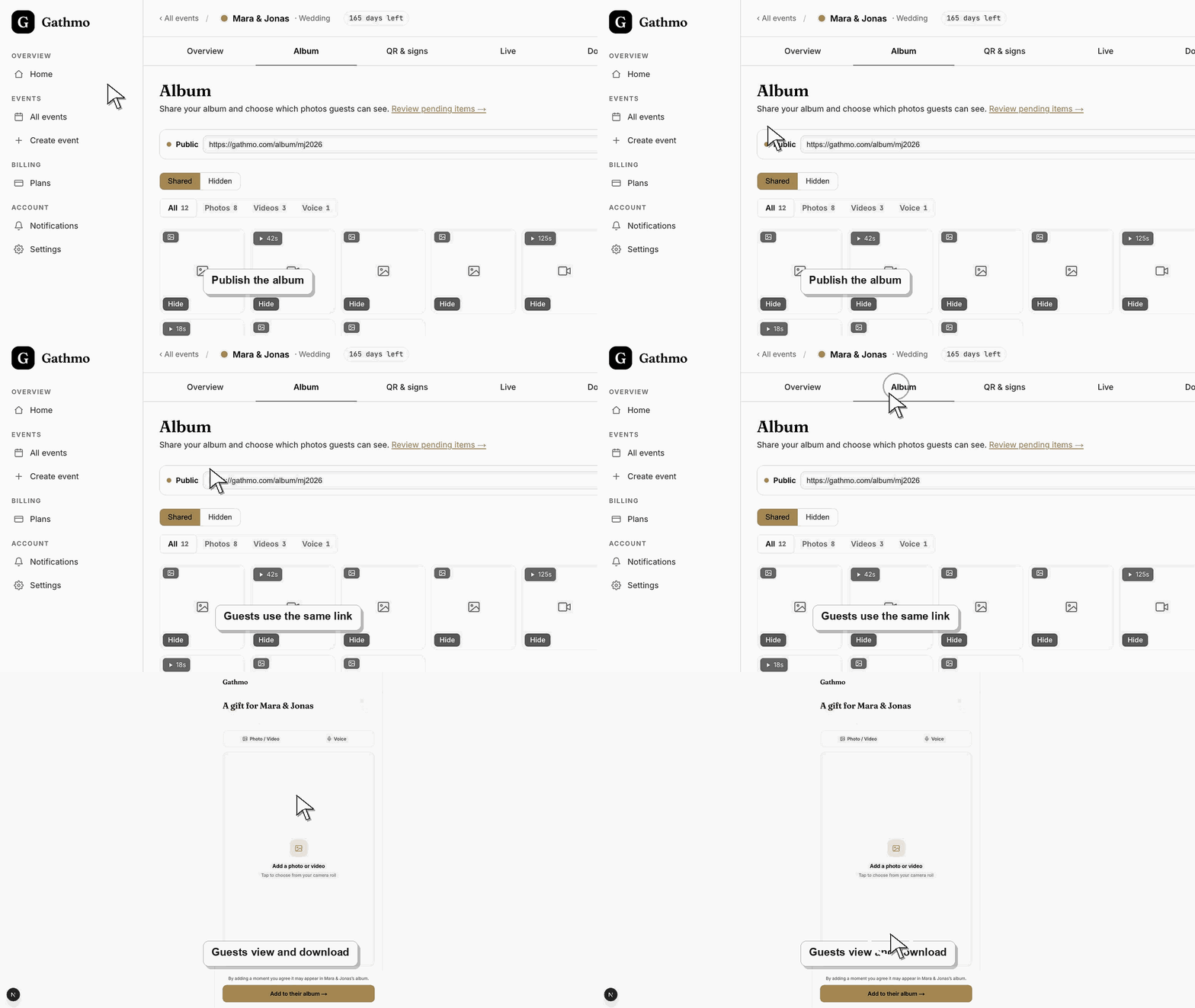
At the top of the Album tab, select Options, then switch Public album on. The status dot turns to Public, meaning anyone with the link can view your shared photos. While it is private, the link shows nothing.
3. Turn on guest downloads
Still under Options, toggle Guest downloads on to let guests save every photo and video as a single ZIP. To restrict access, choose Add password — guests then need that password before the download starts.
4. Copy the shared album link
Use Copy link in the share bar to grab the album URL, which follows the pattern gathmo.com/album/ plus your event's short code. Select Open to preview exactly what guests will land on before you send it anywhere.
5. Send the link to your guests
Paste the album link into a message, email, or group chat. Because it uses the same short code as your event QR, guests who rescan the original QR code reach the published gallery, so you can reuse your printed signs.
6. Curate what stays visible
Switch between the Shared and Hidden views to fine-tune the gallery. Hidden items never appear to guests but stay in your dashboard, so you can restore them later. Only shared, approved media is ever published.
What to do next
- Guests open the link on any phone or computer, browse the gallery, and — when downloads are on — save the files. You can flip the album back to private or hide individual items at any time, and the shared link updates immediately.
- Open the exported files before deleting or hiding event content so you know the download contains what you need.
- Store the export in a secure folder with a clear event name and date so it can be found after the online album window ends.
- Use the retention article if the event includes privacy-sensitive media or if a guest asks for removal after download.
Frequently asked questions
Do guests need an account to view or download the gallery?
No. Guests open the album link in a browser with no app and no login. Gathmo does not ask them to create an account to view photos or save the ZIP.
Are shared photos delivered in full quality?
Yes. When guest downloads are on, the ZIP contains the original files guests uploaded, not compressed previews, so the saved photos and videos keep their full resolution.
Can I stop sharing after I have sent the link?
Yes. Switch Public album off in the Album tab and the link immediately stops showing content. You can republish later, and hidden items stay curated out until you restore them.
Troubleshooting
The album is still private. Open the Album tab, select Options, and switch Public album on. An empty gallery can also mean no uploads are approved yet — approve items in Moderation first.
Guest downloads are off, or a password is set that guests do not have. Open Options, turn Guest downloads on, and either remove the password or share it with the people who need it.
It is probably hidden. Switch to the Hidden view in the Album tab, find the item, and choose Show to move it back into the shared gallery. Rejected uploads never reach the album at all.
Wait for recent uploads to finish processing, check hidden or moderated items, and compare the download with the dashboard count before assuming files were lost.
The public album only ever contains media you have approved and left visible. Hidden and rejected uploads are excluded. Adding a download password is the simplest way to keep the full-resolution files with the people you actually invited.
Keep going