Downloading and sharing
Download all event media
Download all Gathmo event media after the event, including photos, videos, and voice messages, and store exports securely.

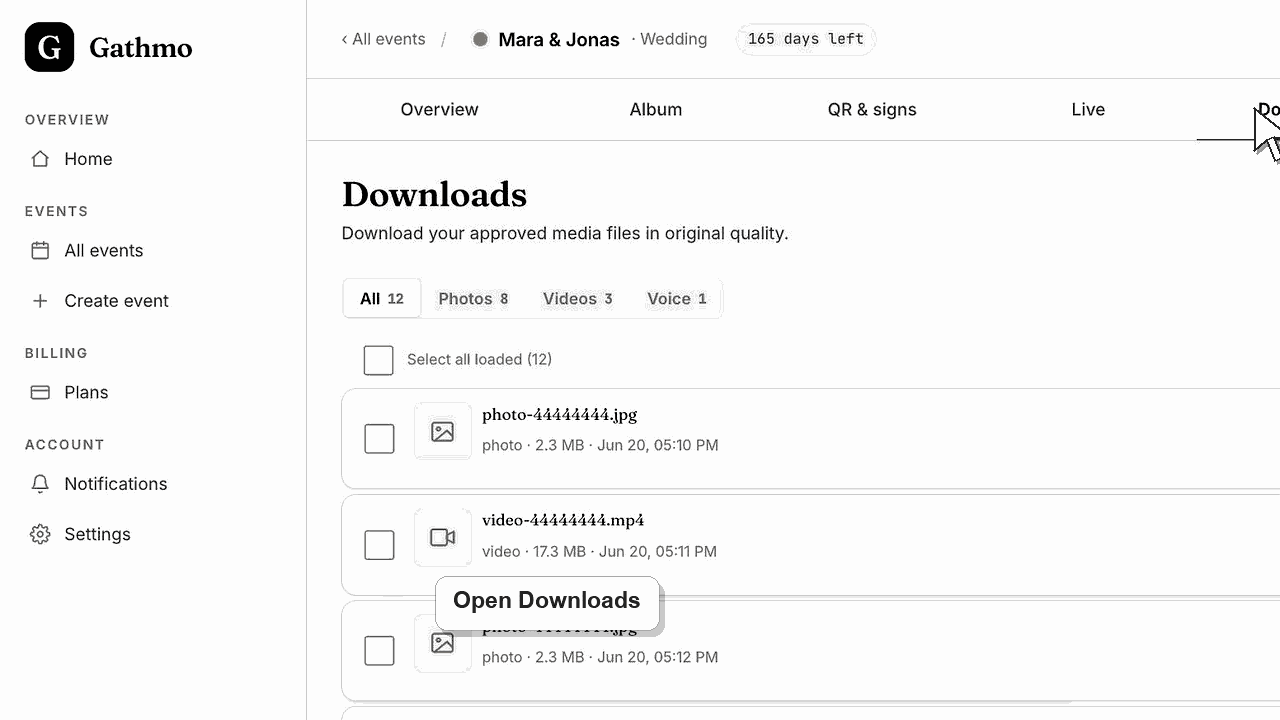
After the event, open the dashboard and use the download option to export the collected event media.
Before you start
- Open the correct event in the Gathmo dashboard.
- Wait until recent uploads have finished processing.
- Decide where the exported files should be stored securely after download.
- Open the correct Gathmo event, workspace, or account before making changes.
Steps
Open the event downloads area
Select the event you want to export and open the dashboard area for downloads or media exports. Confirm the event name and date before starting the download.
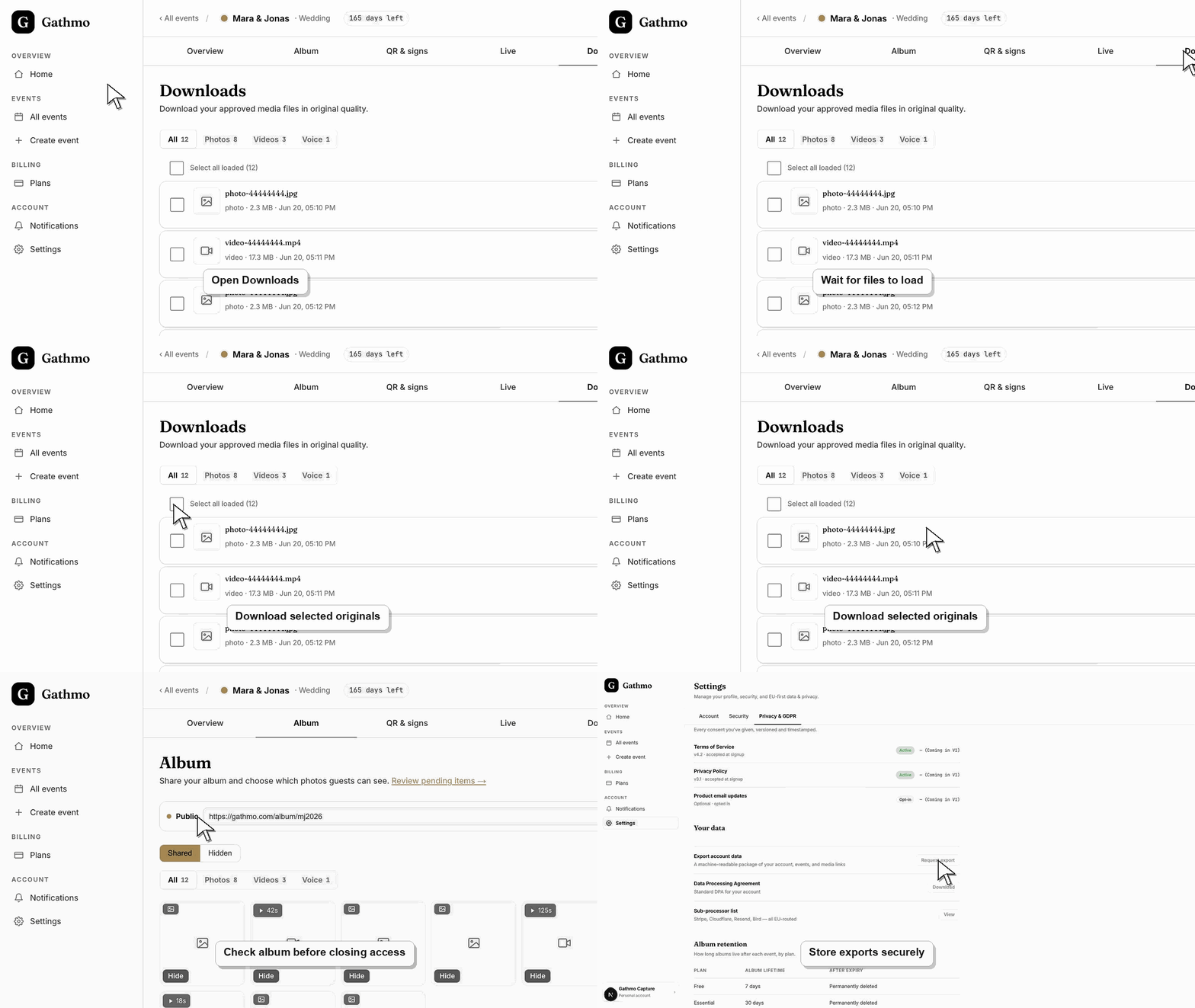
Check upload and moderation status
Review whether recent uploads are still processing, hidden, or waiting for moderation. A complete export depends on the files being available in the event workflow.
Start the full media download
Use the download action for the event media export. Keep the browser open while the export starts, especially if the event contains videos or many guest uploads.
Open and verify the export
After the download finishes, open the folder or ZIP and spot-check photos, videos, and voice messages. This confirms the export is usable before online access changes.
Store the files securely
Move the export to a named event folder and keep a backup if the media is important. Share the files only with people who should receive the event media.
What to do next
- Back up the export before deleting, hiding, or closing access to event media.
- Use selective downloads if only some files should be sent to a guest, client, or vendor.
- Review the retention and deletion article for privacy-sensitive event media.
- Open the exported files before deleting or hiding event content so you know the download contains what you need.
Frequently asked questions
Can I download all Gathmo event media at once?
Use the event download option to export the available media for that event. Check processing status if recent uploads are missing.
What should I do before deleting an event?
Download and verify any photos, videos, or voice messages you need to keep before deleting the event or closing access.
Does the download include hidden uploads?
Check the dashboard export behavior before relying on hidden or moderated files. If something is missing, review moderation and processing status.
How should I store downloaded event media?
Store exports in a secure place and only share them with people who should receive the guest media.
Troubleshooting
Check whether the upload is still processing, hidden by moderation, or filtered out by the selected download option. Re-run the export after the dashboard count looks complete.
Use a stable connection, keep the browser open, and try again from the event dashboard. For large events, avoid starting the export on weak venue Wi-Fi.
Compare the files against the dashboard gallery and downloads view. If the counts still do not match, contact support with the event name, export time, and missing media type.
Wait for recent uploads to finish processing, check hidden or moderated items, and compare the download with the dashboard count before assuming files were lost.
Downloaded files are no longer protected only by the Gathmo gallery settings. Store exports securely and avoid forwarding raw guest media to people who should not receive it.
Keep going