Gallery and moderation
Approve, reject, flag, and bulk-approve guest uploads
Approve, reject, or flag pending guest uploads in Gathmo Moderation, or use Approve all to publish the whole queue to your album at once.

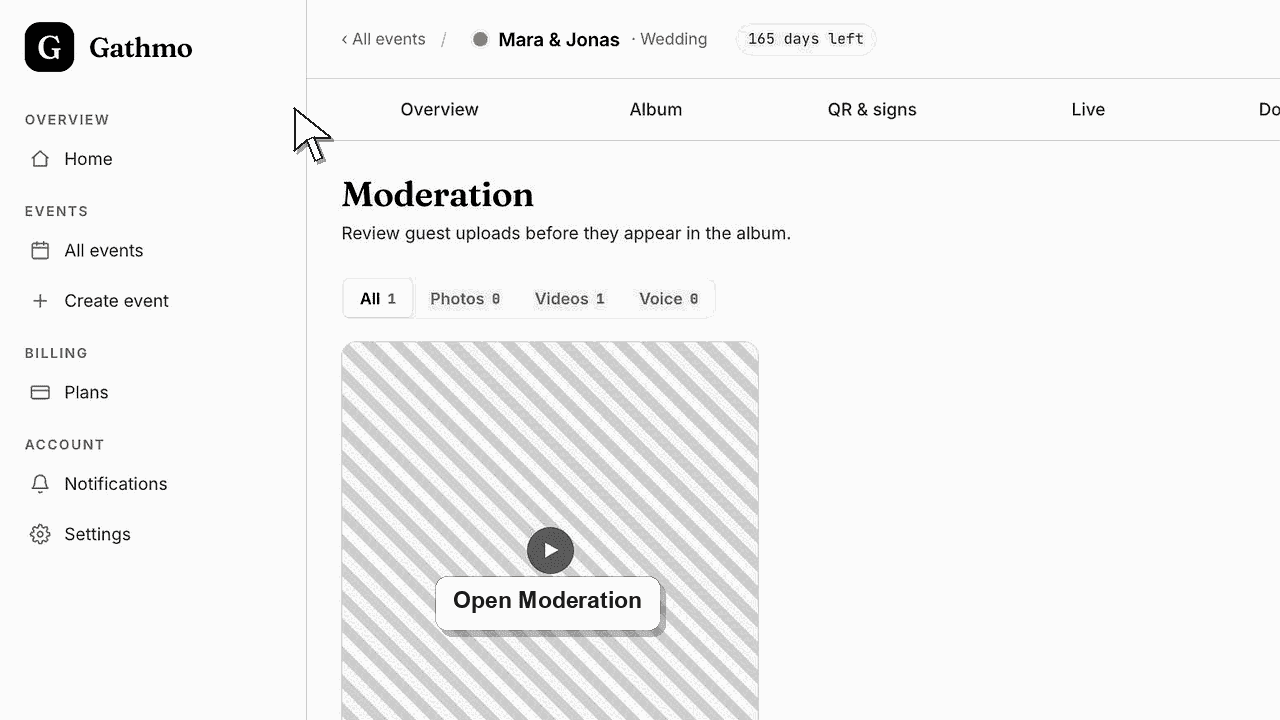
Open the Moderation tab in Gathmo. Every pending guest upload has three per-item actions — Approve, which publishes it to the album; Reject, which keeps it out; and Flag, which sets it aside for a closer look. To clear the whole queue in one move, use Approve all, which publishes every pending upload after a confirmation.
What each action does
| Action | What it does |
|---|---|
| Approve | Publishes the upload to the album and makes it eligible for the live wall |
| Reject | Keeps the upload out of the album entirely |
| Flag | Sets the upload aside for review without publishing it |
| Approve all | Publishes every pending upload after a confirmation |
Before you start
- Set the event to Review required in Settings, otherwise uploads auto-publish and never reach this queue.
- Open the correct event, then open its Moderation tab.
- Decide whether you want to review item by item or approve the whole batch at once.
- Open the correct Gathmo event, workspace, or account before making changes.
Steps
1. Open the Moderation tab
From the event dashboard, open the Moderation tab. It lists every guest upload waiting for a decision as a grid of thumbnails, newest first, each showing the guest token and how long ago the item arrived.
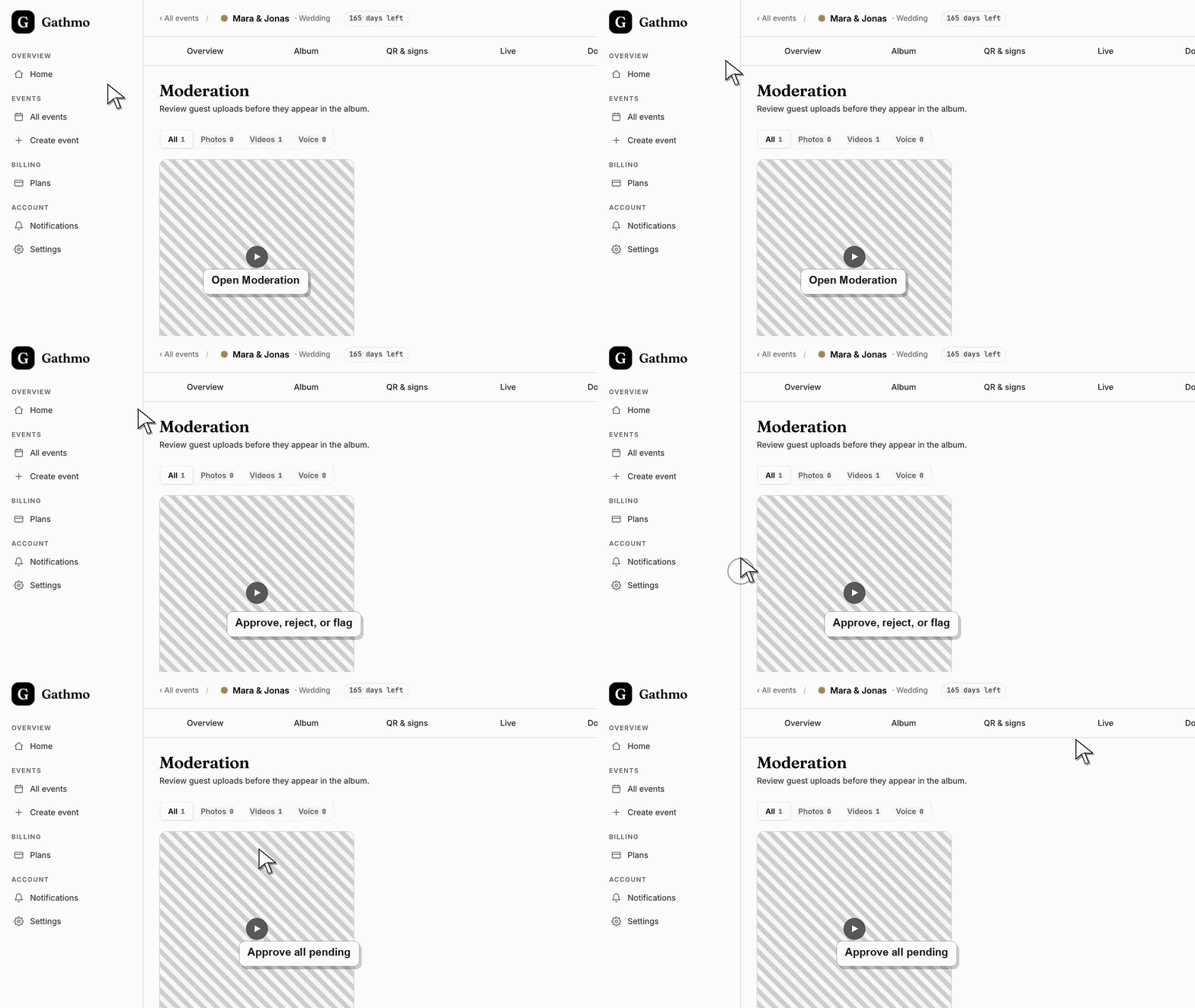
2. Approve an upload
Click Approve on any card to publish that item. Approved photos, videos, and voice messages move straight into the album and, if a live wall is running for the event, become eligible to appear on the shared screen.
3. Reject or flag an upload
Click Reject to keep an upload out of the album entirely. Click the flag icon to mark an item for a closer look — flagging removes it from the pending queue without publishing it, so nothing you are unsure about slips through to guests.
4. Review details before deciding
Click a thumbnail to open the detail panel. It shows a larger preview plus the guest token, upload time, file size, and dimensions, with its own Approve and Reject buttons so you can decide without leaving the panel.
5. Filter the queue by media type
Use the All, Photos, Videos, and Voice filter to focus on one kind of media. The count beside each label tells you how many pending items of that type are in the queue right now, which helps when a busy event fills the grid.
6. Publish everything with Approve all
When you trust the whole batch, click Approve all. Gathmo asks you to confirm, then publishes every pending upload to the album at once and makes them visible to your guests immediately. Use this only when nothing needs a second look.
What to do next
- Approved media appears in the Album tab and the public album, and the live wall shows only approved items. The queue shrinks as you decide; when nothing is left it reads "All caught up!". Rejected and flagged uploads never reach your guests.
- Open the guest-facing gallery after changing moderation or visibility so you see exactly what guests and viewers will see.
- Assign one person to review uploads during live events if the gallery or live wall is visible to guests.
- Use the download article after the event so approved media is exported before any cleanup or deletion work starts.
Frequently asked questions
What is the difference between reject and flag?
Reject is a final decision to keep an upload out of the album. Flag sets an item aside without publishing it, so you can step away and return to a smaller queue when you have time to judge it properly.
Does Approve all include items I already rejected or flagged?
No. Approve all only publishes uploads still waiting in the pending queue. Anything you have already rejected or flagged has left the queue, so the bulk action does not touch it.
Where do approved uploads go?
Straight into the event album, where they also become eligible for the live wall. Only approved media is ever shown to guests, in the album or on a shared screen.
Can I approve just the photos and leave videos pending?
Yes. Approve each photo individually, using the Photos filter to view only photos. Remember that Approve all always publishes the whole queue, so use per-item approval when you want to hold some media back.
Troubleshooting
Approve all publishes the entire pending queue, not just the media type you have filtered. The filter only changes what you are viewing; the bulk action always covers every pending upload. Approve items one by one when you want a subset.
The event is probably on Auto-publish, so uploads skip moderation and go straight to the album. Switch to Review required in Settings if you want new uploads to arrive in this queue for approval.
Approving cannot be undone from the queue. Open the Album tab instead, where you can hide the item so guests stop seeing it, or delete it from the event entirely if it should never have been published.
Flagging records the decision and removes the card from the pending queue. The item is not published to the album; it simply leaves the list of uploads still awaiting a decision, so a shorter queue is the expected result.
Gallery, moderation, and album changes can affect what guests see. Re-check the guest page after changing visibility settings.
Keep going