Gallery and moderation
Use the live gallery during an event
Use the Gathmo live gallery during an event, decide what appears publicly, and check moderation before showing uploads on a screen.

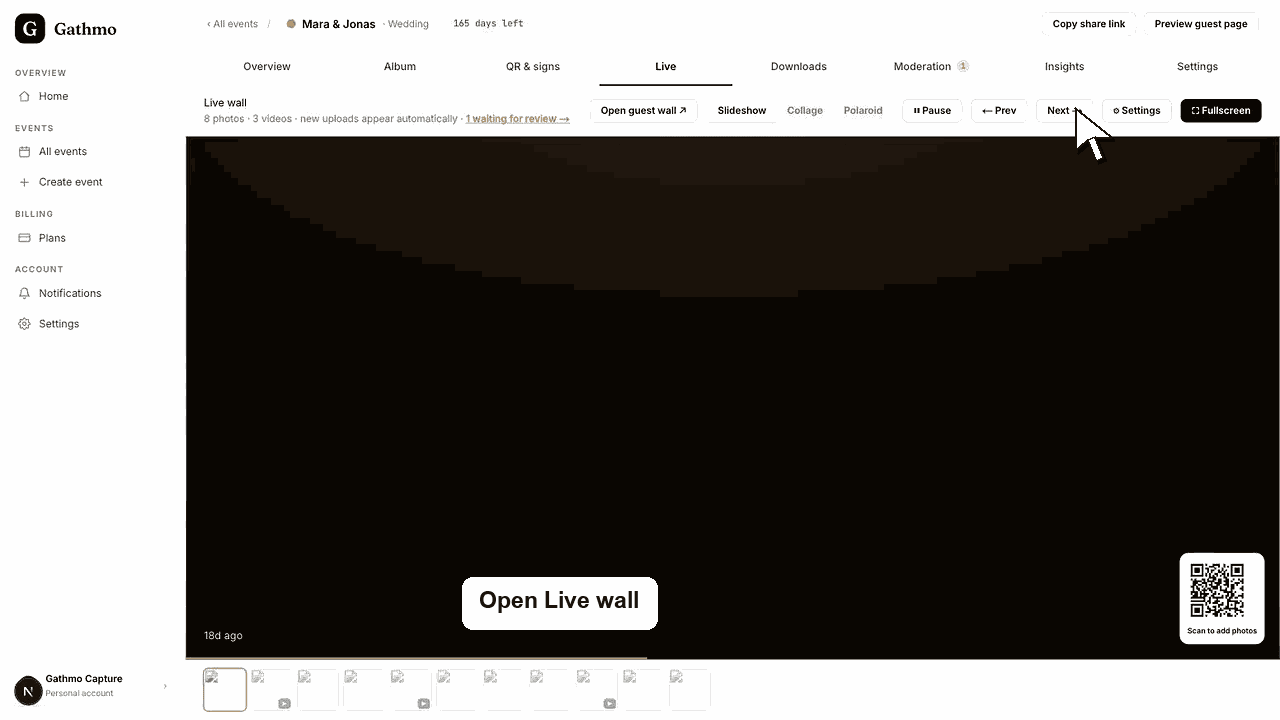
Use the live gallery when approved photos and videos should appear on a screen during the event. Test it before guests arrive, especially if moderation is enabled.
Before you start
- Confirm the event plan includes the live wall or live gallery feature.
- Connect the display device to stable Wi-Fi and power.
- Add a few test uploads before opening the display full screen.
- Open the correct Gathmo event, workspace, or account before making changes.
Steps
1. Open the event dashboard
Go to the event you want to show on the screen. Confirm that the event is active and accepting uploads.
2. Check moderation settings
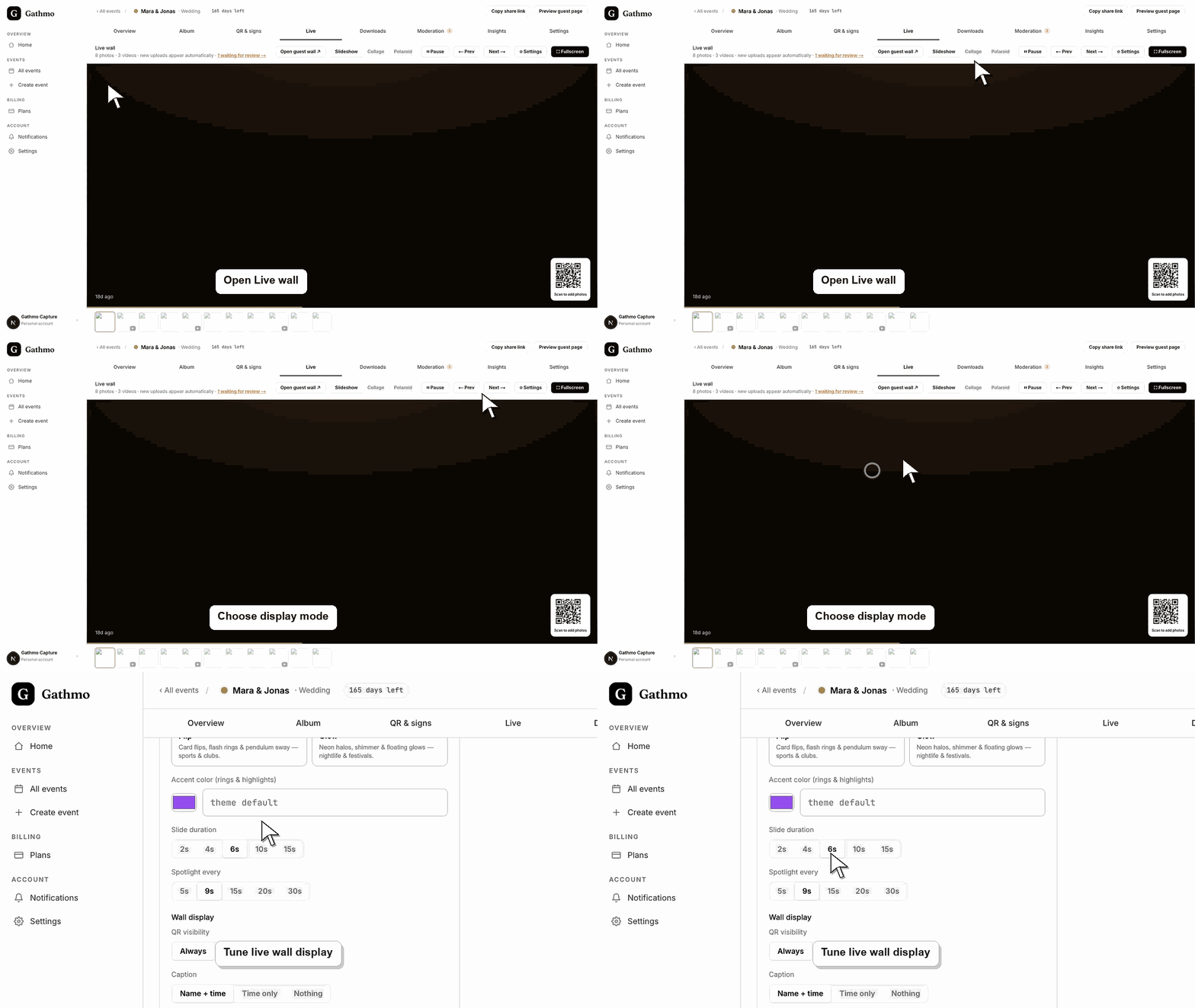
If moderation is set to review required, approve a few uploads before opening the live gallery. Pending uploads do not appear until they are approved. Use review mode for public screens when you need control over what appears.
3. Open the Live Wall or live gallery page
Open the live display from the event dashboard. Choose a display mode that fits the event screen, such as slideshow, mosaic, or polaroid.
4. Configure QR and captions
Choose whether the QR code should always show, show only while idle, or stay hidden. Choose caption settings based on how much guest context should appear on the screen.
5. Test full-screen display
Put the browser in full-screen mode and watch at least one full cycle. Confirm that photos, videos, captions, and the QR code do not overlap.
What to do next
- Approved uploads can appear on the event screen while guests continue scanning and uploading. If moderation is enabled, keep the moderation queue open on another device.
- Open the guest-facing gallery after changing moderation or visibility so you see exactly what guests and viewers will see.
- Assign one person to review uploads during live events if the gallery or live wall is visible to guests.
- Use the download article after the event so approved media is exported before any cleanup or deletion work starts.
Frequently asked questions
Can videos appear in the live gallery?
Yes, approved videos can appear when video support is enabled and the file has processed.
Should I use moderation with the live gallery?
Use moderation when the screen is public or sensitive. Auto-publish is faster, but review mode gives the host control.
Can guests scan from the live gallery screen?
Yes, when the display shows the QR code. Test the screen from the expected viewing distance.
Troubleshooting
Check whether uploads are approved, hidden, still processing, or attached to a different event.
Open Moderation and approve them.
Change the QR visibility setting or move to a display mode that leaves more space for the media.
Refresh both views, check whether moderation or media-type filters are active, and confirm you are looking at the same event. Pending, hidden, and approved uploads can appear in different places.
The live gallery can make guest uploads visible to everyone in the room. Use moderation for weddings, corporate events, public venues, or any event where uploads need review before display. Plan limits and live-gallery behavior should match the current event settings before the event starts.
Keep going