Dashboard functions
Configure the live wall
Configure the Gathmo live wall for an event screen, choose the right visibility settings, and test the display before guests arrive.

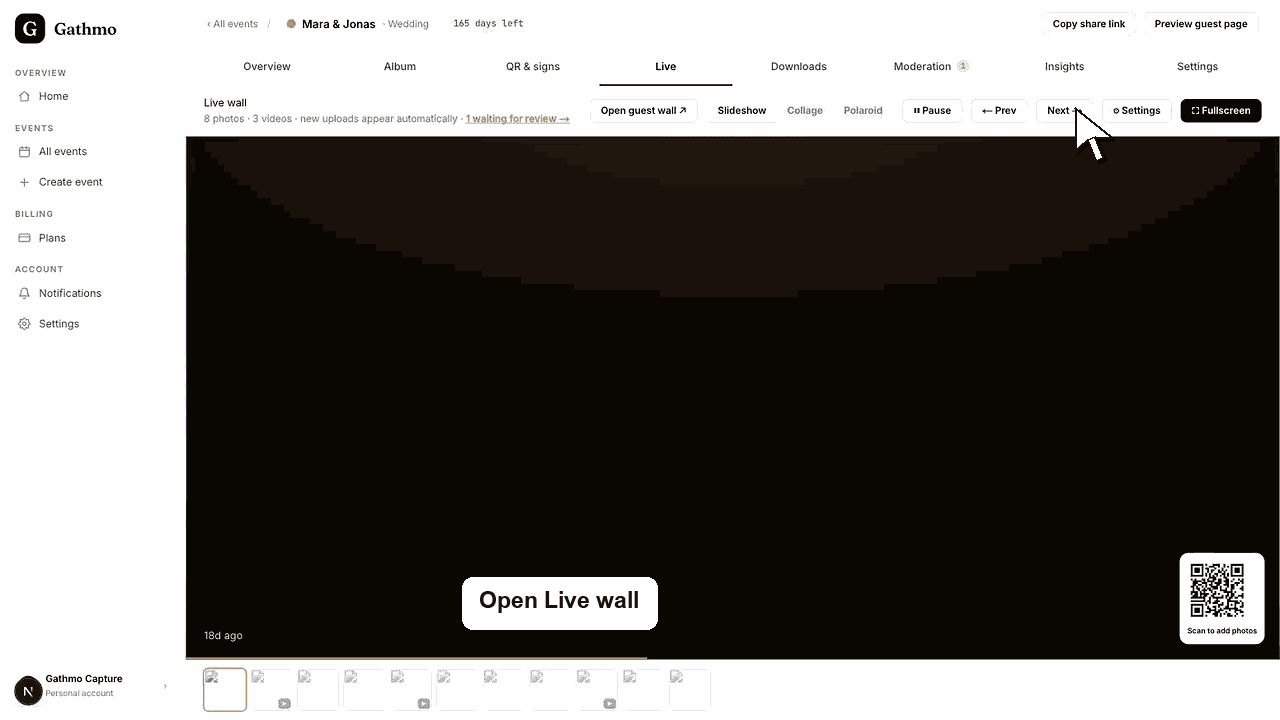
Configure the live wall from event Settings or the Live tab. Choose display mode, background, animation, QR visibility, captions, and timing before showing it on a venue screen.
Before you start
- Confirm the event plan includes the live wall.
- Approve a few test uploads.
- Connect the display device to stable power and internet.
- Open the correct Gathmo event, workspace, or account before making changes.
Steps
1. Open Settings or Live
Open the event dashboard and go to Settings or Live. Both surfaces use the same live wall settings.
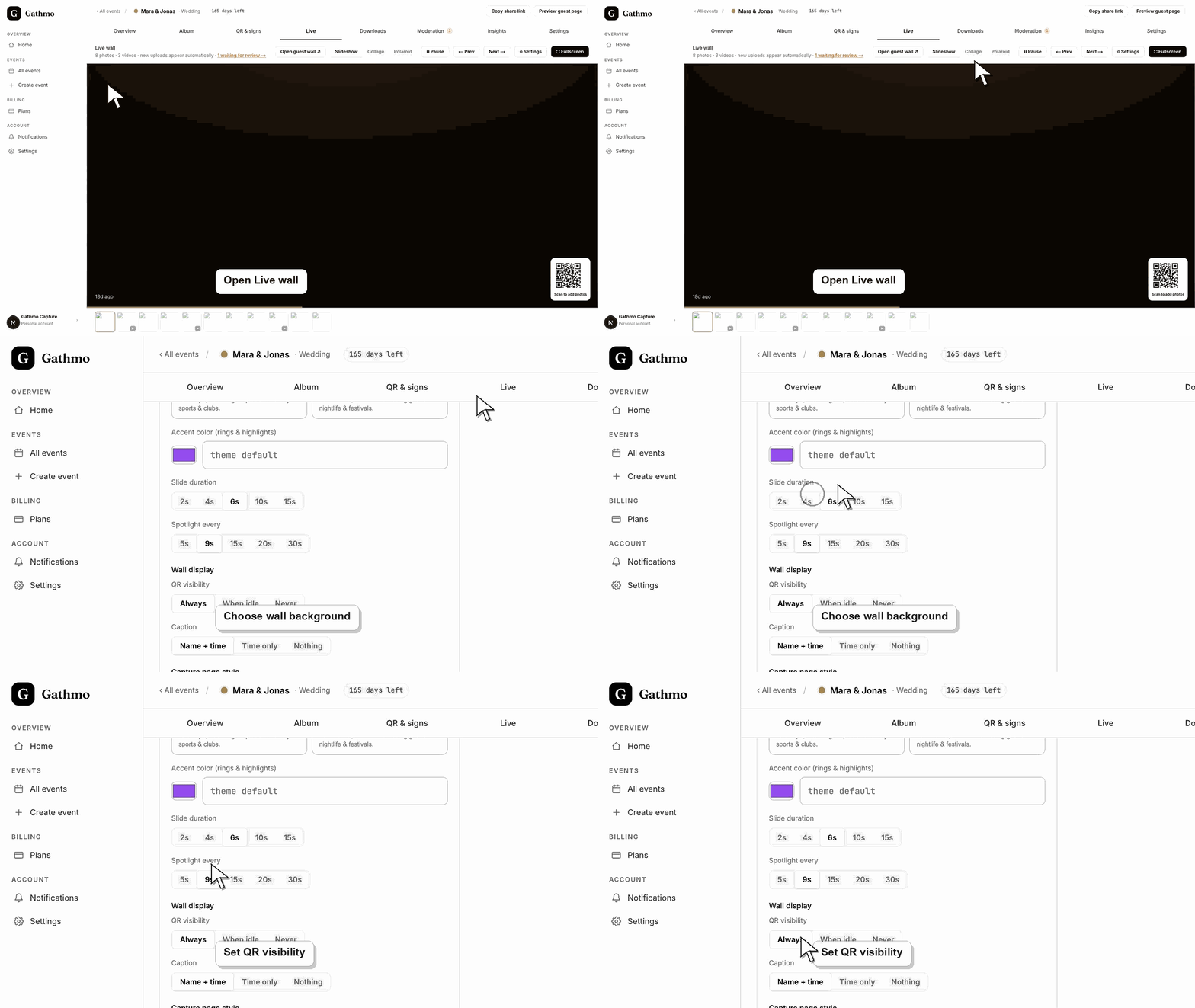
2. Choose display mode
Choose Slideshow, Live collage, or Polaroid. Slideshow shows one moment at a time. Live collage shows a grid. Polaroid creates a pinboard-style display.
3. Choose background and styling
Pick a preset, solid color, gradient, or animated background. Keep contrast high so photos, videos, captions, and QR code remain readable.
4. Set QR and caption behavior
Choose whether the QR code appears always, only while idle, or never. Choose caption behavior based on what should be visible to the room.
5. Test full-screen
Open the live wall full-screen and watch a complete cycle. Confirm that media loads, videos behave correctly, and the QR code is scannable.
What to do next
- The live wall can show approved media while guests continue uploading. Keep Moderation open if uploads need review before appearing.
- Open the public guest link after changing dashboard settings so you can verify the change from a guest perspective.
- Tell any co-hosts what changed, especially if the setting affects QR codes, moderation, album visibility, downloads, or live wall behavior.
- Use related troubleshooting articles if the saved dashboard state does not match the public event view.
Frequently asked questions
Which display mode should I use?
Use Slideshow for a focused screen, Live collage for a busy event screen, and Polaroid for a more informal keepsake look.
Can the QR code stay visible on the wall?
Yes. Use the QR visibility setting to control whether it always appears, appears while idle, or stays hidden.
Should I configure the live wall on event day?
Configure it before event day, then do a short final test at the venue.
Troubleshooting
Approve uploads and confirm they are not hidden. The live wall needs eligible media to display.
Change QR visibility, display mode, or screen layout. Test from the guest viewing distance.
Check browser autoplay behavior, connection, and whether the video has finished processing.
Refresh the guest page, confirm the browser is opening the current event link, and check whether the public view has filters or moderation state that explain the difference.
Use review-required moderation for live public screens. Guests may not expect every upload to appear instantly in a room.
Keep going