Dashboard functions
Change moderation after creating an event
Change Gathmo moderation after creating an event, understand what happens to pending uploads, and test the gallery again.

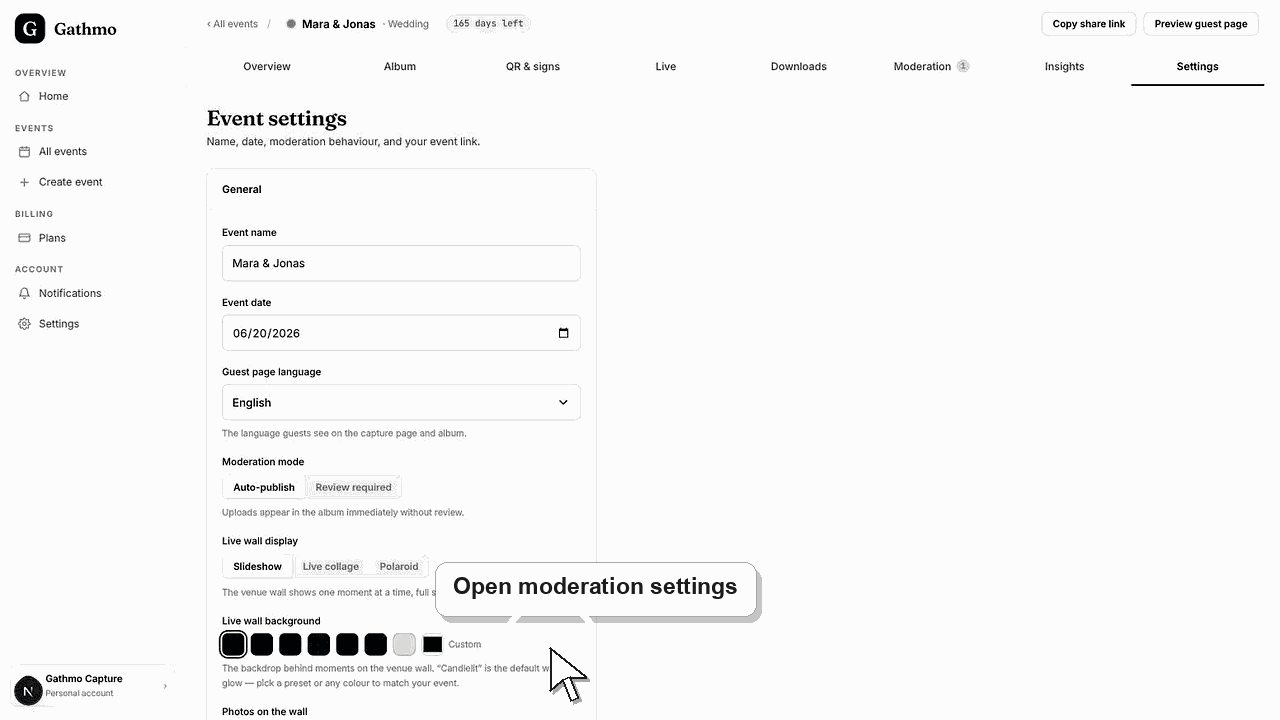
Use Settings to switch between auto-publish and review-required moderation. Use review-required mode when uploads should not appear until you approve them.
Before you start
- Decide whether speed or control matters more for the event.
- Open the correct event.
- Check whether the event already has pending uploads.
- Open the correct Gathmo event, workspace, or account before making changes.
Steps
1. Open event Settings
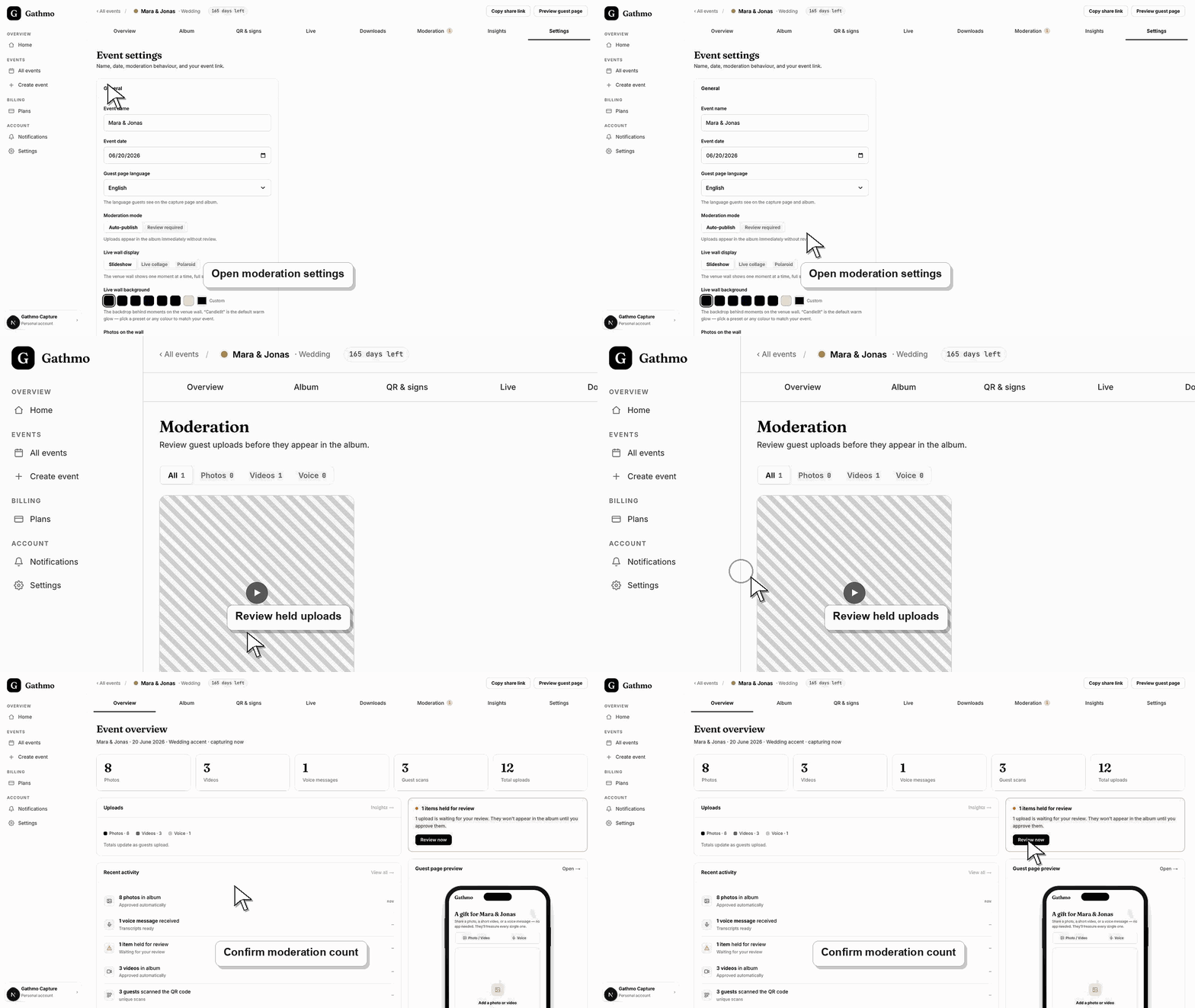
From the event dashboard, open Settings and find Moderation mode.
2. Choose Auto-publish for speed
Auto-publish lets uploads appear in the album immediately without review. Use it for trusted private events when speed matters.
3. Choose Review required for control
Review required keeps uploads out of the album until you approve them. Use it for live screens, business events, public venues, or sensitive audiences.
4. Save and check Moderation
After changing moderation mode, open Moderation and check whether uploads are pending review.
5. Test as a guest
Upload one test item and confirm whether it appears immediately or waits for approval.
What to do next
- Future uploads follow the selected moderation mode. Existing uploaded media may still need separate review, hide, restore, or delete actions.
- Open the public guest link after changing dashboard settings so you can verify the change from a guest perspective.
- Tell any co-hosts what changed, especially if the setting affects QR codes, moderation, album visibility, downloads, or live wall behavior.
- Use related troubleshooting articles if the saved dashboard state does not match the public event view.
Frequently asked questions
Which mode should I use for weddings?
Use auto-publish for trusted guest albums. Use review required if the album or live wall will be shown publicly during the event.
Does moderation delete uploads?
No. Moderation controls whether uploads are approved, rejected, or flagged. Deletion is a separate action.
Can I change moderation during the event?
Yes. Test the behavior after changing it so the host team knows what to expect.
Troubleshooting
Open Moderation and approve the uploads you want to publish.
Check whether auto-publish was enabled when the upload arrived.
Approve pending uploads first. The live wall only shows media eligible for display.
Refresh the guest page, confirm the browser is opening the current event link, and check whether the public view has filters or moderation state that explain the difference.
Use review-required mode when uploaded media could expose guests, employees, children, private venues, or sensitive event moments.
Keep going