Guest uploads
Add existing, professional, and cloud-stored media to an event
Upload professional photos and existing media through the Gathmo guest or host browser flow, including cloud-backed files, while preserving access and usage…

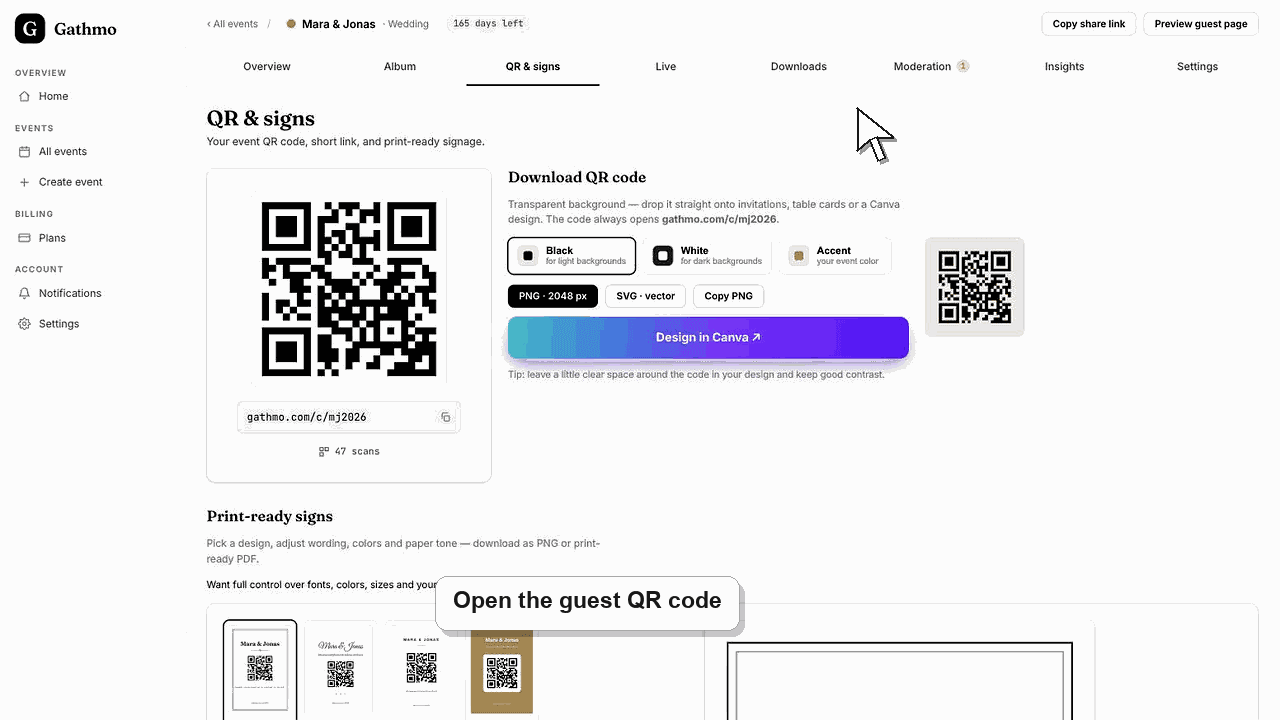
Hosts and authorized contributors can add existing professional photos, videos, or voice files through the same browser upload flow used by guests. Gathmo does not currently pull an entire iCloud, Google Photos, or shared album directly; the files must be selected through a device picker or uploaded from a computer.
Before you start
- Obtain the photographer's or creator's permission to upload and share the files.
- Download cloud-only originals to the device when the file picker cannot fetch them reliably.
- Check file types, video duration, event storage, and remaining retention time.
- Open the correct Gathmo event, workspace, or account before making changes.
Steps
1. Open the correct event upload page
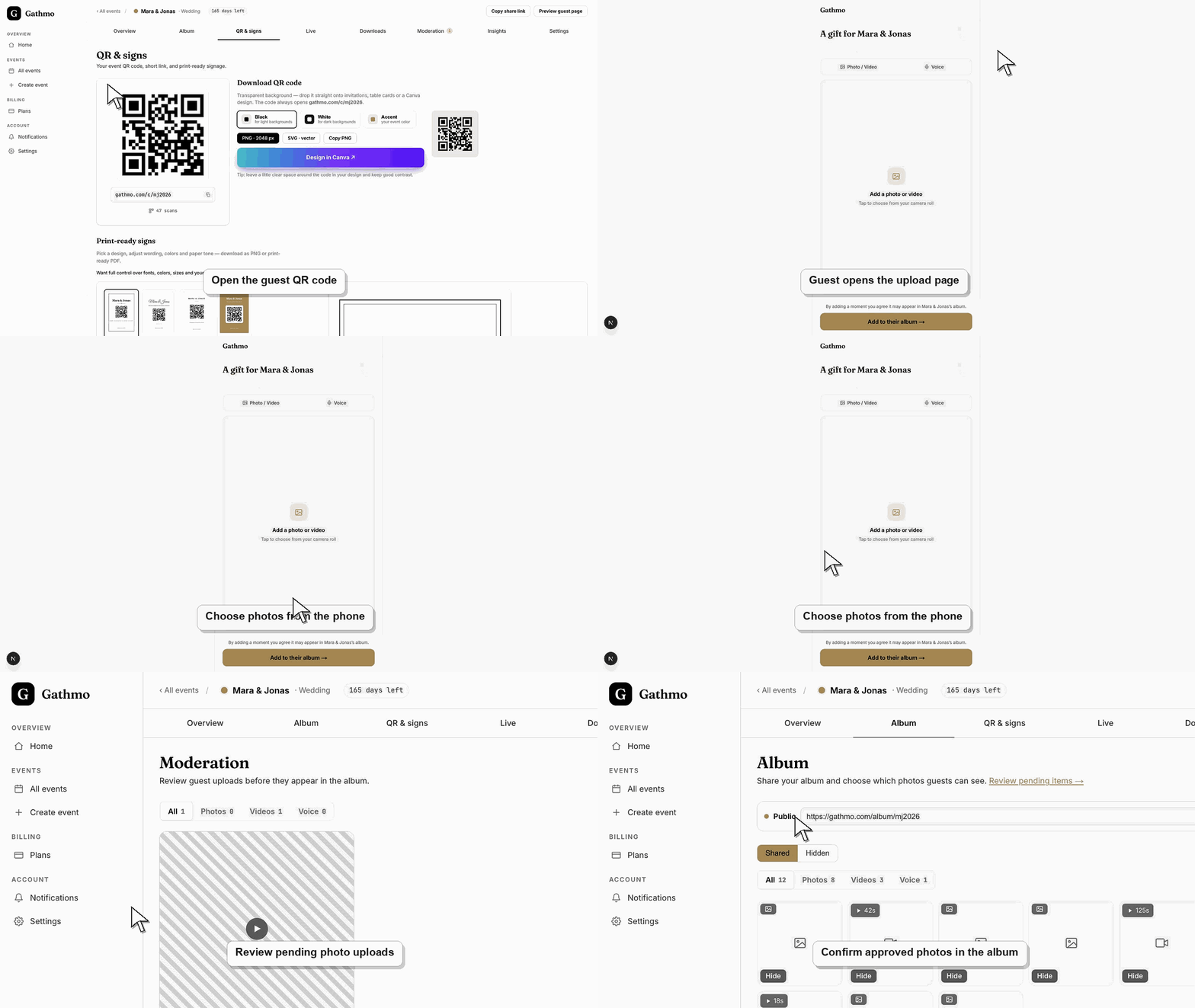
Use the event's QR code or link and verify the event name before selecting files. A host can also use the supported dashboard workflow if an upload control is available there.
2. Prepare the original files
Collect the final professional exports rather than screenshots or messaging-app copies. Keep filenames and capture dates where they help the host organize the delivery.
3. Make cloud files locally accessible
For iCloud Photos, Google Photos, Dropbox, or another cloud source, open or download the intended originals first. Then select them through the operating system's Photos or Files picker.
4. Upload in manageable batches
Choose a smaller batch when the collection includes large images or videos. Keep the browser open until all progress indicators complete, and avoid switching networks mid-upload.
5. Review moderation and ordering
Open the host dashboard and confirm the files arrived in the correct event. Approve, hide, reject, or delete them as needed before publishing the guest gallery or live wall.
6. Verify the guest-visible result
Open the gallery in a private browser window and check image quality, captions or metadata behavior, and visibility. Download a sample to verify the delivered original meets expectations.
What to do next
- Professional and guest media can live in the same event album.
- Approved media can be shared in the gallery or live wall according to settings.
- Export the final collection before the event's retention deadline.
- Run one guest upload from an iPhone and one from Android if the event team has both available before the event.
Frequently asked questions
Can I add the professional photographer's photos?
Yes, when you have permission and the files meet the event's supported formats and limits. Upload them from a browser and review visibility before sharing.
Can I import an entire Google Photos or iCloud album?
Not through a direct server integration. Download or make the originals accessible through the device picker, then upload them in manageable batches.
Will professional and guest photos appear together?
They can appear in the same event album. Moderation and visibility settings determine what guests see.
Does Gathmo compress the originals?
Use a sample upload and download to verify the current file behavior for your workflow. Avoid screenshots and messaging-app copies when the original quality matters.
Can a photographer upload after the event?
Yes, while the event remains available and has storage. Send the correct link and complete the upload before retention and deletion deadlines.
Troubleshooting
The operating system may have provided only a thumbnail or remote reference. Open the item in its cloud app, wait for the original to download, and retry a smaller selection.
Split it into smaller batches, keep the device awake, use a stable connection, and upload large videos separately. Check storage and file limits before retrying the same set.
Check moderation status, rejection or hidden state, album publication, and guest access. A successful upload does not automatically guarantee guest visibility.
Check the event upload settings in the dashboard, confirm the upload type is enabled, and reload the guest page. If the guest is using an old link, send the current event link again.
Uploading a file does not transfer its copyright to Gathmo or automatically grant the host marketing rights. Confirm the photographer's license and the depicted people's privacy or publicity permissions for the intended sharing and reuse.
Keep going