Guest uploads
Do guests need an account?
Explain that Gathmo guests can upload photos, videos, and voice messages from a browser without creating an account.

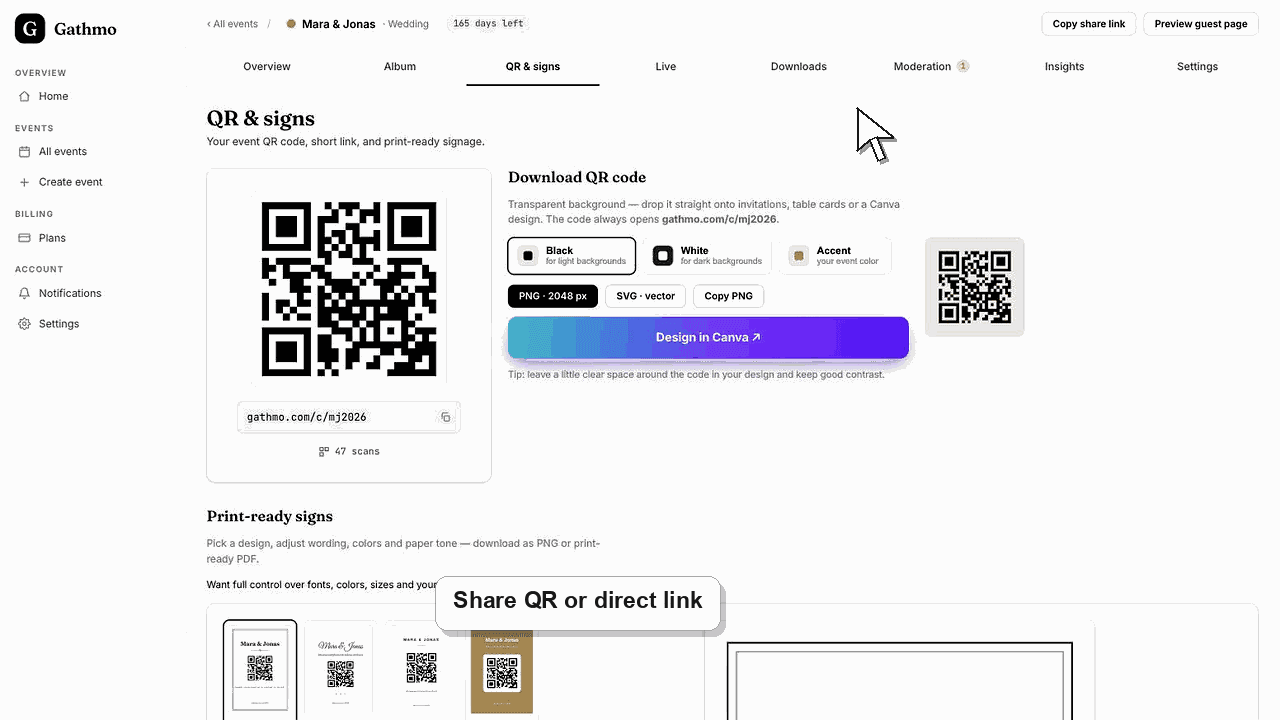
Guests do not need a Gathmo account to upload media. They can scan the QR code or open the event link and submit photos, videos, or voice messages from their browser.
Before you start
- Share the correct event QR code or guest link.
- Enable the upload types you want guests to use.
- Add a short instruction so guests know they do not need an app.
- Open the correct Gathmo event, workspace, or account before making changes.
Steps
Guest opens the event link
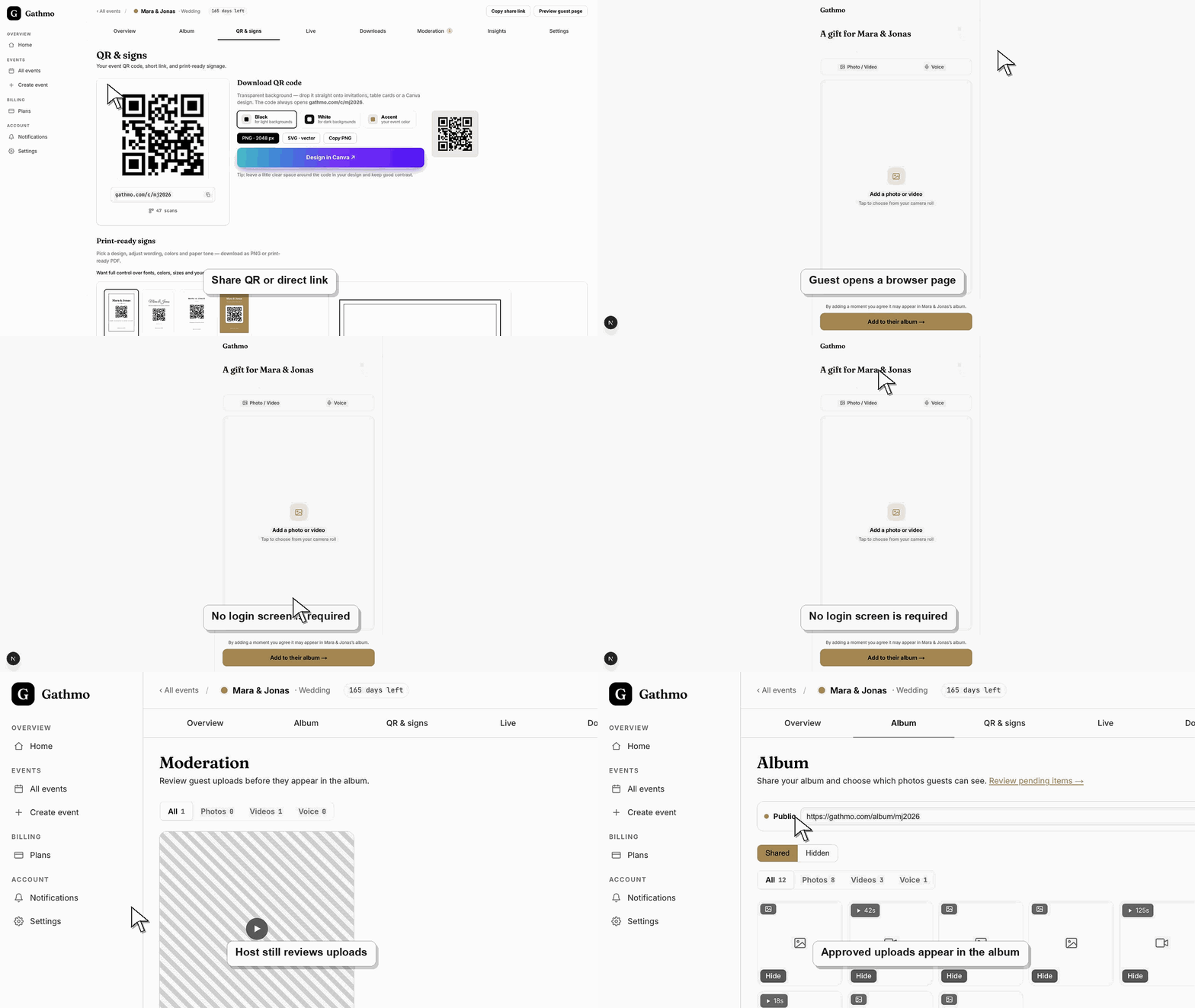
The guest scans the QR code or opens the event link from their phone. They should land on the guest-facing event page, not the host dashboard or login page.
Guest chooses an upload option
The guest selects photos, videos, or voice messages based on what the host enabled for the event. Gathmo does not require the guest to create an account for this flow.
Guest grants browser permission if needed
For photos, videos, or audio, the phone browser may ask for file, camera, or microphone access. The guest grants permission only for the upload action they are taking.
Guest submits the media
The guest keeps the page open until the upload finishes. If moderation is enabled, the upload waits in the dashboard before it appears in the public gallery.
Host verifies the upload
The host checks the dashboard, moderation queue, or gallery to confirm the no-account guest flow worked. This is the best proof before printing signs or inviting all guests.
What to do next
- Use wording like "No app needed" on printed signs.
- Keep the guest link available for people who cannot scan the QR code.
- Use moderation if anyone with the link could upload unexpected content.
- Run one guest upload from an iPhone and one from Android if the event team has both available before the event.
Frequently asked questions
Do guests need to create a Gathmo account?
No. Guests can upload through the event QR code or link without creating a Gathmo account.
Do guests need to install an app?
No. The guest upload flow runs in the phone browser, so guests do not need to install an app.
Can guests upload from both iPhone and Android?
Yes. Guests can use the browser on common iPhone and Android devices as long as the device can open the event link and upload media.
Can anyone with the link upload?
Treat the event link like a private invitation link. If the link may be forwarded, use moderation so uploads can be reviewed before appearing.
Troubleshooting
Send them the guest link again and tell them to open the upload page, not the host dashboard.
Ask them to check their connection, reopen the link in a browser, or try another browser.
Check the event upload settings in the dashboard, confirm the upload type is enabled, and reload the guest page. If the guest is using an old link, send the current event link again.
Ask the guest to keep the browser open until the upload finishes, switch off low-power or restricted data mode, and retry from a stable Wi-Fi or mobile connection if the first attempt fails.
Guests do not need accounts, so hosts should share the event link carefully and enable moderation when needed.
Keep going