QR codes and sharing
Share the event link without printing
Copy and share the event link when guests should upload media from a message, email, or event page instead of a printed QR code.

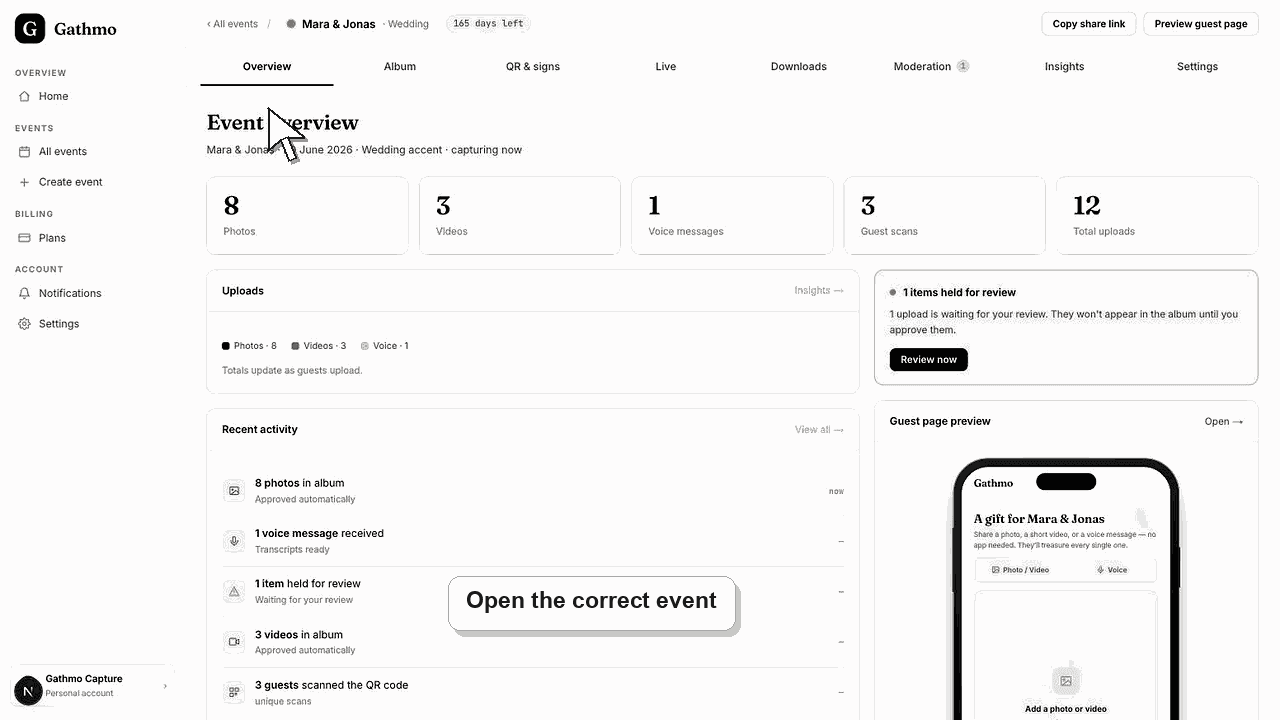
Use the event link when printing is not practical. Copy the link from the event dashboard, send it only to the right guests, and test it on a phone before the event.
Before you start
- Create the event first.
- Confirm the event name and upload settings.
- Decide who should receive the link.
- Open the correct Gathmo event, workspace, or account before making changes.
Steps
Open the event sharing controls
Open the event dashboard and go to the sharing area for the event you want guests to use.
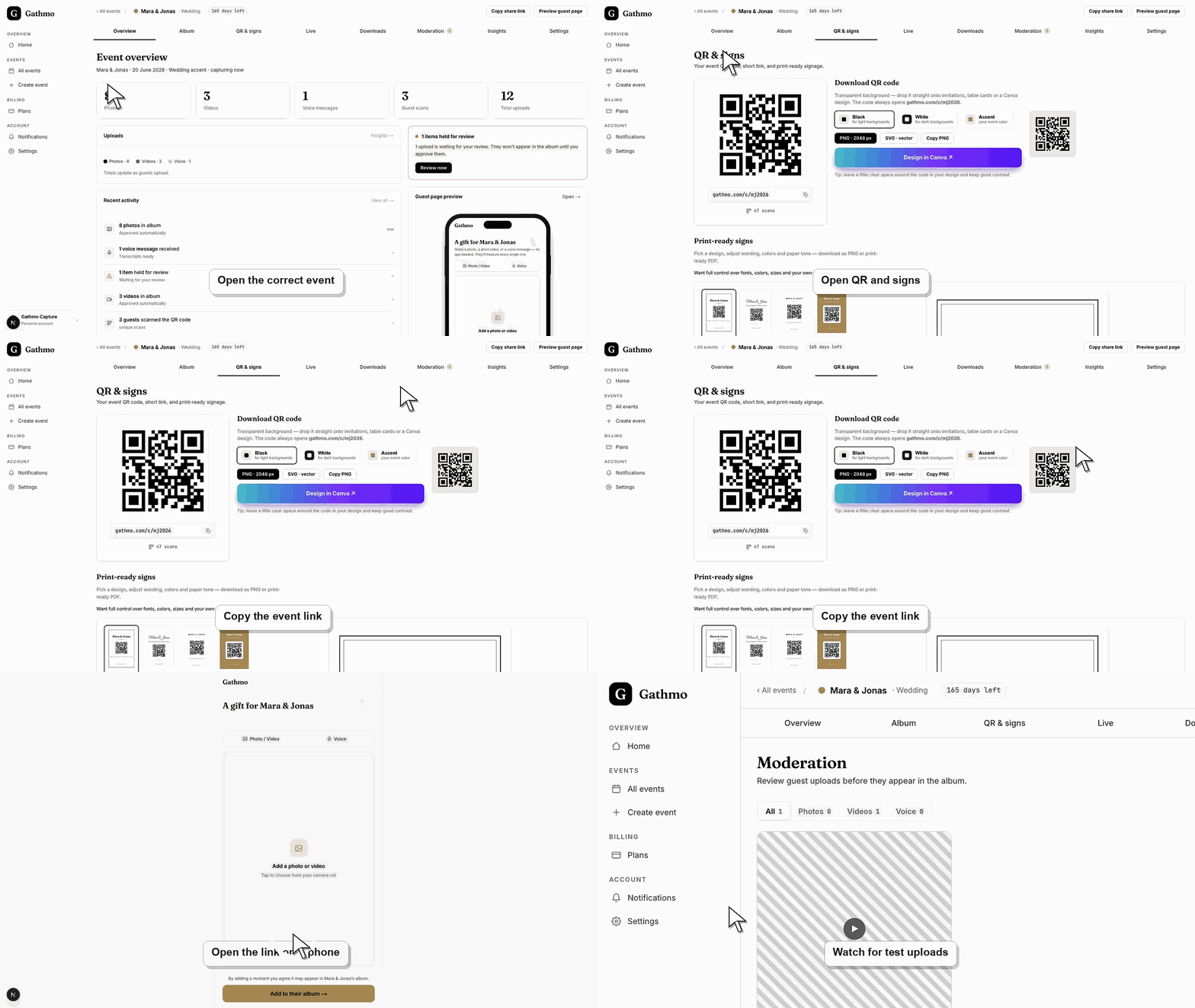
Copy the guest link
Copy the event link from the dashboard. Avoid copying the browser URL from an admin-only page.
Send the link to guests
Share the link in the channel guests already use, such as a message thread, email, event website, or invitation update.
Test the link on a phone
Open the link from a phone and confirm it shows the guest upload page, not the dashboard.
Scan the code from a phone
Use the phone camera, not only the desktop preview, and confirm the code opens the guest-facing event page. This catches wrong links before the QR code is printed or shared widely.
What to do next
- Add one clear instruction line above the link.
- Use a printed QR code as a backup when guests will be onsite.
- Use moderation if the link may be forwarded beyond the invited group.
- Scan the final QR code from a phone after every design, print, or link change so you know it opens the correct event.
Frequently asked questions
Can guests upload photos without scanning a QR code?
Yes. Guests can open the event link directly in their browser and upload media from there. A QR code is just one way to open the same guest flow.
Where should I share the Gathmo event link?
Share it where guests already expect event updates, such as a WhatsApp group, email, invitation page, wedding website, or internal event page.
Is the event link private?
The link should be treated like a private invitation link. Only send it to people who should upload or view event media.
What should the message say when I share the link?
Use a short instruction such as: "Open this link to share your photos, videos, and voice messages from the event."
Troubleshooting
Copy the guest event link again from the sharing area instead of copying a dashboard URL.
Review the event privacy settings and enable moderation if uploads should be checked before they appear.
Open the code from a phone that is not signed in to the host dashboard. If it opens an admin or dashboard URL, regenerate or copy the guest-facing QR code from the event QR page.
Increase print size, keep enough white margin around the code, avoid glossy glare, and test it under the lighting conditions guests will actually use at the venue.
Only share the guest link with people who should access the event. Use moderation for public or workplace events.
Keep going