QR codes and sharing
Download your event QR code
Find and download the Gathmo event QR code guests use to upload photos, videos, and voice messages, then test it before printing.

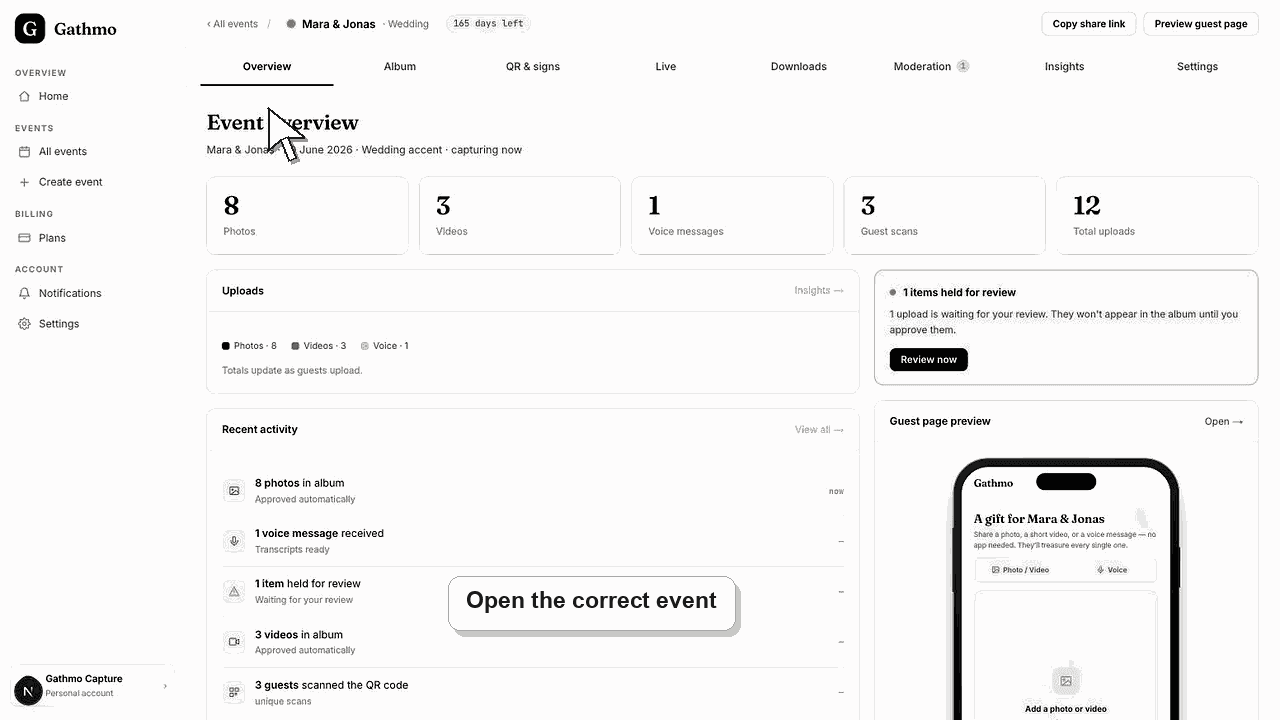
Open the correct event dashboard, go to QR and signs, download the event QR code, and scan it on a phone before you add it to signs or invitations.
Before you start
- Create the event first.
- Confirm the event name, date, language, and upload types are correct.
- Use the QR code from the event you want guests to open, not a screenshot from another event.
- Keep a phone nearby so you can scan and test the QR code before printing.
Steps
Open the correct event
Go to the Gathmo dashboard and select the event that needs the QR code. Check the event name at the top of the page before downloading anything.
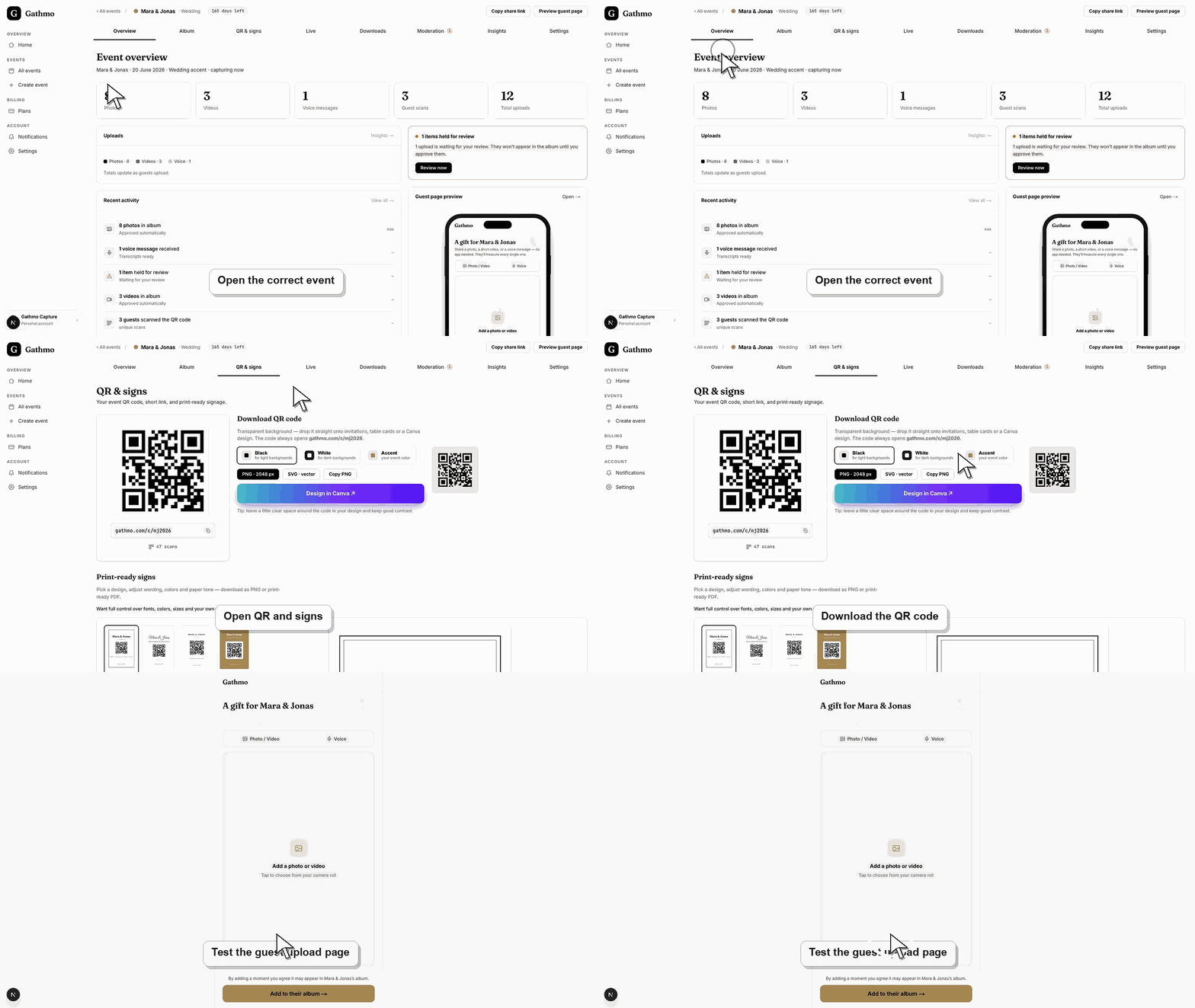
Open QR and signs
In the event dashboard navigation, open QR and signs. This is the event-specific area for the guest upload QR code, guest link, and printable sign options.
Download the QR code file
Use the download action in the QR section to save the QR code file. Use this downloaded file in Canva, invitations, table cards, welcome signs, or venue screens instead of taking a screenshot.
Scan the QR code on a phone
Open the downloaded file or the design that contains it, scan it with a phone camera, and confirm it opens the correct guest upload page for this event.
Replace old files before printing
If you changed the event link, custom domain, or event setup after downloading the QR code, download it again and replace the old file in every print or design file.
What to do next
- Add the downloaded QR code to signs, invitations, table cards, or venue screens.
- Keep the direct event link as a backup for guests who cannot scan.
- Run one guest upload test before the event starts.
- Scan the final QR code from a phone after every design, print, or link change so you know it opens the correct event.
Frequently asked questions
Where do I find the QR code for my Gathmo event?
Open the event dashboard and use the sharing or QR code area for the specific event. Do not use a QR code from another event.
Should I test the QR code before printing it?
Yes. Scan the downloaded QR code on a phone and confirm it opens the correct guest upload page before you print signs or invitations.
Can I use the same QR code on signs and invitations?
Yes. Use the same event QR code on printed and digital materials once you have confirmed it opens the correct event.
Should I use a screenshot of the QR code?
Use the downloaded QR code file when possible. Screenshots can become blurry or cropped in print layouts.
Do I need a new QR code after changing the event?
If you changed the event link, custom domain, or guest destination, download and test the QR code again before printing. If you only changed text such as the event name or date, still scan once to make sure the guest page looks right.
Troubleshooting
Use the downloaded file at its original size and avoid screenshots when preparing print files.
Return to the correct event dashboard, open QR and signs, download the QR code again, and replace the old file in your print design.
Check whether moderation is enabled. Uploads may need approval before they appear in the public album or live gallery.
Open the code from a phone that is not signed in to the host dashboard. If it opens an admin or dashboard URL, regenerate or copy the guest-facing QR code from the event QR page.
Treat the QR code like an event invitation link. Anyone with the code can open the guest flow, so share it only with the audience that should upload or view event media.
Keep going