QR codes and sharing
Invite guests with a QR code
Invite guests with a Gathmo QR code, test the scan on a phone, and place clear instructions before printing or sharing event materials.

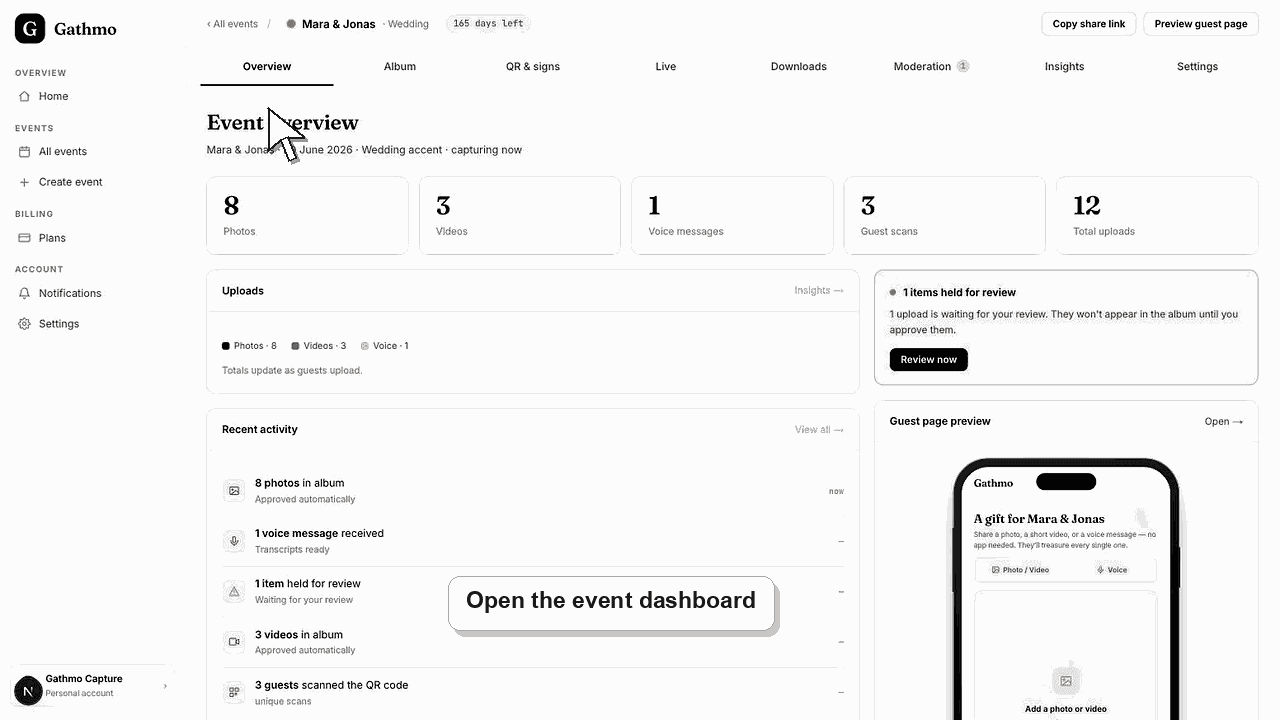
Use the event QR code when guests should upload photos, videos, or voice messages without installing an app. Scan and test the QR code before you print or share it.
Before you start
- Create the event in Gathmo.
- Confirm the event name, date, language, and upload types.
- Use a phone that is not already signed into the dashboard for the final test.
- Open the correct Gathmo event, workspace, or account before making changes.
Steps
1. Open the QR code page for the event
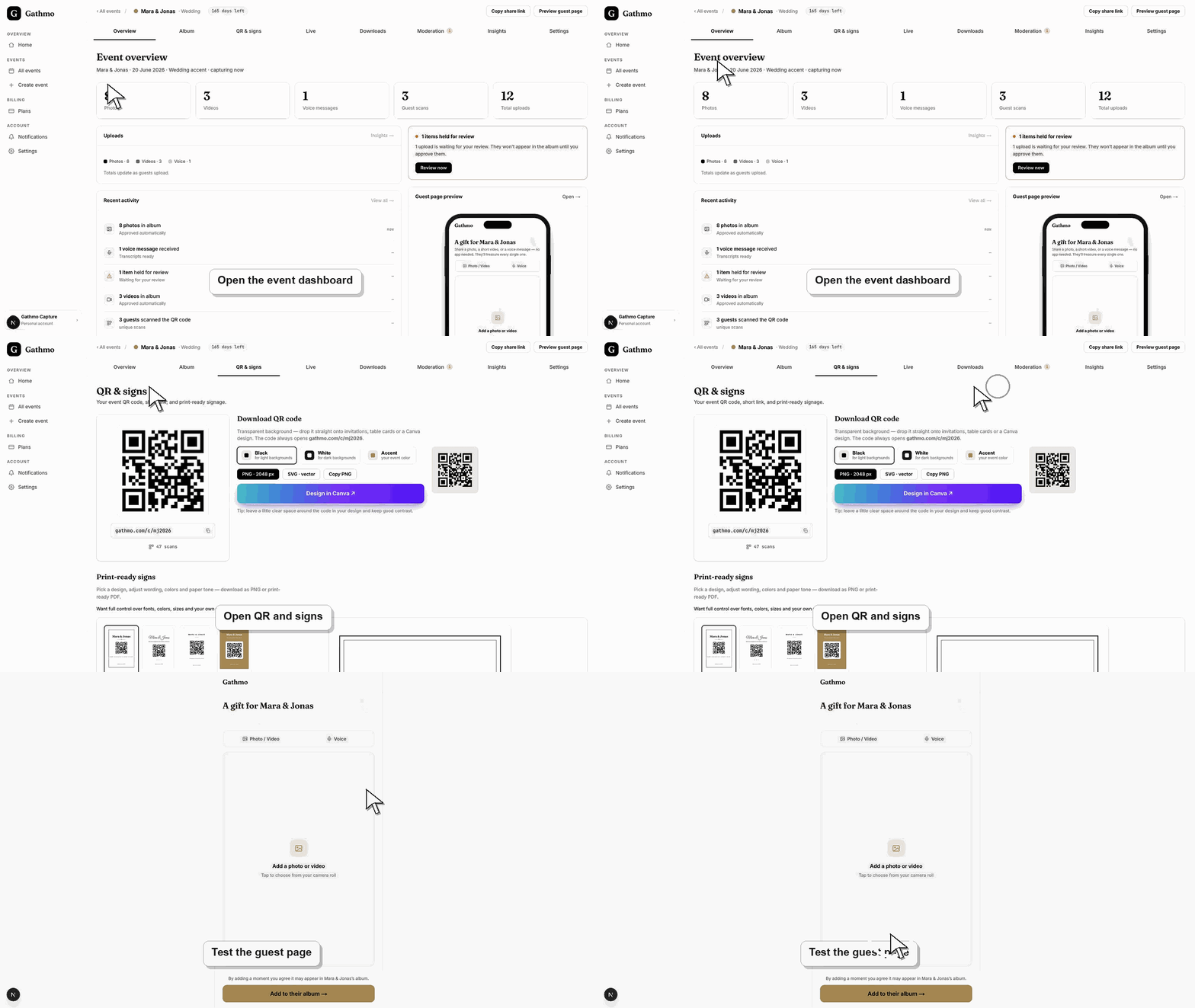
From the event dashboard, open the QR code section. Use the QR code connected to the exact event you want guests to join.
2. Download the QR code
Download the QR code before adding it to signs, table cards, invitations, or slides. Keep the downloaded file in the event folder so you do not mix it with another event.
3. Scan the QR code on a phone
Point the phone camera at the QR code and open the link. The page should show the correct event name and guest upload options. Upload one test photo. If moderation is on, check that the upload appears in the moderation queue.
4. Add a short instruction for guests
Use one clear sentence near the QR code, such as: Scan to add your photos, videos, and voice messages. Keep the instruction shorter than the design around it.
5. Place the QR code where guests will notice it
Use more than one placement for larger events. Put the QR code on welcome signs, table cards, bar signs, slides, or invitations depending on the event.
What to do next
- Guests scan the QR code and open the guest upload page. They can upload from their phone browser, and the host sees the uploads in the dashboard.
- Scan the final QR code from a phone after every design, print, or link change so you know it opens the correct event.
- Keep the plain event link available as a backup for guests whose camera app cannot scan the printed code.
- Check the related troubleshooting article before reprinting signs, because many QR issues come from old screenshots or copied links.
Frequently asked questions
Do guests need the Gathmo app?
No. Guests scan the QR code and upload through the browser.
Can I use the same QR code before and during the event?
Yes. Use the same event QR code after you have tested it. Re-download it only if you created the wrong event or changed to a different event.
Should I put the event link next to the QR code?
For printed signs, the QR code is usually enough. Keep the event link available as a backup for guests whose camera cannot scan the code.
Troubleshooting
Make the instruction more direct. Guests need to know what to do and why it matters.
Stop using that asset. Re-download the QR code from the correct event and replace the printed or shared material before the event starts.
Share the event link directly as a fallback. Keep the link close to the QR code in your event-day notes.
Open the code from a phone that is not signed in to the host dashboard. If it opens an admin or dashboard URL, regenerate or copy the guest-facing QR code from the event QR page.
Anyone with the QR code can reach the guest upload page unless access settings are changed. Treat QR codes like event links and avoid posting them in public places unless the event is meant to be open.
Keep going