Troubleshooting
Event link was shared with the wrong people
Respond when a Gathmo event link is shared with the wrong people by changing access, checking uploads, and explaining privacy limits.

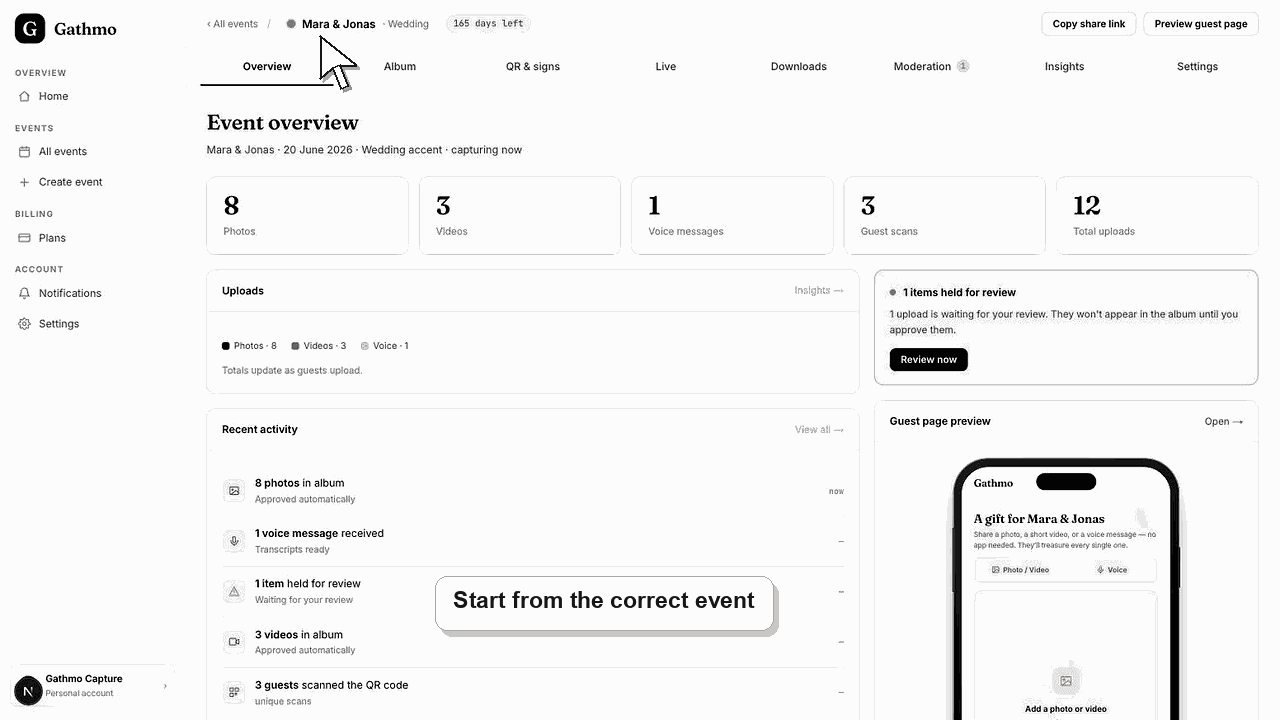
If an event link was shared incorrectly, reduce exposure first: hide the public album, pause guest uploads if needed, and remove unwanted media from public views. Then decide whether guests need a corrected link.
Before you start
- Identify which link was shared: upload page, album page, live wall, or QR code.
- Check whether the link was sent privately or posted publicly.
- Decide whether uploads should stay open while you fix access.
- Open the correct Gathmo event, workspace, or account before making changes.
Steps
1. Hide the public album if needed
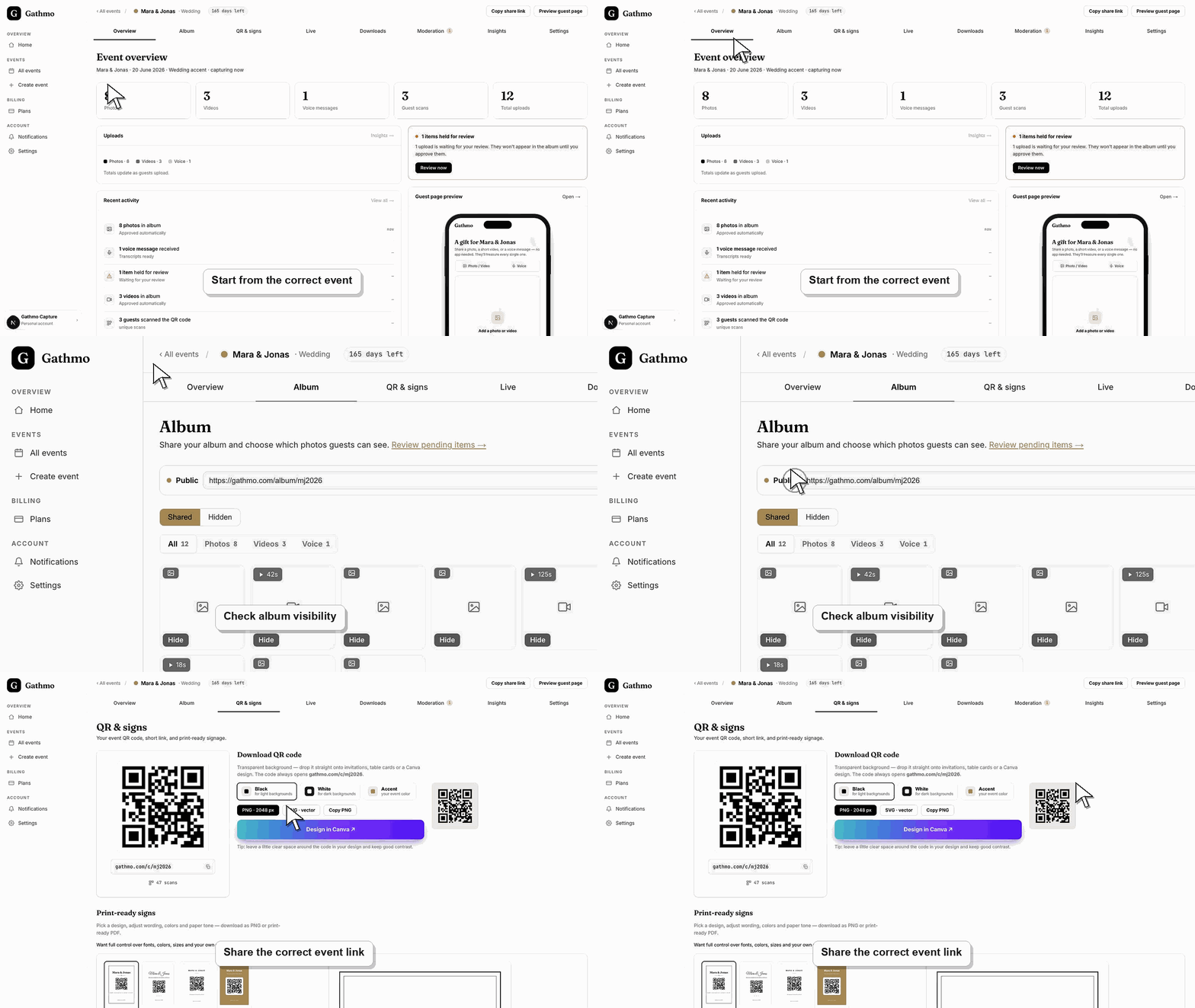
If the wrong people can view the gallery, open album settings and hide the public album link.
2. Pause or limit uploads if the upload link leaked
If people outside the event can upload, close or limit guest uploads from event settings if that control is available for the event.
3. Review recent uploads
Open Moderation and Album to check whether unwanted uploads were added. Reject, hide, or delete anything that should not remain visible.
4. Send the correct link to the right guests
If guests still need access, send the correct event link through a trusted channel. Tell guests to use the updated link.
5. Replace public QR materials if needed
If a QR code was placed in the wrong location, remove or replace the sign. A printed QR code can be photographed and reshared, so treat it like a public link.
What to do next
- The exposed link may still exist in messages or photos. Access controls reduce what people can do with it, but they do not erase copies already shared outside Gathmo.
- Re-test the fixed flow from a guest phone, not only from the signed-in host dashboard.
- Capture the event name, browser, device, screenshot, and time if the issue needs support review.
- Send the related article to the event team so the same fix is used consistently during the event.
Frequently asked questions
Can I make an already shared link private again?
You can change product visibility and upload controls, but you cannot undo messages or screenshots already shared outside Gathmo.
Should I delete the event?
Delete the event only if you want to remove the event and its media. For many cases, hiding the album and reviewing uploads is enough.
What should I tell guests?
Send a short correction with the right link and ask guests to ignore the old one.
Troubleshooting
Use moderation, hide, or delete controls to remove unwanted media from public views. Keep notes if the event needs support follow-up.
You may have hidden the public album while fixing the issue. Republish it only when access settings and visible media are correct.
Remove the printed material or cover it. If guests still need access, show the corrected QR code on a screen or send the direct link.
Try the flow in a fresh browser session, switch networks, and test from another phone. If the issue remains, contact support with the event name, device, browser, and exact step that fails.
Gathmo can control product access, but it cannot remove copies of a link or QR code already shared outside the product. Treat event links and printed QR codes like private access details.
Keep going