Troubleshooting
QR code opens the wrong page
Fix a Gathmo QR code that opens the wrong page by identifying the asset, replacing old materials, and testing the correct event link.

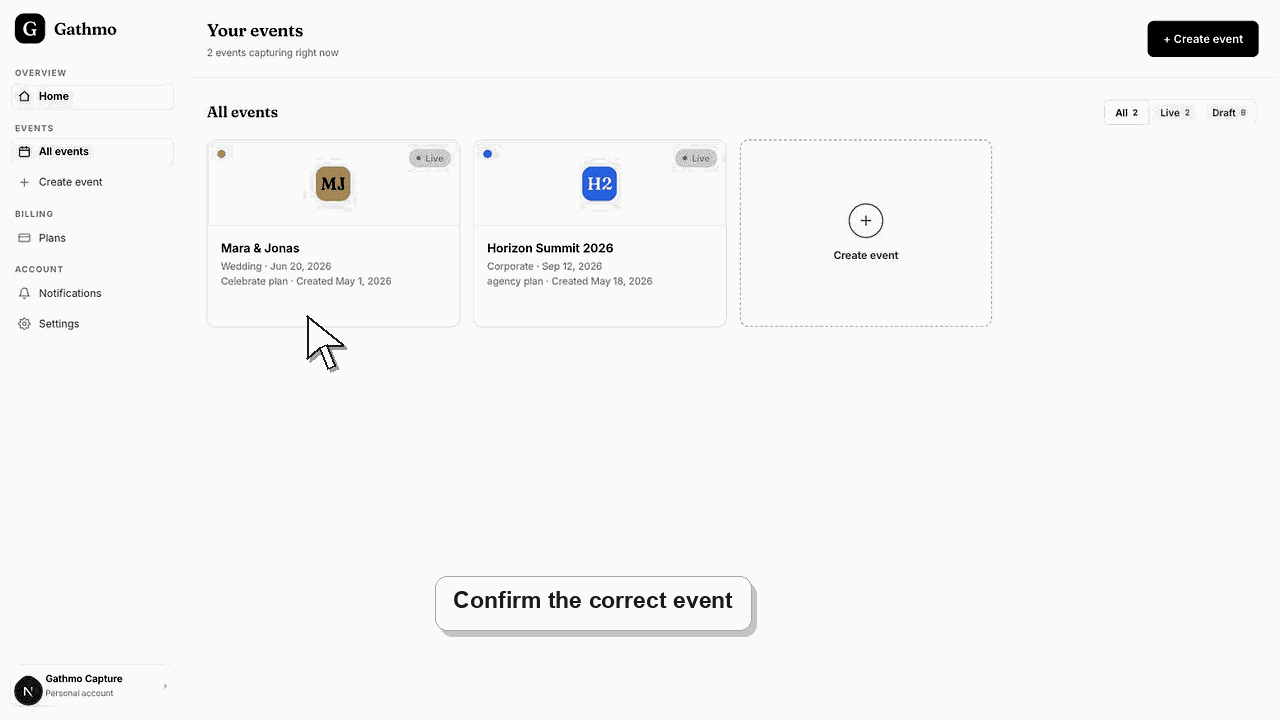
Stop using that QR code and re-download the QR code from the correct event. A printed QR code cannot be edited after printing, so replace the design or share the correct event link directly.
Before you start
- Scan the QR code yourself.
- Check the event name shown on the guest page.
- Open the dashboard and confirm the correct event.
- Find where the wrong QR code was used: sign, invitation, slide, table card, or message.
Steps
1. Confirm what page the QR code opens
Scan the QR code and read the event name, language, and URL. Do not assume it is wrong only because the design looks old.
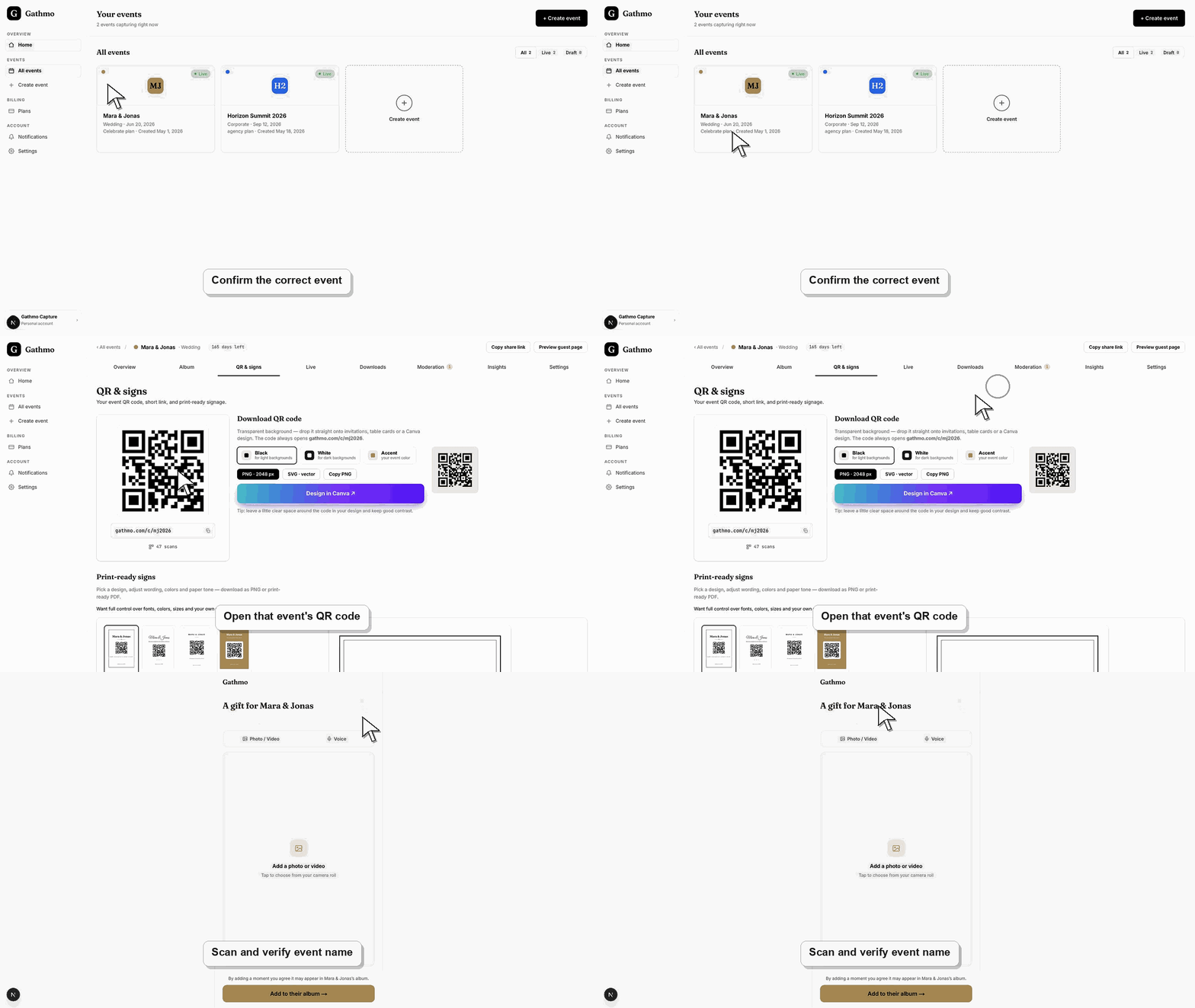
2. Open the correct event in the dashboard
Use the dashboard event list and open the event guests should use. Check the event name and date.
3. Download the QR code again
Download a fresh QR code from the correct event. Save it with a filename that includes the event name or date.
4. Replace the wrong asset
Replace the QR code in any sign, invitation, table card, or slide deck. Export the final file again and scan the exported result.
5. Use the event link as an emergency fallback
If the wrong QR code is already printed, send the correct event link directly to guests or display the correct QR code on a screen.
What to do next
- Guests who scan the corrected QR code will open the correct guest page. Guests who already uploaded through the wrong page may need to upload again to the correct event.
- Re-test the fixed flow from a guest phone, not only from the signed-in host dashboard.
- Capture the event name, browser, device, screenshot, and time if the issue needs support review.
- Send the related article to the event team so the same fix is used consistently during the event.
Frequently asked questions
Can I edit a printed QR code?
No. Replace the printed material or give guests the correct event link.
Why did this happen?
Most cases come from reusing an old design, downloading a QR code from the wrong event, or exporting the wrong version of a sign.
Should I create a new event?
Usually no. Use the correct event and replace the QR code unless the event itself was created incorrectly.
Troubleshooting
Check whether the design tool replaced the QR code or compressed it badly. Re-add the downloaded QR code and export again.
Use a screen, message, or printed correction card with the correct link. Tell guests to use the updated code.
Check both events in the dashboard. Do not delete anything until you confirm where the media should live.
Try the flow in a fresh browser session, switch networks, and test from another phone. If the issue remains, contact support with the event name, device, browser, and exact step that fails.
If a wrong QR code was shared publicly, review event access and album visibility. Treat the QR code like a shareable event link.
Keep going