QR codes and sharing
Add the QR code to signs and invitations
Add a Gathmo QR code to signs, invitations, and table cards with clear instructions, enough contrast, and a phone scan test.

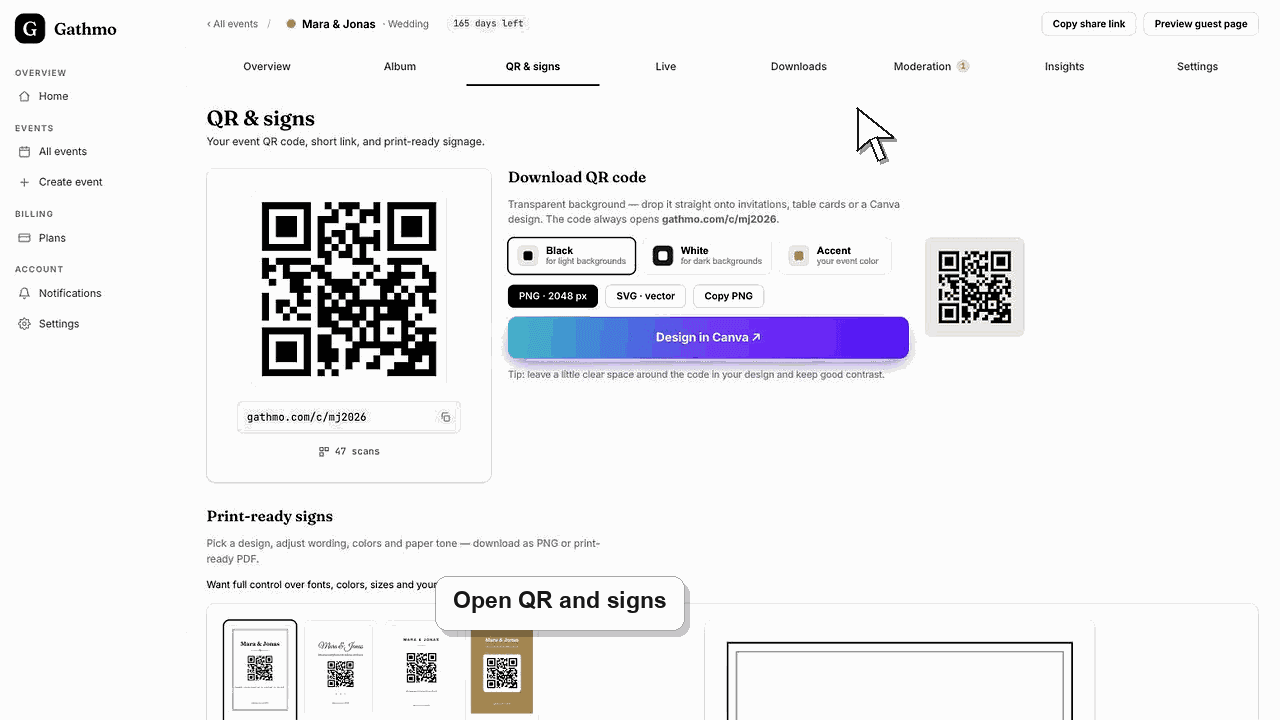
Add the QR code where guests can scan it quickly, then test the final design before printing. The QR code must stay clear, high contrast, and connected to the correct event.
Before you start
- Download the QR code from the correct event.
- Decide where guests will see it: invitation, welcome sign, table card, menu, slide, or thank-you message.
- Keep one tested QR code file as the source of truth.
- Open the correct Gathmo event, workspace, or account before making changes.
Steps
1. Use the QR code from the event dashboard
Open the event dashboard and download the QR code from that event. Do not reuse a QR code from an older event.
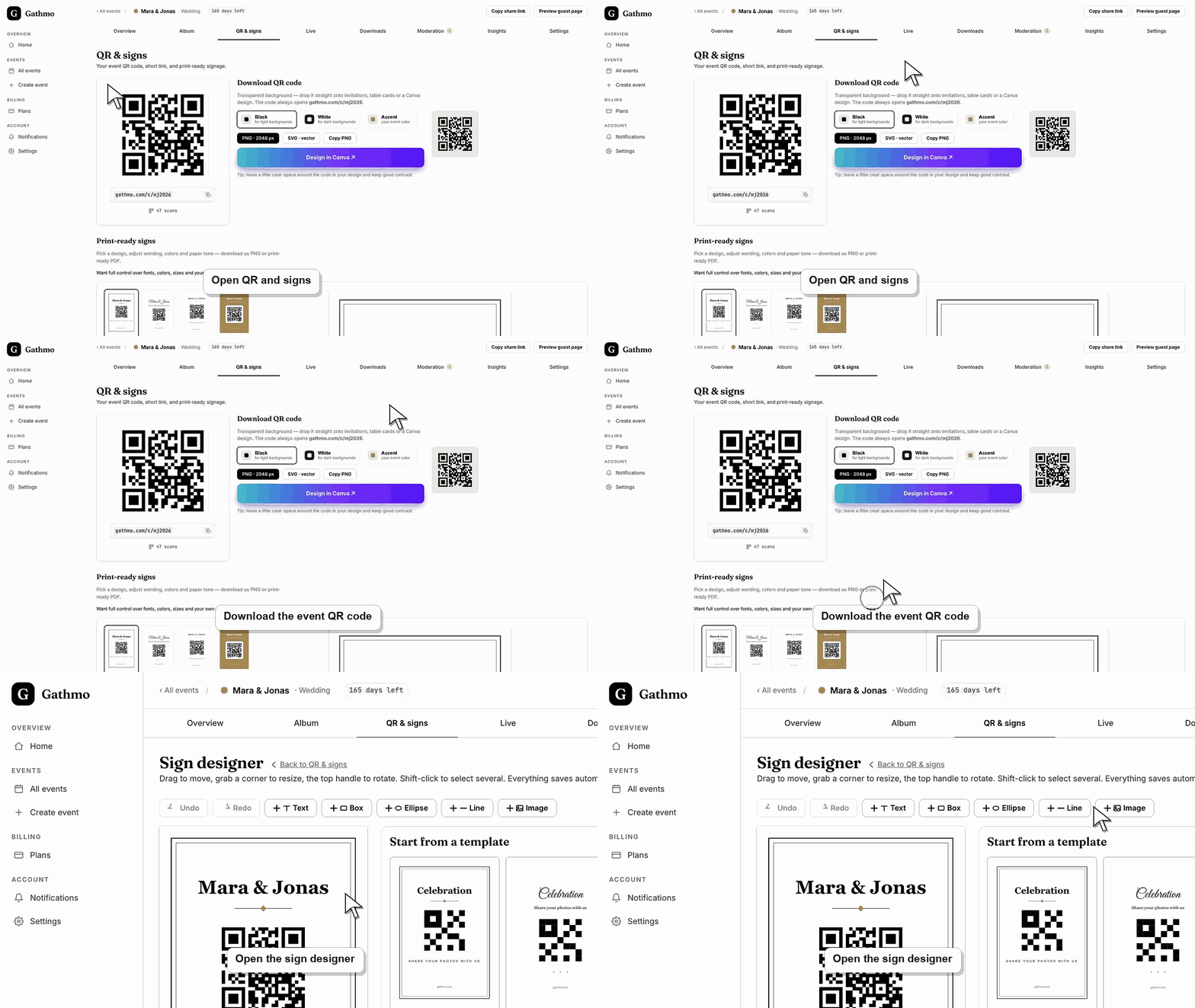
2. Place the QR code in a quiet area of the design
Avoid busy images, low contrast, and heavy texture behind the QR code. Leave white space around the code so phone cameras can read it. For table cards, keep the QR code large enough for close-range scanning. For signs or slides, make it larger because guests scan from farther away.
3. Add one action line
Use direct wording: Scan to add your photos and videos. If voice messages are enabled, mention them too: Scan to add photos, videos, and voice messages.
4. Print or export a test copy
Test the final file, not only the original QR code. Scan the printed proof or exported PDF on a phone. Check that the page opens the correct event name and language.
5. Prepare a backup link
Keep the event link available for the host, planner, or venue team. If a guest cannot scan the sign, the team can send the link directly.
What to do next
- Guests can scan the sign, invitation, or card and upload event media from their phone browser.
- Scan the final QR code from a phone after every design, print, or link change so you know it opens the correct event.
- Keep the plain event link available as a backup for guests whose camera app cannot scan the printed code.
- Check the related troubleshooting article before reprinting signs, because many QR issues come from old screenshots or copied links.
Frequently asked questions
Can I add the QR code to a Canva design?
Yes. Download the QR code from Gathmo, add it to the Canva design, export the finished file, and scan the exported result before printing.
Should the QR code be on every table?
For weddings, dinners, and parties, table placement usually works better than a single sign. For conferences or venues, large screens and entrance signs can work well.
Can I change the event after printing?
Some event settings can be changed after printing, but the QR code should still point to the same event. Test the printed code again after major changes.
Troubleshooting
Check print contrast, size, and glare. Reprint on a matte surface if reflections make scanning difficult.
Replace the design with a QR code downloaded from the correct event. Do not edit the URL manually inside a QR-code tool.
Place the QR code where guests naturally pause, such as tables, bar, entrance, guestbook area, or event screen.
Open the code from a phone that is not signed in to the host dashboard. If it opens an admin or dashboard URL, regenerate or copy the guest-facing QR code from the event QR page.
Printed QR codes are easy to forward or photograph. Use event privacy settings if the album should not be broadly visible after the event.
Keep going