Dashboard functions
Use the QR sign designer
Use the Gathmo QR sign designer to create event signs, check the QR code, preview the design, and export print-ready materials.

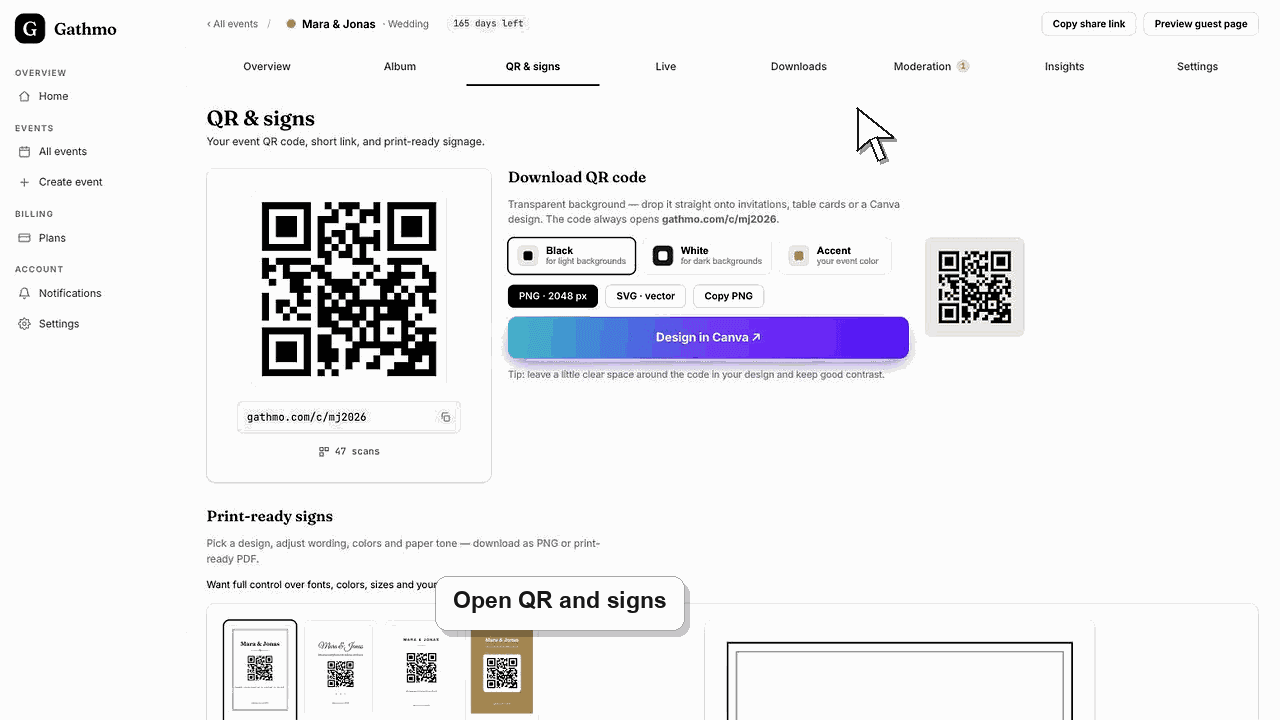
Use the QR sign designer to create a print-ready sign for the event QR code. Export the final design and scan the exported file before printing.
Before you start
- Open the correct event.
- Confirm the guest page works.
- Decide whether the sign should be used on tables, at the entrance, on a screen, or in printed stationery.
- Open the correct Gathmo event, workspace, or account before making changes.
Steps
1. Open QR & signs
From the event dashboard, open QR & signs and choose the sign designer.
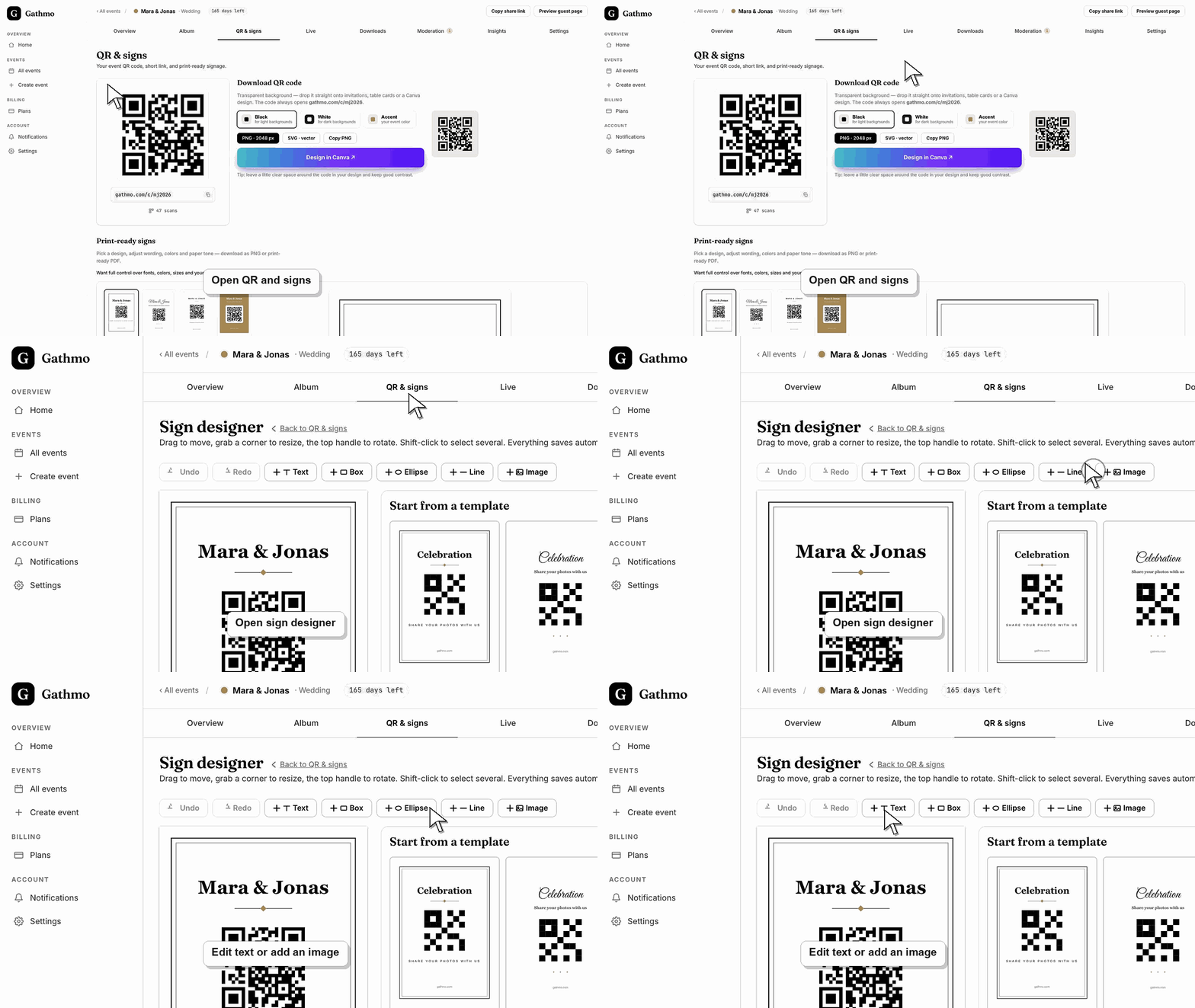
2. Choose a starting design
Pick a layout that matches the event. Keep the QR code clear and leave enough space around it.
3. Edit the text
Use a short instruction, such as "Scan to add your photos and videos." Mention voice messages if they are enabled.
4. Adjust brand or event styling
Set colors, logo, or visual details only if they keep the QR code easy to scan.
5. Export and test
Export the final sign and scan the exported file on a phone. Test the final asset, not only the dashboard preview.
What to do next
- Use the exported sign for printing, slides, or venue displays. Keep the source event unchanged unless you are ready to retest the QR code.
- Open the public guest link after changing dashboard settings so you can verify the change from a guest perspective.
- Tell any co-hosts what changed, especially if the setting affects QR codes, moderation, album visibility, downloads, or live wall behavior.
- Use related troubleshooting articles if the saved dashboard state does not match the public event view.
Frequently asked questions
Should I use the designer or download the QR code only?
Use the designer when you need a ready-to-print sign. Download the QR code only when you already have a design tool or invitation layout.
Can I add a logo?
Yes, if the current designer supports it and the logo does not reduce scan reliability.
Do I need to test after every export?
Yes. Always scan the final exported file before printing.
Troubleshooting
Increase contrast, enlarge the QR code, and remove busy backgrounds.
Return to the correct event and export a fresh sign from that event.
Use a simpler layout or shorter instruction before exporting.
Refresh the guest page, confirm the browser is opening the current event link, and check whether the public view has filters or moderation state that explain the difference.
The sign invites anyone who can see it to open the guest page. Do not place it publicly unless the event is meant to accept public uploads.
Keep going