QR codes and sharing
What to do if a guest cannot scan the QR code
Fix Gathmo QR code scanning problems during an event, check print quality and lighting, and give guests a backup upload link.

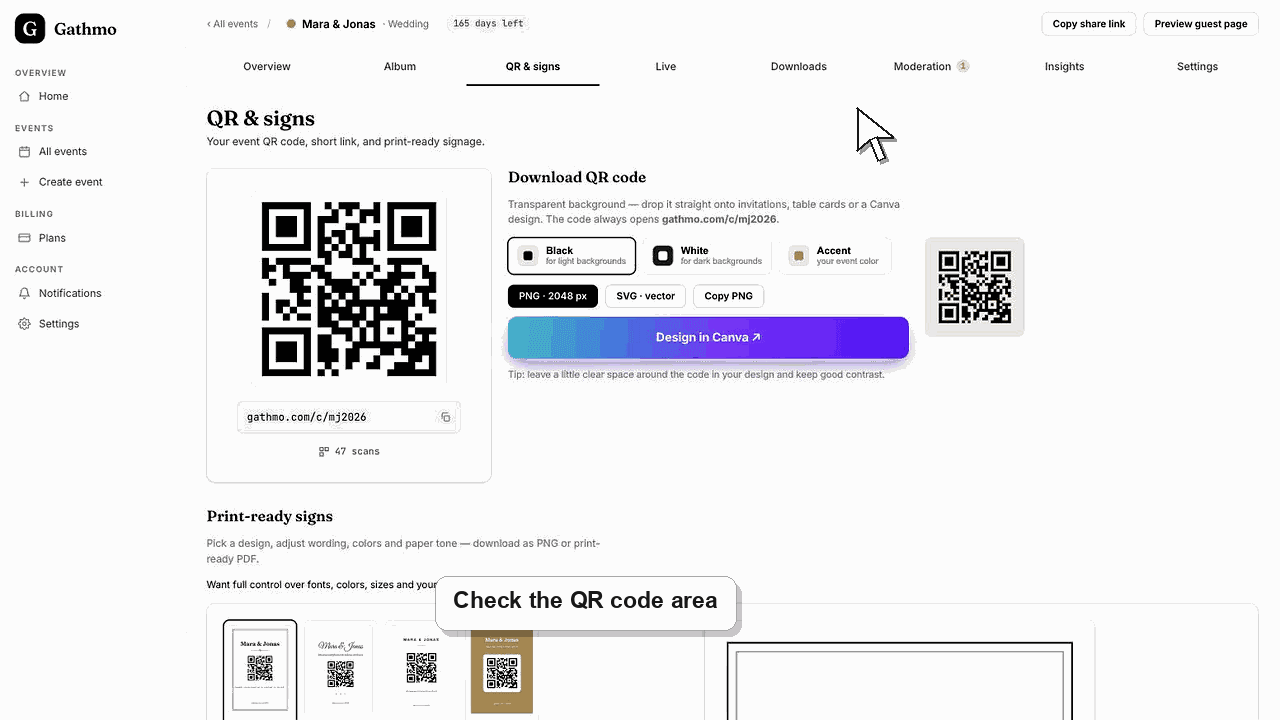
If a guest cannot scan the QR code, ask them to move closer, improve lighting, clean the camera lens, or open the event link directly. Keep the event link available as a backup.
Before you start
- Confirm the QR code was downloaded from the correct event.
- Keep the event link available as a backup.
- Check the code from at least one iPhone and one Android phone when possible.
- Open the correct Gathmo event, workspace, or account before making changes.
Steps
Check distance and lighting
Ask the guest to hold the phone steady, move closer to the code, and scan in better light.
Check print quality
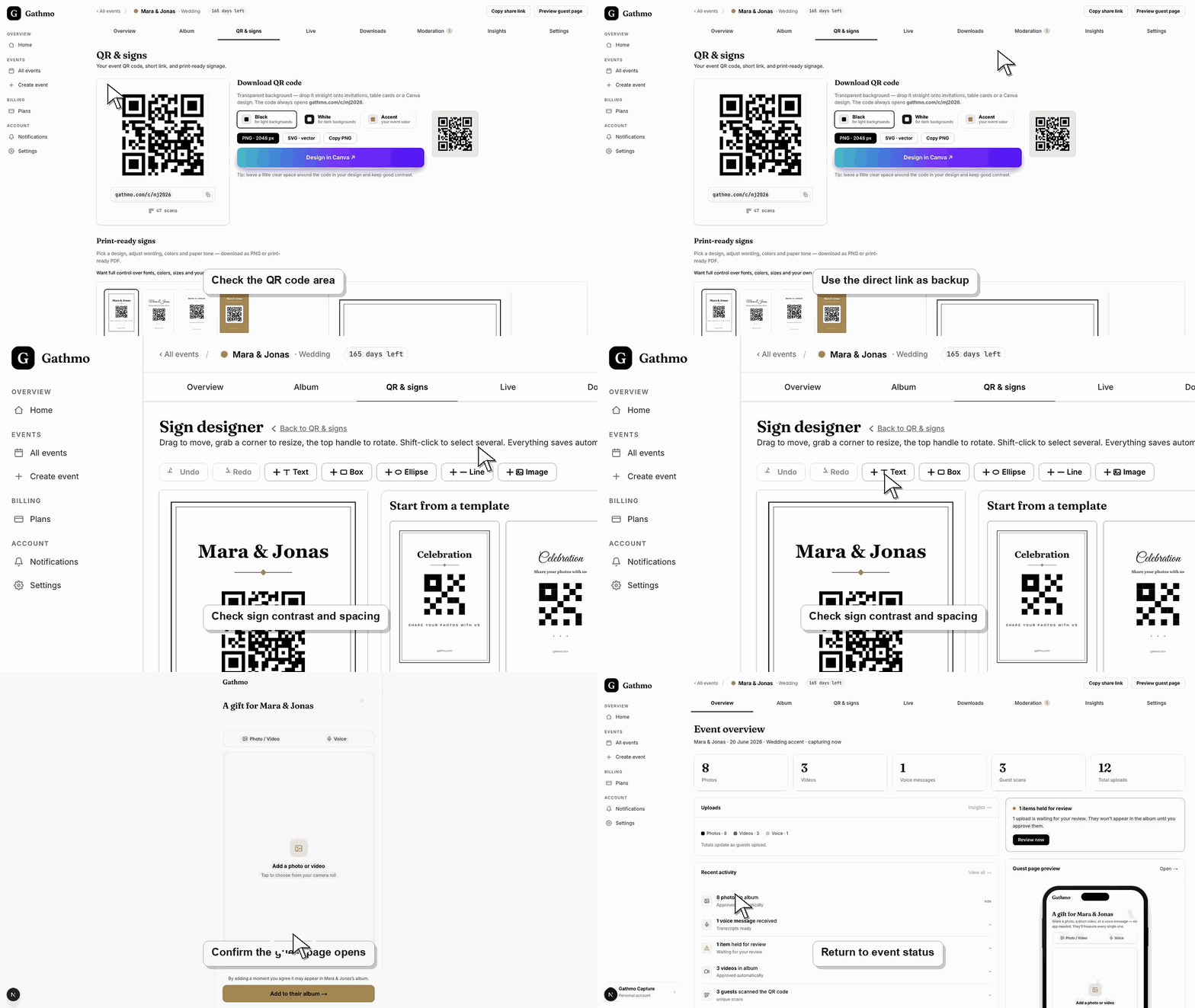
Make sure the QR code is not blurred, cropped, folded, too small, or covered by a decorative frame.
Use the backup event link
If scanning still fails, send the guest the event link directly so they can open the upload page in the browser.
Replace the printed code if needed
If multiple guests cannot scan the same sign, download the QR code again and replace the printed material.
Scan the code from a phone
Use the phone camera, not only the desktop preview, and confirm the code opens the guest-facing event page. This catches wrong links before the QR code is printed or shared widely.
What to do next
- Place QR signs where guests naturally pause.
- Use the event link in a message as a backup.
- Test the replacement QR code before printing a full batch.
- Scan the final QR code from a phone after every design, print, or link change so you know it opens the correct event.
Frequently asked questions
Why can one phone scan the QR code but another phone cannot?
Phone cameras, lighting, distance, and browser settings can differ. Keep the event link available so guests can still upload even if their camera does not scan the code.
How big should the QR code be for an event sign?
Make the QR code large enough to scan from the expected distance, keep a clear quiet area around it, and avoid low-contrast colors or glossy glare.
Can I use a screenshot of the QR code?
Use the downloaded QR code file when possible. Screenshots can work, but they are more likely to become blurry in print.
What is the fastest backup if the QR code does not scan?
Send the event link directly to the guest. The link opens the same guest upload flow without requiring a camera scan.
Troubleshooting
Download the QR code again from the correct event dashboard and replace the printed version.
Increase the QR code size, reduce glare, and keep decorative elements outside the code area.
Open the code from a phone that is not signed in to the host dashboard. If it opens an admin or dashboard URL, regenerate or copy the guest-facing QR code from the event QR page.
Increase print size, keep enough white margin around the code, avoid glossy glare, and test it under the lighting conditions guests will actually use at the venue.
Treat the QR code like a private invitation link. Anyone who can scan it may reach the guest flow, so place it only where the intended guests can use it.
Keep going