Getting started
Test your guest upload flow before the event
Test the Gathmo QR code, guest upload page, moderation, and dashboard before you print signs or invite event guests.

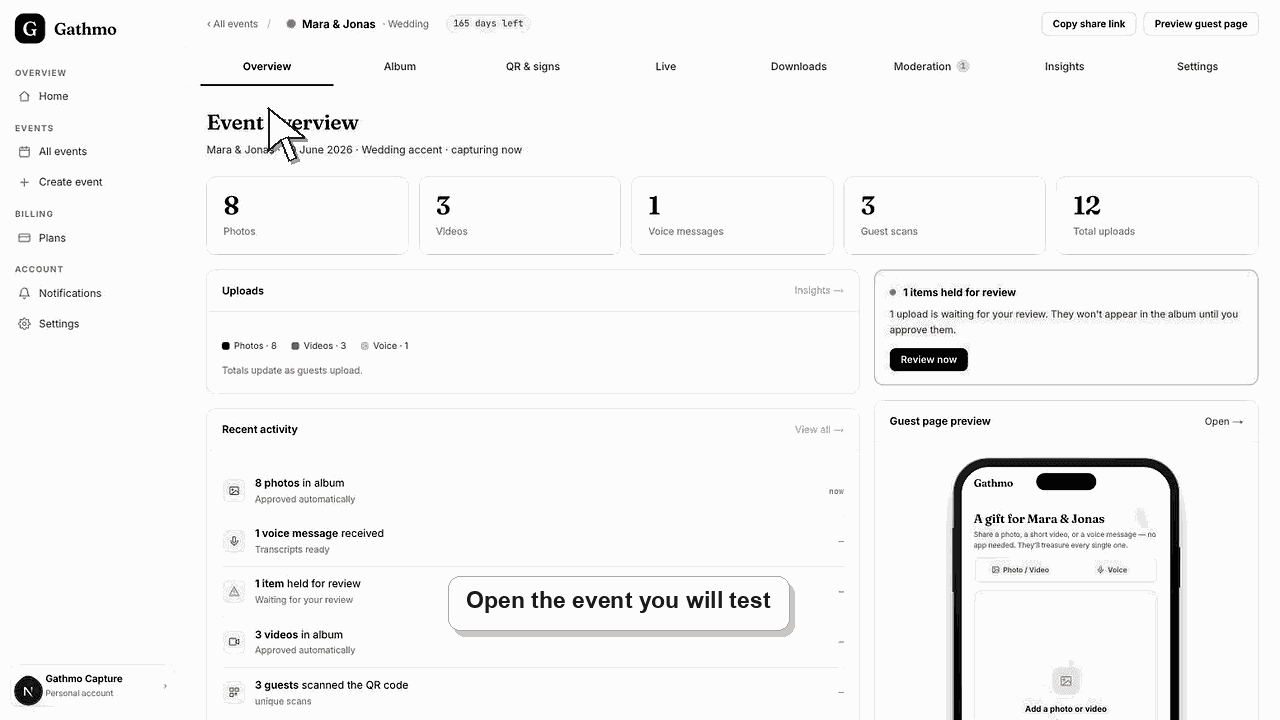
Test the full flow on a phone before the event: scan the QR code, upload one test file, confirm it appears in the dashboard, and remove the test upload if you do not want it in the gallery.
Before you start
- Create the event first.
- Download or open the QR code for the correct event.
- Use a phone, not only your desktop browser.
- Open the correct Gathmo event, workspace, or account before making changes.
Steps
Scan the QR code on a phone
Open the phone camera and scan the event QR code. Confirm that the guest page opens for the correct event name.
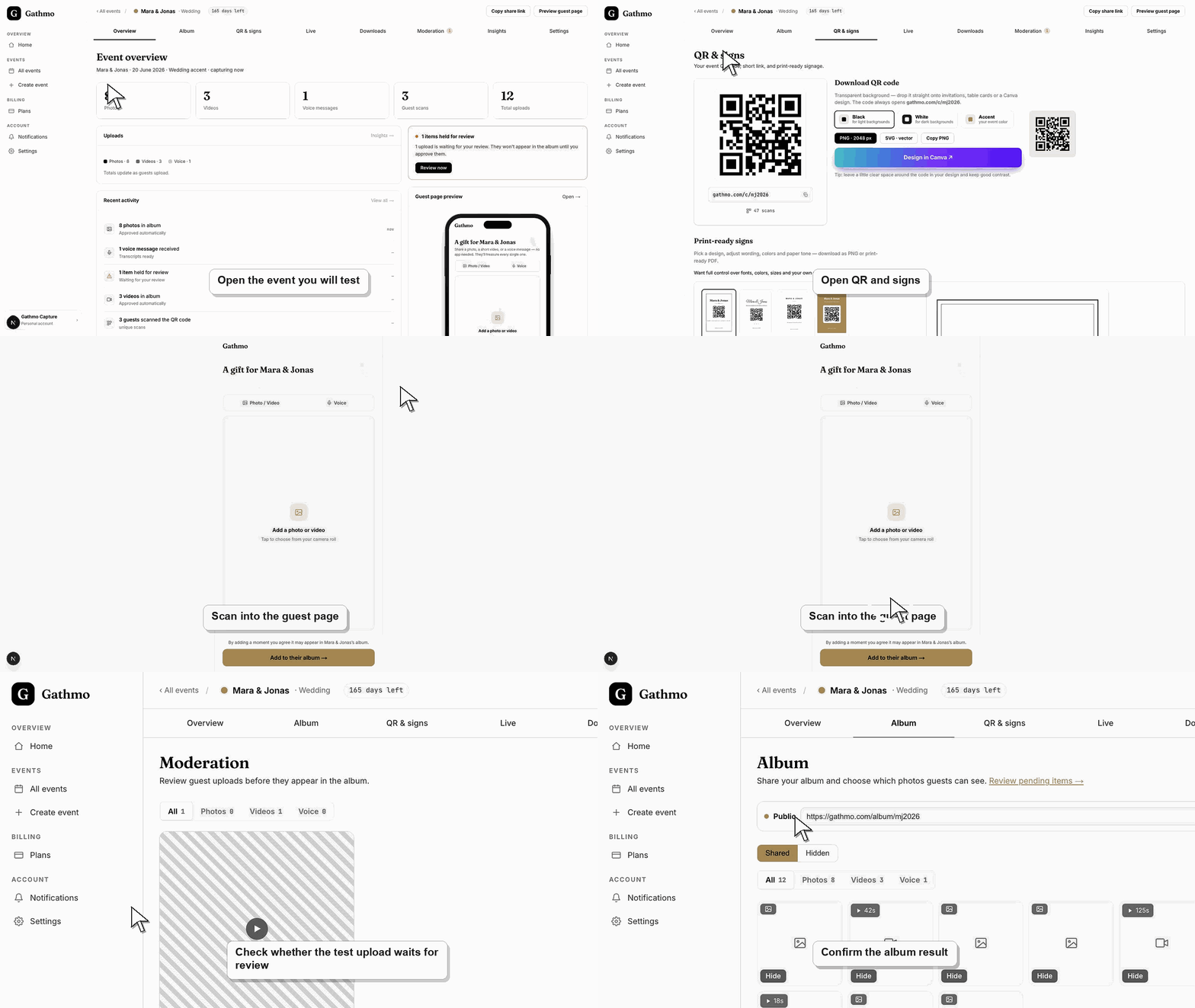
Upload one test file
Choose a small test photo, video, or voice message based on the upload types you plan to allow guests to use.
Check the dashboard
Return to the Gathmo dashboard and confirm that the test upload appears. If moderation is enabled, check the pending review area.
Remove the test upload if needed
Delete or hide the test upload before guests arrive if you do not want it to appear in the final gallery.
Test the guest-facing result
Open the QR code or guest link on a phone and complete the exact guest action the article describes. This confirms that the public flow matches the dashboard settings before guests see the event.
What to do next
- Print the QR code only after the test succeeds.
- Ask one other person to scan the QR code from their own phone.
- Keep the dashboard available during the event if uploads need moderation.
- Run the same flow once from a phone, because the host dashboard and guest page solve different parts of the setup.
Frequently asked questions
Should I test my Gathmo QR code before printing it?
Yes. Test the QR code on a phone before printing signs, invitations, or table cards. This confirms that the code opens the right event and that uploads reach your dashboard.
What should I upload during the test?
Upload one small file that matches the guest action you care about most, such as a photo, short video, or voice message.
What if my test upload does not appear?
Check whether moderation is enabled, refresh the dashboard, and confirm you scanned the QR code for the correct event. If the upload still does not appear, try again from another phone or network.
Can I remove the test upload later?
Yes. You can hide or remove test uploads from the dashboard so they do not appear in the event gallery.
Troubleshooting
Download the QR code again from the correct event dashboard before printing anything.
Try a smaller file and confirm that the phone has a stable internet connection.
Refresh the page, confirm you are signed in to the correct Gathmo account, and open the exact event from the dashboard. If the event was created by another team member, ask them to confirm your role before changing settings.
Scan the QR code with the phone camera, avoid private browser modes that block uploads, and test on the same mobile network guests are likely to use at the venue.
Use a non-sensitive test file. If your test includes a real guest or private moment, remove it before sharing the gallery.
Keep going