Guest uploads
How guests upload videos
Show guests how to upload short Gathmo event videos from a phone browser, avoid failed uploads, and check plan video limits.

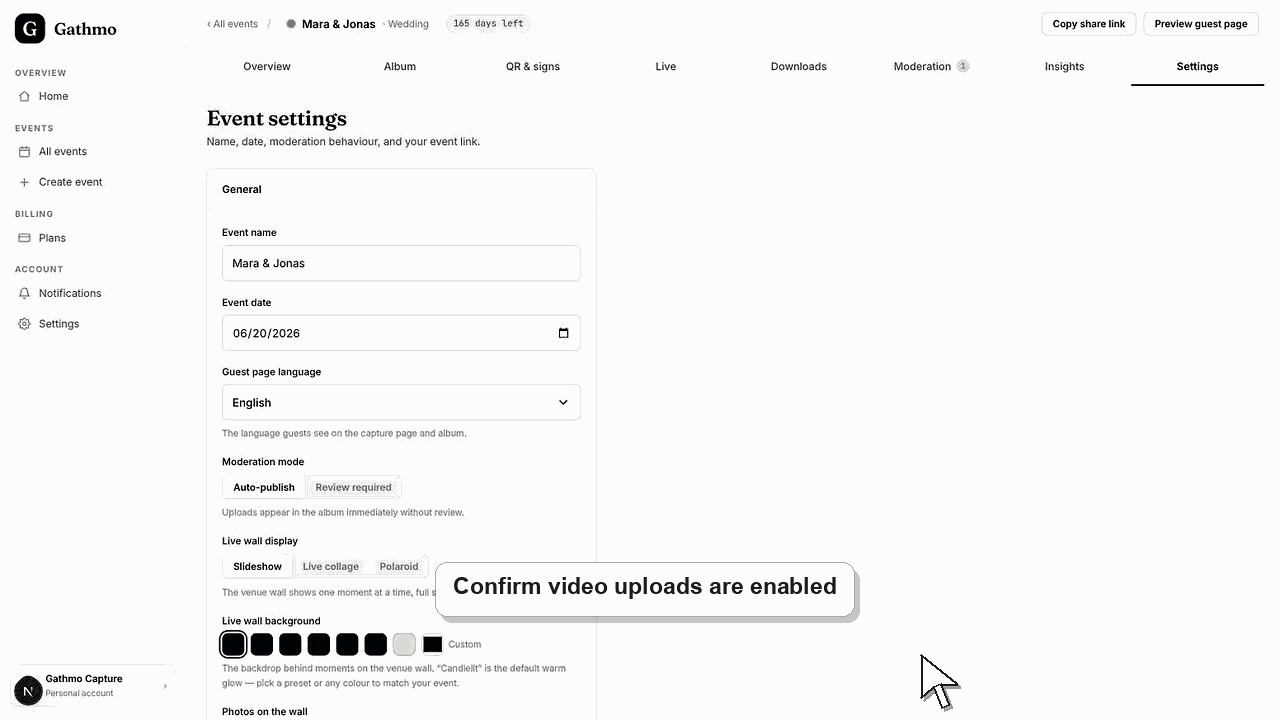
Guests upload videos from the same guest page they use for photos. They open the QR code or event link, choose a video from their phone, and submit it to the event.
Before you start
- Video uploads must be enabled for the event.
- The event plan must support the video length guests want to upload.
- Guests need a stable mobile or Wi-Fi connection.
- Open the correct Gathmo event, workspace, or account before making changes.
Steps
Open the guest page
Guests scan the QR code or open the event link on their phone.
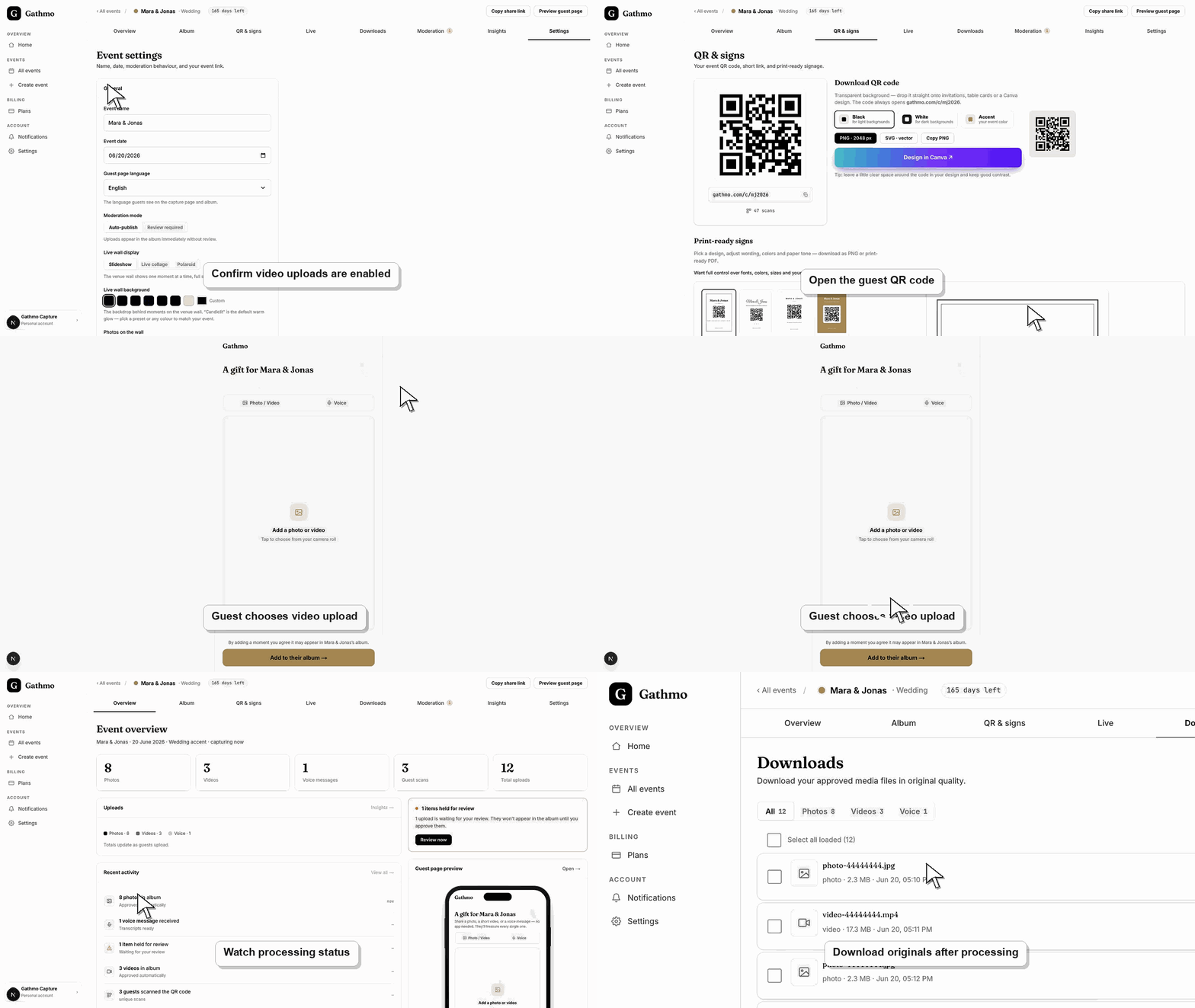
Choose a video
On the upload page, guests select a video from their phone library or record a short clip if their browser supports it.
Wait for the upload to finish
Guests should keep the page open until the upload finishes. Larger videos can take longer on mobile networks.
Review the video if moderation is enabled
If moderation is active, the video appears in the dashboard review area before it appears publicly.
Submit one test upload
Before the event, scan the QR code as a guest and submit a small sample file. This confirms permissions, network behavior, and the guest-facing instructions in the same flow guests will use.
What to do next
- Ask guests to keep videos short if the venue has weak internet.
- Use moderation when videos should be reviewed before guests see them.
- Check the event plan if guests need longer video clips.
- Run one guest upload from an iPhone and one from Android if the event team has both available before the event.
Frequently asked questions
Do guests need an app to upload videos to Gathmo?
No. Guests can upload videos from their phone browser after scanning the QR code or opening the event link.
Why does a video upload take longer than a photo upload?
Videos are larger files, so they depend more on file size, mobile signal, Wi-Fi quality, and the phone browser staying open.
Can guests upload long videos?
Video length depends on the event plan. Check the plan limits before asking guests to upload longer clips.
What should I tell guests before they upload videos?
Ask guests to keep videos short, stay connected until upload finishes, and avoid closing the browser while the file is sending.
Troubleshooting
Ask the guest to try a shorter video, reconnect to Wi-Fi, and keep the browser open until upload finishes.
Check moderation, processing status, and the event media filters in the dashboard.
Check the event upload settings in the dashboard, confirm the upload type is enabled, and reload the guest page. If the guest is using an old link, send the current event link again.
Ask the guest to keep the browser open until the upload finishes, switch off low-power or restricted data mode, and retry from a stable Wi-Fi or mobile connection if the first attempt fails.
Videos can include faces, voices, and private moments. Use moderation for events where uploads should be reviewed before sharing.
Keep going