Guest uploads
How guests record voice messages
Help guests record Gathmo voice messages from their phone browser, check microphone access, and review audio uploads after the event.

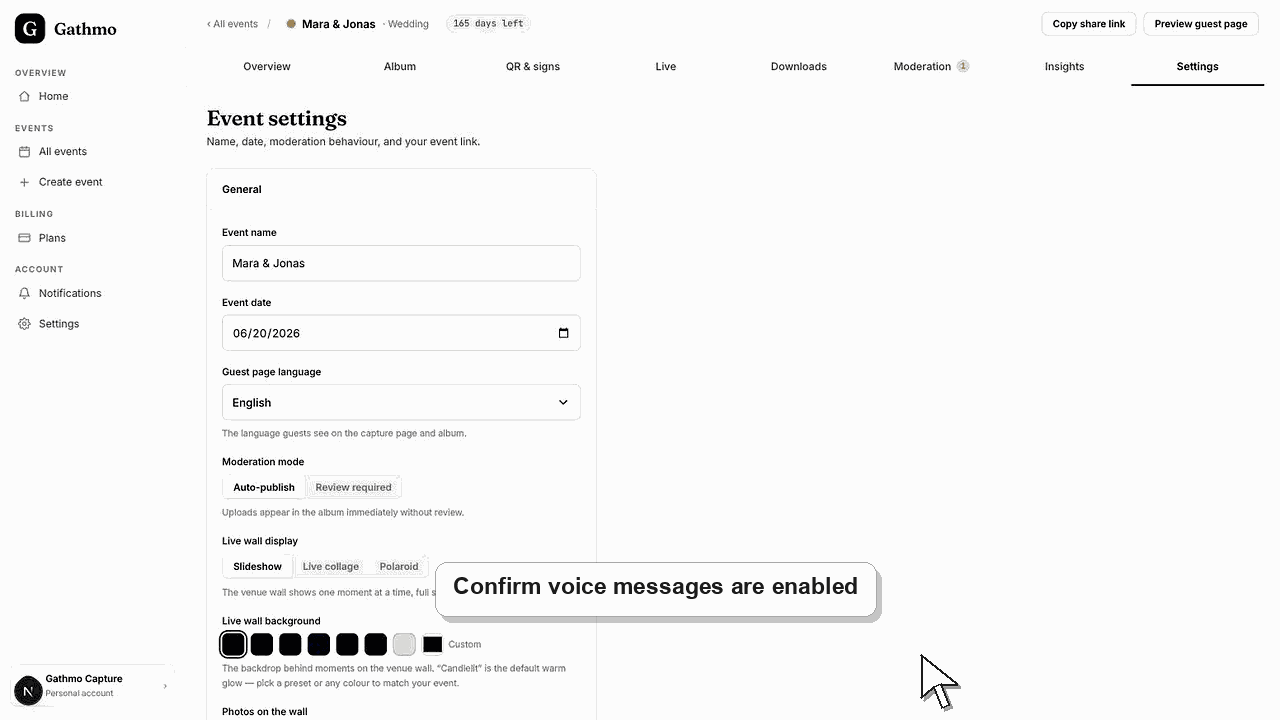
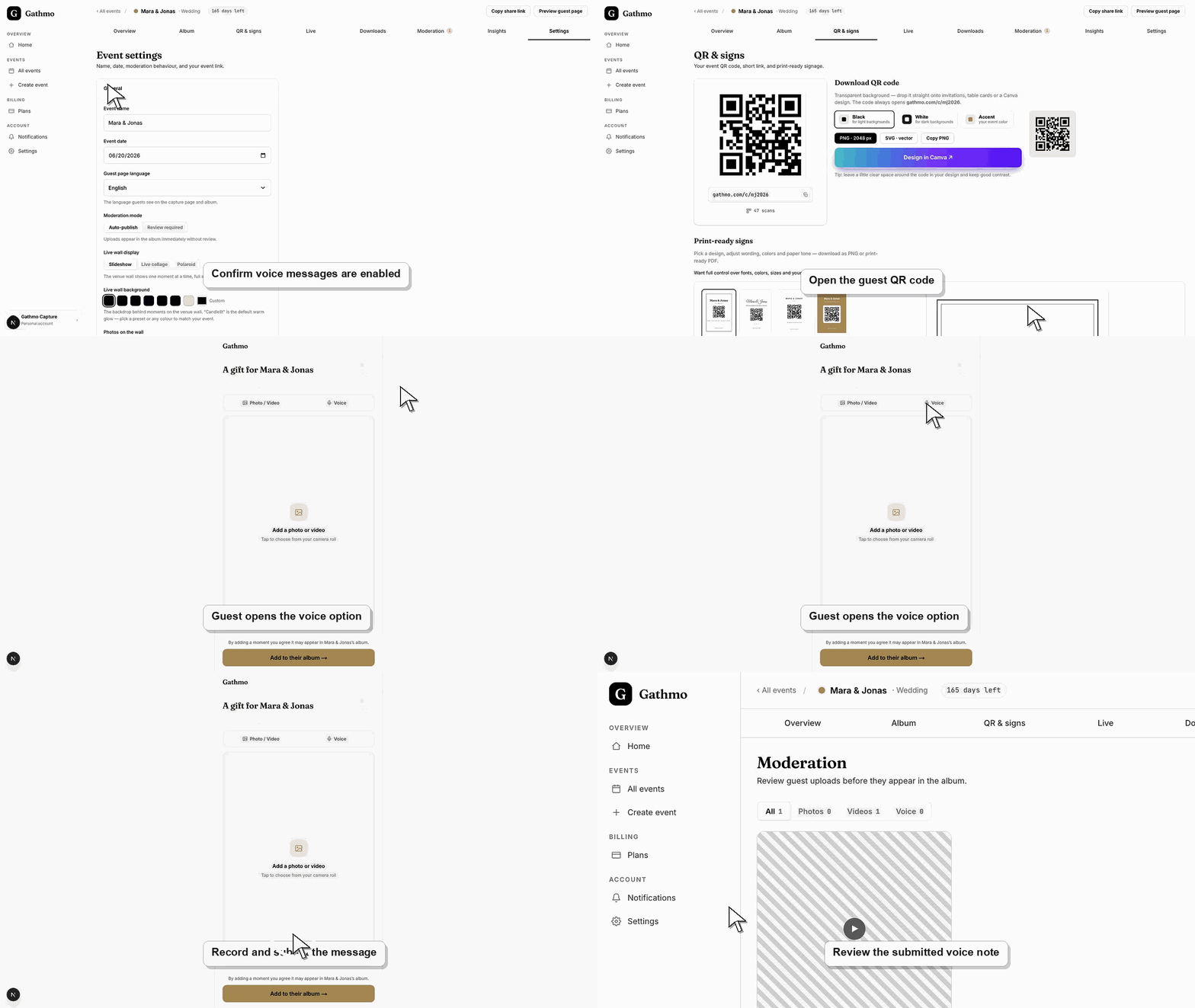
Guests can record a voice message from the guest page when voice messages are enabled. They open the event, allow microphone access, record the message, and submit it.
Before you start
- Voice messages must be enabled for the event.
- Guests need to allow microphone access in their browser.
- A quieter area gives better audio quality.
- Open the correct Gathmo event, workspace, or account before making changes.
Steps
Open the guest page
Guests scan the QR code or open the event link from their phone.
Allow microphone access
When the browser asks for microphone permission, guests should allow it so recording can start.
Record the message
Guests record their greeting, memory, or wish. They should speak close to the phone and avoid loud background noise.
Submit the recording
After recording, guests submit the voice message and keep the page open until it finishes sending.
Submit one test upload
Before the event, scan the QR code as a guest and submit a small sample file. This confirms permissions, network behavior, and the guest-facing instructions in the same flow guests will use.
What to do next
- Place one voice-message prompt near a quieter area.
- Tell guests they can leave a short memory, wish, or greeting.
- Review voice messages in the dashboard if moderation is enabled.
- Run one guest upload from an iPhone and one from Android if the event team has both available before the event.
Frequently asked questions
Do guests need an app to record a voice message?
No. Guests record voice messages in their phone browser after opening the Gathmo guest page.
Why does the browser ask for microphone access?
The browser needs microphone permission before it can record audio. Guests can allow access only for the recording session.
What should guests say in a voice message?
Guests can leave a memory, congratulations, advice, a birthday wish, or a short message to the host or couple.
What if microphone access is blocked?
Ask the guest to reopen the page, check browser permissions, or try another browser on the same phone.
Troubleshooting
Check microphone permission, close other apps using the microphone, and reload the guest page.
Move away from loud speakers and hold the phone closer while recording.
Check the event upload settings in the dashboard, confirm the upload type is enabled, and reload the guest page. If the guest is using an old link, send the current event link again.
Ask the guest to keep the browser open until the upload finishes, switch off low-power or restricted data mode, and retry from a stable Wi-Fi or mobile connection if the first attempt fails.
Voice messages can contain personal data. Review and store them with the same care as photos and videos.
Keep going