Downloading and sharing
Let guests download the album with a password
Turn on guest downloads in Gathmo and add an optional password so guests download every shared photo and video as one ZIP in original quality.

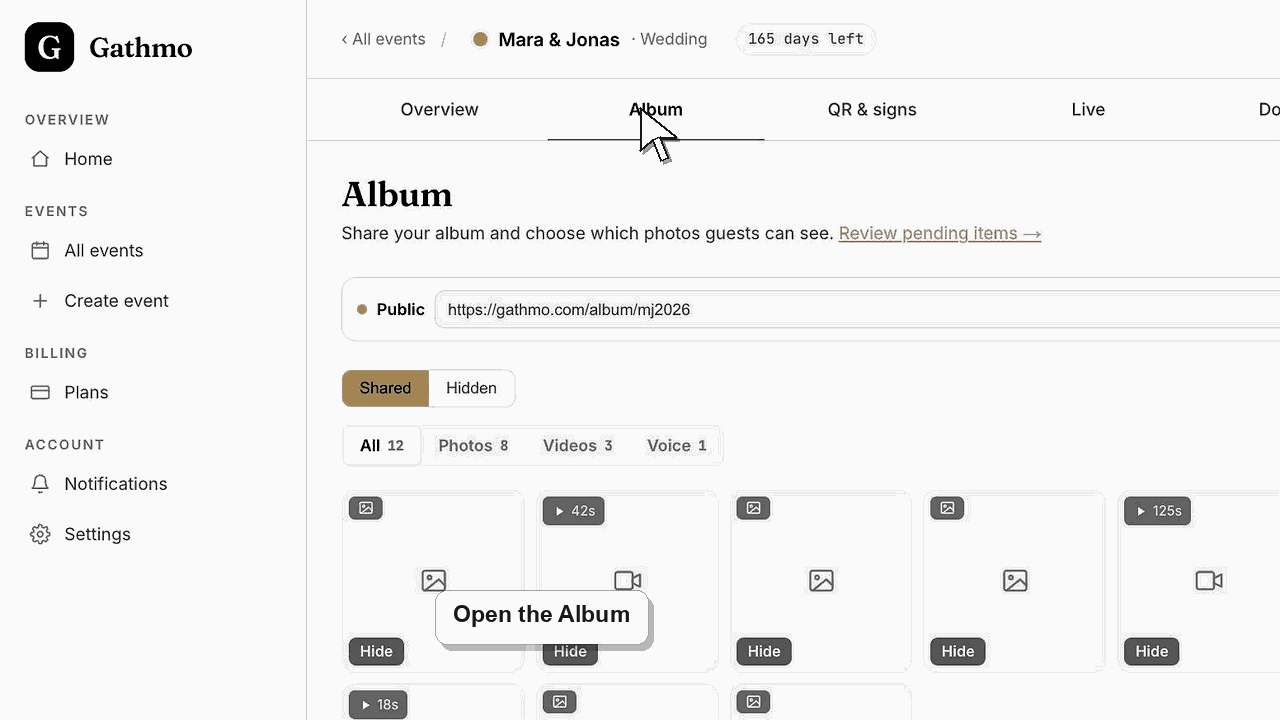
Turn on Guest downloads on the Album tab in Gathmo and, if you want, add a password. Guests then open the public album at gathmo.com/album/<code>, enter the password when prompted, and download every shared, approved photo and video as a single ZIP in original quality — no app and no account needed.
What each guest-downloads setting does
| Setting | What guests can do |
|---|---|
| Off | No Download button appears on the album |
| On, no password | Anyone with the link downloads the ZIP |
| On, with password | Guests must enter the password to download |
Before you start
- Approve the media you want to share, because only shared, approved items are included in the download.
- Make the album Public, otherwise the link shows nothing and guests cannot download.
- Decide whether the download should be open to anyone with the link or locked behind a password.
- Open the correct Gathmo event, workspace, or account before making changes.
Steps
1. Open the Album tab and its share options
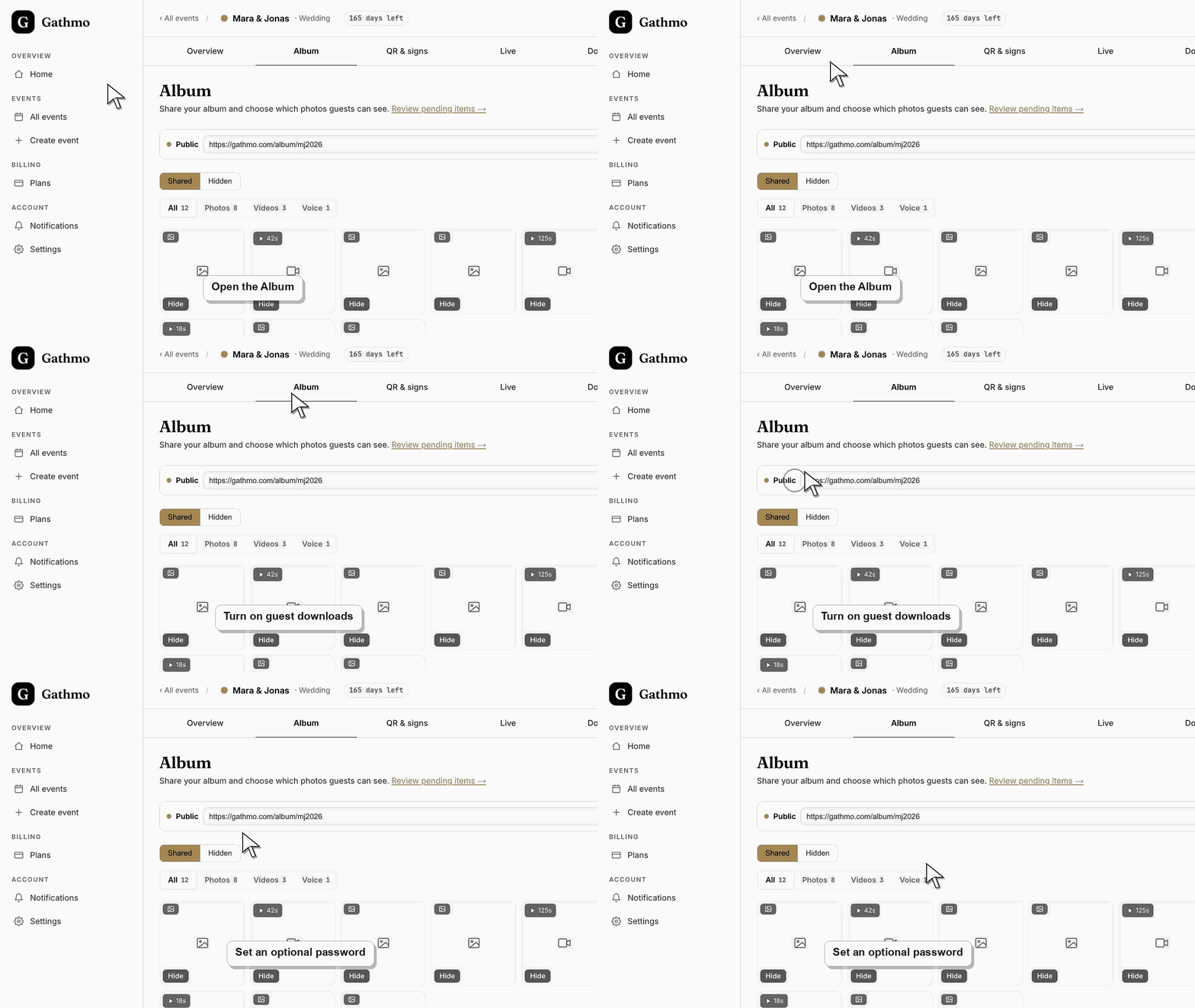
From the event dashboard, open the Album tab. At the top sits the share bar; click Options to expand the public/private toggle and the guest-download controls that sit beneath it. Everything for sharing the album lives in this one panel.
2. Make the album public
Set the Public album toggle to Public. While it is Private the album link shows nothing to guests, so a download is impossible. Public means anyone who has the link can view the shared photos and videos you have approved.
3. Turn on guest downloads
Switch Guest downloads on. This adds a Download button to the public album that packages every shared, approved photo and video into one ZIP file at original quality. Voice messages stay in the album for listening rather than in the bundle.
4. Add a download password
Click Add password, type a password, and Save. Gathmo then labels the album "Password protected", and guests must enter that exact password before the ZIP is prepared. You can return here any time to Change password or Remove password.
5. Copy and share the album link
Use Copy link to grab the gathmo.com/album/<code> address — it uses the same short code as the guest upload link at /c/<code>. Send it to guests together with the password through your own channel, such as a message or an invitation.
6. Confirm the guest download experience
Open the album link yourself, click Download, and enter the password. Gathmo shows "Preparing…" while it builds the ZIP, then the download starts. A wrong password returns "Incorrect password", so guests can simply try again.
What to do next
- The ZIP contains only shared, approved media in original quality — hidden, rejected, and still-pending items are excluded. Changing the password or turning downloads off takes effect immediately, so a link you already shared reflects the new setting the next time a guest opens the album.
- Open the exported files before deleting or hiding event content so you know the download contains what you need.
- Store the export in a secure folder with a clear event name and date so it can be found after the online album window ends.
- Use the retention article if the event includes privacy-sensitive media or if a guest asks for removal after download.
Frequently asked questions
Is the download password required?
No, it is optional. With downloads on and no password, anyone who has the album link can download the ZIP. Add a password only when you want to keep the files to guests you trust.
What quality do guests receive?
Original quality. The ZIP holds the full-resolution files as guests uploaded them, not smaller compressed previews, so the couple or client keeps every original.
Can guests still download a single photo?
Yes. Guests can open any single photo or video full-size straight from the album. The Download button is what bundles everything shared into one ZIP for them.
Does the password protect viewing as well?
No. The password gates the ZIP download only. Viewing is controlled by the Public and Private toggle, so set the album Private when you want to stop people seeing it at all.
Troubleshooting
Guest downloads is probably off, or the album is still Private. Open the Album tab's Options, set the Public album toggle to Public, and switch Guest downloads on. The button then appears on the public album.
The password must match exactly, including capitalisation. Re-share it carefully, or open Change password to set a simpler value and send guests the new one. Removing the password lets anyone with the link download.
Only shared, approved media is bundled. Items still waiting in Moderation, or ones you hid in the Album tab, are left out. Approve the pending items and unhide anything you want guests to keep, then ask them to download again.
Large events take a few seconds to package. The button shows "Preparing…" while Gathmo assembles the ZIP, and the download begins as soon as the file is ready. Ask guests to wait rather than tapping repeatedly.
A download password is a light gate, not encryption, so treat the album link and the password like any shared secret. For a sensitive event, keep the album Private until you are ready, add a password, and share both only with the people who should be able to keep the photos.
Keep going