Guest uploads
Guest access: find an event, delete an upload, or fix a download
Guests need the host’s Gathmo QR code or link because there is no public event directory. Learn how to request deletion and fix an individual photo or video…

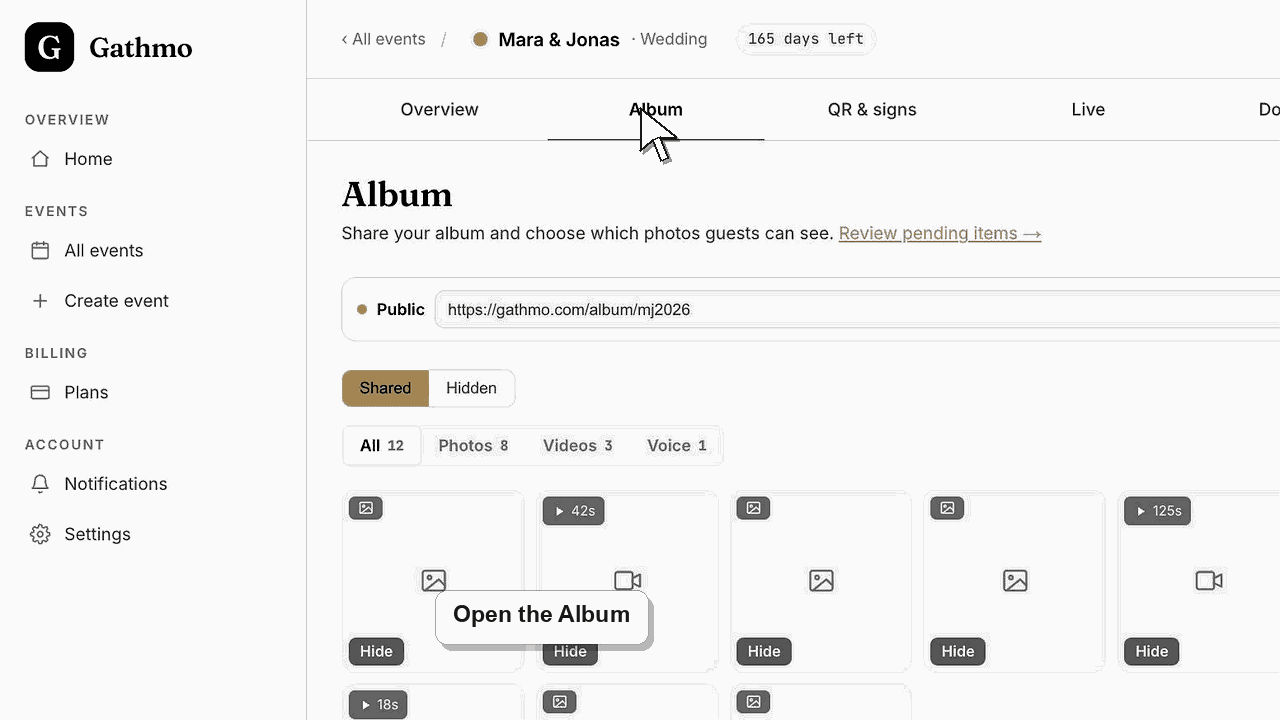
Gathmo has no public directory where guests search for events they attended. A guest needs the QR code or event link from the host; guests do not get a dashboard account for the event, so deletion or access changes should be requested from the host or Gathmo support with enough detail to identify the item safely.
Before you start
- Find the invitation, message, printed QR code, browser history, or host contact.
- Note the event name and approximate upload time.
- For deletion, describe the media without sharing unnecessary personal information publicly.
- Open the correct Gathmo event, workspace, or account before making changes.
Steps
1. Recover the private event link
Search messages, email, calendar notes, photos of event signage, or browser history. Ask the organizer when the event was private or the link has changed; Gathmo cannot expose a directory of private occasions.
2. Open the correct gallery
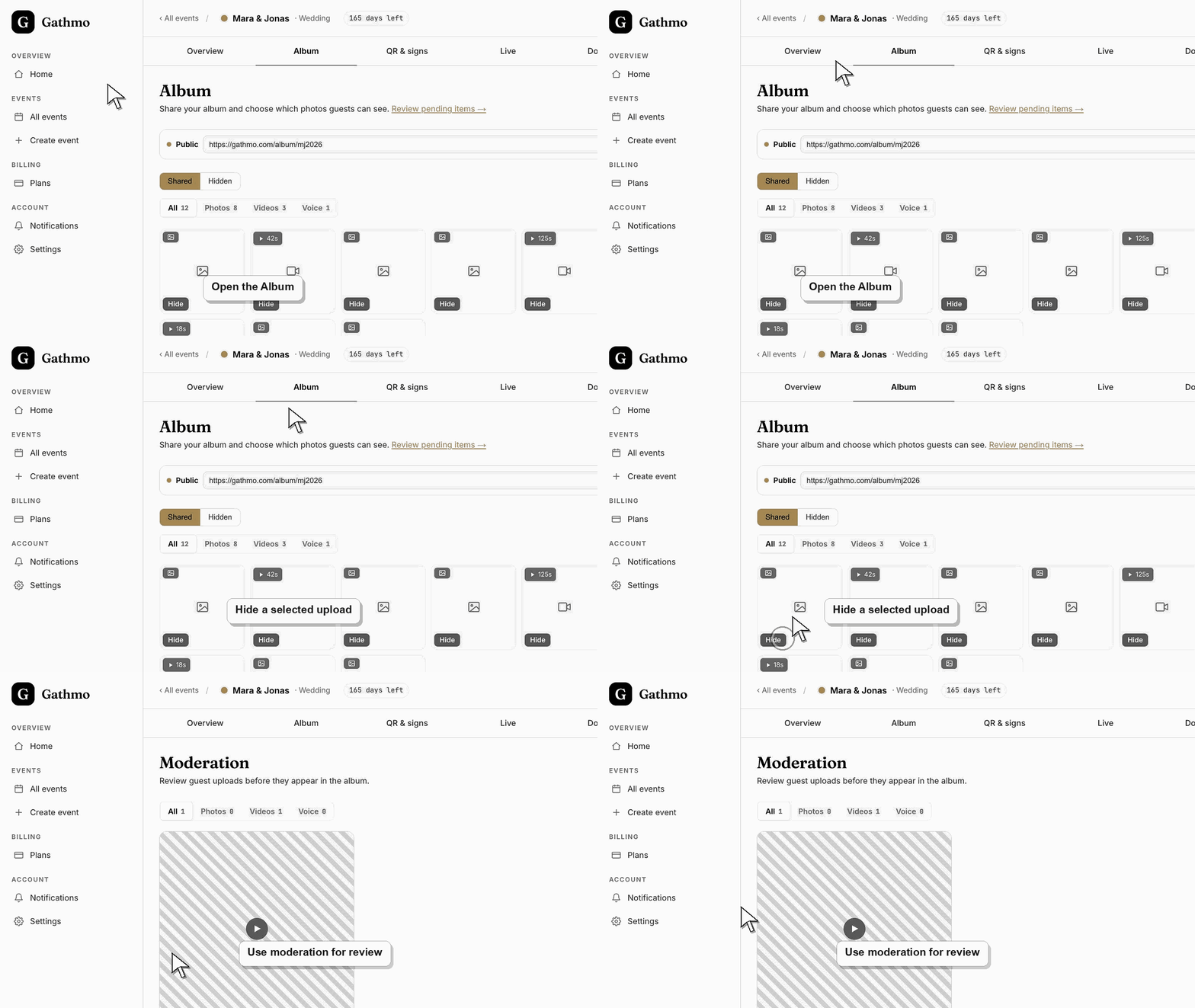
Check the event name before uploading or downloading. Enter the gallery password if the host enabled one, and use the current link rather than a screenshot of an outdated QR code.
3. Ask the host to remove an upload
Send the host the event, approximate time, media type, and a safe description. Hosts can hide or delete individual items from their dashboard and can distinguish between removing it from public view and deleting it.
4. Escalate a privacy request when necessary
If the host cannot be reached or the request involves personal-data rights, contact Gathmo privacy or support with identity and item context. Do not post the private link or sensitive media on a public support channel.
5. Retry an individual download correctly
Open the current gallery, select the item, and use its download action. If the browser opens the media instead, use the browser's save control; on iPhone, check the Files or Photos destination after the browser reports completion.
6. Check access and file state
If only one item fails, it may be hidden, deleted, still processing, unsupported by the device, or temporarily unavailable. Ask the host to verify it in the dashboard and provide a fresh approved download if appropriate.
What to do next
- The host can confirm whether an item was hidden or deleted.
- A privacy request is handled through the verified support process.
- Successfully downloaded files are controlled by the recipient outside Gathmo.
- Run one guest upload from an iPhone and one from Android if the event team has both available before the event.
Frequently asked questions
How can I find an event I attended?
Use the QR code or link supplied by the organizer. Gathmo does not provide a public event search or attendee directory.
Can a guest delete a photo they uploaded?
Guests do not receive host dashboard controls. Ask the host to hide or delete the item, or contact Gathmo for a verified privacy request if the host is unavailable.
Can guests download one photo or video?
Yes when the host's gallery and download settings allow it. Use the item download action and check the device's browser download destination.
Why does only one file fail to download?
The item may be processing, hidden, deleted, restricted, unsupported by the device, or opened through an expired temporary link. Reload and ask the host to verify that specific item.
Do guests need a Gathmo account to return later?
No. They need the current event link and any access password set by the host.
Troubleshooting
Ask the host or another attendee for the current private link. Searching Gathmo by attendee name, venue, date, or public title is not supported.
Check the browser download list, Files/Downloads, Photos, and storage permissions. The destination differs between iOS, Android, and browser settings.
Reload the current gallery and start a new download rather than reusing an old temporary URL. Confirm the album is published and supply any host-set password.
Check the event upload settings in the dashboard, confirm the upload type is enabled, and reload the guest page. If the guest is using an old link, send the current event link again.
Guests should not receive broad dashboard access solely to delete one item. Hosts can remove content, and Gathmo provides a verified route for data-rights requests while protecting the event and other guests from unauthorized changes.
Keep going