Privacy, security, and trust
How consent works for guest uploads
Understand how Gathmo records guest upload consent, where the consent text appears, and why localized wording must be reviewed.

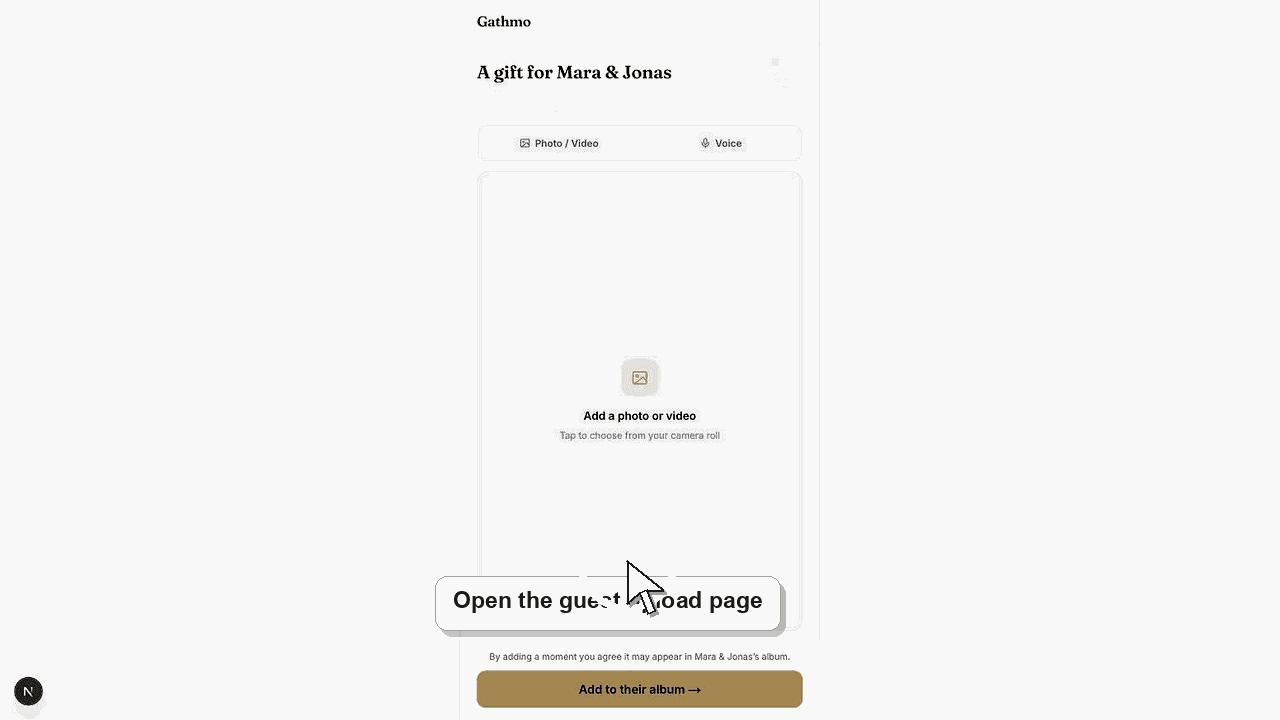
Guests see consent text before uploading. Gathmo records the consent version and a hash of the exact localized wording shown to the guest.
Before you start
- Confirm which guest-page language the event uses.
- Check which upload types are enabled.
- Do not rewrite consent wording in printed material without legal review.
- Open the correct Gathmo event, workspace, or account before making changes.
Steps
1. Guest opens the upload page
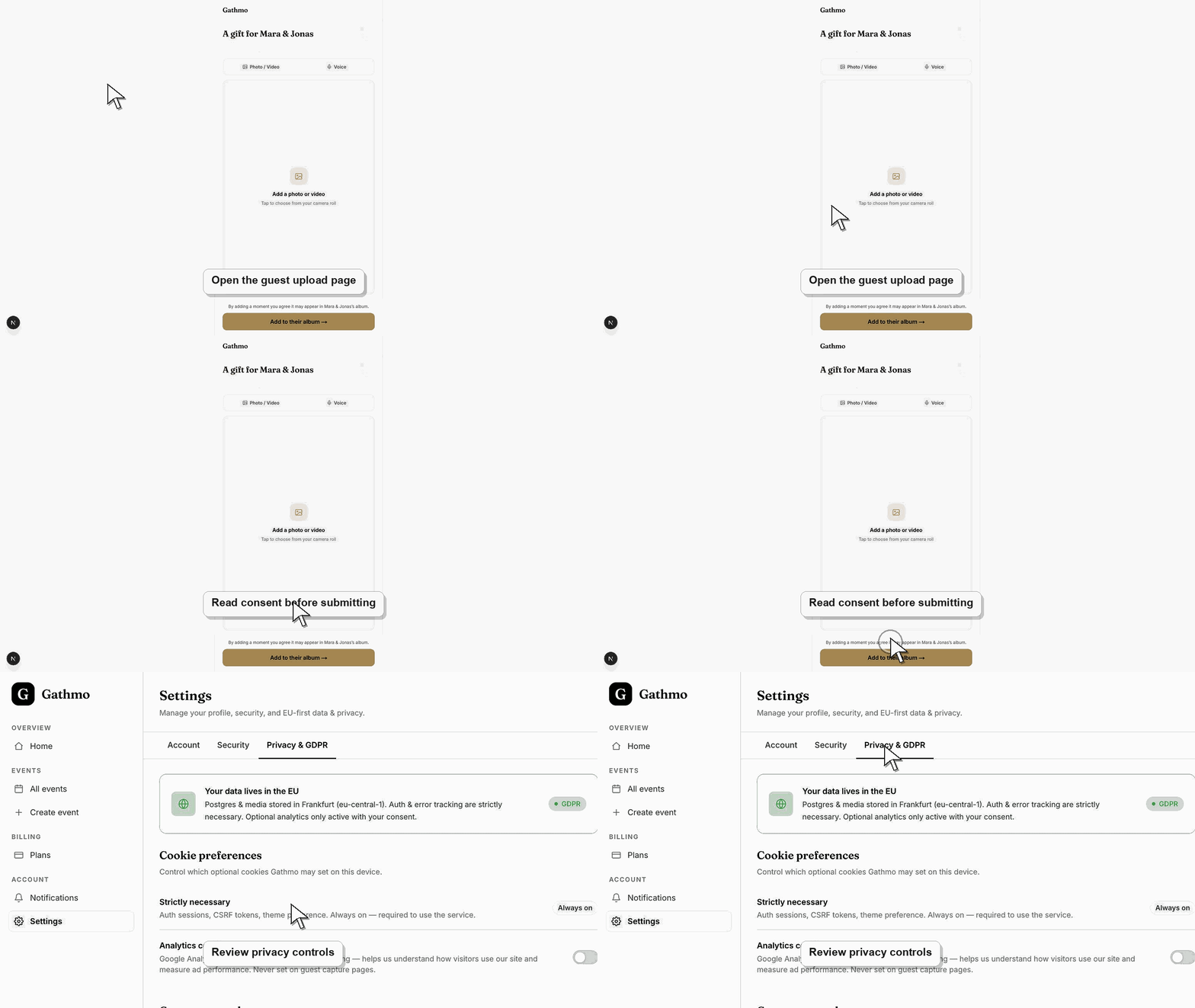
The guest scans the QR code or opens the event link. The page resolves the event and loads the current consent text for that event language.
2. Guest reviews the consent text
The current consent text explains that the guest agrees to share photos, videos, and voice messages with the event host. The wording is localized where supported.
3. Guest accepts before uploading
The guest must accept the consent step before uploading. Upload initialization can reject requests when consent is missing.
4. Gathmo records the consent state
The system records consent data such as event, guest session, version, hash, locale, and upload scopes. This makes the consent text auditable.
5. Host keeps event instructions consistent
If voice or video is enabled, printed and digital instructions should not imply that guests are only sharing photos.
What to do next
- After consent is recorded, the guest can upload enabled media types from the guest page. If the consent version changes later, guests may need to accept the updated version.
- Review the event link, upload permissions, moderation state, and album visibility together because privacy depends on the full workflow.
- Download anything that must be kept before deleting, hiding, or closing access to event media.
- Use business privacy and DPA articles for workspace or procurement questions that go beyond a private host event.
Frequently asked questions
Do guests need an account to consent?
No. Consent is part of the guest upload flow.
Is the exact consent wording recorded?
The system records the version and a hash of the localized text shown to the guest.
Does consent cover every future use of the media?
No. Do not imply broad reuse rights. Hosts should use event media only within the purpose explained to guests and reviewed by legal.
Troubleshooting
Ask the guest to reopen the upload page and complete the consent step before uploading again.
Check the event guest-page language. Unsupported locales may fall back to English.
The consent wording guests see is managed centrally so every event uses the same reviewed text. If you need different consent wording for a specific event, contact support.
Identify the exact event, upload, and requested outcome first. Then hide, delete, export, or escalate from the dashboard instead of making broad changes without knowing which media is affected.
This article explains product behavior, not legal advice. Hosts with legal-basis or consent-record questions should route them to their privacy owner.
Keep going