Privacy, security, and trust
Review active sessions and sign out other devices
See every device signed in to your Gathmo account on the Profile page and revoke any session you do not recognise. Revoking signs that device out immediately.

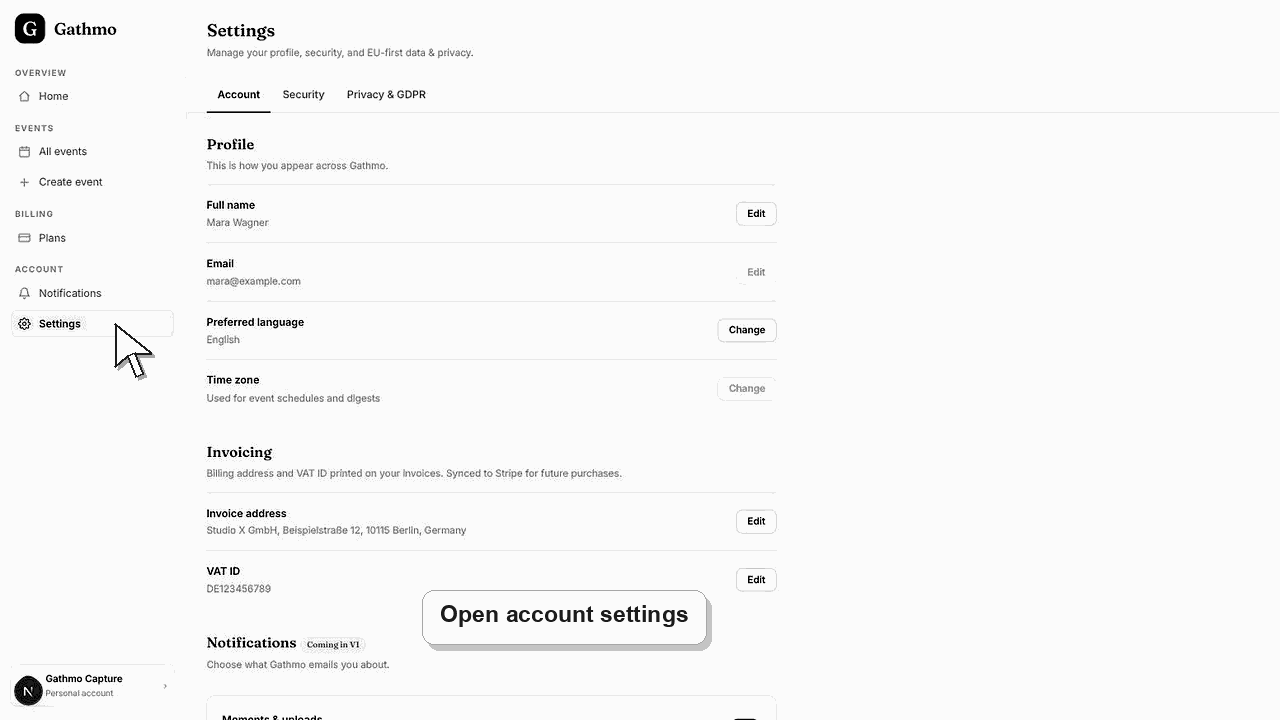
Open your Profile page in Gathmo and scroll to Active sessions. It lists every device currently signed in to your account, marks the one you are using as "This device", and gives every other session a Revoke button that signs that device out immediately. Your email address is your login and is shown read-only.
What each session label means
| Label | Meaning | Action |
|---|---|---|
| This device | The session you are using now | No revoke available |
| Active | Another signed-in device | Revoke to sign it out |
Before you start
- Sign in to the Gathmo dashboard on a device you trust.
- Open Profile from your account menu.
- Have a reason to review — a shared or public computer, a lost phone, or a login you do not recognise.
- Open the correct Gathmo event, workspace, or account before making changes.
Steps
1. Open your Profile page
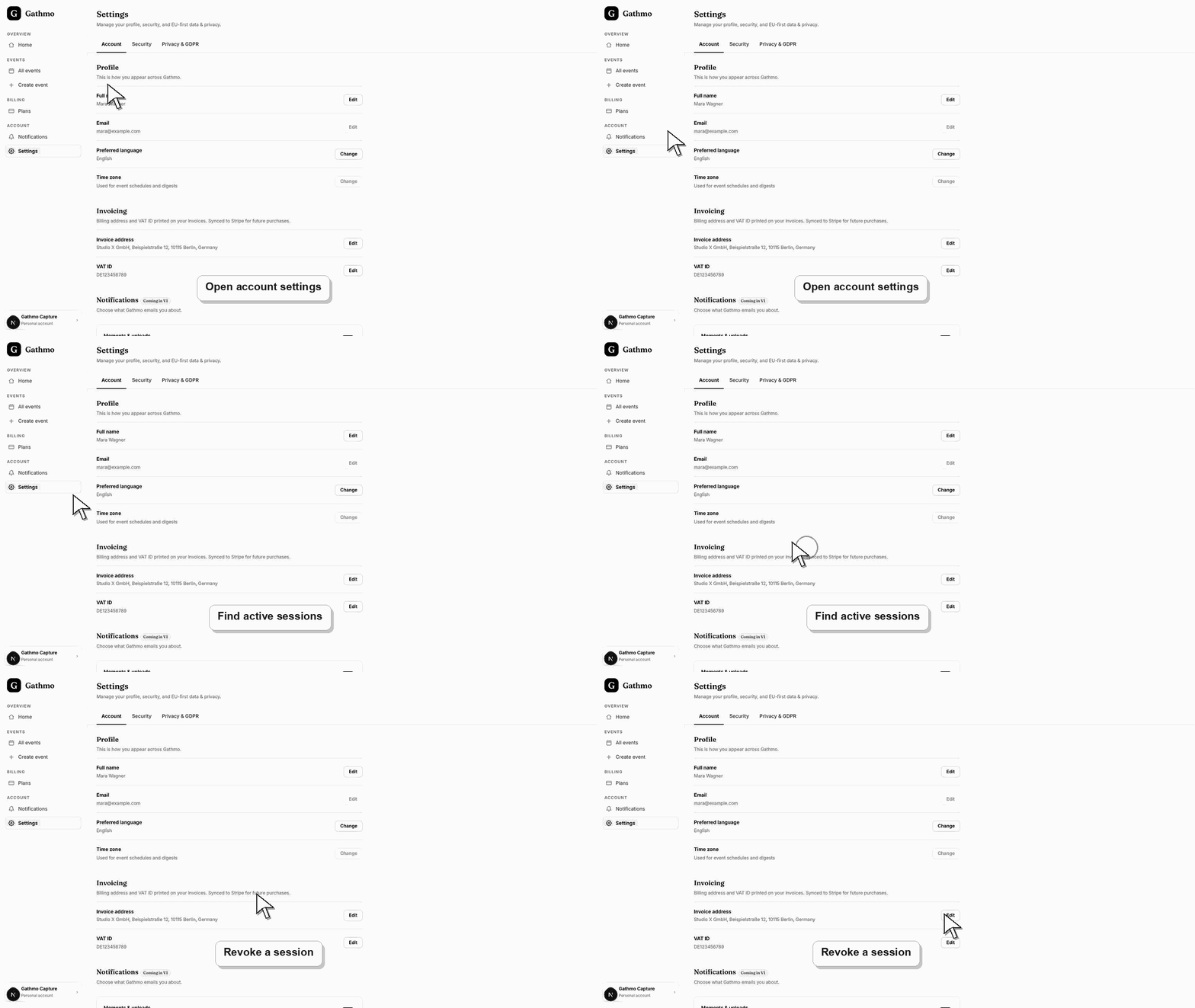
From the dashboard, open Profile from your account menu. It gathers your identity, personal information, active sessions, and notification preferences on a single page. Scroll down to the Active sessions section to see where your account is signed in.
2. Read the active sessions list
Each row is one signed-in session. Gathmo shows the device — or "Unknown device" when it cannot be identified — along with when the session started and when it expires, so you can spot any login you do not recognise.
3. Identify your current device
The session you are using right now is labelled "This device" in green and has no Revoke button, so you cannot sign yourself out from this list. Every other row is a separate active login on your Gathmo account.
4. Revoke a session you do not recognise
Click Revoke next to any session that is not yours. Gathmo signs that device out immediately and removes the row. There is no single "sign out everywhere" button, so revoke each unwanted session one at a time.
5. Confirm your email login is correct
In Personal information, your Email address appears but is read-only — it is the login for your account and cannot be changed here. Confirm it is the address you expect while you are reviewing your account security.
6. Re-check the list afterwards
After you revoke a session, the list reloads and that device disappears. If a login you do not recognise keeps coming back, treat the account as compromised: reset your password through the sign-in flow, then revoke the session again so old logins can no longer authenticate.
What to do next
- A revoked session stops working right away — the device is rejected on its next request and returned to the sign-in screen. Sessions you keep stay active until they reach the expiry date shown or you revoke them. Nothing you change here affects your guests or their uploads.
- Review the event link, upload permissions, moderation state, and album visibility together because privacy depends on the full workflow.
- Download anything that must be kept before deleting, hiding, or closing access to event media.
- Use business privacy and DPA articles for workspace or procurement questions that go beyond a private host event.
Frequently asked questions
Does revoking a session sign the device out immediately?
Yes. Gathmo invalidates the session the moment you click Revoke, so the device is signed out on its next action rather than waiting for the session to reach its expiry date.
Can I sign out all other devices at once?
Not with a single button. Revoke each session individually from the Active sessions list. Your current device, marked "This device", stays signed in throughout.
Why can I not revoke my current session?
The session marked "This device" has no Revoke button by design, so you cannot accidentally lock yourself out of the account you are working in. Sign out through the normal menu when you want to end it.
Is my email address tied to one session?
No. Sessions are per device login, while your email is the single identifier for the whole account. It is shown read-only in Personal information and is not part of any individual session row.
Troubleshooting
Gathmo cannot always read a device name, so it labels the session "Unknown device" and shows the start and expiry dates instead. Use those dates, and the number of sessions, to judge which login is your current one.
That row is your current session, marked "This device". You cannot sign out the device you are on from this list. Sign out through the normal account menu, or revoke it later from a different device.
Revoking signs the device out immediately. If unfamiliar sessions keep appearing, your password may be known to someone else. Reset it through the sign-in flow so previously stored logins can no longer sign in.
The email is read-only because it is your account login, so it cannot be edited on the Profile page. Contact Gathmo support if you genuinely need the address on your account changed.
Reviewing active sessions is the fastest way to cut off access after using a shared or public computer, or if a device is lost. Because guests never sign in — they upload without an account — nothing in this list is ever a guest. Every session is a login to your own Gathmo account.
Keep going