Dashboard functions
Update your profile, language, and account details
Change your Gathmo profile name and account language, review the email on file, manage active sessions, and find where billing details are edited.

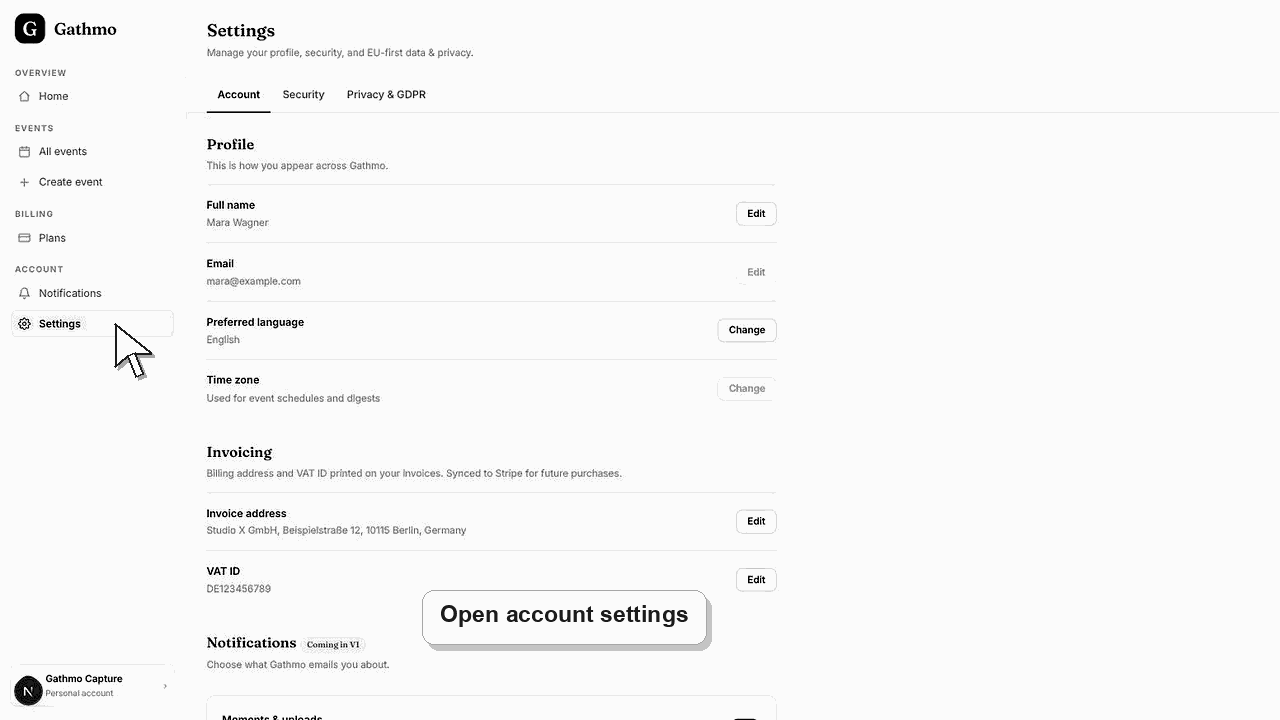
In your Gathmo profile you can change your name, set your account language (English, Deutsch, Français, or Español), and review the email on file. You also manage the devices signed in to your account. Billing details such as your invoice address and VAT ID live in a separate Settings screen.
Where each detail lives
| Detail | Where to change it |
|---|---|
| Name | Profile → Personal information |
| Account language | Profile → Language |
| Login email | Read-only; contact support to change |
| Signed-in devices | Profile → Active sessions |
| Invoice address and VAT ID | Dashboard Settings |
| Guest-page language | Event Settings, per event |
Before you start
- Sign in to the Gathmo dashboard.
- Open the Profile screen from your account menu.
- Have any new details ready before you save.
- Open the correct Gathmo event, workspace, or account before making changes.
Steps
1. Open your profile
From the Gathmo dashboard, open Profile. The top of the page shows your name, the email on file, and your plan. Below it, the Personal information section holds the editable fields for your name and account language.
2. Update your name
Edit the First name and Last name fields under Personal information. This is how you appear across Gathmo and on shared albums, so use the name you want collaborators and guests to see when they view your events.
3. Set your account language
Open the Language menu and choose English, Deutsch, Français, or Español. This sets the language of your own account. The language guests see on the capture page and album is set separately, per event, in that event's Settings.
4. Save your changes
Select Save changes to apply your new name and language. The button stays disabled until you actually change something, and you can select Cancel to discard edits and return the fields to their saved values.
5. Check the email on file
Your Email address is shown but read-only, because it is the login for your account. If you need to change the email itself, contact Gathmo support rather than editing it in the profile screen.
6. Manage active sessions
Scroll to Active sessions to see the devices currently signed in, with the country and dates. Your current device is marked, and you can Revoke any session you do not recognise to sign that device out.
What to do next
- Your saved name shows across Gathmo immediately, and your chosen language applies to your account view. Revoked sessions are signed out at once. For billing details, head to the dashboard Settings screen, which is where your invoice address and VAT ID are edited.
- Open the public guest link after changing dashboard settings so you can verify the change from a guest perspective.
- Tell any co-hosts what changed, especially if the setting affects QR codes, moderation, album visibility, downloads, or live wall behavior.
- Use related troubleshooting articles if the saved dashboard state does not match the public event view.
Frequently asked questions
Does changing my account language change what guests see?
No. Your account language controls your own dashboard experience. The language on the guest capture page and album is set per event in that event's Settings, independent of your profile language.
How do I change the email I sign in with?
The login email is read-only in the profile because it identifies your account. Contact Gathmo support to change it, and they will confirm the update so you do not lose access.
Where do I update my billing address or VAT ID?
Those are handled in the dashboard Settings screen, not the profile. Billing is invoiced through the payment provider, and receipts use the invoice address and VAT ID you enter there.
Troubleshooting
Save only activates once you change a field. If it is still disabled, your name and language already match what is stored. Edit a value, and the button becomes active so you can save.
The email is your account login, so it is read-only in the profile. To change the address you sign in with, contact Gathmo support at hello@gathmo.com and they can help update it safely.
Select Revoke next to any session you do not trust to sign that device out immediately. If several unknown sessions appear, revoke them and consider changing your password, then contact support if it continues.
Refresh the guest page, confirm the browser is opening the current event link, and check whether the public view has filters or moderation state that explain the difference.
Your profile holds only your own account details — name, login email, language, and sessions. Gathmo does not attach guest names, emails, or logins to your account, so managing your profile never exposes guest identities.
Keep going