Dashboard functions
Navigate the event dashboard
Navigate the Gathmo event dashboard and find the core areas for uploads, QR codes, settings, moderation, downloads, and event links.

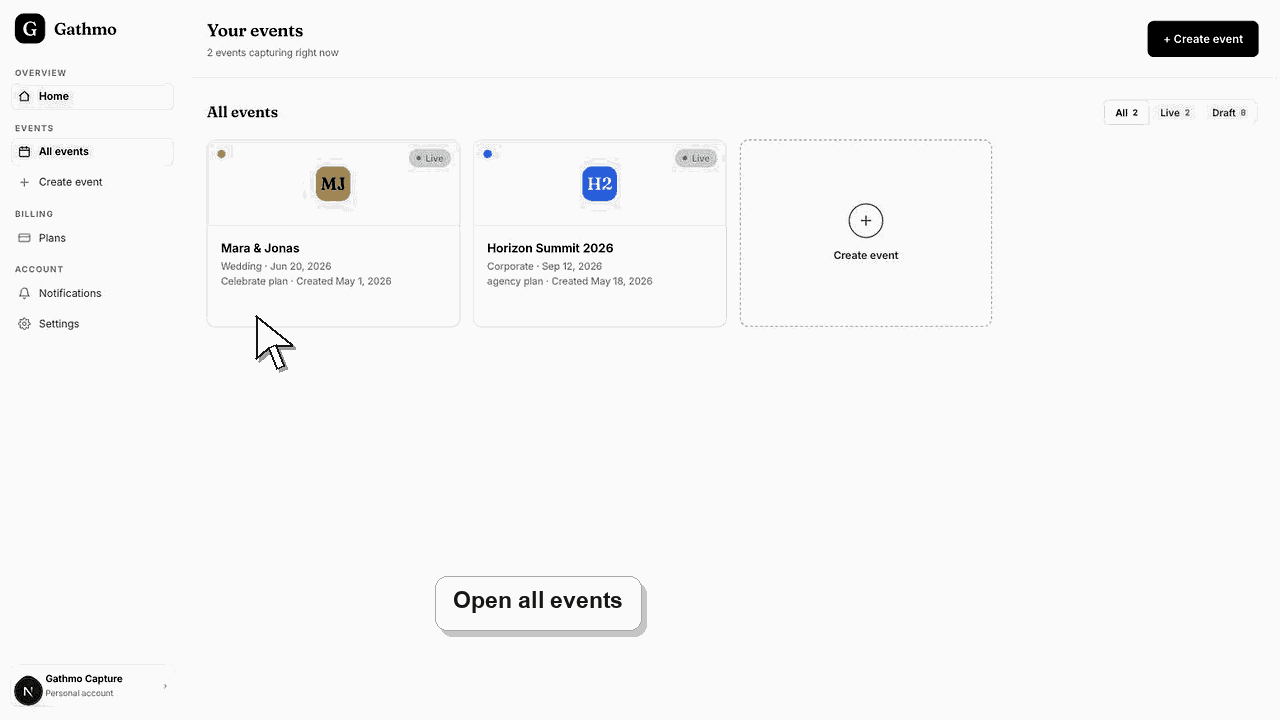
Use the event dashboard tabs to manage one event. The main tabs are Overview, Album, QR & signs, Live, Downloads, Moderation, Insights, and Settings.
Before you start
- Sign in to the Gathmo dashboard.
- Open the event you want to manage.
- Check the event name in the top bar before changing settings.
- Open the correct Gathmo event, workspace, or account before making changes.
Steps
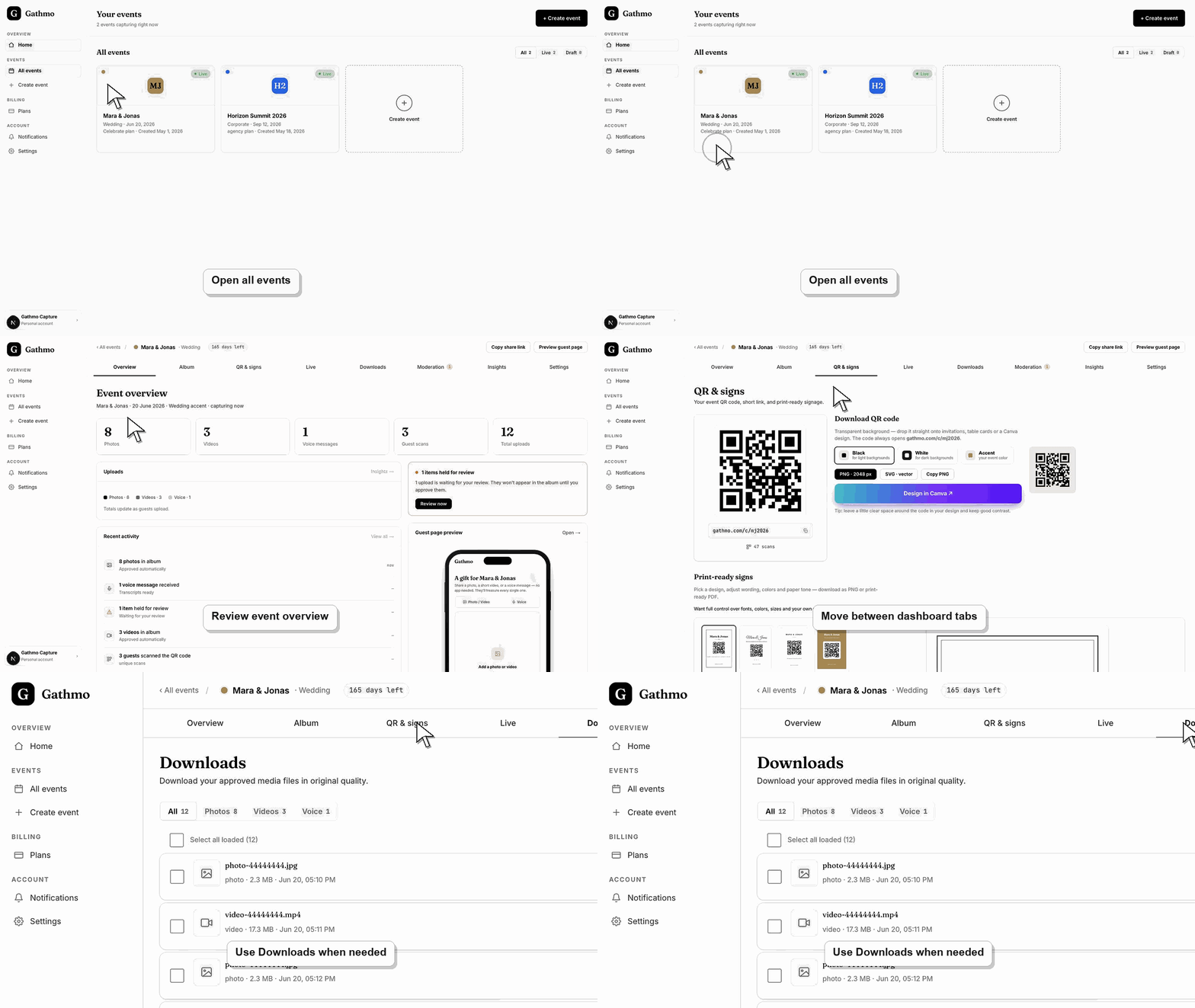
1. Open the event from All events
From the dashboard home, choose the event you want to manage. The event cockpit opens with a shared top bar and tab navigation.
2. Use Overview for status
Start with Overview when you need event status, upload activity, moderation counts, or quick next steps.
3. Use QR & signs before sharing
Open QR & signs to download the event QR code, preview the guest page, or prepare print assets.
4. Use Album, Moderation, and Downloads after uploads start
Use Moderation to approve or reject uploads, Album to manage what guests can see, and Downloads to export approved media.
5. Use Settings for event configuration
Open Settings to change event name, date, guest-page language, moderation mode, live wall appearance, and danger-zone actions.
What to do next
- Once you know which tab controls each task, use the related article for the specific workflow you need.
- Open the public guest link after changing dashboard settings so you can verify the change from a guest perspective.
- Tell any co-hosts what changed, especially if the setting affects QR codes, moderation, album visibility, downloads, or live wall behavior.
- Use related troubleshooting articles if the saved dashboard state does not match the public event view.
Frequently asked questions
Where do I find the QR code?
Open the QR & signs tab for the event.
Where do I approve uploads?
Open Moderation. If auto-publish is enabled, uploads can appear without manual approval.
Where do I delete an event?
Open Settings and use the event danger zone.
Troubleshooting
You may be viewing a demo event or an account without the needed plan or permission.
Use the horizontal tab navigation. On small screens, the tab row can scroll.
Use the back link to return to All events and open the correct event.
Refresh the guest page, confirm the browser is opening the current event link, and check whether the public view has filters or moderation state that explain the difference.
Some tabs affect guest-visible content, downloads, billing limits, or deletion. Use caution when changing Album, Moderation, Downloads, and Settings.
Keep going