Dashboard functions
Change event name, date, language, and link
Change a Gathmo event name, date, language, or link from the dashboard, then re-check the guest page and shared QR materials.

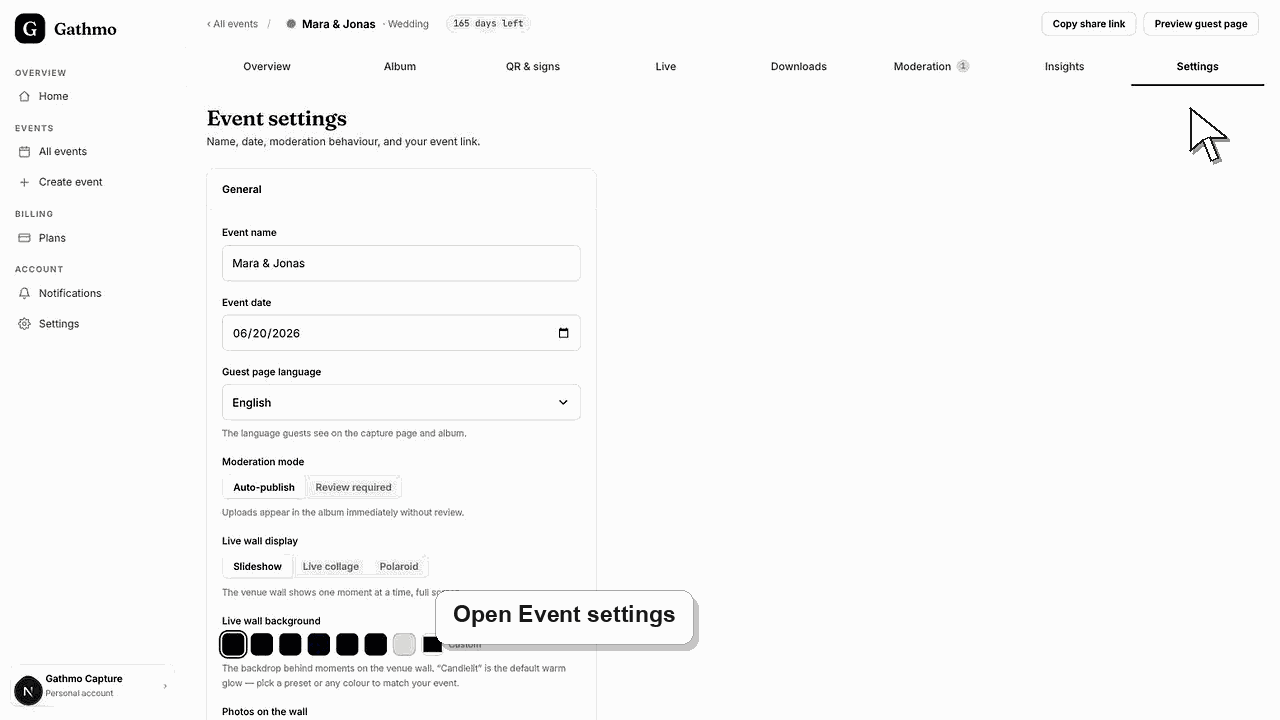
Change event name, date, and guest-page language from Settings. After changing anything guests see, scan the QR code and preview the guest page again.
Before you start
- Open the correct event.
- Know the exact event name and date guests should see.
- Avoid changing details while guests are actively uploading unless necessary.
- Open the correct Gathmo event, workspace, or account before making changes.
Steps
1. Open Settings
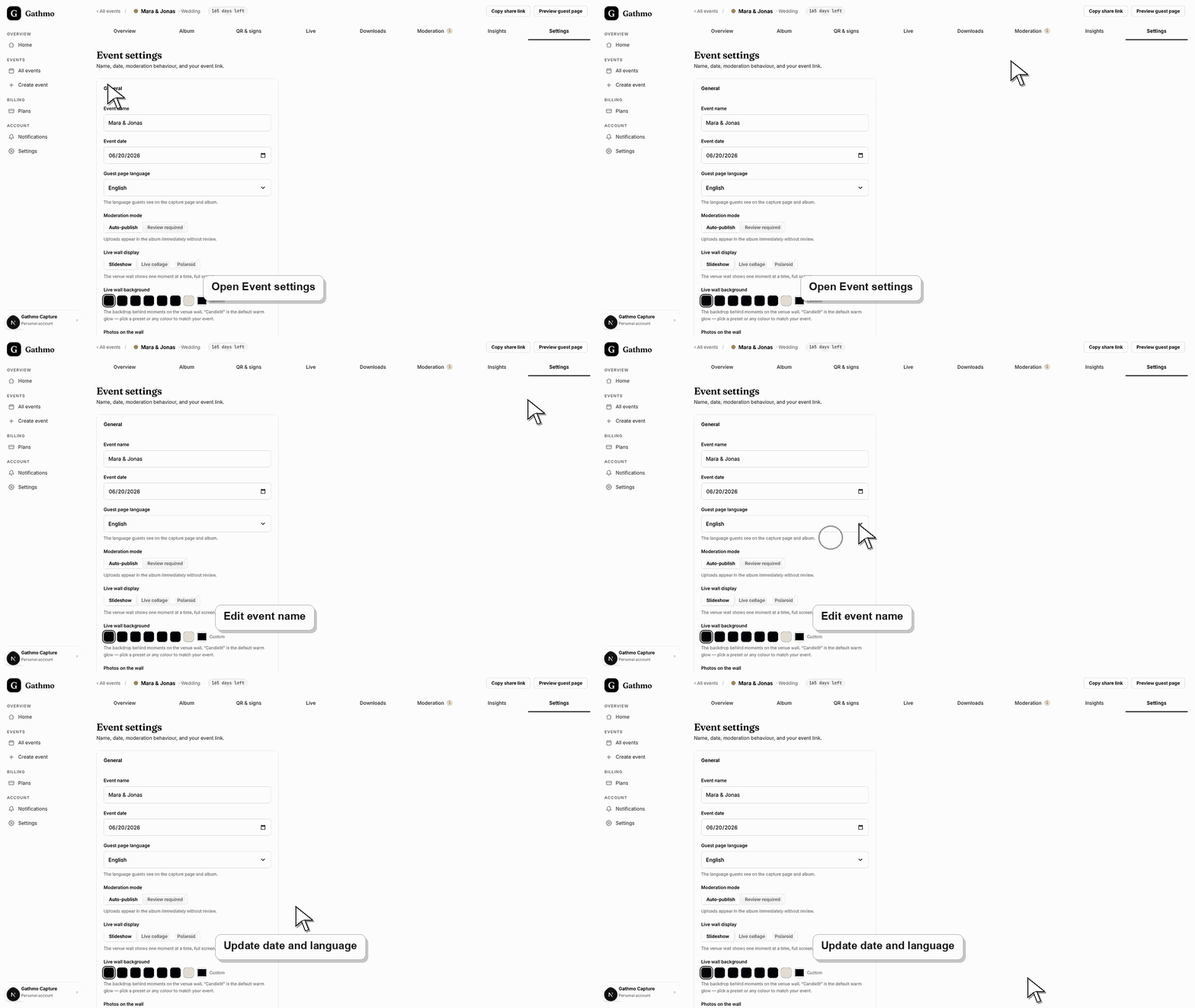
From the event dashboard, open Settings. The General section contains event name, event date, guest-page language, and moderation mode.
2. Edit the event name
Use a clear name that guests recognize. The event name helps hosts find the event and can appear in guest-facing views.
3. Edit the event date
Set the correct event date. The date can affect planning, retention, and event context, so check it before checkout or printing.
4. Choose guest-page language
Select the language guests should see on the capture page and album. Reopen the guest page after saving to confirm the language.
5. Recheck the share link and QR code
Use Preview guest page and scan the QR code after major changes. Make sure the link still opens the intended event.
What to do next
- Guests should see the updated event details the next time they open the guest page. Hosts should update any printed or shared instructions if the visible event details changed.
- Open the public guest link after changing dashboard settings so you can verify the change from a guest perspective.
- Tell any co-hosts what changed, especially if the setting affects QR codes, moderation, album visibility, downloads, or live wall behavior.
- Use related troubleshooting articles if the saved dashboard state does not match the public event view.
Frequently asked questions
Can I change the event name after printing?
Yes, but test the printed QR code and guest page again. The QR code should still point to the same event.
Does changing the date change the QR code?
Usually no. Test the QR code after major changes to confirm.
Can I change the guest-page language later?
Yes. Reopen the guest page after saving to confirm what guests see.
Troubleshooting
Ask them to refresh the page or reopen the QR code. An old browser tab can show stale content.
Check the guest-page language in Settings and preview the guest page outside your signed-in dashboard.
Stop sharing that link or QR code and re-download the correct QR code from the correct event.
Refresh the guest page, confirm the browser is opening the current event link, and check whether the public view has filters or moderation state that explain the difference.
Changing the event link or shared materials can affect who can access the event. Treat event links like QR codes.
Keep going