Account, billing, and plans
Update billing address and VAT ID
Update the billing address and VAT ID before checkout or invoicing so Gathmo receipts and business billing records stay accurate.

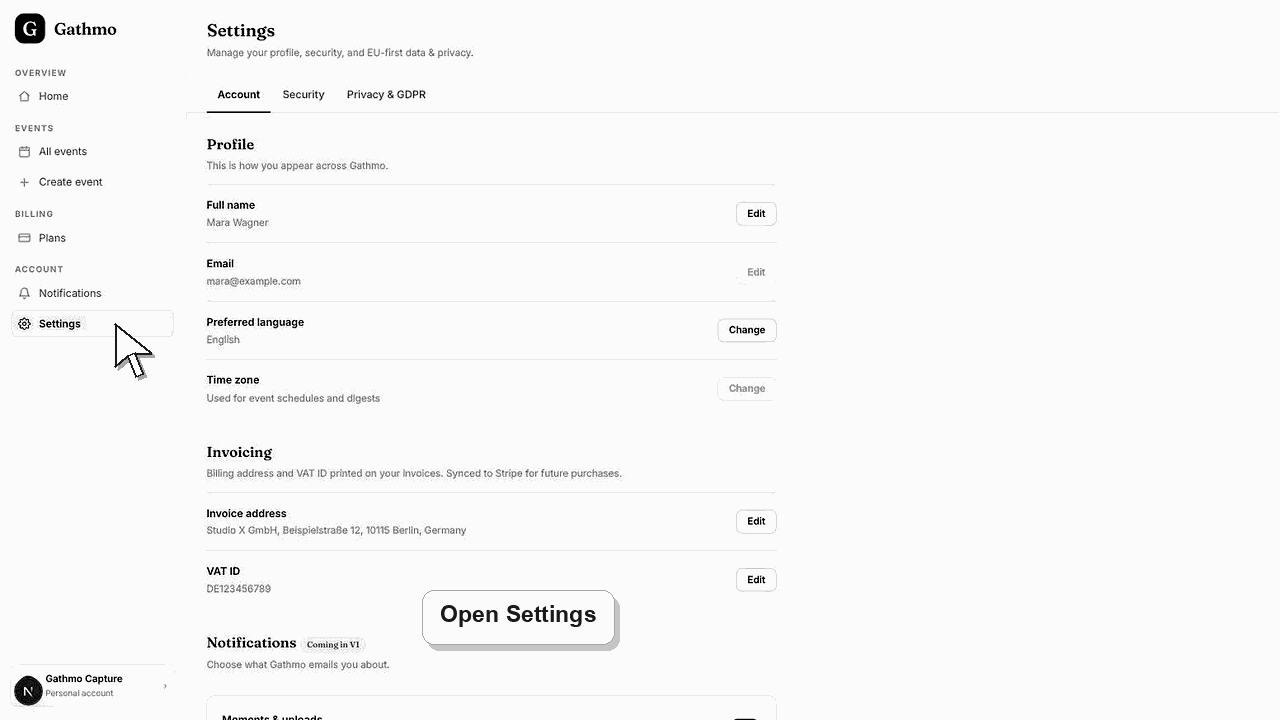
Update billing address and VAT ID from Settings before checkout. The saved invoice details are used for future invoices and are synced to Stripe where applicable.
Before you start
- Sign in to the account that will make the purchase.
- Have the correct company or billing name ready.
- Have the billing address and VAT ID ready if they should appear on invoices.
- Open the correct Gathmo event, workspace, or account before making changes.
Steps
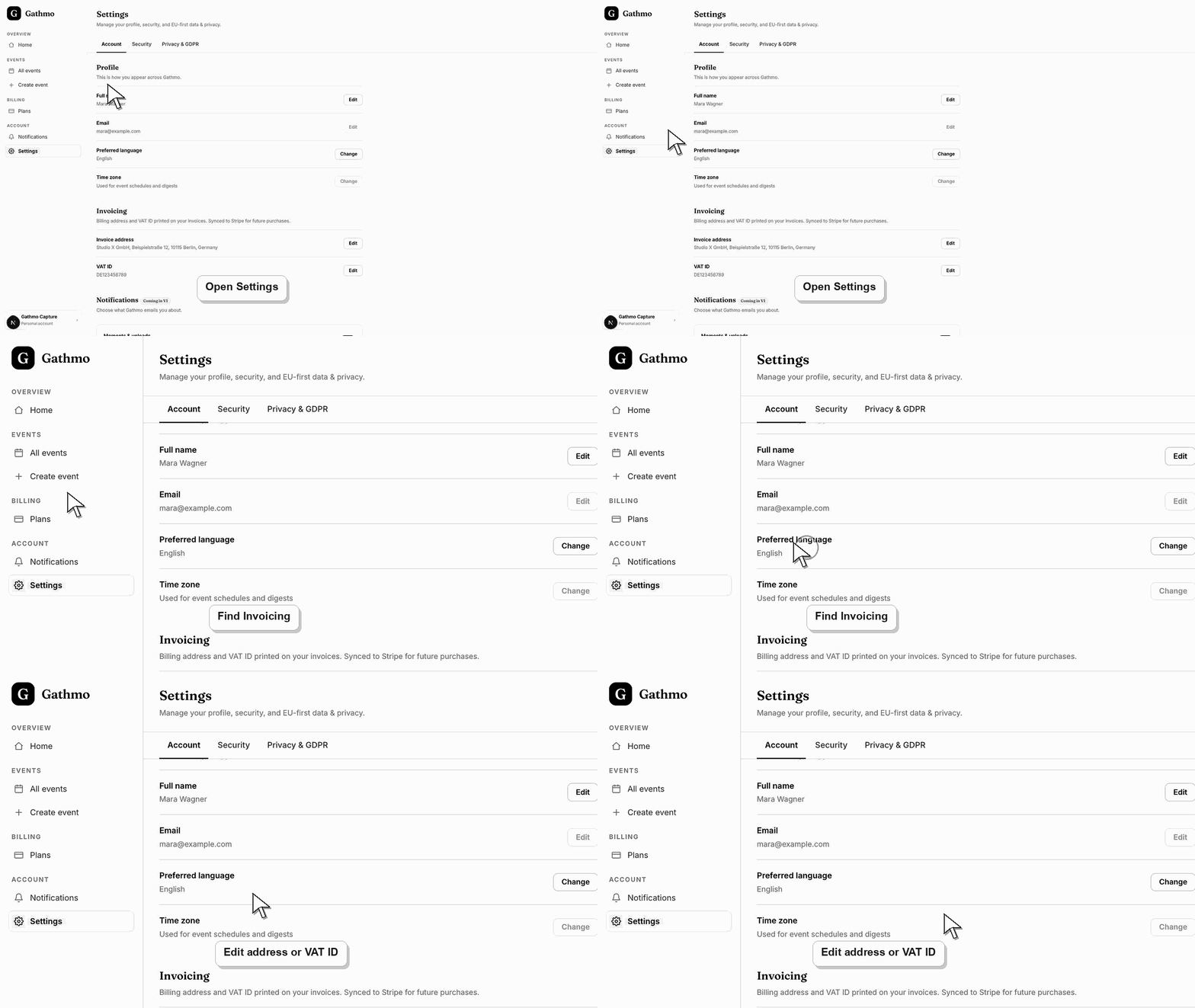
1. Open Settings
From the dashboard, open Settings and find the invoicing section.
2. Add the invoice name and address
Enter the company or billing name, street address, city, postal code, and country. Save the details.
3. Add the VAT ID if needed
Enter the VAT ID in the invoicing section. Use the correct format for the country, such as a country prefix where required.
4. Save and check for errors
If the VAT ID format is rejected, check the number and spacing. The dashboard may ask you to correct the format before saving.
5. Confirm before checkout
Return to Billing or event checkout only after the billing details are saved. This improves the chance that the next invoice uses the correct details.
What to do next
- Future invoices should use the saved billing details. If a purchase was already completed before the change, the old invoice may not update automatically.
- Check the live dashboard or checkout page before making a billing decision, because plan state and tax can depend on account and currency.
- Keep the receipt, invoice, event name, and account email together if you need support to review a billing issue.
- Review related plan or invoice articles before changing event materials, because billing decisions can affect limits guests experience later.
Frequently asked questions
Should I update billing details before or after purchase?
Before purchase. That gives checkout and invoice generation the best chance of using the correct details.
Does the VAT ID apply to every account?
No. It applies to the account where it is saved.
Does this change my event plan?
No. Billing details only affect invoicing information, not event features or limits.
Troubleshooting
Check country code, digits, spaces, and punctuation. Use the format expected for the issuing country.
The details may have been added after checkout. Contact support if you need help with a past invoice.
Check whether the purchase belongs to a personal account or business account. Billing details are account-specific.
Use the live checkout, invoice, or dashboard billing page as the source of truth. Capture the account email, event name, currency, and visible billing state before contacting support.
Billing address and VAT ID are account data. Update them before checkout when possible, and use the invoice PDF as the final billing record.
Keep going