Account, billing, and plans
Manage invoices and VAT receipts
Manage Gathmo invoices and VAT receipts, including where to find checkout emails, invoice PDFs, billing details, and tax records.

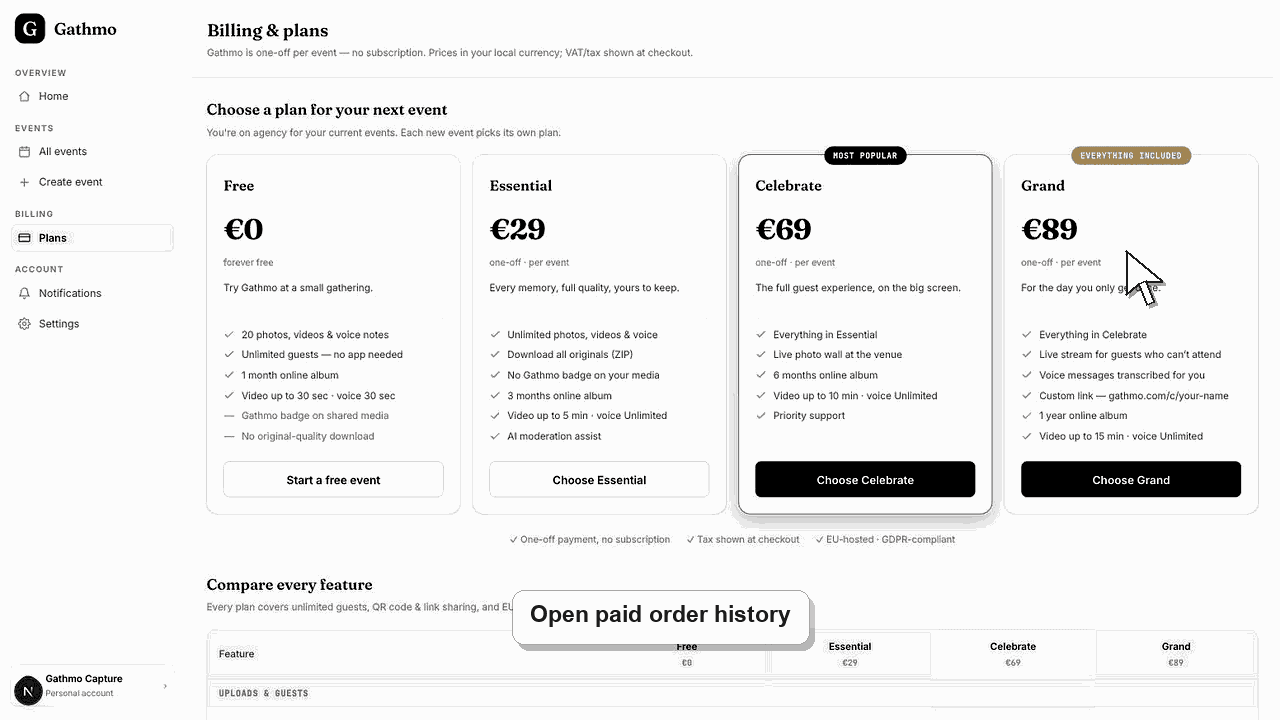
Open Billing to view orders and invoices. Update invoice address and VAT ID in Settings before checkout when those details must appear on the generated invoice.
Before you start
- Sign in to the account that made the purchase.
- Know whether the purchase was a one-off event plan or a business plan.
- Check whether you paid by Stripe, Paystack, or bank transfer.
- Open the correct Gathmo event, workspace, or account before making changes.
Steps
1. Open Billing
Go to the dashboard and open Billing. The billing page shows plan selection, payment method, order history, and invoice rows where available.
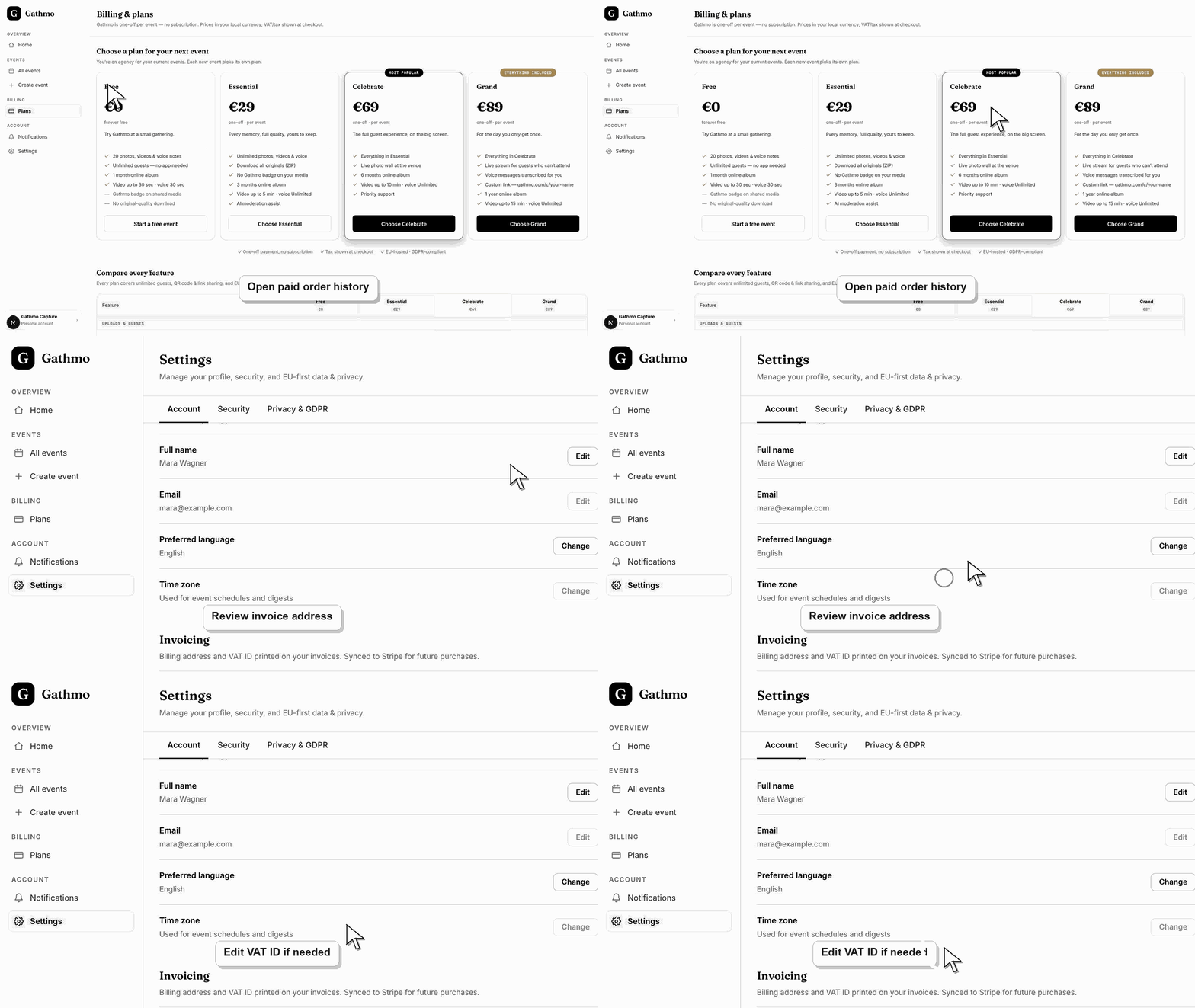
2. Check order history
Use order history to see the plan, date, amount, currency, and payment status for recent purchases.
3. Open invoice links
Where Stripe invoices are available, use the invoice or PDF link shown in Billing. Receipts are also emailed after purchase.
4. Update invoice details before the next purchase
If the company name, invoice address, or VAT ID is missing, update it in Settings. These details are synced to Stripe for future invoices.
5. Contact support for missing billing documents
If a paid order is visible but no invoice or receipt is available, contact support with the order date, event name, payment method, and account email.
What to do next
- Future invoices should use the billing details saved in Settings. Past invoices may need provider or support handling, depending on how they were generated.
- Check the live dashboard or checkout page before making a billing decision, because plan state and tax can depend on account and currency.
- Keep the receipt, invoice, event name, and account email together if you need support to review a billing issue.
- Review related plan or invoice articles before changing event materials, because billing decisions can affect limits guests experience later.
Frequently asked questions
Where do I change the invoice address?
Open Settings and edit the invoicing section.
Are VAT IDs collected at checkout?
The current checkout flow can collect tax IDs. The saved Settings details are also synced for future invoices.
Can support change an old invoice?
This depends on provider and tax rules. Ask support with the order details and the corrected billing information.
Troubleshooting
Check whether the VAT ID was saved before checkout. If it was added afterward, it may only apply to future invoices.
The invoice may still be processing, may be handled by another payment provider, or may need support review.
Confirm you are signed into the account that paid. Business and personal accounts can be separate.
Use the live checkout, invoice, or dashboard billing page as the source of truth. Capture the account email, event name, currency, and visible billing state before contacting support.
Tax and VAT details depend on the account, country, and payment provider. Use the invoice PDF and checkout receipt as the billing record, and avoid treating help content as tax advice.
Keep going