Account, billing, and plans
Change or upgrade an event plan
Learn when you can change or upgrade a Gathmo event plan, what to check before checkout, and which pricing details need review.

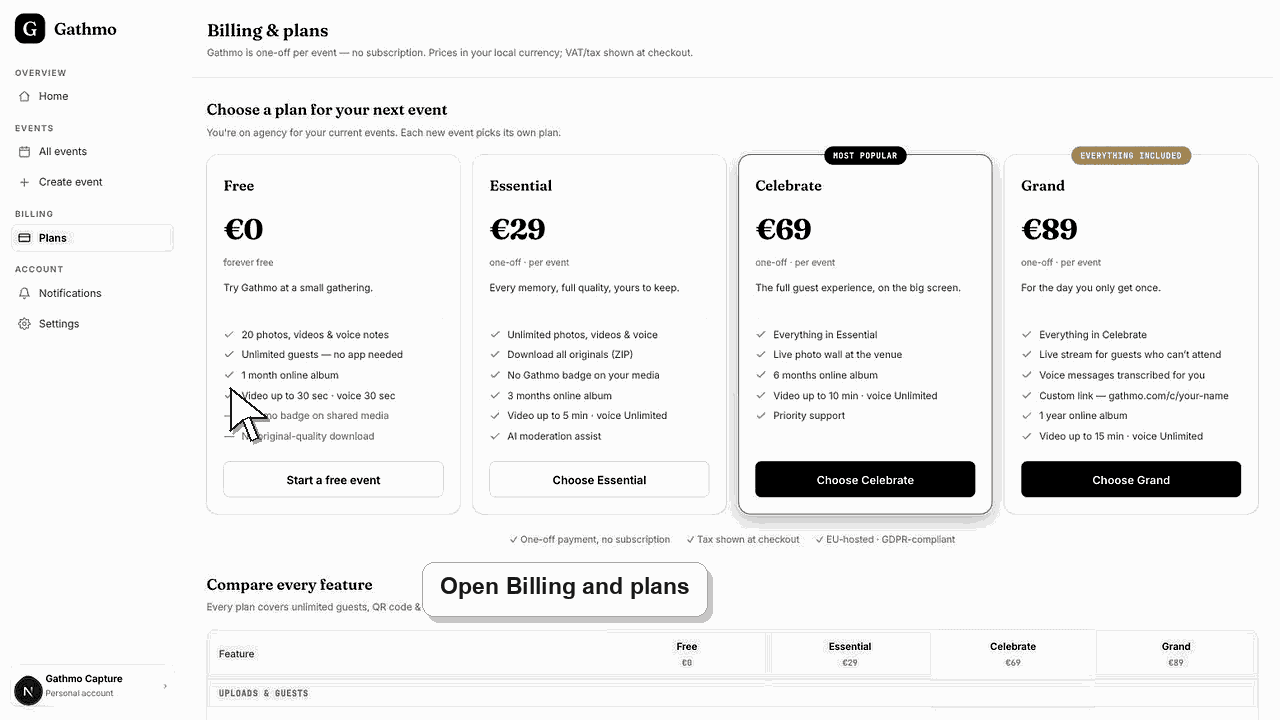
Choose the right event plan before checkout whenever possible. If the event is already paid and the dashboard does not show a self-serve upgrade option, contact support before the event date.
Before you start
- Open the event you want to change.
- Check whether the event is still draft, unpaid, active, or already paid.
- Know which limit you need to increase, such as item count, video length, retention, live wall, or downloads.
- Open the correct Gathmo event, workspace, or account before making changes.
Steps
1. Check the current event plan
Open the event dashboard or billing page and confirm the current plan. Each consumer event picks its own plan at checkout.
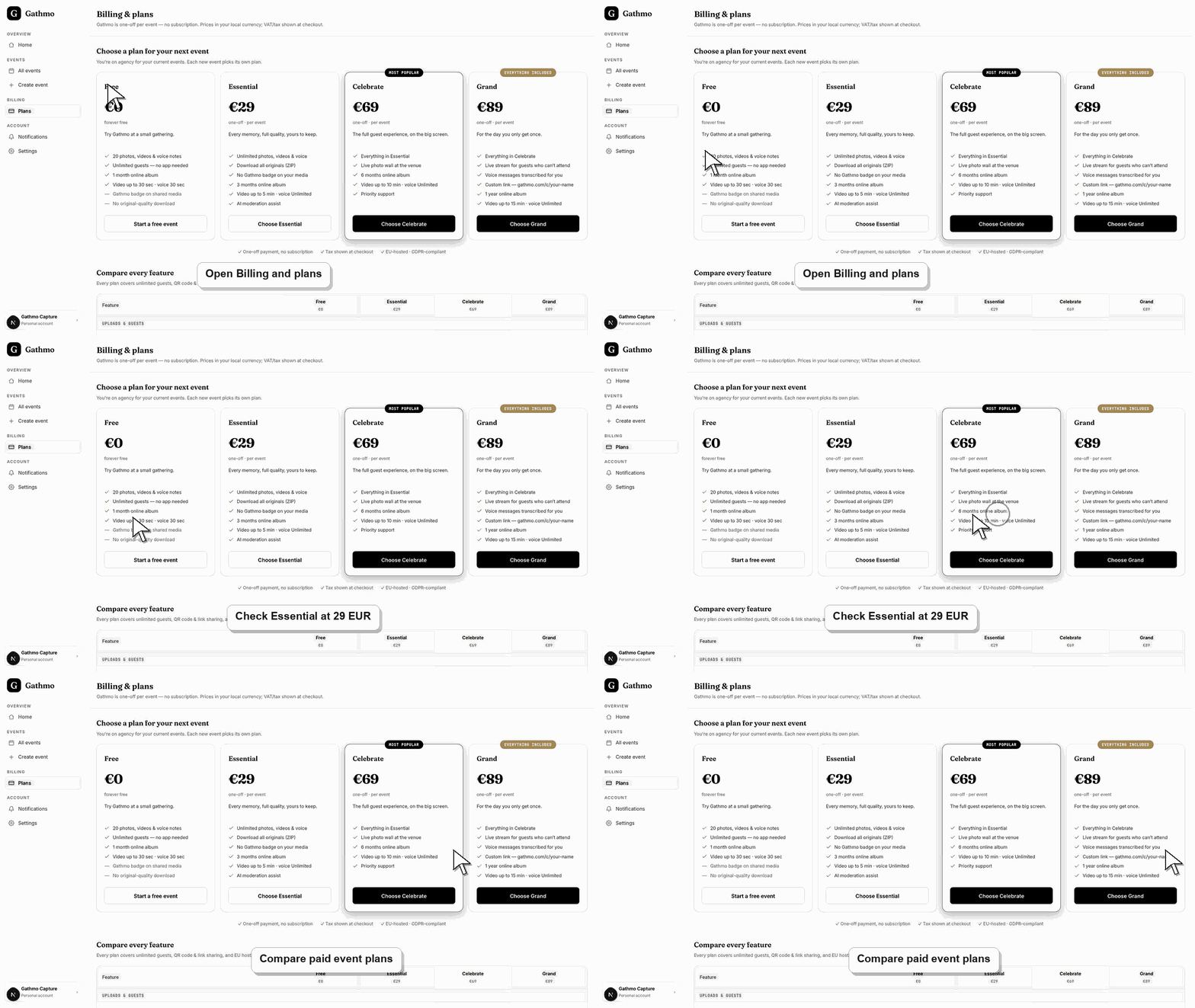
2. Compare the limit you need
Use the plan comparison to check which plan includes the feature or limit you need. Do not upgrade only by price; check the exact limit causing the issue.
3. Upgrade before printing or sharing
If you know you need a higher plan, upgrade before printing QR materials or sending the event link. This avoids guest confusion during the event.
4. Complete checkout if payment is required
Paid event plans use checkout before the full paid event is activated. Free events do not require checkout.
5. Contact support if the event is already paid
If the dashboard does not show a self-serve upgrade path for an already paid event, contact support with the event name, current plan, desired plan, and event date.
What to do next
- After payment or support confirmation, recheck the event dashboard and run a test upload. Confirm that the new limit or feature is available before guests arrive.
- Check the live dashboard or checkout page before making a billing decision, because plan state and tax can depend on account and currency.
- Keep the receipt, invoice, event name, and account email together if you need support to review a billing issue.
- Review related plan or invoice articles before changing event materials, because billing decisions can affect limits guests experience later.
Frequently asked questions
Can I start free and upgrade later?
Yes, the product supports starting with a free setup and choosing a paid plan when needed. Confirm the exact upgrade path in the current dashboard before inviting guests.
Can I downgrade after paying?
Downgrades and refunds are not self-serve. If you paid for the wrong plan, contact support with your order receipt and event name before the event date so the team can review your options.
Does upgrading change the QR code?
Usually the event QR code should stay attached to the same event. Test the QR code again after any plan change.
Troubleshooting
Refresh the dashboard and try again. If checkout still does not open, note the event name, selected plan, currency, and browser.
Payment activation can take a short time after checkout. Refresh the event dashboard and billing page. If it still looks wrong, contact support.
Do not create more changes until support reviews it. Keep the order receipt and event names available.
Use the live checkout, invoice, or dashboard billing page as the source of truth. Capture the account email, event name, currency, and visible billing state before contacting support.
Plan, price, tax, and upgrade behavior can depend on account, currency, and checkout state. Use the live dashboard and checkout page as the source of truth.
Keep going