Troubleshooting
Audio recording does not start
Fix Gathmo audio recording issues by checking browser permissions, microphone access, phone settings, and guest upload compatibility.

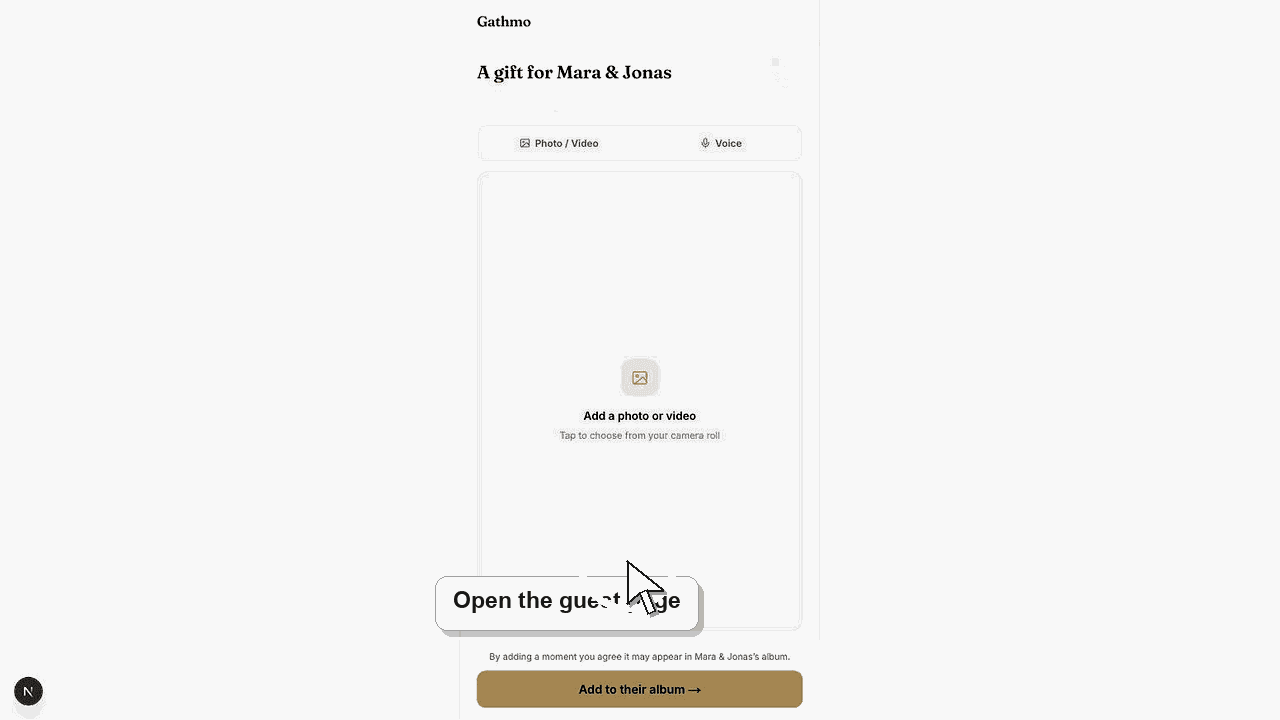
Audio recording usually fails because the browser does not have microphone permission, voice uploads are disabled, or the device browser cannot start recording. Check permission first.
Before you start
- Confirm voice messages are enabled for the event.
- Ask the guest which phone and browser they use.
- Ask whether the browser requested microphone permission.
- Open the correct Gathmo event, workspace, or account before making changes.
Steps
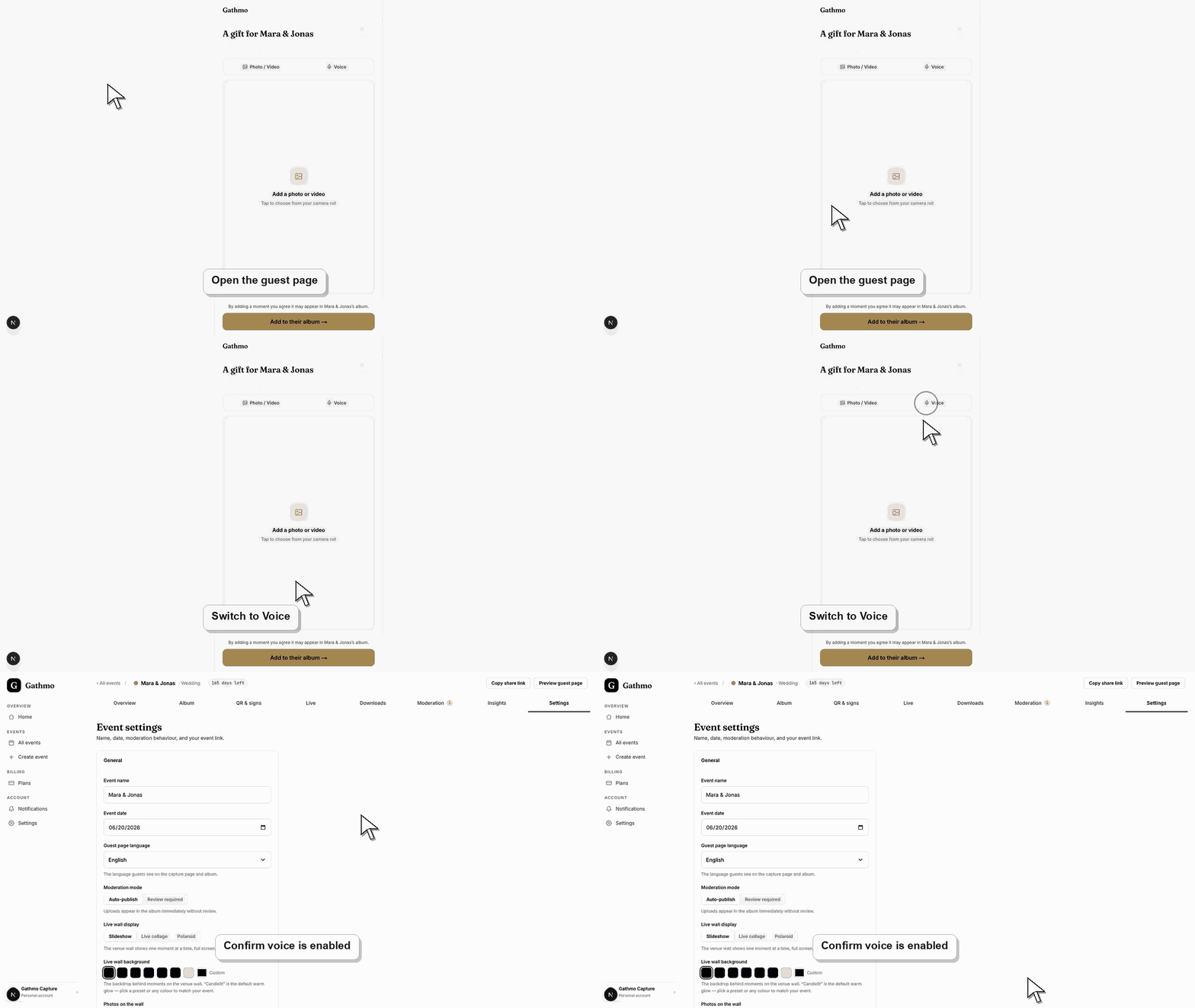
1. Reload the guest page
Ask the guest to reload the page and tap the voice message option again. They should stay on the page while recording.
2. Allow microphone permission
When the browser asks for microphone access, choose Allow. If the guest previously blocked access, they need to change the browser or site permission.
3. Check event upload settings
Open the event dashboard and confirm that voice messages are enabled. If voice is disabled, guests will not be able to record.
4. Try another browser
If permission is allowed but recording still does not start, ask the guest to try the default browser on their phone or another supported browser.
5. Record a shorter message
If recording starts but upload fails later, the message may be too long or interrupted. Ask the guest to record a shorter message and retry.
What to do next
- After microphone permission and voice settings are correct, guests should be able to record and upload voice messages from the guest page.
- Re-test the fixed flow from a guest phone, not only from the signed-in host dashboard.
- Capture the event name, browser, device, screenshot, and time if the issue needs support review.
- Send the related article to the event team so the same fix is used consistently during the event.
Frequently asked questions
Do guests need to install an app to record audio?
No. Voice messages are recorded from the browser when the browser supports recording and has microphone permission.
Can a guest upload a voice file instead?
This depends on the current guest flow and browser behavior. If recording is unavailable, use the supported upload option shown on the guest page.
Why does recording work on one phone but not another?
Browser permissions, operating system settings, and device microphone access can differ between phones.
Troubleshooting
The permission may already be blocked. Open browser site settings and allow microphone access for the Gathmo page.
Check connection, duration limits, and upload status. The audio problem may be an upload failure, not a microphone failure.
Voice uploads may be disabled for the event or unavailable because of plan or event settings.
Try the flow in a fresh browser session, switch networks, and test from another phone. If the issue remains, contact support with the event name, device, browser, and exact step that fails.
Voice messages can include personal data. Guest-facing copy and consent wording should mention voice when voice uploads are enabled.
Keep going