White-label and business
Export client-engagement analytics
Roll up Gathmo engagement across every event under your brand — events, uploads, guests, storage — and export a client-ready CSV. Available on Agency and…

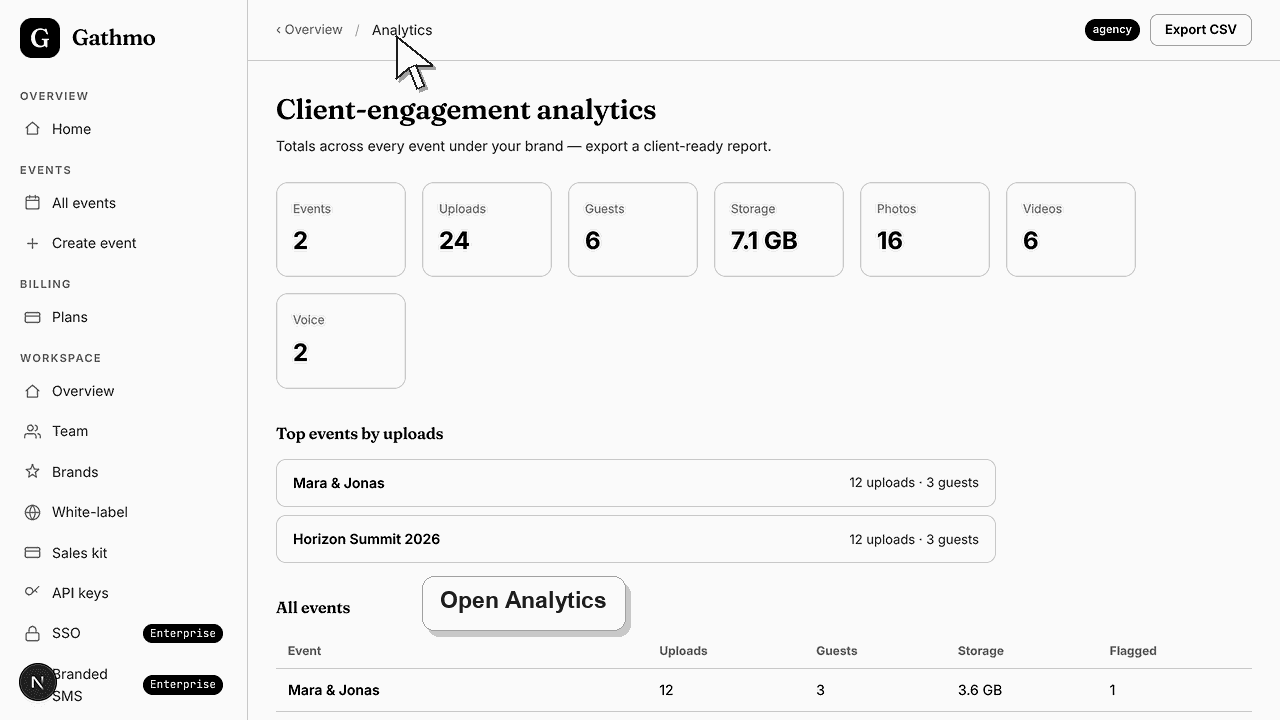
Open Analytics in your Gathmo workspace to see engagement rolled up across every event under your brand — Events, Uploads, Guests, Storage, Photos, Videos, and Voice — then select Export CSV to download a client-ready report. This multi-client roll-up is an Agency feature; Studio accounts get per-event insights on each event's Insights tab instead.
What each metric means
| Metric | What it counts |
|---|---|
| Events | Real events under your brand, excluding demos |
| Uploads | All guest photos, videos, and voice notes combined |
| Guests | Distinct guests who contributed |
| Storage | Total media stored, shown in GB |
| Flagged | Items flagged for review, per event |
Before you start
- Confirm your workspace is on the Agency or Enterprise plan.
- Have at least one real event created, since the roll-up excludes demo events.
- Know which client or period you are reporting on so you can frame the numbers.
- Open the correct Gathmo event, workspace, or account before making changes.
Steps
1. Open Analytics from the workspace
From the Overview area, select Analytics. The page opens on "Client-engagement analytics" with the line "Totals across every event under your brand — export a client-ready report." On Studio you see an upgrade card in its place.
2. Read the KPI totals
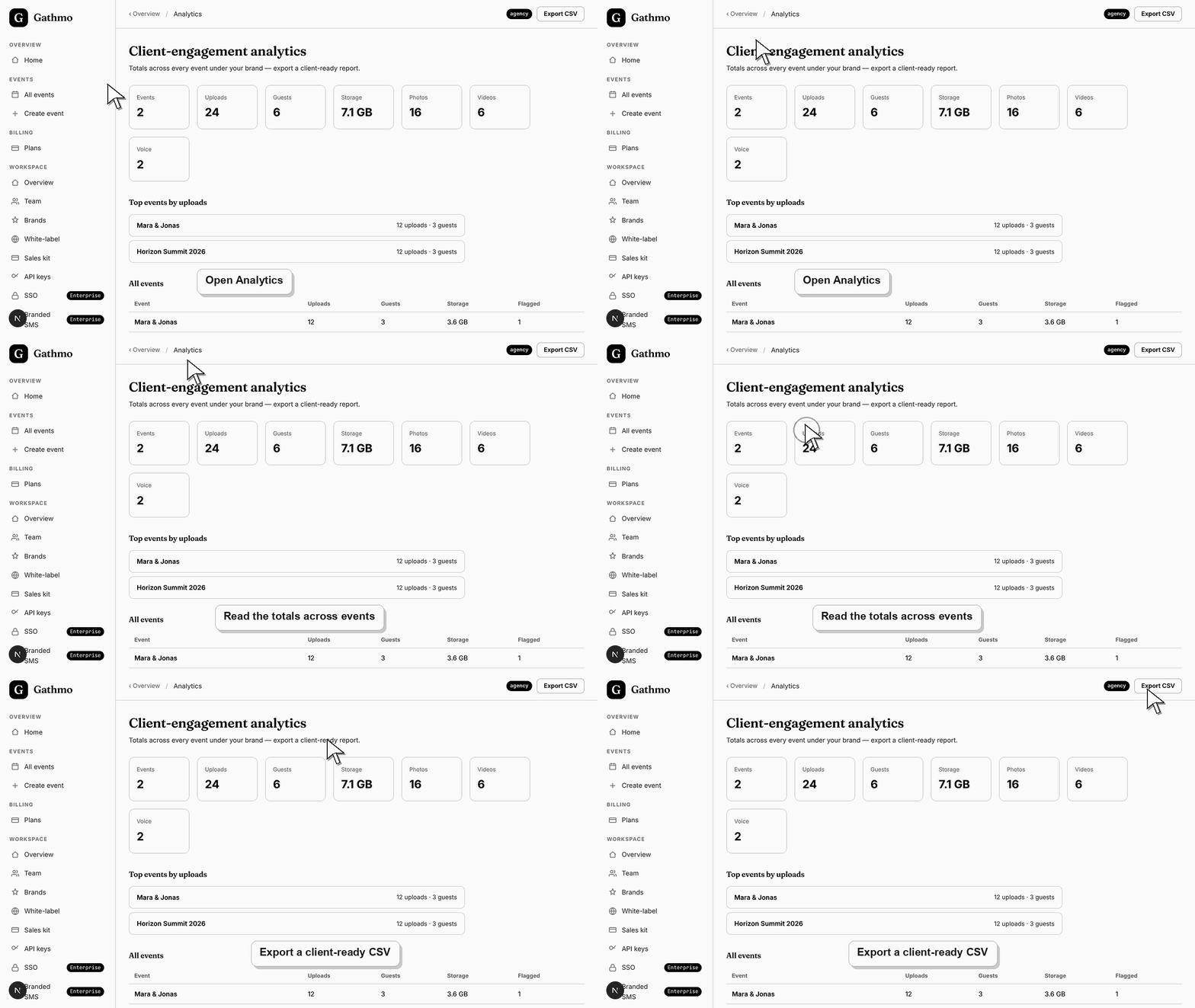
At the top, Gathmo shows seven tiles totalled across your events: Events, Uploads, Guests, Storage in GB, Photos, Videos, and Voice. These headline numbers summarise how much guests captured and shared under your brand at a glance.
3. Scan the Top events by uploads list
Below the tiles, Top events by uploads ranks your five busiest events, each showing its upload and guest counts. Use it to spot your standout events and lead a client conversation with the moments that drew the most participation.
4. Review the All events table
The All events table lists every event with columns for Event, Uploads, Guests, Storage, and Flagged. It is the full breakdown behind the totals, so you can check a single client's events or compare performance across your whole book.
5. Export the client-ready CSV
Select Export CSV in the top actions to download a file named gathmo-analytics.csv. The export includes per-event uploads, photos, videos, voice, guests, storage, and flagged counts, ready to open in a spreadsheet or attach to a client report.
6. Share the report with your client
Open the CSV, filter to the client's events, and present the totals in your own document or spreadsheet. Because it is a plain file under your brand, you decide the framing, the layout, and which numbers to highlight.
What to do next
- The totals and table stay in sync with your events, so the roll-up reflects current activity each time you open it. The CSV is a point-in-time snapshot you keep and reuse. Re-export whenever you need a fresh report for a client review or renewal conversation.
- Preview the client-facing page after every brand, domain, workspace, or role change so the public experience matches the business setup.
- Document which team member owns the brand, domain, client workspace, and billing relationship before client events go live.
- Use the business billing and privacy articles when white-label work affects prepaid access, DPA expectations, or client data handling.
Frequently asked questions
Which plans include the analytics roll-up and export?
The cross-event roll-up and CSV export are available on Agency and Enterprise. Studio accounts still see per-event insights on each event's Insights tab but not the workspace-wide totals or export.
What is in the exported CSV?
The file, named gathmo-analytics.csv, lists one row per event with its name, type, uploads, photos, videos, voice, guests, storage, and flagged count — the full breakdown behind the on-screen totals.
Does the roll-up include demo events?
No. The roll-up and export count real events only and skip demo events, so the numbers you present to a client reflect genuine guest activity rather than test data.
Can I report on just one client?
Yes. Export the CSV, then filter to that client's events in your spreadsheet. If you keep each client in a separate brand or workspace, switch to it first so the totals already cover only their events.
Troubleshooting
Your workspace is on Studio, where the multi-client roll-up is locked. Per-event insights stay available on each event's Insights tab, but cross-event roll-ups and client-ready exports unlock on Agency and Enterprise. Upgrade from Billing to see them.
The roll-up counts real events and skips demo events. If you have only a demo event, create a real one so it appears in the totals, the Top events list, the All events table, and the CSV export.
Export CSV is disabled until there is at least one event row to export. Once your roll-up shows events, the button becomes active and downloads gathmo-analytics.csv to your device.
The figures aggregate only events inside this workspace and exclude demo events. If a client's events live in a different brand or workspace, switch to that workspace, since each roll-up covers the events under one brand.
The roll-up reports counts and storage totals, not guest media, so you can share a report without exposing individual photos or contact details. The analytics roll-up and CSV export are plan features: they are available on Agency and Enterprise, and Studio accounts must upgrade to access them.
Keep going