White-label and business
Link to Gathmo from your website or client portal
Gathmo pages cannot be embedded in third-party iframes. Use a tested event link, QR code, button, client-portal card, or eligible branded custom domain instead.

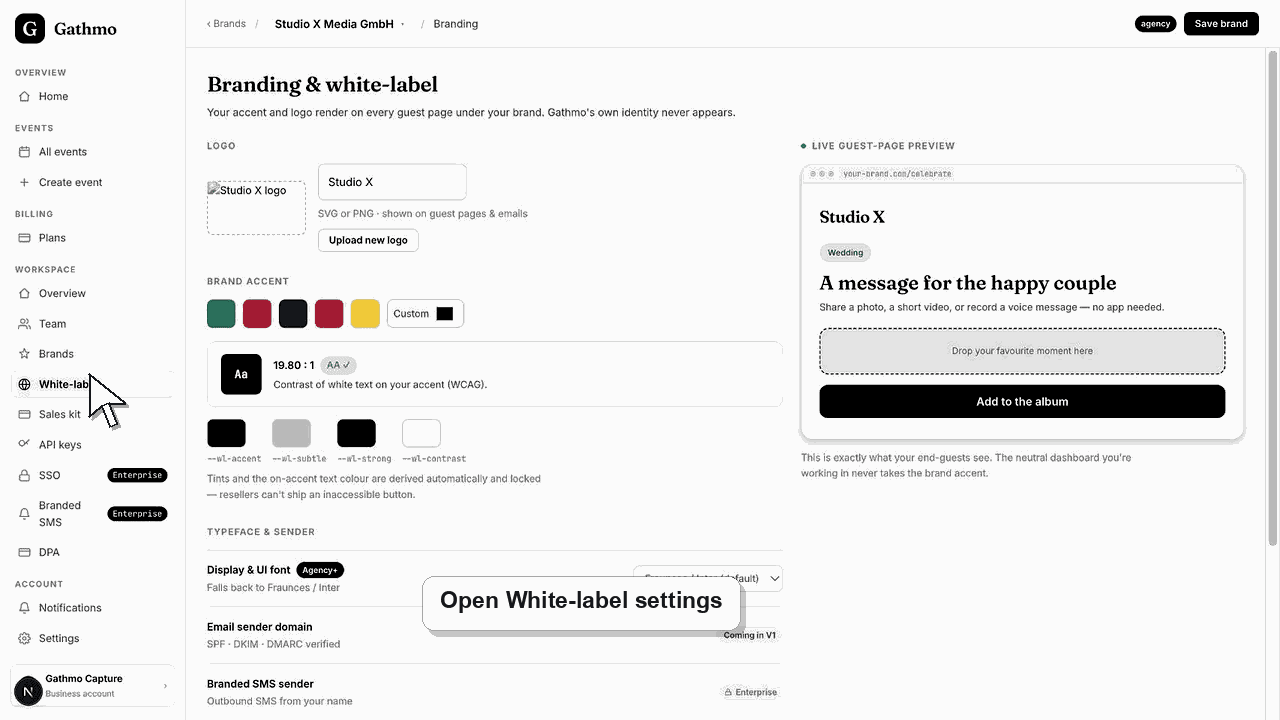
Gathmo event, gallery, and dashboard pages cannot be embedded inside a third-party iframe because security headers restrict framing. Use a normal button, text link, QR code, client-portal card, or an eligible branded custom domain so the guest flow opens as its own secure page.
Supported website patterns
| Pattern | Supported approach |
|---|---|
| Website button or text link | Link directly to the tested guest page. |
| Digital invitation | Add the event link and QR image. |
| Client portal | Add an external card that opens the event page in the same tab or a clearly labeled new tab. |
| Embedded iframe | Not supported; browser security headers prevent it. |
| Branded experience | Use eligible business branding and custom-domain controls rather than masking Gathmo in a frame. |
Before you start
- Copy the current event link from the event dashboard.
- Decide whether visitors should upload, browse the album, or reach a branded business page.
- Test the destination's privacy and access settings before placing the link publicly.
- Open the correct Gathmo event, workspace, or account before making changes.
Steps
1. Copy the intended Gathmo URL
Use the event guest link for contributors, the approved gallery link for viewers, or the configured business domain for a branded flow. Do not copy a temporary download or dashboard URL.
2. Add a descriptive website action
Create a button such as “Add your event photos,” “Open the private gallery,” or “Leave a voice message.” Descriptive anchor text is clearer for guests, accessibility tools, and search engines than “Click here.”
3. Open the page outside an iframe
Use a standard link. Opening in the same tab is simplest; if a new tab is important to the client portal, label the behavior and use safe link attributes.
4. Offer a QR code for cross-device use
Place the event QR code next to the button when visitors may be viewing the website on a desktop and want to contribute from a phone. Include the text link as an accessible fallback.
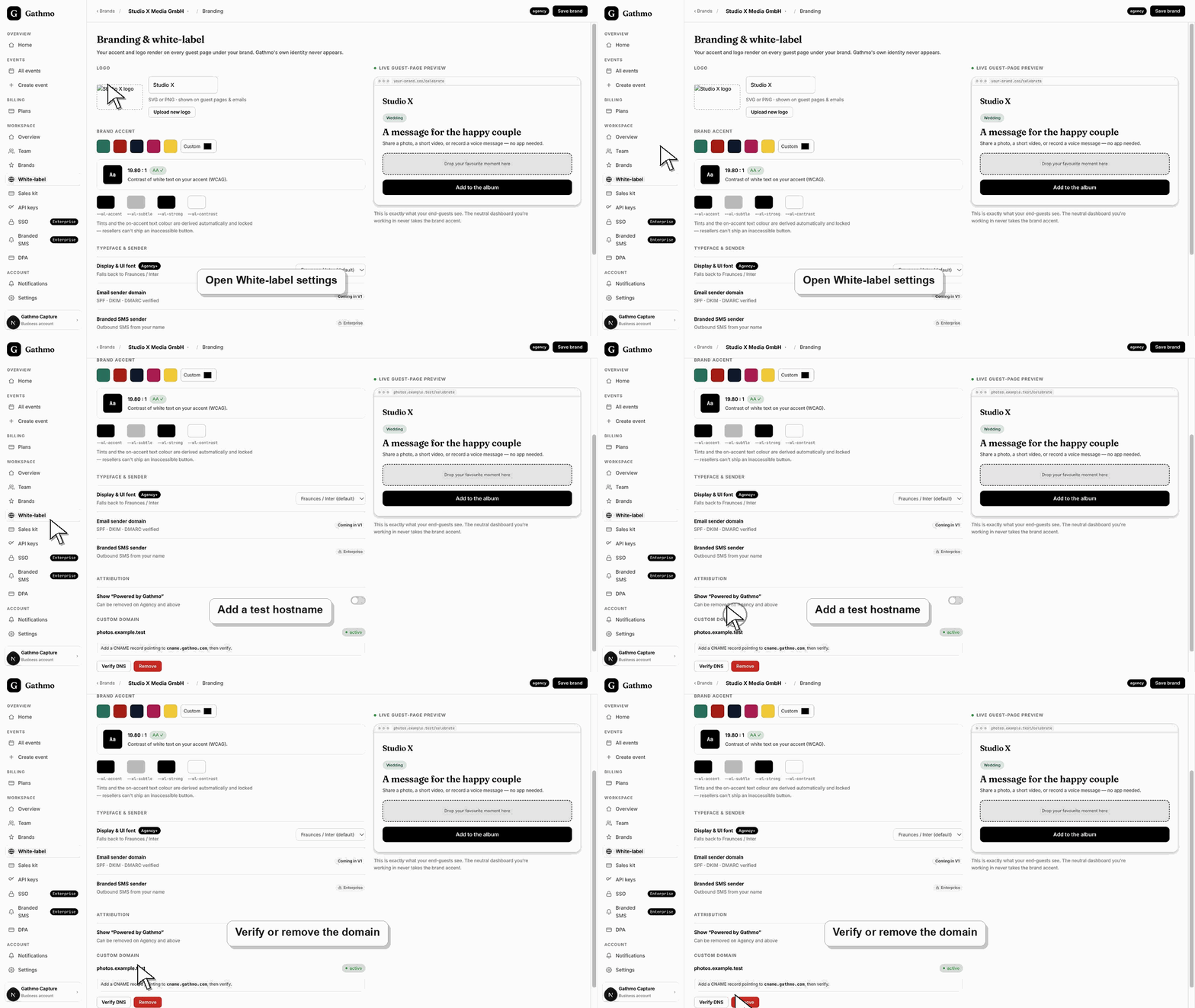
5. Configure a custom domain when eligible
Business customers can use the domain controls included in their plan. Verify DNS and certificate status, then test the branded host rather than attempting to conceal the destination in a frame.
6. Test access and analytics
Open the live website link in a private window and on mobile. Confirm the correct event, access prompt, album state, branding, and upload flow; add your own outbound-link analytics if needed without placing secrets in the URL.
What to do next
- Visitors leave the website or portal for the secure Gathmo guest experience.
- The original event URL or eligible custom domain handles uploads and access.
- Website owners can update the button destination without reprinting a QR sign when appropriate.
- Preview the client-facing page after every brand, domain, workspace, or role change so the public experience matches the business setup.
Frequently asked questions
Can I embed a Gathmo gallery in an iframe?
No. Gathmo sends security headers that prevent third-party framing. Link to the page or use an eligible custom domain instead.
Can I add Gathmo to a client portal?
Yes, as an external link or card. Tell the client that the secure event page opens separately and test any password or private-gallery settings.
Can I use my own domain?
Eligible business plans include custom-domain controls according to their limits. Configure and verify the domain through the supported Gathmo workflow.
Does linking change the event QR code?
No. A website link is another route to the same event. The QR code remains tied to its event unless the event link itself is changed.
Can I link directly to an individual photo?
Do not rely on temporary media or download URLs. Link to the current event or gallery and let access controls handle individual items.
Troubleshooting
That is expected security behavior. Remove the iframe and replace it with a normal link, button, QR code, or eligible custom domain.
Copy the link again from the intended event dashboard, update the website, clear any site cache, and test in a private window before notifying guests.
Check the business plan entitlement, exact DNS records, verification state, and certificate status. Keep the standard Gathmo link available until the branded host passes the full guest test.
Check that you changed the correct workspace or client brand, refresh the preview, and verify whether a custom domain or cache is showing an older public version.
Embedding restrictions reduce clickjacking and deceptive framing risks. A public website link can make a private event easier to discover, so use only the intended destination and suitable access controls.
Keep going