White-label and business
Preview the branded guest page before launch
Use the Gathmo white-label live preview to check your brand name, logo, and accent on the guest page, verify contrast, and confirm attribution before you…

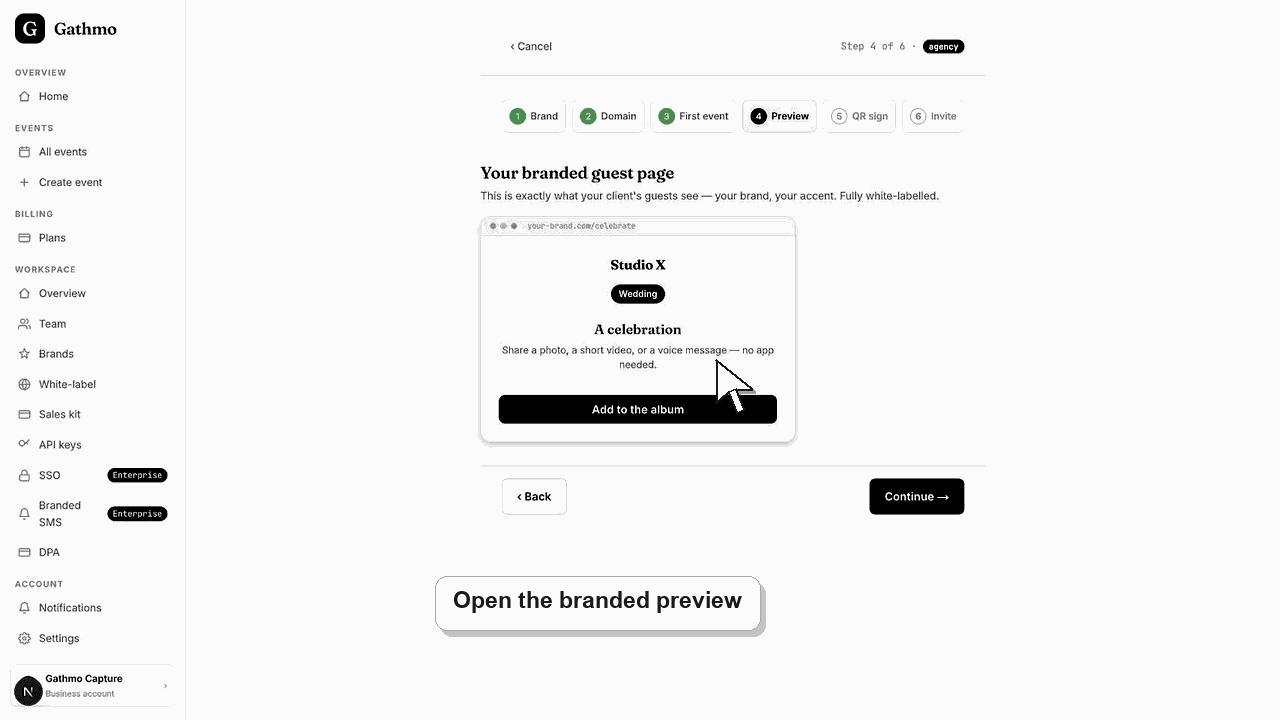
The Gathmo white-label screen has a live guest-page preview beside the controls, so every change to your brand name, logo, and accent shows instantly on a mock guest page. It is exactly what your end-guests see. A built-in contrast check confirms your accent is readable, and Gathmo's own identity never appears on it.
What the preview confirms
| Element | What to check |
|---|---|
| Brand wordmark or logo | Reads clearly and is the right brand |
| Accent colour | Passes the contrast meter |
| Derived tints | Buttons and text stay legible |
| Attribution toggle | Shown or hidden as you intend |
| Overall layout | Headline, prompt, and button look right |
Before you start
- Open the Branding and white-label screen for your workspace.
- Have your brand name, logo file, and accent colour ready.
- Business plans include white-label; confirm your workspace is on a business tier.
- Open the correct Gathmo event, workspace, or account before making changes.
Steps
1. Open the white-label screen
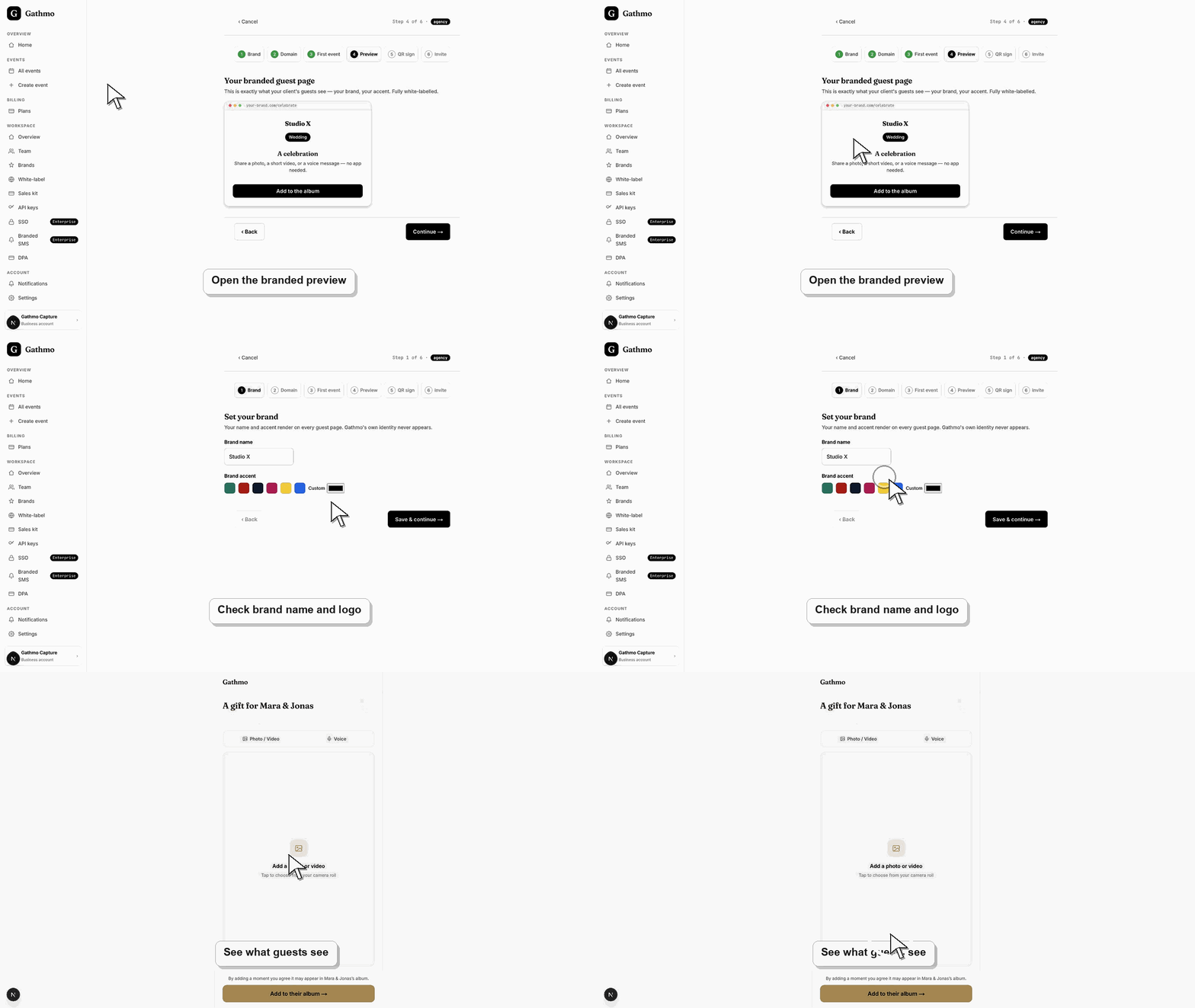
From your Gathmo dashboard, open Branding and white-label. The layout splits into a controls column on the left and a Live guest-page preview on the right. The neutral dashboard you work in never takes the brand accent — only the preview does.
2. Set the brand name and watch the preview
Type your brand name in the logo field. The preview updates live, showing the name as the guest-page logo in place of an uploaded image. This is the wordmark guests see at the top of their capture page.
3. Upload your logo
Select Upload new logo to add an SVG or PNG. Once uploaded and saved, the logo replaces the text wordmark in the preview. The same logo appears on guest pages and emails, so check it reads clearly at small sizes.
4. Choose an accent and check contrast
Pick a preset swatch or a custom colour. The contrast meter shows the WCAG ratio of the on-accent text against your colour and flags whether it passes. Gathmo derives the tints and text colour automatically, so buttons stay accessible.
5. Confirm attribution and review the full page
Use the Powered by Gathmo toggle to preview with or without attribution, which can be removed on Agency and above. Read the mock page top to bottom — logo, headline, upload prompt, and button — so nothing looks off before you launch.
6. Save the brand
Select Save brand in the top bar to store the name and accent. The preview then reflects your saved settings, and your live guest pages render under the brand exactly as shown.
What to do next
- Once you save, the branded guest page is what every guest sees when they scan the QR or open the link. Pair it with a verified custom domain so the whole guest journey carries your brand, then share the event with your client.
- Preview the client-facing page after every brand, domain, workspace, or role change so the public experience matches the business setup.
- Document which team member owns the brand, domain, client workspace, and billing relationship before client events go live.
- Use the business billing and privacy articles when white-label work affects prepaid access, DPA expectations, or client data handling.
Frequently asked questions
Is the preview exactly what guests see?
Yes. The live guest-page preview mirrors the real guest experience — logo, accent, headline, upload prompt, and button. The dashboard around it stays neutral, but the preview panel reflects your saved brand precisely.
Can I remove the "Powered by Gathmo" line?
The attribution can be removed on Agency and above. Use the toggle to preview both states, and on eligible plans your guest pages appear entirely under your own brand with no Gathmo identity shown.
Does previewing change my live guest pages?
No. Adjusting the controls and toggles only updates the preview until you select Save brand. Saving is what applies the brand name, logo, and accent to your live guest pages.
Troubleshooting
Uploading a logo requires the presigned upload to finish and the brand to be saved. Complete the upload, save the brand, and the preview swaps the text wordmark for your logo image.
Your chosen colour does not give enough contrast for readable text. Pick a darker or lighter accent until the meter passes. Gathmo locks the derived text colour so a reseller cannot ship an inaccessible button.
The preview shows the brand look, but the custom domain is separate. Add and verify your domain on the same white-label screen, then guests reach the branded page on your own address.
Check that you changed the correct workspace or client brand, refresh the preview, and verify whether a custom domain or cache is showing an older public version.
White-label is a business-plan feature, and Gathmo's own branding never appears on your guest pages once set. Previewing does not affect guest data or privacy — it only controls how your capture page and album look under your brand.
Keep going