White-label and business
Set brand name, logo, and colors
Set the Gathmo brand name, logo, and colors for a white-label workspace, then preview the guest page before sharing.

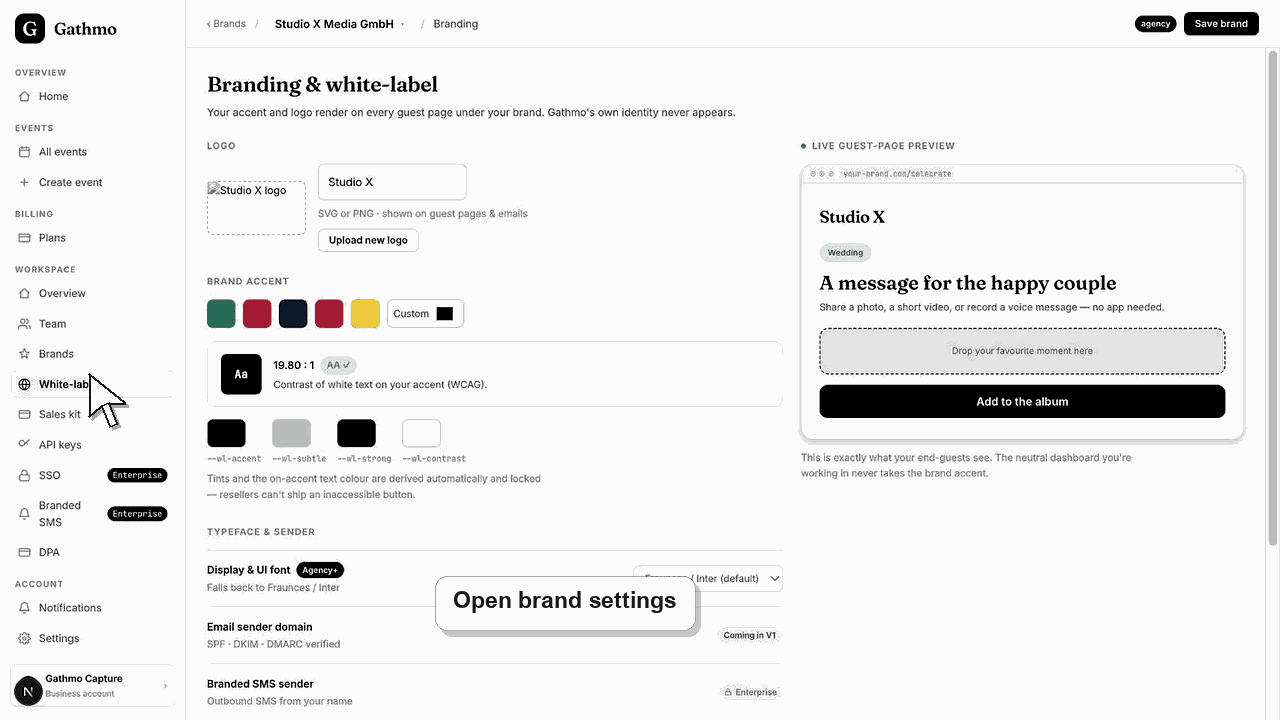
Set brand name, logo, and colors from the white-label brand settings. Always preview the guest page after changes, because brand choices affect readability and trust.
Before you start
- Prepare the public brand name.
- Use a clean logo file.
- Choose an accent color with enough contrast.
- Confirm whether the brand is for your studio or a client.
Steps
1. Open white-label brand settings
Open the workspace brand or white-label page for the brand you want to edit.
2. Set the brand name
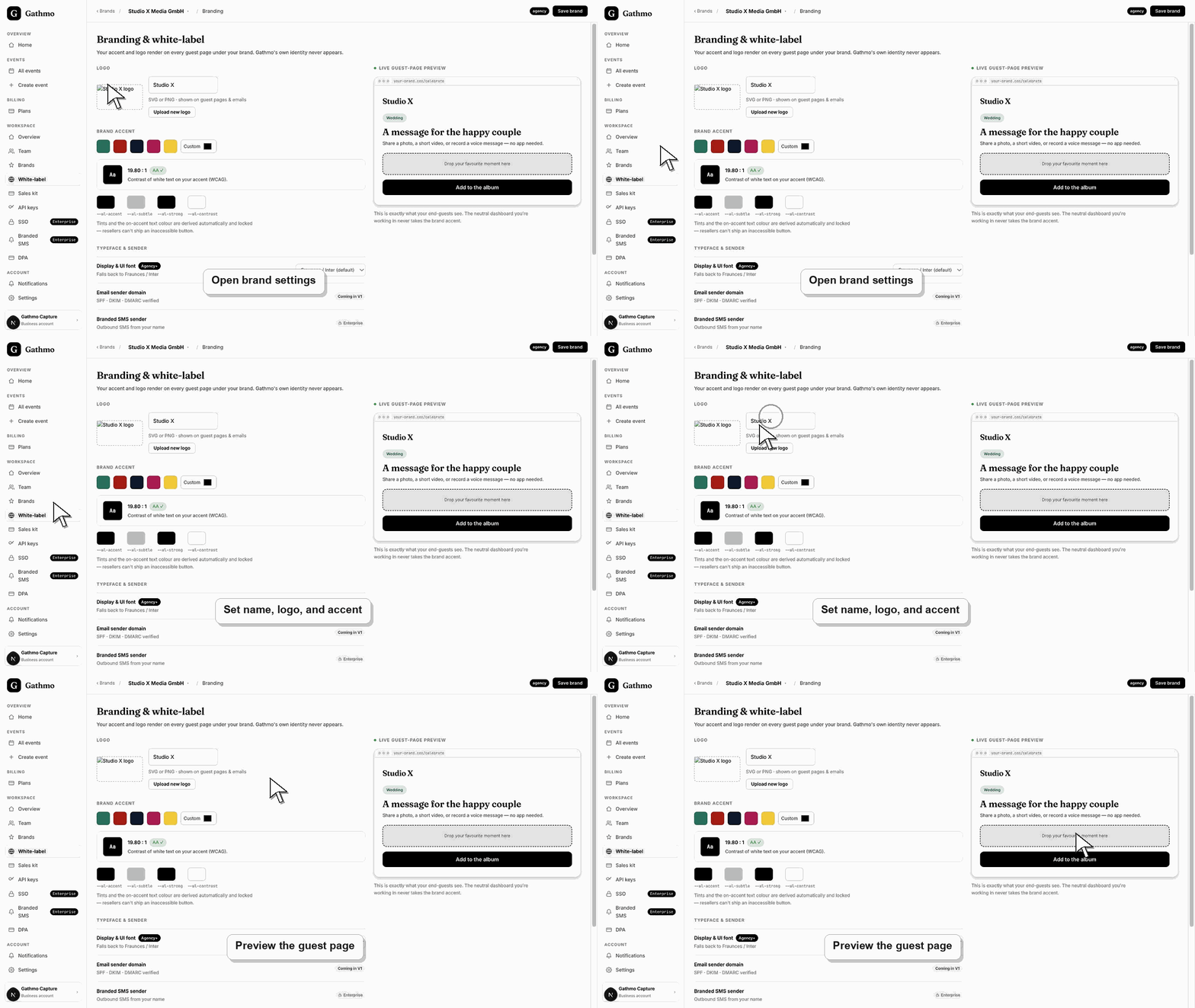
Use the name guests and clients should recognize. Avoid internal project names.
3. Upload or choose the logo
Use a logo that remains readable on small screens. Test it on the guest page and QR sign.
4. Choose the accent color
Pick a color that matches the brand but still has enough contrast for buttons, badges, and links.
5. Preview the guest page
Open the branded preview and check logo, name, colors, and any attribution behavior.
What to do next
- New branded events and client previews should use the updated brand settings. Re-export QR signs if the visual identity changed.
- Preview the client-facing page after every brand, domain, workspace, or role change so the public experience matches the business setup.
- Document which team member owns the brand, domain, client workspace, and billing relationship before client events go live.
- Use the business billing and privacy articles when white-label work affects prepaid access, DPA expectations, or client data handling.
Frequently asked questions
Can each client have its own brand?
Agency and Enterprise workflows are designed for multiple client brands. Check the current plan entitlement.
Can I remove Gathmo branding with colors alone?
No. Full de-branding depends on plan entitlement, not only visual settings.
Should I re-export QR signs after brand changes?
Yes. Re-export signs when logo or color changes matter for the printed material.
Troubleshooting
Upload a cleaner source file and avoid tiny raster images.
Choose a higher-contrast accent color.
Check whether you edited the correct client brand or workspace.
Check that you changed the correct workspace or client brand, refresh the preview, and verify whether a custom domain or cache is showing an older public version.
Do not upload client logos unless you have permission to use them in the event experience.
Keep going