White-label and business
Manage team members and roles
Manage Gathmo team members and roles, invite the right people, review permissions, and stay within business plan seat limits.

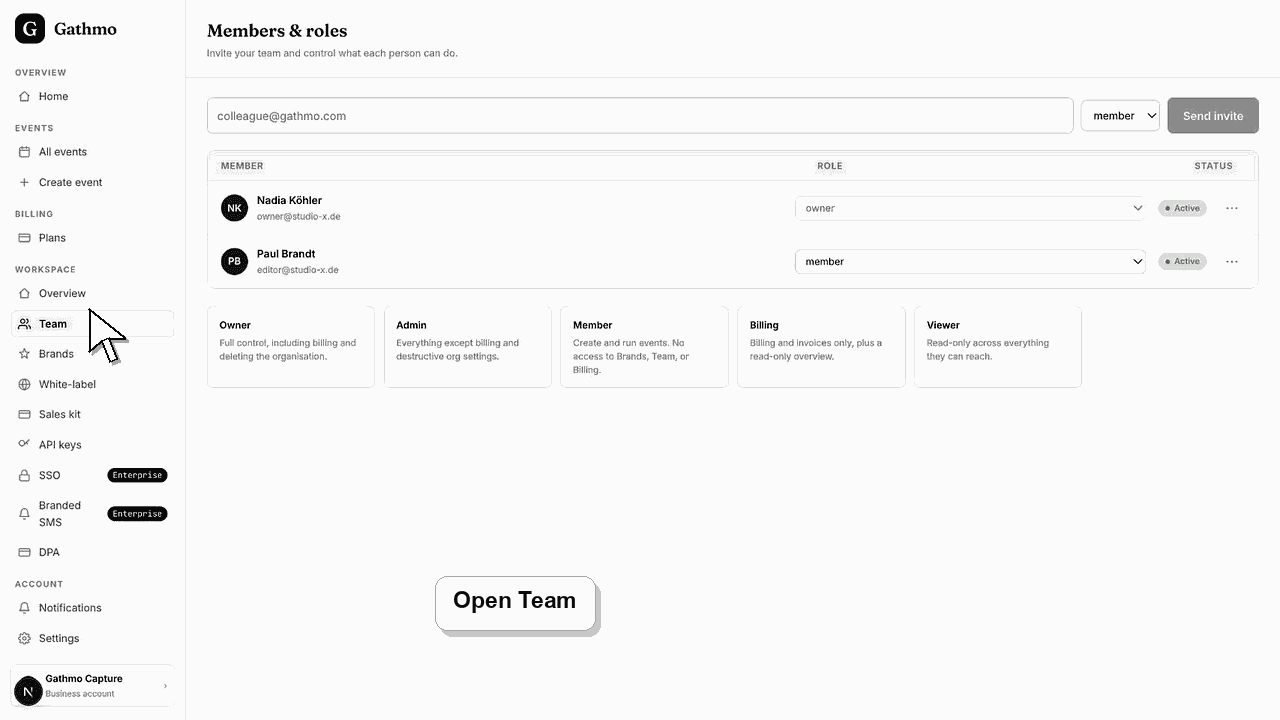
Use the Team page to invite teammates and control what they can access. Team access depends on the business plan and role permissions.
Before you start
- Confirm the plan includes enough seats.
- Use a business account.
- Know which teammate should have owner, admin, member, or billing access.
- Open the correct Gathmo event, workspace, or account before making changes.
Steps
1. Open Team
From the business workspace, open Team. The page shows current members, invites, and seat usage where available.
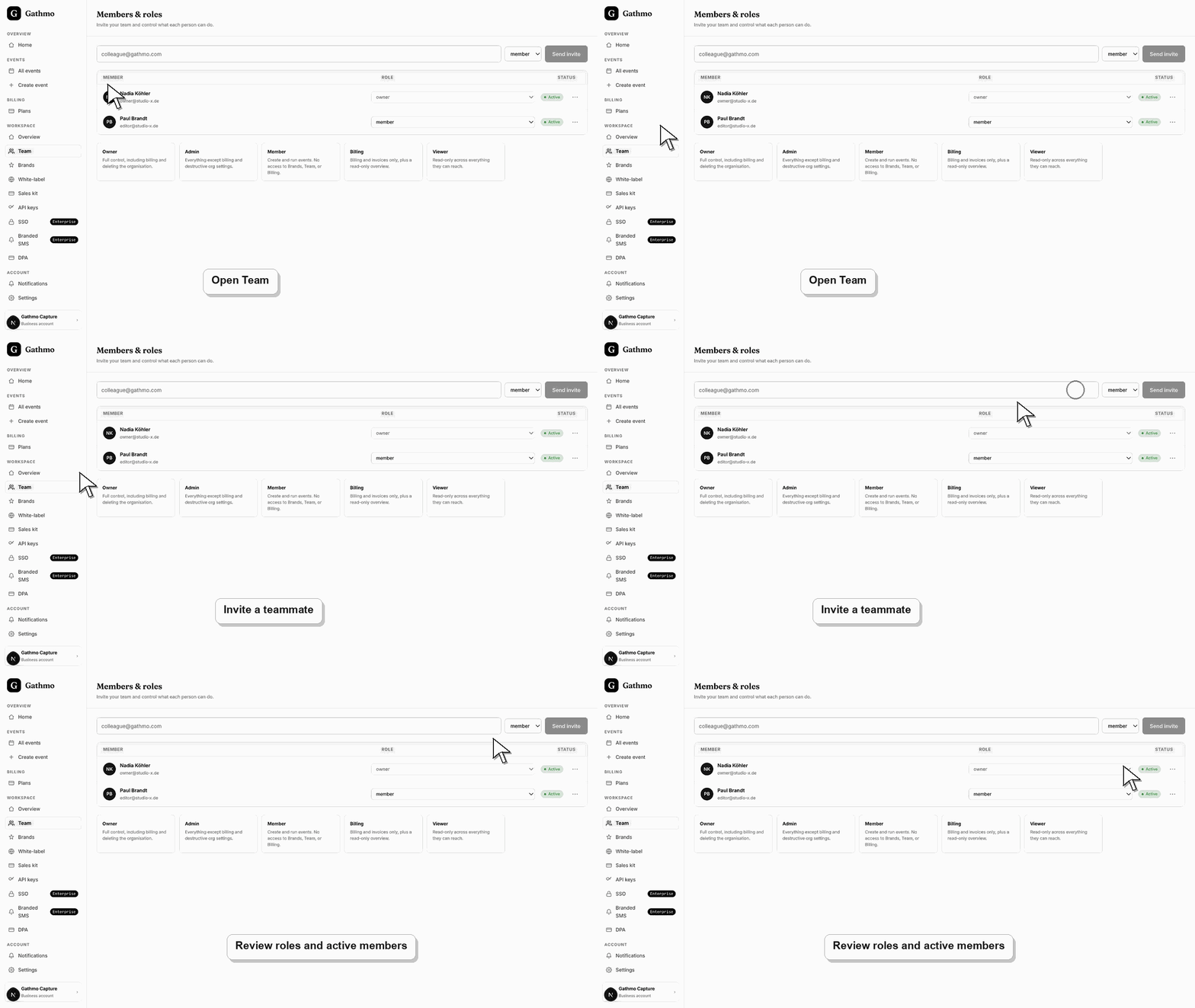
2. Invite a teammate
Enter the teammate email and choose the role they should receive.
3. Choose the least access needed
Give billing access only to people who manage payments and invoices. Give admin or owner access only to people who manage workspace settings.
4. Monitor seat usage
Check seat usage against the plan cap. Studio is a solo plan, Agency includes more seats, and Enterprise supports larger teams.
5. Remove access when people leave
Remove teammates who no longer need access to client events, media, billing, or brand settings.
What to do next
- Invited teammates can access the workspace according to their role and plan entitlement.
- Preview the client-facing page after every brand, domain, workspace, or role change so the public experience matches the business setup.
- Document which team member owns the brand, domain, client workspace, and billing relationship before client events go live.
- Use the business billing and privacy articles when white-label work affects prepaid access, DPA expectations, or client data handling.
Frequently asked questions
Can Studio invite teammates?
Studio is one seat in the current entitlement model.
Which role should a bookkeeper use?
Use the Billing role for someone who should work mainly with invoices, receipts, and payment details.
Should every client get access?
No. Invite only people who need access to the workspace or event data.
Troubleshooting
The plan may not include more than one seat.
Check the role, plan entitlement, and whether the workspace route is enabled.
Change the role or remove the member, then re-invite with the correct access.
Check that you changed the correct workspace or client brand, refresh the preview, and verify whether a custom domain or cache is showing an older public version.
Team roles affect access to event media, billing, DPA, brand settings, and customer data. Keep access limited to people who need it.
Keep going