Account, billing, and plans
Renew or change a prepaid business plan
Renew a Gathmo business plan for 6 or 12 months, switch between Studio, Agency, and Enterprise, update your payment method, and find receipts and invoices.

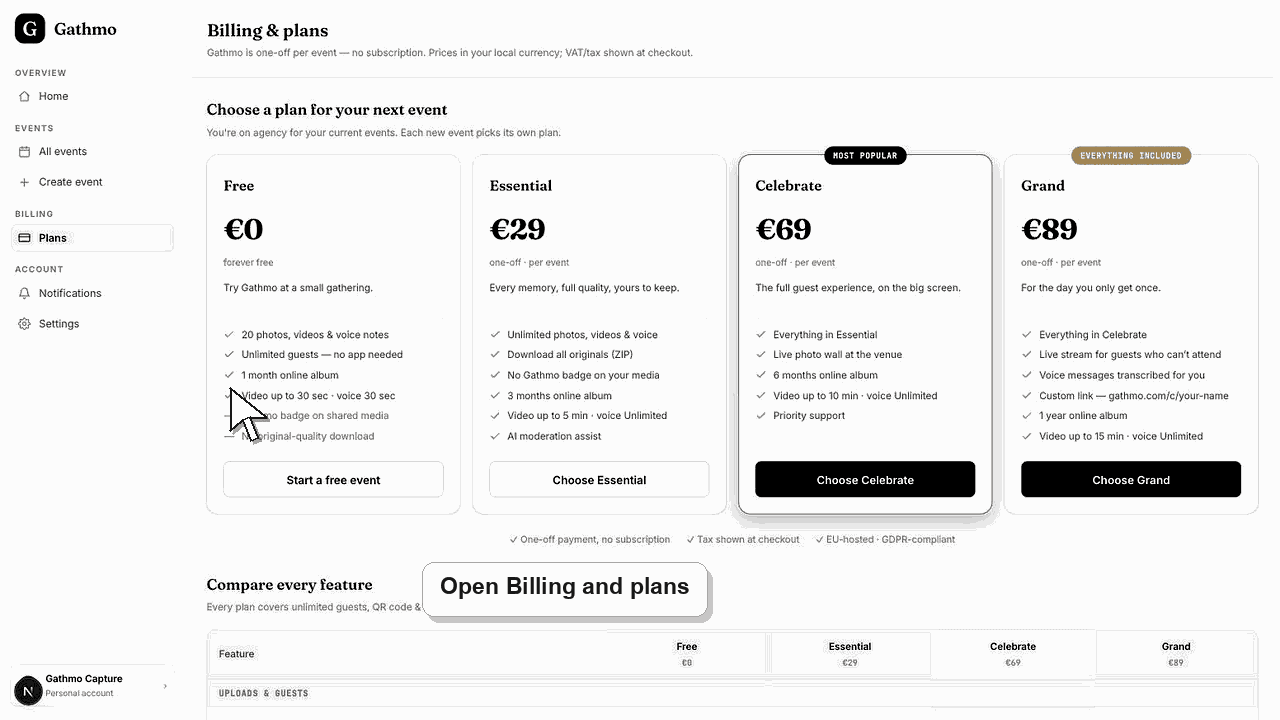
Gathmo business plans are prepaid: you pay six or twelve months in advance, and the twelve-month term is charged at the annual rate — the equivalent of ten months, so two months are effectively free. The Billing and plans screen shows which plan you are on and until when, and it is where you renew or switch tier.
Renewal terms
| Term | What it does |
|---|---|
| Pay 6 months | Prepays six months at the standard rate |
| Pay 12 months | Prepays twelve months at the annual rate (two months effectively free) |
| Switch tier | Checkout for the new plan; limits update on payment |
| Enterprise | Arranged with sales, not self-serve checkout |
Before you start
- Sign in with the Gathmo business account that holds the plan.
- Note your current renewal date, shown on the billing screen.
- Decide whether you are renewing the same tier or moving up or down.
- Open the correct Gathmo event, workspace, or account before making changes.
Steps
1. Open Billing and plans
From your Gathmo dashboard, open Billing and plans. Business accounts see the prepaid plan cards and a line reading which plan you are on and the date it runs until, so you know exactly where your term stands.
2. Choose a renewal term
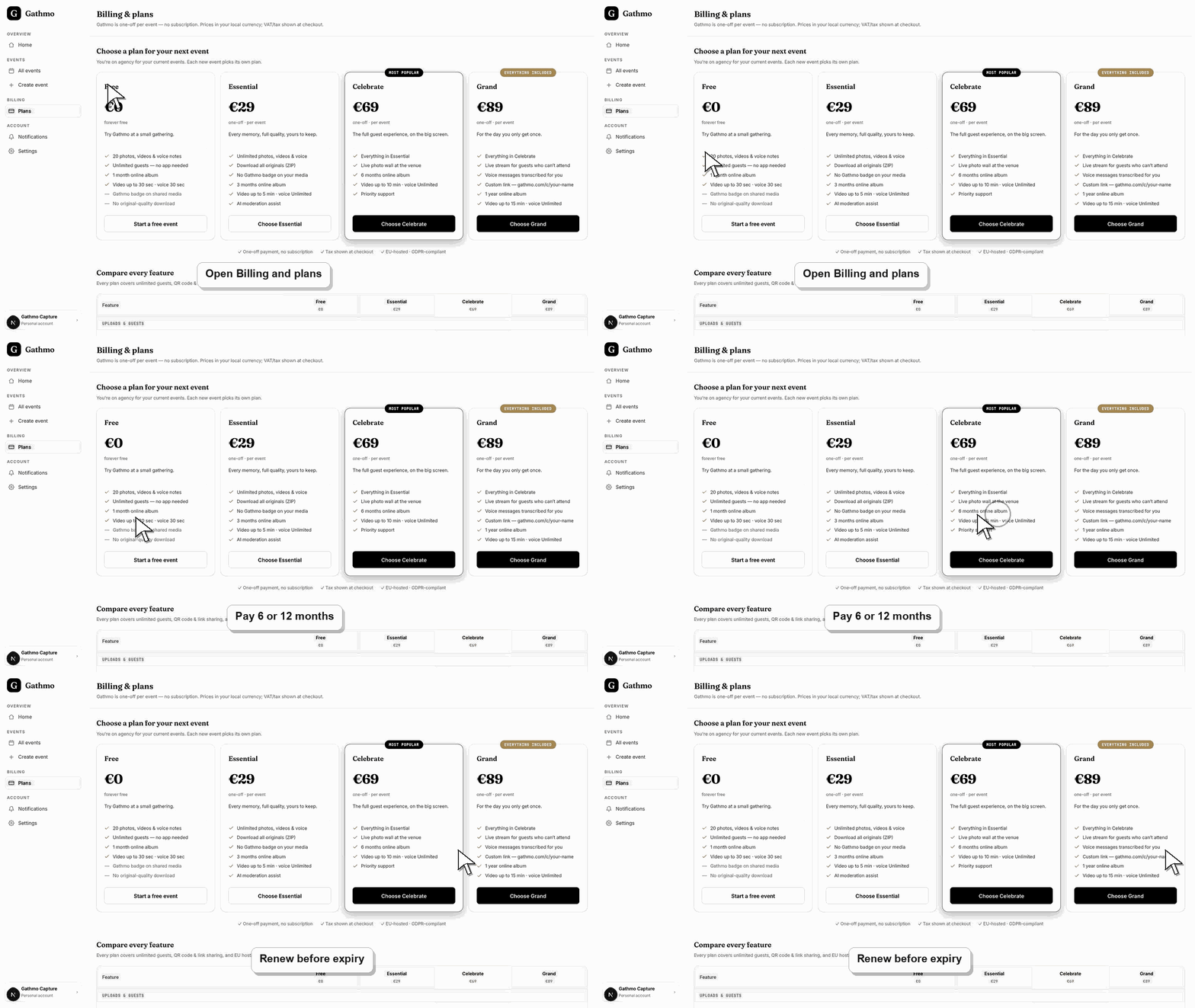
On your current plan's card, select Pay 6 months or Pay 12 months. Six months starts a fresh term at the standard rate; twelve months renews at the annual rate. Renew before your current period ends to avoid a gap in your plan.
3. Switch to a different tier
To move between Studio and Agency, select Pay 6 months or Pay 12 months on the tier you want instead. Checkout opens for that plan, and once complete your limits update to the new tier's events, seats, domains, and brands.
4. Complete prepaid checkout
Checkout opens with the price in your local currency and tax shown before you pay. Finish the payment, return to the dashboard, and refresh — your plan and renewal date update to reflect the new prepaid term.
5. Update your payment method
In the Payment method panel, select Update to open the secure provider portal, where you change the card on file. The same portal is where you manage saved payment details for future renewals.
6. Find receipts and invoices
Your Order history lists each payment with its status and amount, and invoices offer a PDF or hosted link to download. Use Export all to open the provider portal and pull your full invoice history in one place.
What to do next
- After a successful renewal or switch, your plan and its usage limits apply immediately and the renewal date moves forward. Receipts are emailed on every purchase, and your order history and invoices stay available on the billing screen.
- Check the live dashboard or checkout page before making a billing decision, because plan state and tax can depend on account and currency.
- Keep the receipt, invoice, event name, and account email together if you need support to review a billing issue.
- Review related plan or invoice articles before changing event materials, because billing decisions can affect limits guests experience later.
Frequently asked questions
How much cheaper is the twelve-month term?
The twelve-month term is charged at the annual rate, which works out to the equivalent of ten months. Compared with paying month by month, that is effectively two months free for committing to a full year.
Do I need to cancel before switching tiers?
No. Select the Pay 6 months or Pay 12 months button on the tier you want, and checkout starts for that plan. Once payment completes, your workspace moves to the new tier's limits.
How do I get an invoice or VAT receipt?
Receipts are emailed on every purchase, and your order history shows each payment with a downloadable PDF or hosted invoice. Use Export all to open the provider portal for the complete history and any VAT documentation.
Troubleshooting
Open Billing and plans and select Pay 6 months or Pay 12 months on your current tier before the shown end date. Renewing early keeps your workspace on the plan without interruption to your limits.
The provider portal becomes available after your first purchase. If you have already paid and still cannot open it, contact Gathmo support at hello@gathmo.com and they will help retrieve your billing details.
Enterprise plans and custom limits are arranged with the team rather than self-serve. For downgrades, refunds, or anything the screen does not offer, email hello@gathmo.com and support will handle it directly.
Use the live checkout, invoice, or dashboard billing page as the source of truth. Capture the account email, event name, currency, and visible billing state before contacting support.
Business billing is handled through a secure payment provider with tax applied at checkout, and media stays EU-hosted and GDPR-compliant. Business customers can accept a data processing agreement in the workspace. Renewing or switching a plan changes your usage limits, not how guest data is handled.
Keep going