Dashboard functions
Customize the event page, gallery, and branding
Customize a Gathmo event with its name, accent color, upload settings, album visibility, and QR sign; business plans add logos, brand colors, and domains.

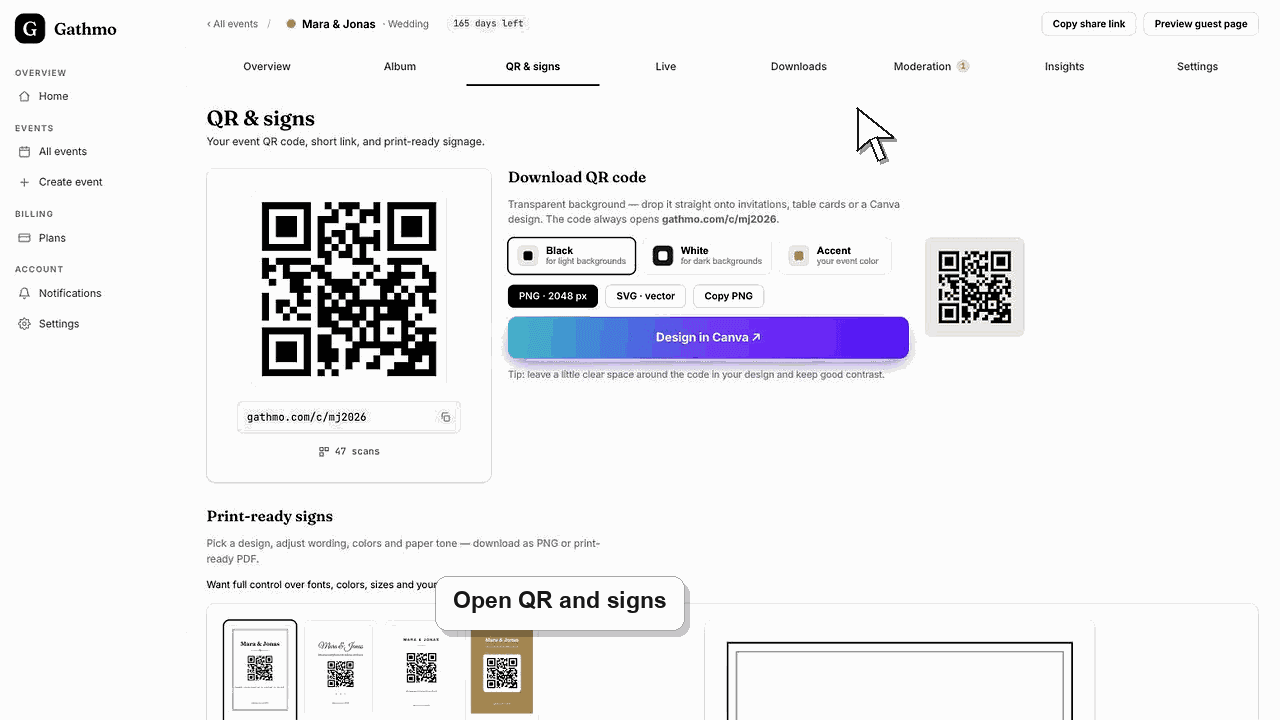
Gathmo uses a consistent guest experience rather than a catalog of decorative gallery themes. A personal event can be customized with its event details, accent color, content settings, album visibility, and QR-sign design; business plans add brand names, logos, colors, client workspaces, and custom domains according to plan.
Available design controls
| Area | Personal event | Business workspace |
|---|---|---|
| Event name and date | Yes | Yes |
| Event accent color | Yes | Yes |
| Upload types and moderation | Yes | Yes |
| Album visibility and live wall | According to plan | According to plan |
| QR sign layout | Yes | Yes, with brand controls |
| Logo, business brand, and custom domain | Not a standard personal theme | According to Studio, Agency, or Enterprise limits |
Before you start
- Open the correct event and confirm its plan.
- Prepare a readable accent color and, for business branding, a suitable logo.
- Decide how the guest page, album, QR sign, and live wall should look together.
- Open the correct Gathmo event, workspace, or account before making changes.
Steps
1. Set the event identity
Choose a short recognizable event name, correct date, event type, and language. These details orient guests and should be finalized before you print signs or distribute the link.
2. Choose an accessible accent color
Select the event accent color in the creation or settings flow. Use a color with clear contrast and test buttons and text on a phone; decorative color should never make the upload action hard to see.
3. Configure the guest experience
Choose which media types are accepted, whether submissions need review, and whether the album is guest-visible. These behavioral choices shape the experience more than a visual skin.
4. Design the QR sign
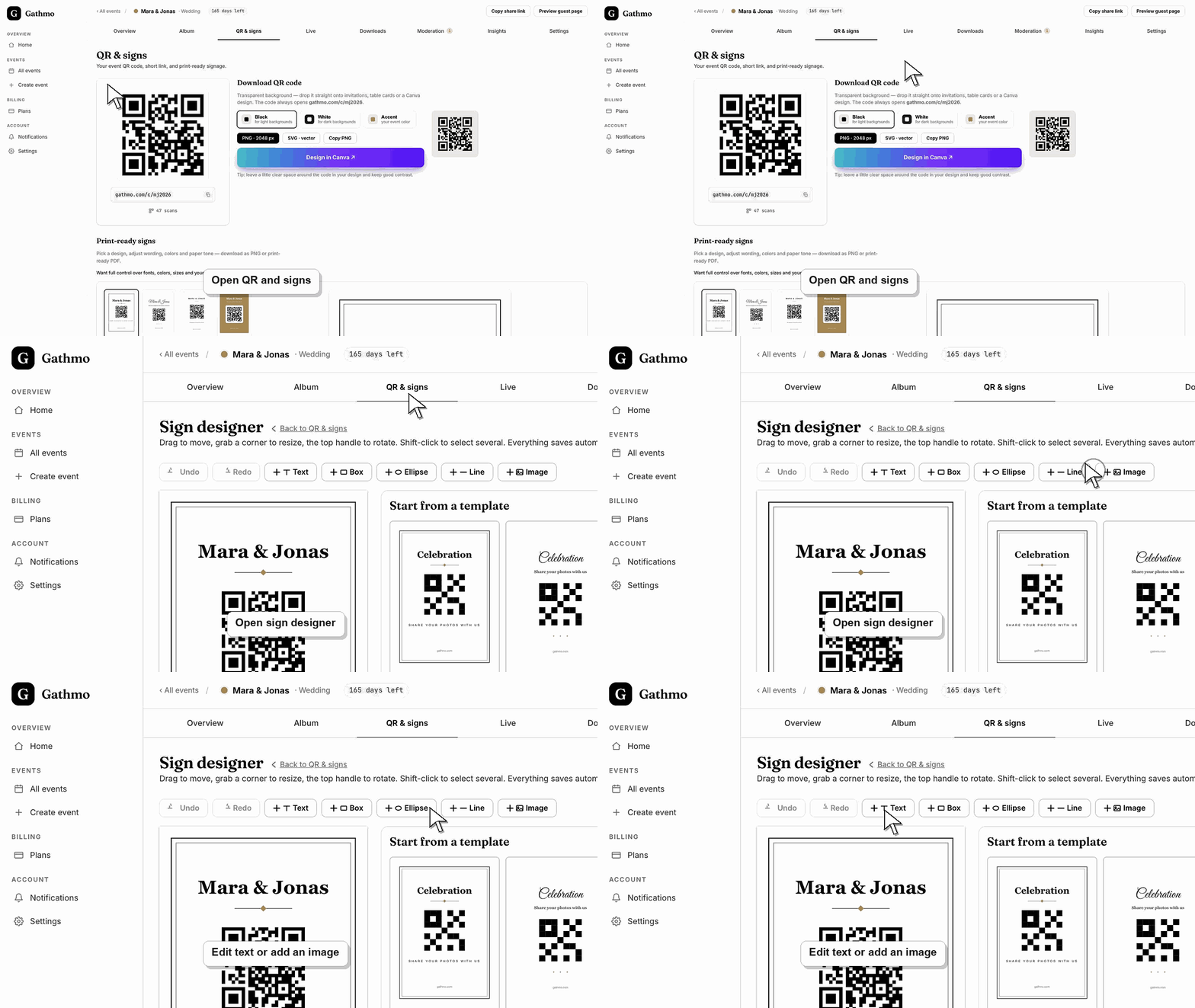
Open the QR sign designer, choose the appropriate layout and wording, and export the file. Keep sufficient white space around the code and do not place it over a busy photo.
5. Preview as a guest
Open the guest link in a private browser window and scan the printed-size QR code from another phone. Review the page heading, accent color, upload controls, gallery visibility, and any access prompt.
6. Apply business branding when eligible
In a business workspace, set the brand name, logo, colors, and domain supported by the plan. Preview the branded guest page before sending it to a client or pointing a live domain at it.
What to do next
- Save a tested QR-sign file for print and digital invitations.
- Recheck the guest page after any branding or domain change.
- Keep brand assets consistent across the event page, signage, and client delivery.
- Open the public guest link after changing dashboard settings so you can verify the change from a guest perspective.
Frequently asked questions
Can I preview Gathmo gallery themes before buying?
There is no separate gallery-theme catalog. You can create a free event to test the real guest page and customize its event details and accent color before choosing a paid plan.
Can I use my own logo?
Logo and broader brand controls are part of eligible business workspace plans. Standard personal events use Gathmo's guest experience with event-level customization.
Can I change the design after sharing the QR code?
Yes for editable event and branding settings. Re-test the guest page afterward; changing visual settings normally does not require replacing the QR code when the event link remains the same.
Does the selected event type change the design?
The event type labels the occasion but is not a decorative theme. Use the event name, accent, content settings, and business branding tools for the visible experience.
Can I preview a branded business page before launch?
Yes. Use the business preview workflow to check the logo, colors, page text, and domain behavior before sharing it with a client or audience.
Troubleshooting
Gathmo does not currently offer a catalog of decorative personal-event themes. Use the event accent, page settings, and QR-sign designer, or compare business branding controls for a branded client experience.
Confirm the account is a business account and check its Studio, Agency, or Enterprise entitlement. Personal per-event plans do not expose the full white-label workspace.
Restore strong dark-on-light contrast, preserve the quiet zone around the code, increase its printed size, and test the actual exported file on more than one phone before printing in volume.
Refresh the guest page, confirm the browser is opening the current event link, and check whether the public view has filters or moderation state that explain the difference.
Branding changes appearance, not ownership or access rights. A polished page can still be private; protect the event link and configure moderation and album visibility for the actual audience.
Keep going