Dashboard functions
Read event overview metrics and activity
Understand the Gathmo event overview: photo, video, voice, guest scan, and upload counts, the activity feed, moderation alert, and the guest page and QR panels.

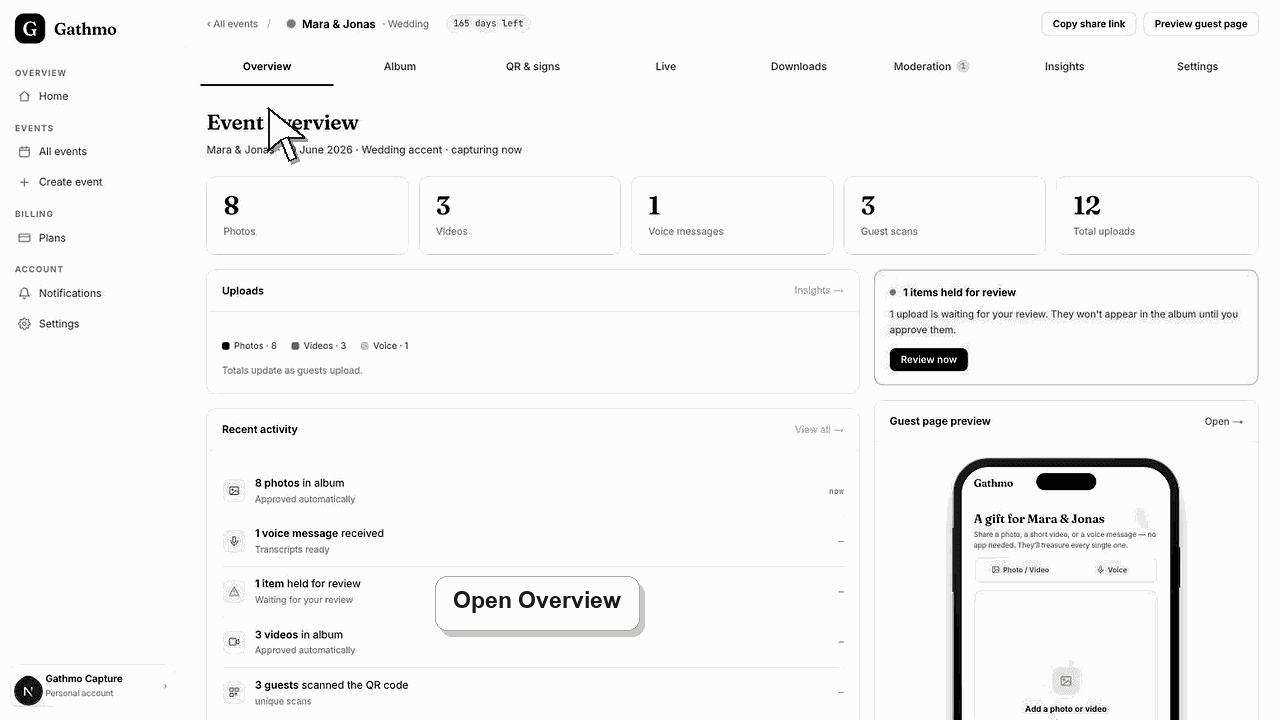
The Gathmo event overview opens with a row of live counts — Photos, Videos, Voice messages, Guest scans, and Total uploads — followed by an uploads breakdown, a recent activity feed, a moderation alert when items are waiting, and panels for the guest page preview and QR sharing. Every number updates as guests contribute.
What the overview shows
| Panel | What it tells you |
|---|---|
| Metric tiles | Photos, videos, voice, guest scans, total uploads |
| Uploads breakdown | Split of media by type |
| Recent activity | Latest album, voice, and moderation events |
| Moderation alert | Items waiting for review, with a shortcut |
| Guest page preview | What guests currently see |
| Share & QR | Short link, QR download, print table cards |
Before you start
- Sign in to the Gathmo dashboard and open the event you want to check.
- The overview is the first screen you see after opening an event.
- Counts reflect approved and pending media depending on your moderation mode.
- Open the correct Gathmo event, workspace, or account before making changes.
Steps
1. Open the event overview
From your events list, select an event. It opens on the Event overview, with the event name, date, accent, and status in the subheading, and the metric tiles directly below. This is your at-a-glance read on how the event is going.
2. Read the five metric tiles
The tiles show Photos, Videos, and Voice messages counts, Guest scans (how many unique guests opened your QR link), and Total uploads across all types. Together they tell you how much guests have shared and how many people have engaged.
3. Check the uploads breakdown
Below the tiles, the Uploads panel repeats the split between photos, videos, and voice as a colour-coded legend. It is the quickest way to see which type of media guests are contributing most, and the totals climb as more uploads arrive.
4. Scan the recent activity feed
The Recent activity feed lists what is happening: photos and videos landing in the album, voice messages received, and, when moderation is on, how items were approved. The caption tells you whether uploads publish automatically or wait for your review.
5. Act on the moderation alert
When uploads are held for review, a moderation alert appears showing how many items are waiting, with a Review now button that jumps straight to the Moderation tab. It only shows when there is something pending, so an empty overview means nothing needs your attention.
6. Use the guest page and QR panels
On the right, the Guest page preview shows what guests see and links to open the live page. The Share & QR panel holds your QR code and short link, with buttons to download the QR or print table cards.
What to do next
- Use the overview as your control room. When the moderation alert appears, review pending items. When counts stall, check that guests can scan the QR and reach the guest page. When the event ends, move to Album and Downloads to share and export.
- Open the public guest link after changing dashboard settings so you can verify the change from a guest perspective.
- Tell any co-hosts what changed, especially if the setting affects QR codes, moderation, album visibility, downloads, or live wall behavior.
- Use related troubleshooting articles if the saved dashboard state does not match the public event view.
Frequently asked questions
Do the counts include uploads that are still pending?
Guest scans count unique visitors regardless of uploads. The photo, video, and voice counts reflect the media on the event; when moderation is set to Review required, items wait in the Moderation tab until you approve them.
What does Guest scans measure?
It counts the number of unique guests who opened your QR link, so it is a good proxy for reach. A high scan count with few uploads suggests guests are visiting but not completing an upload.
Where do I go to approve waiting uploads?
Select Review now in the moderation alert, or open the Moderation tab directly. There you approve, reject, or flag each pending item, and only approved media appears in the album and on the live wall.
Troubleshooting
No uploads have arrived yet, or you are viewing a demo event. Confirm guests can reach the guest page by testing the QR yourself, and check that the event is active rather than a draft or demo.
Guests are opening the link without finishing an upload. Make sure the event is capturing, that uploads are not paused in Settings, and that the guest page clearly invites people to add a photo, video, or voice message.
That is expected when nothing is pending. With Auto-publish moderation, uploads appear without review, so no items wait. Switch to Review required in Settings if you want to approve uploads before they publish.
Refresh the guest page, confirm the browser is opening the current event link, and check whether the public view has filters or moderation state that explain the difference.
The overview counts activity, not guest identities. Gathmo does not store guest names, emails, or logins, so Guest scans reflects unique visits, not personal profiles. Only media you approve and leave visible is ever shown to other guests.
Keep going