Dashboard functions
Why a dashboard feature is disabled in demo mode
Gathmo seeds a read-only demo event on signup. Learn why Settings, Downloads, and album controls are disabled in the demo, and how to unlock them with your…

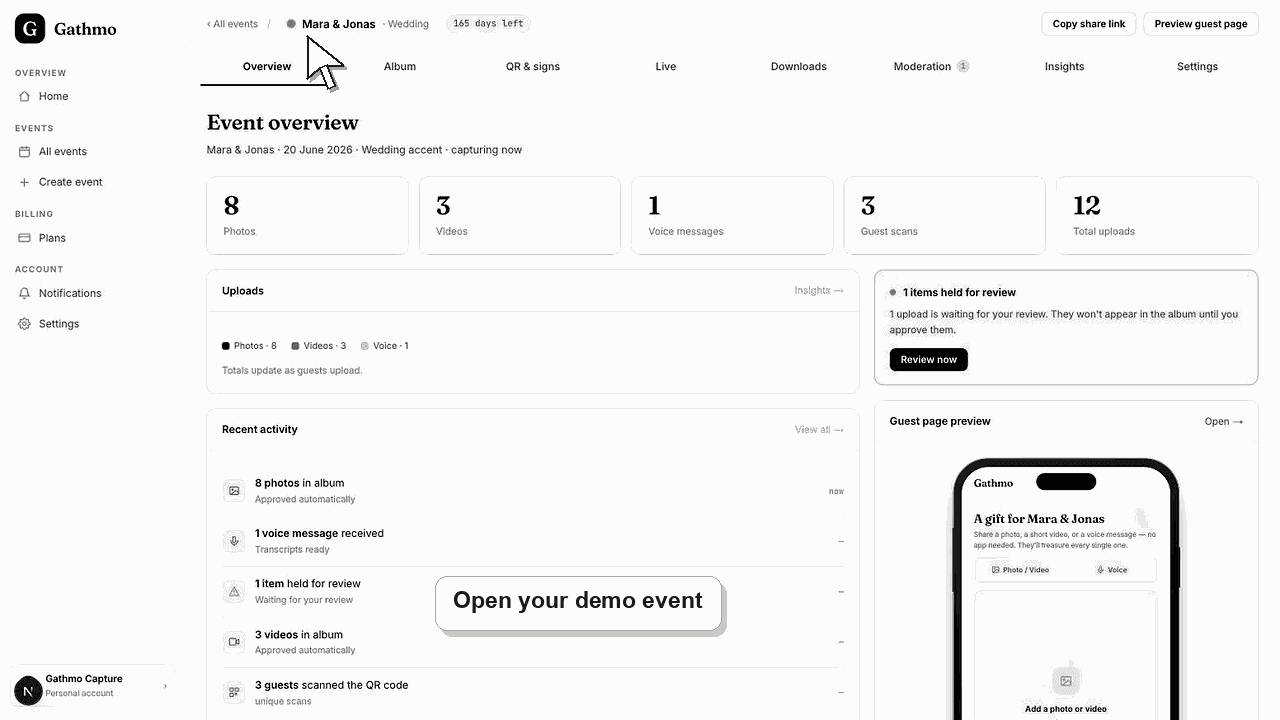
The control is disabled because you are inside the sample event Gathmo seeds on every new account — "Demo Event — Mara & Jonas". It is deliberately read-only, so Settings, Downloads, and album curation are greyed out or hidden. Create your own event and every one of those controls unlocks.
Before you start
- Look for the grey "Demo" badge next to the event name and the banner across the top.
- Know that the demo already contains six sample photos and three voice messages.
- Have a real event name and date in mind so you can leave the demo quickly.
- Open the correct Gathmo event, workspace, or account before making changes.
Steps
1. Spot the Demo badge and banner
Open the event and look at the top. A read-only demo shows a "Demo" badge beside the event name and a banner reading that this is a sample event and nothing here can be changed. That badge is your signal.
2. Open Settings and see the read-only view
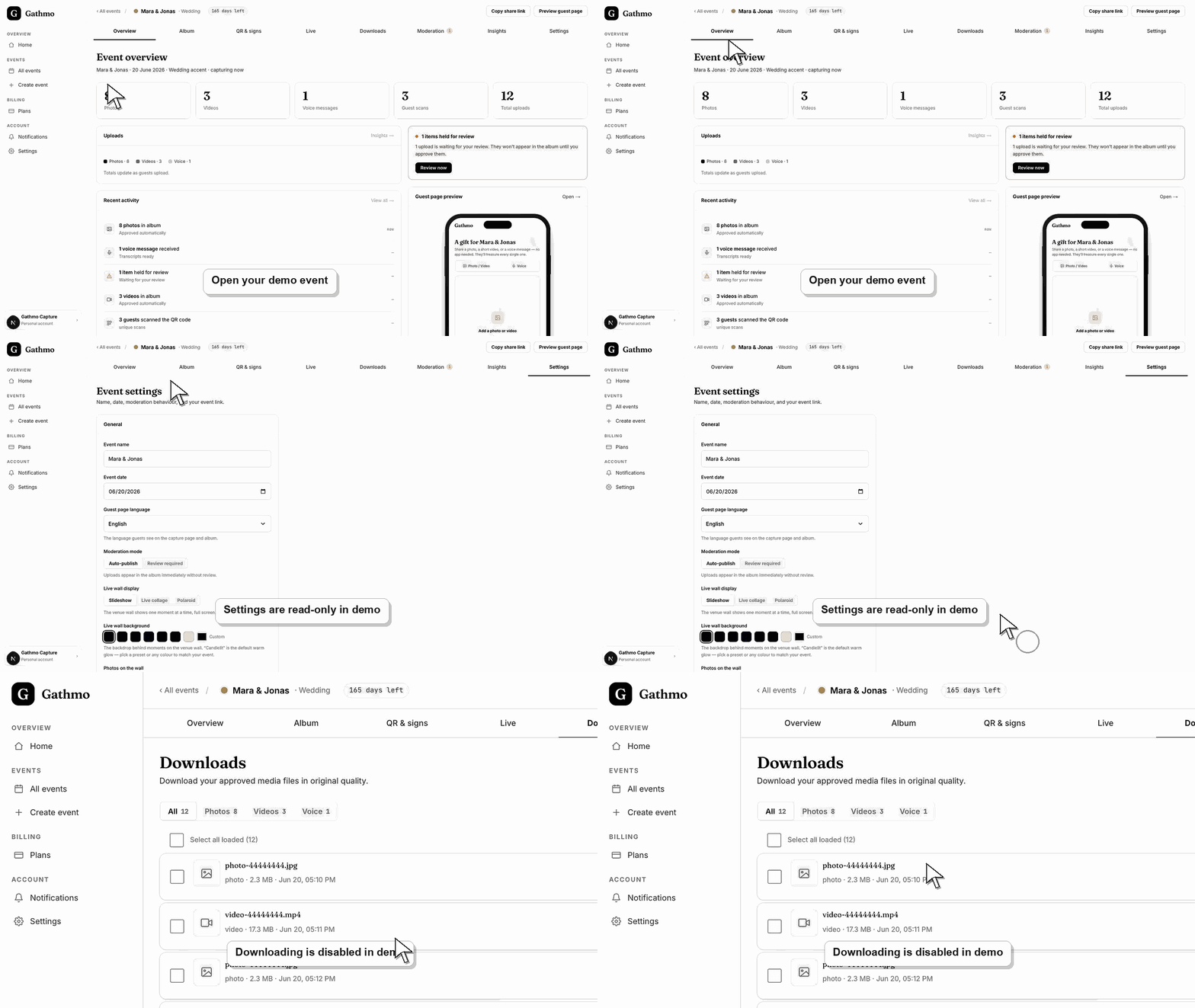
In the demo, the Settings tab does not show editable fields. It lists the event name, date, moderation mode, and wall options as static text, followed by "Settings are disabled in this demo." No Save, rename, archive, or delete controls appear.
3. Check Downloads and album controls
The Downloads tab shows "A read-only preview of the Downloads tab — downloading is disabled in the demo," so the download and ZIP buttons are hidden. On the Album tab, the share panel and curation controls are hidden too, because the demo cannot be modified.
4. Understand the QR tab still renders
The QR & signs tab still shows a working code so you can see the guest experience. Scanning it opens the capture page, but uploads are closed on the demo — guests cannot add media to a sample event, by design.
5. Create your own event to unlock everything
Use the "Create your event" button in the demo banner, or open Create event from the dashboard. A real event you own has every control enabled: Settings, moderation, downloads, curation, and live guest uploads all work immediately.
What to do next
- Once you create a real event, its dashboard has no Demo badge and no read-only banner. Settings become editable, downloads and album curation return, and guests can upload after you open the event. The demo stays in your list as a reference you can revisit any time.
- Open the public guest link after changing dashboard settings so you can verify the change from a guest perspective.
- Tell any co-hosts what changed, especially if the setting affects QR codes, moderation, album visibility, downloads, or live wall behavior.
- Use related troubleshooting articles if the saved dashboard state does not match the public event view.
Frequently asked questions
Is demo mode a plan limit?
No. The demo is a one-time sample event seeded for every new account so your dashboard is never empty on first login. It is unrelated to your plan, and creating your own event is included on the free tier.
Can I edit or delete the demo event?
No. The demo is read-only by design, so it cannot be renamed, edited, downloaded, or deleted. It stays as a reference. Your own events have full edit and delete controls.
Why does the demo show photos and voice messages I did not add?
Those are Gathmo sample assets — six wedding photos and three voice messages — included so you can see a populated, live album immediately without uploading anything yourself.
Do my real events ever become read-only like the demo?
No. Only the seeded demo event is read-only. Every event you create stays fully editable, and its controls behave exactly as documented across the rest of the dashboard.
Troubleshooting
Check for the "Demo" badge at the top of the event. Disabled Save, download, and curation controls are expected inside the sample event. Switch to an event you created and the same controls become active.
Nothing saves in a demo event. Gathmo blocks writes to the sample event both in the interface and at the server, so a saved change is silently refused. Make the change on your own event instead.
Uploads are closed on the demo on purpose, so the QR code shows the guest flow without letting anyone add media. Create your own event and open uploads to accept photos, video, and voice from guests.
Use the "Create your event" button in the demo banner, or select "All events" and then Create event. You do not need to delete the demo first — it simply sits alongside your real events.
The demo contains only Gathmo-supplied sample media, never guest data, so it is safe to open and share your screen while exploring. Creating your own event is available on the free tier, and no upgrade is required to unlock the controls the demo disables.
Keep going