Getting started
Understand the guest page, album, gallery, and live wall
Learn how one Gathmo event connects its guest upload page, host-managed album, public gallery view, moderation queue, and optional live wall.

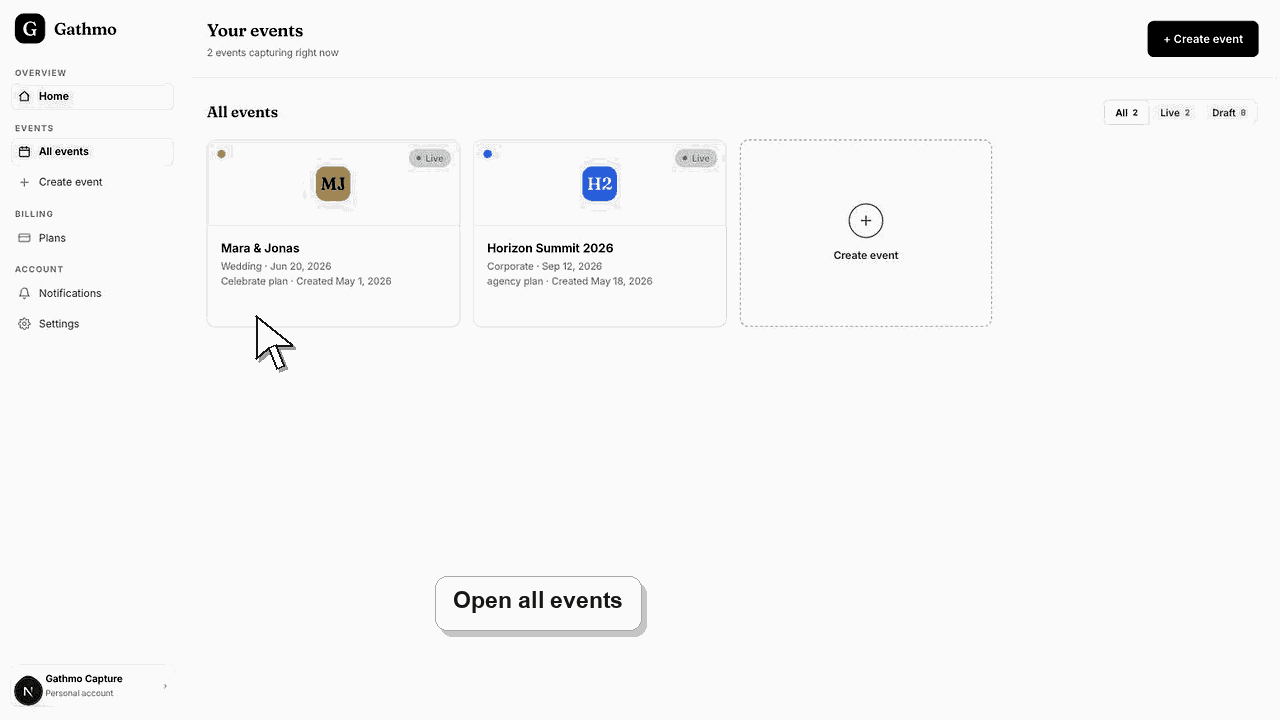
Each Gathmo event is one connected collection: guests use its QR code or link to open the guest page and contribute media, while the host manages the resulting album in the dashboard. “Gallery” is the guest-facing album view, and the live wall is a separate presentation view for approved media during the event.
What each term means
| Term | Purpose |
|---|---|
| Event | The container with a name, date, plan, settings, link, and QR code. |
| Guest page | The browser page guests use to upload without creating an account. |
| Album | The host-managed collection of event photos, videos, and voice messages. |
| Gallery | The view of album items that guests are allowed to see. |
| Moderation queue | The host area for approving, rejecting, hiding, flagging, or deleting items. |
| Live wall | A screen-friendly rotating display of approved media, available on eligible plans. |
Before you start
- Open an event in the Gathmo dashboard.
- Decide whether guest uploads should appear automatically or wait for review.
- Decide whether guests should see the album, only upload, or watch a live wall.
- Open the correct Gathmo event, workspace, or account before making changes.
Steps
1. Create one event collection
Create the event once. Gathmo generates one guest link and QR code connected to that event's upload flow and album, so contributors do not need separate links for photos, videos, and voice messages.
2. Configure what guests can add
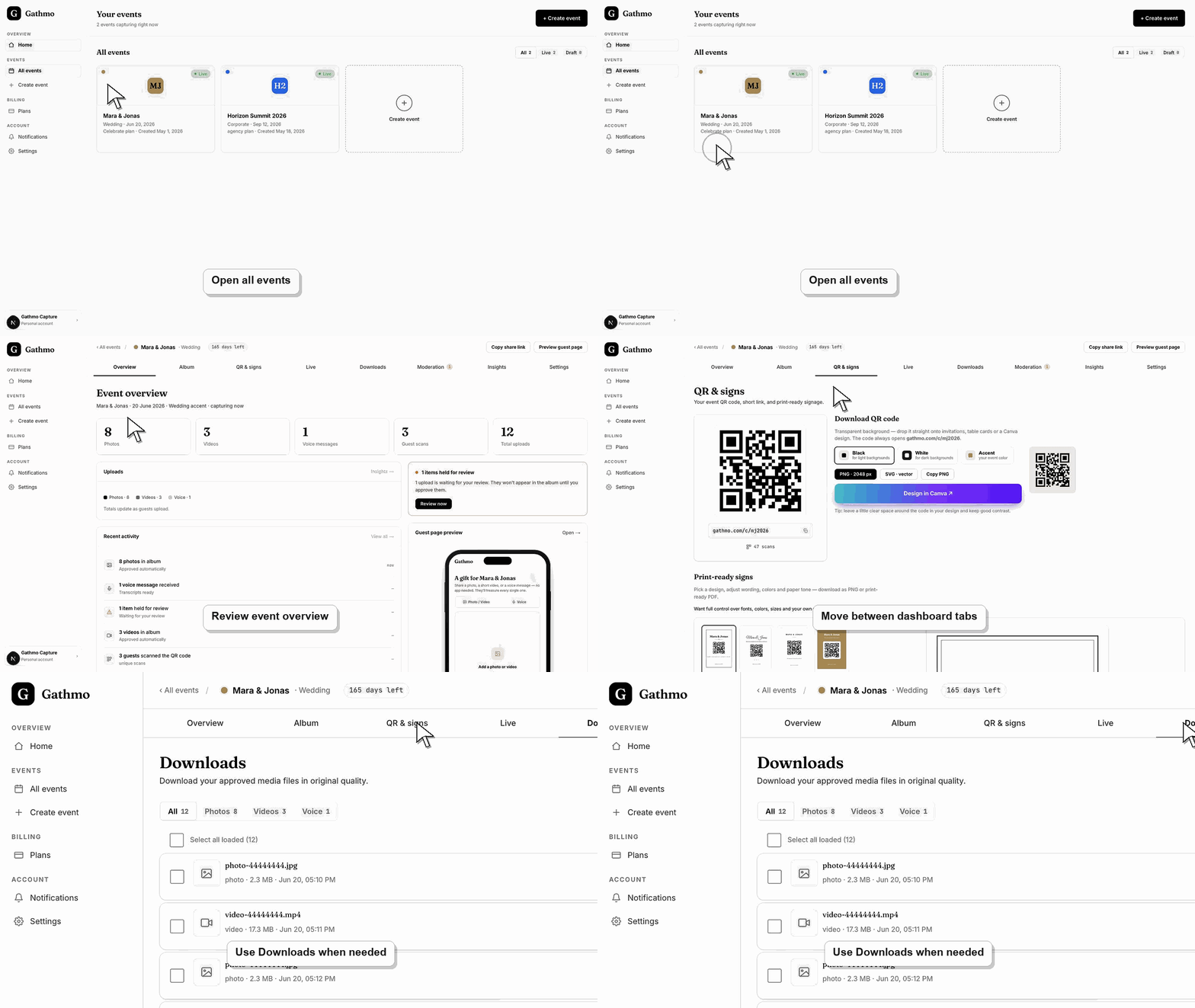
Use event settings to allow the media types you want. The album can hold supported photos, video clips, and voice messages together, subject to the event plan's limits.
3. Choose the moderation behavior
Use automatic publication for a trusted group or manual review when the album or live wall needs tighter control. In manual mode, review submissions before making them guest-visible.
4. Publish or hide the gallery
Album visibility controls whether guests can browse approved content. You can still collect uploads while keeping the final album private, depending on the event's access and publication settings.
5. Use the live wall as a display, not a second album
On a plan that includes the live wall, open the display view on a television, projector, or browser window. It presents approved media from the same event collection; it does not copy items into another album.
6. Export the collection after the event
Review the final album, hide or delete anything that should not be delivered, and download the media before retention ends. The guest gallery is a sharing surface, not a permanent backup.
What to do next
- Test both the upload page and the guest-visible gallery.
- Decide whether moderation is automatic or manual.
- Configure the live wall only if it is part of the event plan and schedule.
- Run the same flow once from a phone, because the host dashboard and guest page solve different parts of the setup.
Frequently asked questions
What is the difference between a gallery and an album?
The album is the host-managed event collection. The gallery is the guest-facing view of approved album content. In everyday use the words may overlap, but their controls and audiences differ.
Does every event have its own album?
Yes. Each event has its own link, QR code, media collection, settings, limits, and retention timeline.
Can one QR code open several albums?
Gathmo's standard flow connects one event QR code to one event collection. Use separate events and QR codes when you need separate albums.
Is the live wall another gallery?
It is a presentation view of the same approved event media, designed for a screen during the event. It does not create a separate stored collection.
Can guests upload without seeing other uploads?
Yes, when you keep the album hidden or restrict its access while leaving the guest contribution flow available. Test the exact settings before sharing.
Troubleshooting
Check whether it is pending review, rejected, hidden, or blocked by the gallery's publication state. Approve the correct item, then refresh the guest page in a private window.
Only eligible, approved, and visible media should appear. Review moderation status, live-wall settings, and the current event before restarting the display.
That can be intentional. Check whether album publication or guest download access is disabled, and verify any password before assuming the upload link is broken.
Refresh the page, confirm you are signed in to the correct Gathmo account, and open the exact event from the dashboard. If the event was created by another team member, ask them to confirm your role before changing settings.
An upload link, visible gallery, and live wall expose different levels of access. Test each surface separately and show only content appropriate for its audience; deleting an item is different from merely hiding it.
Keep going