Getting started
When to create an event and collect guest media
Create a Gathmo event at any time, test with up to 20 items, unlock paid capacity 48 hours before the date, and keep collecting afterward.

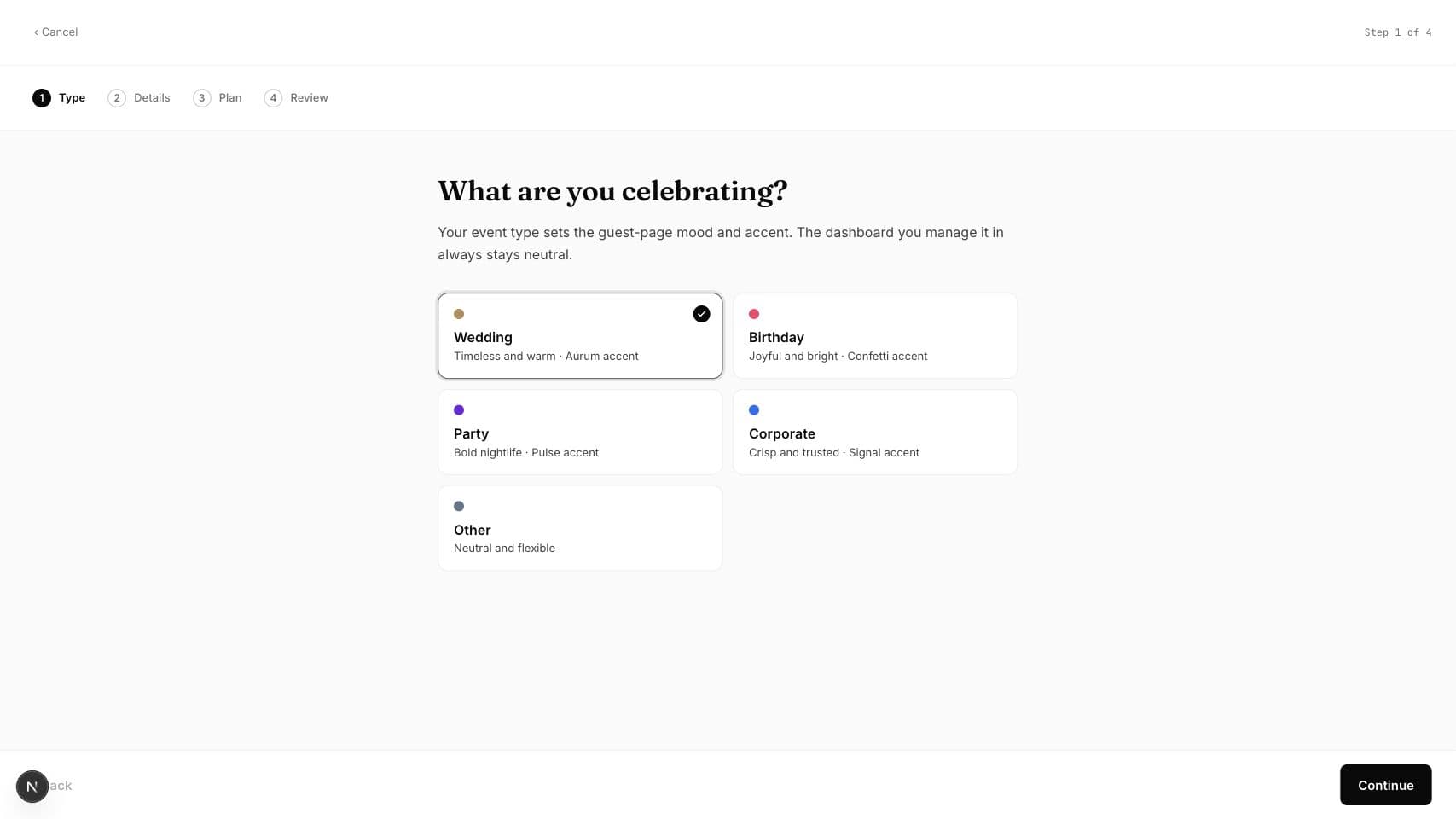
You can create and pay for a Gathmo event as far in advance as you like. The event page works immediately for setup and testing; every plan accepts up to 20 test items until the full paid upload capacity opens 48 hours before the event date, and the date does not automatically close uploads afterward.
Upload timeline at a glance
| Time | What works |
|---|---|
| More than 48 hours before the event | Create, pay, customize, share, and test with up to 20 items. |
| From 48 hours before the event | The selected plan's full item capacity is available. |
| During the event | Guests can upload through the same QR code or link. |
| After the event | Uploads can continue while the event remains available; the event date is not an automatic closing time. |
| At the retention deadline | Download what you need; a 14-day deletion grace period follows the plan window. |
Before you start
- Choose the real event date, including the first day of a multi-day event.
- Decide whether you want guests to contribute before or after the main event day.
- Check the selected plan's retention window and storage allowance.
- Open the correct Gathmo event, workspace, or account before making changes.
Steps
1. Create the event as soon as the date is known
Open the Gathmo dashboard and create the event. Early creation gives you time to customize the page, prepare the QR sign, brief vendors, and test the guest experience without waiting for the event week.
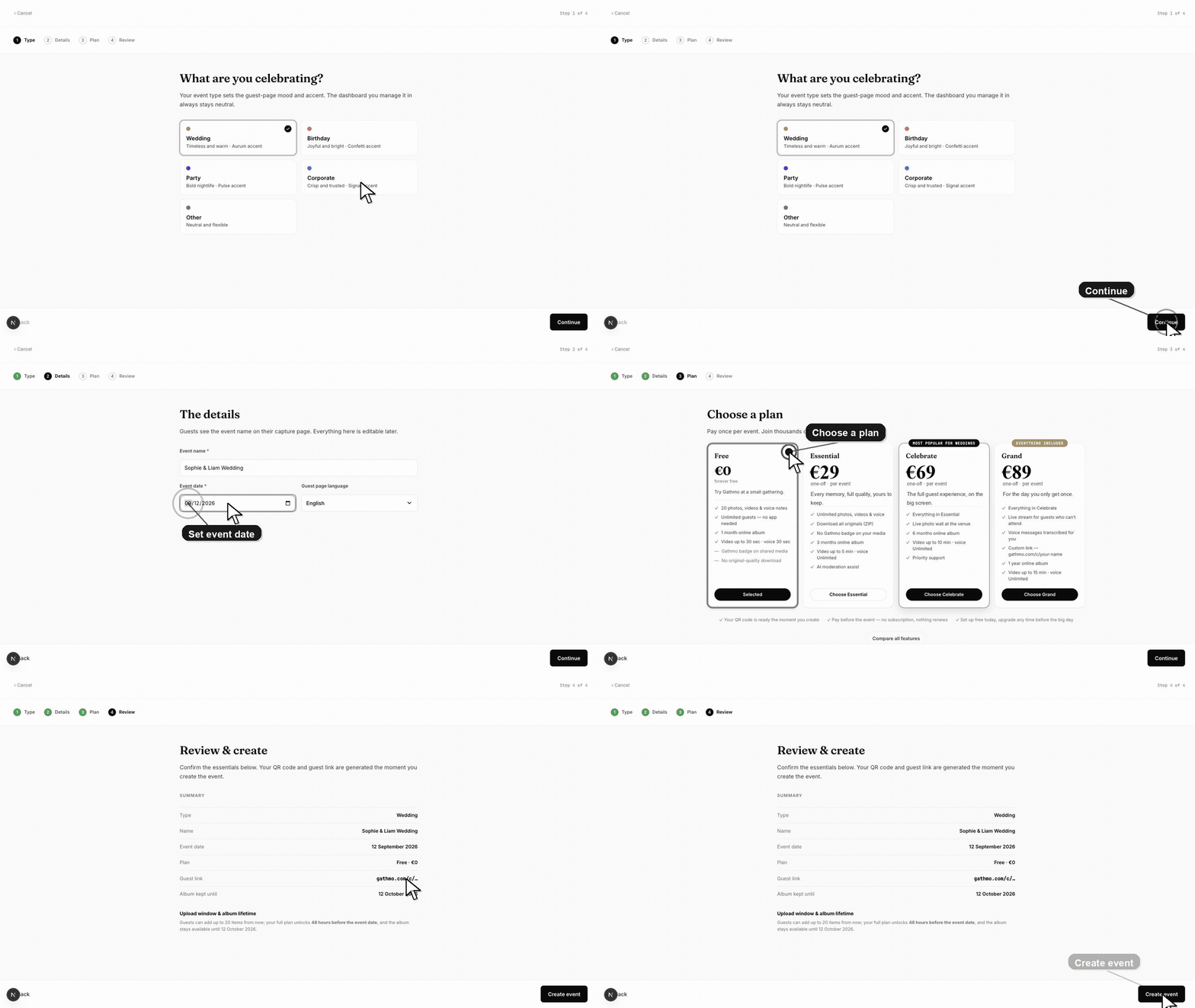
2. Use the early period for a controlled test
Scan the QR code on at least one iPhone and one Android phone if those devices will be common. Upload a photo, video, and voice message. Before the 48-hour full-capacity window, the event accepts up to 20 items on every plan so you can verify the flow.
3. Share early when you want pre-event contributions
The guest page is active immediately. You can put the link in an invitation or ask guests for childhood photos, travel pictures, or messages before the celebration. Keep the 20-item early cap in mind until the full window opens.
4. Use one event for consecutive event days
For a wedding weekend, conference, festival, or other consecutive multi-day occasion, set the first main day as the event date and keep using the same QR code. Create separate events only when you need separate albums, links, access audiences, brands, or retention timelines.
5. Keep collecting after the scheduled date
Guests who forgot on the day can use the same invitation link afterward. The scheduled event date does not automatically disable the page; access continues until you hide or delete the event or its retention lifecycle reaches deletion.
6. Download before the displayed retention deadline
Open the dashboard after the event, review the uploads, and export the originals. Gathmo sends expiry warnings and applies a 14-day grace period after the normal retention window, but the safest workflow is to download before the first deadline.
What to do next
- Print or share the tested QR code without creating a second link.
- Tell guests whether contributions are welcome before and after the event.
- Put the download and retention dates on your event checklist.
- Run the same flow once from a phone, because the host dashboard and guest page solve different parts of the setup.
Frequently asked questions
How far ahead can I create or purchase an event?
There is no minimum lead time or maximum advance-purchase period in the event setup flow. Create it when the date is known; paid capacity simply remains at the 20-item test allowance until 48 hours before the event.
Why is my gallery already active?
That is expected. Gathmo activates the guest page immediately so you can test it and collect pre-event media. The page being active does not mean the full paid capacity has opened early.
Can guests upload after the event?
Yes. The calendar date does not automatically close the upload page. Guests can contribute while the event remains available and has not been hidden, deleted, or removed through retention.
Can guests upload before the event?
Yes. Every plan can collect up to 20 early items. Full paid item capacity becomes available 48 hours before the event date.
Can one event cover several days?
Yes, when the days are consecutive and belong in one shared album. Use separate events when the audience, branding, album, or access rules need to differ.
Troubleshooting
Check the event date and current time. Full paid item capacity opens 48 hours before the saved event date. If you are inside that window, refresh the dashboard and confirm that payment is marked as completed.
Confirm the event still exists, the guest link is correct, storage is available, and the album has not reached its deletion lifecycle. Test the link in a private browser window before changing settings.
Create separate Gathmo events when each day needs a private audience or separate deliverable. Each event receives its own QR code, album, plan limits, and retention timeline.
Refresh the page, confirm you are signed in to the correct Gathmo account, and open the exact event from the dashboard. If the event was created by another team member, ask them to confirm your role before changing settings.
Setup choices can affect the guest page, QR code behavior, upload limits, and moderation. Test the flow before inviting guests.
Keep going