QR codes and sharing
Download transparent QR codes as PNG or SVG
Download your Gathmo event QR code with a transparent background as a 2048 px PNG or vector SVG, in black, white, or your accent colour, ready for any design.

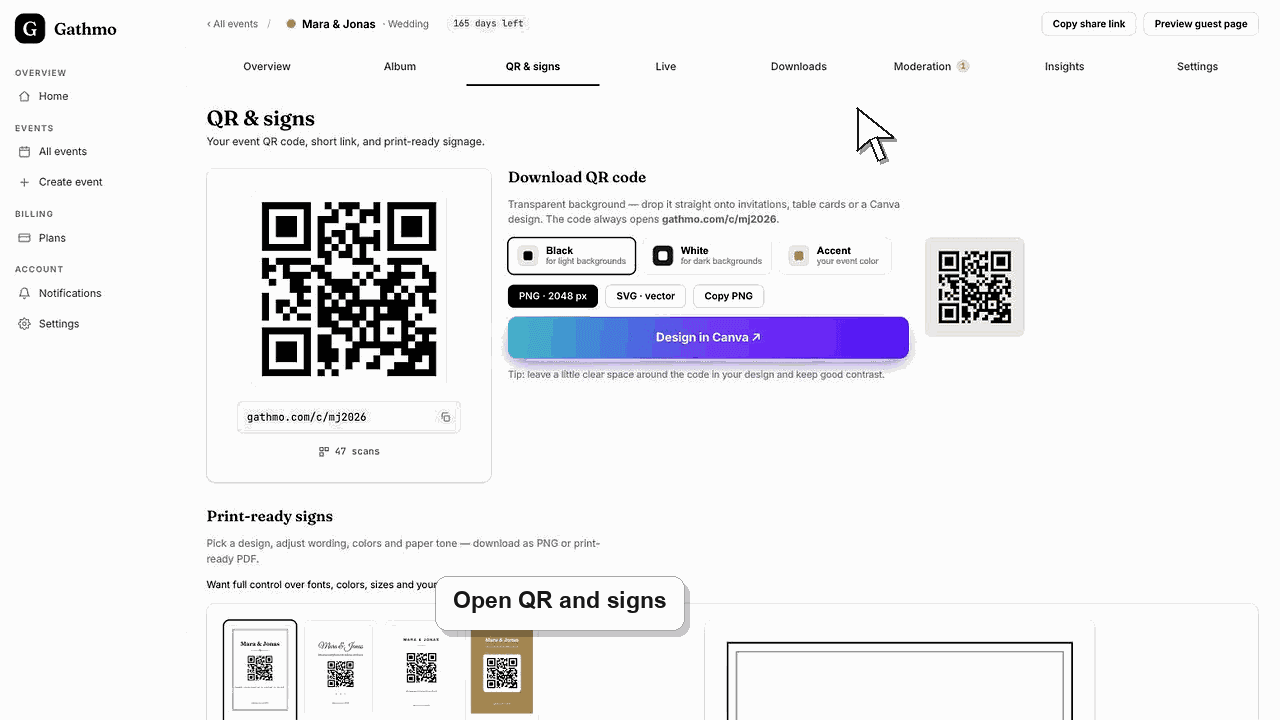
Gathmo gives you your event QR code on a transparent background so it drops straight onto invitations, table cards, or a Canva design. Open the QR & signs tab, pick a colour, and download a PNG at 2048 px, a vector SVG, or copy the PNG to your clipboard. Every version opens the same short link, gathmo.com/c/ followed by your event code.
File options
| Option | Best for | Background |
|---|---|---|
| PNG · 2048 px | Invitations, table cards, quick placement | Transparent |
| SVG · vector | Posters, banners, large-format print | Transparent |
| Copy PNG | Pasting straight into Canva or a slide | Transparent |
Before you start
- Open the event in your Gathmo dashboard.
- Know where the code will sit so you can pick a colour with good contrast.
- Have your design tool ready if you plan to paste the code in.
- Open the correct Gathmo event, workspace, or account before making changes.
Steps
1. Open the QR & signs tab
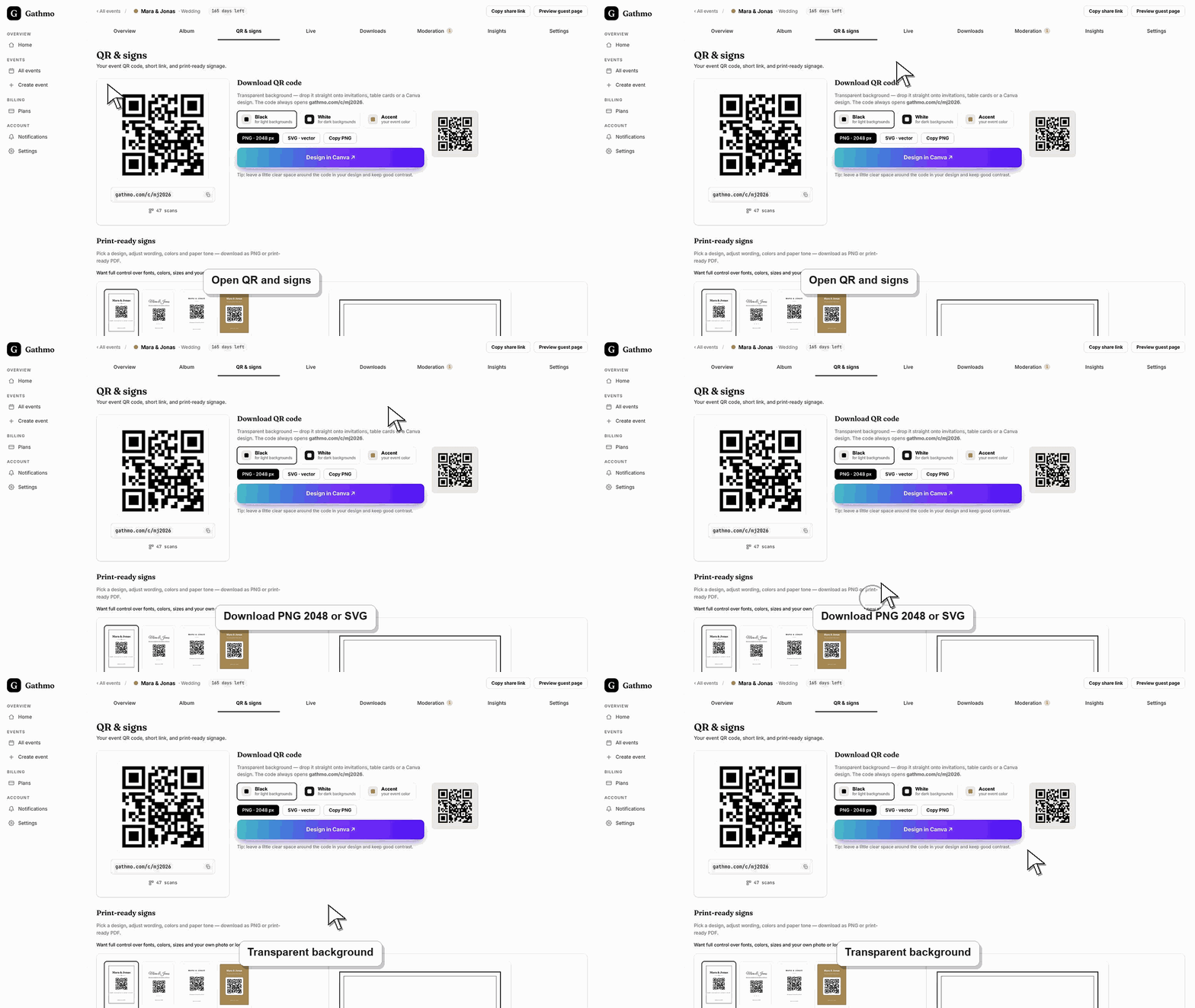
In your Gathmo dashboard, open the event and select the QR & signs tab. The top of the page shows your live QR code and short link, and just below it is the Download QR code section with a transparent background.
2. Choose a QR colour
Pick one of the three colour variants. Black suits light backgrounds, White suits dark backgrounds, and Accent uses your event colour. The small live preview shows the selected colour on a matching backdrop so you can judge contrast.
3. Download a PNG at 2048 px
Select PNG · 2048 px to save a high-resolution transparent PNG. This large size stays crisp when printed, and because the background is transparent, the code sits cleanly on whatever colour or photo is behind it in your layout.
4. Download a vector SVG instead
For unlimited scaling, select SVG · vector. An SVG stays sharp at any size — ideal for large posters, banners, or professional print — and it opens the same guest link as the PNG, so guests reach the identical capture page.
5. Copy the PNG straight to your clipboard
If your browser supports it, select Copy PNG to copy the transparent code to your clipboard, then paste it into Canva or another design tool. The Design in Canva shortcut copies the code and opens Canva in a new tab in one step.
What to do next
- Place the code in your design, leave a little clear space around it, and keep strong contrast with the background. Do a quick test scan on your phone before printing so you know guests will reach the capture page.
- Scan the final QR code from a phone after every design, print, or link change so you know it opens the correct event.
- Keep the plain event link available as a backup for guests whose camera app cannot scan the printed code.
- Check the related troubleshooting article before reprinting signs, because many QR issues come from old screenshots or copied links.
Frequently asked questions
What link does the QR code open?
Every downloaded code opens your event's short link, gathmo.com/c/ followed by the event code. That link takes guests to the capture page where they add photos, videos, or a voice message.
Which format should I use, PNG or SVG?
Use the 2048 px PNG for most invitations and cards, where it prints crisply. Choose the SVG when you need a large format that must stay sharp at any size, such as a poster or banner.
Can I change the QR colour to match my brand?
Yes. Pick the Accent variant to use your event colour, or choose black or white. All three keep the transparent background, so the code blends into whatever design you place it in.
Troubleshooting
Copy to clipboard depends on browser support. If the button does not appear, download the PNG or SVG instead and import the file into your design tool — the result is identical.
The white variant only works on a dark background. Switch to it only when the code sits on a dark colour or photo, and always run a test scan before printing so the contrast is high enough.
Contrast or size is usually the cause. Keep clear space around the code, avoid stretching it out of square, and do not place it over a busy pattern. Reprint at a larger size if a phone struggles to read it.
Open the code from a phone that is not signed in to the host dashboard. If it opens an admin or dashboard URL, regenerate or copy the guest-facing QR code from the event QR page.
The QR code only ever points to your event's guest capture page. It carries no guest data, and downloading it in any colour or format does not change who can reach your album — that stays controlled by your album and moderation settings.
Keep going