
Choose a browser upload flow guests can use, then size the plan for files and videos rather than guest count alone.
- A QR code or direct link should let guests upload without an app or guest account. Test the real upload steps on several phones.Guest flow
- Unlimited guests does not mean unlimited storage. Estimate files, leave room for video and check per-file limits.Capacity
- For Gathmo, paid plans include original-file ZIP export; Celebrate and Grand also include the live photo wall.Plan features
For a wedding with hundreds of guests, collecting photos should start with a simple test: can someone open your link and upload a picture without installing anything? Printed QR cards and reminder messages help people find the album, but the destination must be usable too. An unexpected app download, sign-in screen or full upload allowance can interrupt the contribution before the guest shares a single file.
If you're asking what is the best wedding photo sharing app for large guest lists, look for browser uploads, enough capacity for your expected collection, original-file export and a clear access deadline. A wedding with 200, 300 or 400 guests brings together different phones, languages and levels of confidence with technology. The best choice is the one that works for those guests and gives you a manageable way to keep the files afterward. This guide is published by Gathmo, one of the services discussed; the comparison uses published features, not a measured participation or load-test ranking.
Guests should be able to contribute through a QR code or direct link, while the host can manage the collection. Browser access removes an installation step; it does not remove the need for internet access, enough storage and a clear request to share. This article explains how to choose a plan, set up the venue and save the resulting album.
Why use a browser upload link for a large wedding?
Check the steps between opening the link and uploading
When a guest opens a link and sees an app download or unfamiliar login screen, there is another task between taking a photo and sharing it. Low phone storage, forgotten passwords and a busy reception can make that task inconvenient. Test the actual contribution flow before choosing a service, rather than assuming a QR code means no sign-in.
Browser uploads remove an installation step, but participation still depends on your guests and setup. Use a practical check: ask a few relatives to upload from their own phones without coaching. Note where they hesitate, whether uploads finish and whether the photos reach the album. Improve the instructions before inviting the whole guest list.
A larger guest list increases the range of devices and questions you need to accommodate. You do not need to support every possible phone on the wedding day, but test a recent iPhone, an Android phone and an older device if available. Let guests contribute later if the reception is busy or the connection is weak.
What works for non-tech guests
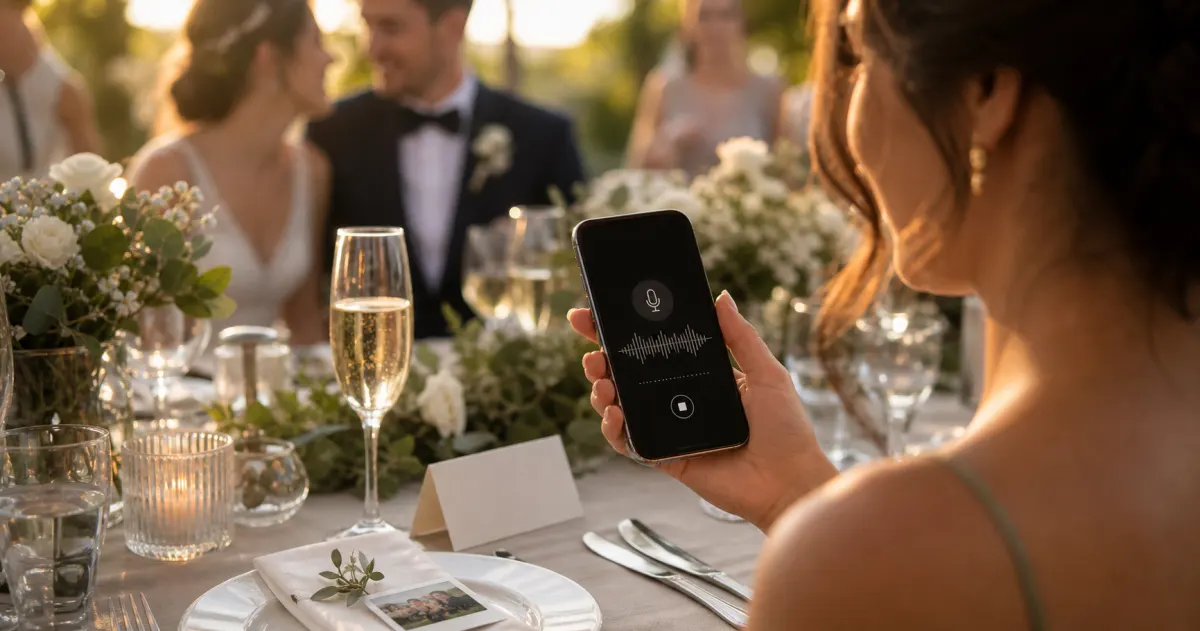
Plan for three contribution routes: scanning a printed QR code, opening a link sent by message, and getting help from a designated person. A direct link is useful for guests who cannot scan easily. A shared device can collect a recorded wish or let someone help with an upload, but it does not automatically have access to the photos on another person’s phone.
At the welcome table, a tablet can show the instructions or accept a message recorded there. To transfer photos from a guest’s phone, use that phone’s upload link or help them share the files directly. Ask before handling someone else’s device, keep the shared device on the guest page and avoid leaving the host dashboard open.
What should you check before choosing a plan?
Scalability: unlimited guests vs. upload caps
Unlimited guests and unlimited files are different promises. Check contributing-guest limits, total file caps, storage in gigabytes and per-file size or duration limits separately. As a planning example, 100 contributing guests sending eight photos each would create 800 files. That is arithmetic, not a prediction about participation; adjust the numbers to your own wedding.
An upload window determines when guests can add files; a storage or access window determines when you can view and download them. The timer may start at album creation, activation or the selected event date. Check the provider’s actual rule and arrange an independent backup before access ends. Longer access is useful only if it matches when you expect to collect and save the files.
File quality: original resolution vs. compressed previews
Phone photos, videos and camera files can use different formats and sizes. Do not assume every platform accepts RAW camera files or every version of HEIC and video. Upload representative files during your trial, then download them and check the format and dimensions. A preview that looks good on a phone is not enough to judge a large print.
Check whether original-file downloads return the file that was uploaded or a converted version. A platform may use smaller previews while keeping the uploaded file for export. Original quality cannot restore detail lost before upload, so ask guests to select files from their camera library rather than forwarding compressed copies from a messaging app.
Moderation and host controls
If you plan to show guest photos on a screen during dinner, decide who can see the album and when uploads become visible. Keep the event link within the intended guest group. Test password or visibility controls, where available, before printing signs, and appoint someone who can remove unsuitable photos or pause the display.
Manual moderation holds uploads for review before they appear to guests; automatic mode shows them without that host review. Manual mode can suit a live display if someone is available to approve photos promptly. Choose a review interval that fits your reception and test it with the actual display. Moderation controls content visibility; it is not an extra consent or approval step guests must complete to upload.
Pricing that makes sense for a one-time event
A one-time event plan can make budgeting straightforward, but confirm what the price includes: guest capacity, upload allowance, original-file export, video limits and access duration. A plan priced for a small number of uploading guests may cost more for a large wedding. Compare the total event cost and useful features rather than the lowest advertised price.
Videos can use much more storage than photos. A hypothetical collection of 1,000 photos averaging 5 MB would be about 5 GB, before any video; ten clips averaging 200 MB would add about 2 GB. File sizes vary, so sample your own phones and leave room for late uploads. Check storage, file size and video duration even when a plan advertises unlimited uploads.
How do you choose a wedding photo app for a large guest list?
What separates the right tool from the rest
The practical checklist is browser-based contribution, enough capacity, useful host controls, original-file export and an access window you can work with. For a screen at the reception, also confirm the live display is included in the selected tier. For a destination wedding, check whether the same album can accept contributions across the whole weekend.
Ask a guest who is less confident with technology to try the upload page. Can they find the file selector, understand the instructions and tell when the upload has finished? Use those observations to choose the service. For a broader product comparison beyond large-list planning, see our wedding photo sharing sites shortlist.
Which wedding photo apps can suit a large guest list?
Gathmo: a strong fit for large crowds
For a 350-guest wedding, you might place QR cards on dinner tables and signs at the entrance or bar, then send the same album link by message. On Gathmo, guests open the link in their phone browser without an app or guest account. The host needs an account to create and manage the event. This hypothetical setup illustrates the guest route; actual participation will vary.
As checked on 4 October 2026, Gathmo Free allows 60 total items, 5 GB of storage and 30 days of access. It is useful for trying the flow, but a large collection can exceed that allowance. Standard one-time USD plans are Essential at $49 with 50 GB and 90 days, Celebrate at $79 with 100 GB and six months, and Grand at $99 with 250 GB and one year. Paid plans have no item-count cap within their storage allowance; per-file limits and access deadlines still apply. ZIP downloads require a paid plan. Check Gathmo’s event plans and the offer shown in your account or checkout for your exact allowance.
Gathmo collects photos, videos and voice messages. Its host moderation settings let you choose automatic publication or manual review. A live photo wall is included with Celebrate and Grand, so do not assume the entry plan includes the reception display. Test your chosen settings, a guest upload and the display before the day. These features support collection; they do not guarantee every guest will share or replace your photographer’s coverage.
Other options worth knowing
As checked on 4 October 2026, Pix Wedding’s plans and FAQ advertise unlimited guests, photos and videos on paid plans, with original-quality ZIP export. Starter currently shows a $49 USD promotional price, three months of uploads from the event date and six months of storage. WedUploader’s features and pricing pages describe browser uploads directly into the host’s Google Drive, with no guest login. Its premium features use a one-time purchase; confirm the current price at checkout. Drive storage remains a real capacity constraint even though WedUploader advertises no upload-count limit.
GuestCam’s Pricing page currently lists Standard at $49 USD per event, unlimited guests, photos and videos, six months of uploads and 12 months of storage, starting on the selected event date. It includes original-file ZIP export, a live slideshow and an audio guestbook, so it should not be described as a narrower photo-only tool. Google Photos can also share albums through a link, including with people who do not use its app. Its contribution workflow is tied to Google Accounts; test adding a photo as a guest rather than confusing link viewing with contributing. It may suit a group already using Google, but do not assume it is an anonymous upload inbox.
How do you set up guest photo sharing before the wedding?
QR code placement that gets scans
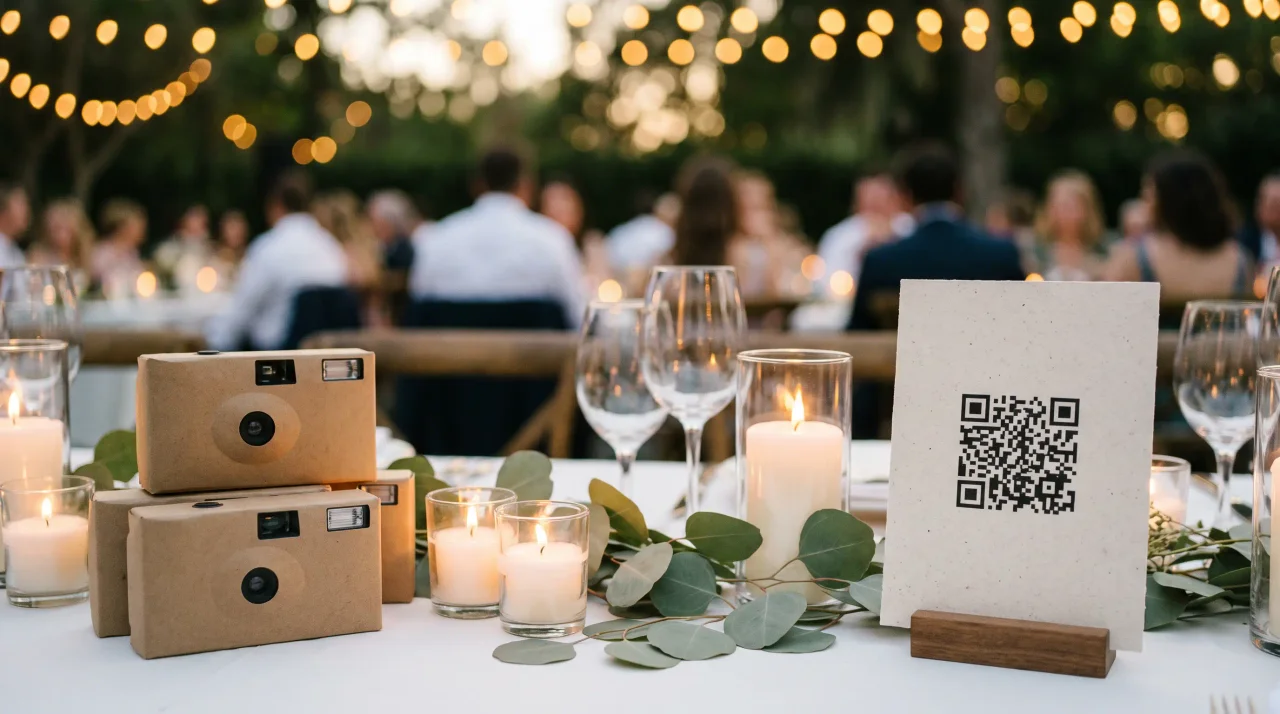
Table cards, the entrance and the bar are useful places to make the album visible. Choose locations where people can pause without blocking others. For more detailed placement and testing instructions, use our wedding QR code setup guide. A small request such as “Share a table selfie” gives people something concrete to contribute.
A sign near a photo booth or scenic backdrop can invite guests to share what they just took. A starting print size of about two inches square can work for close table scanning, but viewing distance, lighting and print quality matter. Test the actual printed card in venue-like conditions on several phones, and include a direct URL for anyone who cannot scan. Avoid reflective surfaces or designs with poor contrast.
Live photo wall and day-of workflow
A live photo wall runs a slideshow of guest uploads on a TV or projector. Confirm your plan includes it, connect the venue display, open the event’s display link and test a fresh upload. Check whether manual moderation holds that upload until review. Venue Wi-Fi, the computer’s sleep settings and a disconnected cable can interrupt a display, so assign someone to manage it and keep a simple fallback ready.
Designate a coordinator or trusted relative to review uploads if you choose manual moderation. A regular check during the reception can keep the display current; if the queue grows, review more often or pause the slideshow. Brief them on what to include, what to remove and how to get back to the display if something stops working.
Briefing guests so they use it
Ask the MC to explain the album when it fits the event, such as before dinner, and leave clear instructions on the tables. Send the direct link before the wedding as a convenience, then remind guests afterward while uploads are still open. Choose reminder moments and sign locations that fit your venue and schedule.
Keep the table card brief: “Scan to share your photos. No app or guest account needed.” Use that wording only if the selected service really works that way. Put a readable URL underneath, give the code space and avoid crowding it with decoration. A short invitation is easier to understand than a long list of platform features.
How do you keep the original files after the wedding?
Understanding retention windows before you buy
Retention varies by plan and provider; there is no universal 30-day free window or universal event-date start. Gathmo Free has 30 days of access, while its standard paid plans have 90 days, six months or one year. GuestCam says its upload and storage windows begin on the selected event date; Pix Wedding also lists uploads from the event date. Confirm the dates shown for your own event, and do not depend on a reminder arriving.
On Gathmo, original-file ZIP export requires a paid plan; Free does not include it. Other providers set their own export rules, and a service saving directly into your cloud drive can use a different download workflow. Before purchase, test a sample export and confirm which file types are included. Download the collection before access ends, even if you plan to keep the online album available for guests.
How to download, organize, and back up everything
Download the archive while access is active, extract it and open a sample of photos, videos and audio files. Check that the collection is complete, not just that a ZIP file exists. Keep at least two copies, such as an external drive and a cloud backup. Preserve the uploaded originals; if older editing software cannot open a HEIC file, make a separate JPEG copy rather than replacing your archive.
Keep guest uploads and your photographer’s edited delivery in separate folders. Label them with the event date and, if useful, the ceremony or reception. That keeps guest snapshots, videos and wishes easy to find without confusing them with the professional gallery. Check sharing permissions before sending either folder to other people.
What belongs on your wedding photo collection checklist?
Before the event
- Choose a plan with enough file capacity, export access and the display features you need.
- Create the event and select automatic publication or manual moderation.
- Test a guest upload, a sample download and the venue internet connection.
- Print and scan the final QR cards; include a readable direct URL.
- Assign someone to manage the live display or review queue if you use one.
- Confirm the actual upload and access deadlines, then set a backup reminder.
On the wedding day
- Place the signs before guests arrive.
- Test the live display on the venue screen if your plan includes it.
- Ask the MC to give a brief invitation to share.
- Review uploads regularly if you chose manual moderation; pause the display if needed.
After the event
- While uploads are still open, send the album link with a short reminder for late contributions.
- Download and extract the original-file archive before access expires.
- Open sample files and check the collection, then save two independent copies.
- Review guest access settings once you no longer need contributions.
What should you do next?
For a large guest list, choose a tool based on the contribution flow, capacity, export and deadlines. Then make the link easy to find, test the venue connection and give someone responsibility for any live display. A manageable setup helps guests share without turning the collection into a task you have to supervise throughout your wedding.
You can try Gathmo’s wedding photo collection with a few files before inviting everyone. Estimate the collection, choose the allowance and display features you need, and arrange a backup deadline. If price is the deciding factor, our budget wedding photo sharing comparison separates free tiers from paid event plans. No setup can guarantee every photo; a clear invitation and a tested upload flow give your guests a practical way to contribute.
Checked 4 October 2026. Published provider details, not independently measured participation or large-event performance. Prices can change; verify the offer at checkout.
- Pix Wedding — event plans and FAQ: paid upload allowance, original ZIP and plan-specific windows.retrieved 2026-10-04
- WedUploader — Pricing and premium features: browser contribution, Google Drive destination and one-time premium model.retrieved 2026-10-04
- GuestCam — Pricing: Standard features, original export and event-date windows.retrieved 2026-10-04
- Google Photos Help — Share photos and videos: link sharing, account-based contribution and album controls.retrieved 2026-10-04