Share
QR codes and sharing
Download, print, place, and troubleshoot event QR codes.
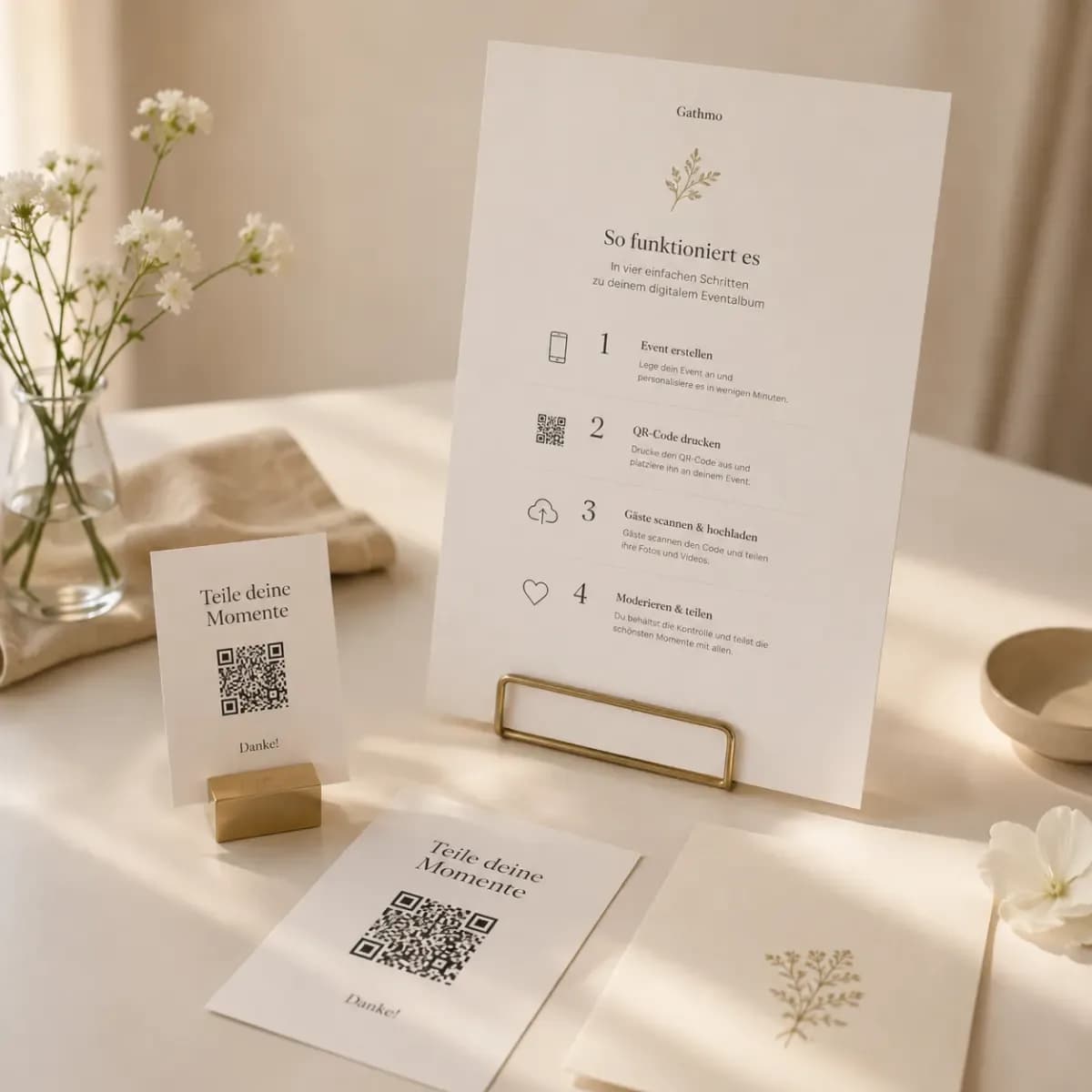
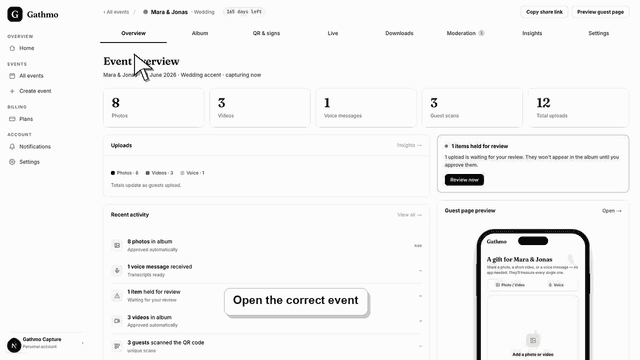
Find and download the Gathmo event QR code guests use to upload photos, videos, and voice messages, then test it before printing.
Written by Martin Freiwald · Updated Jul 9, 2026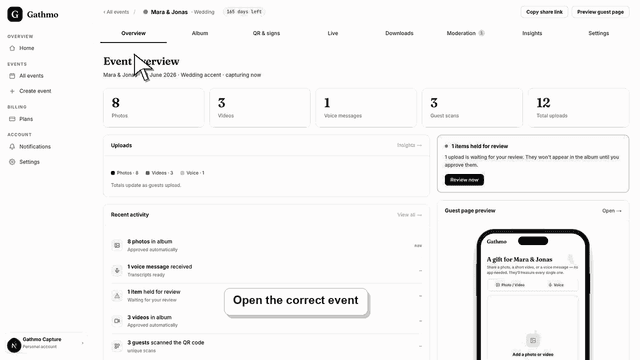
Copy and share the event link when guests should upload media from a message, email, or event page instead of a printed QR code.
Written by Martin Freiwald · Updated Jul 8, 2026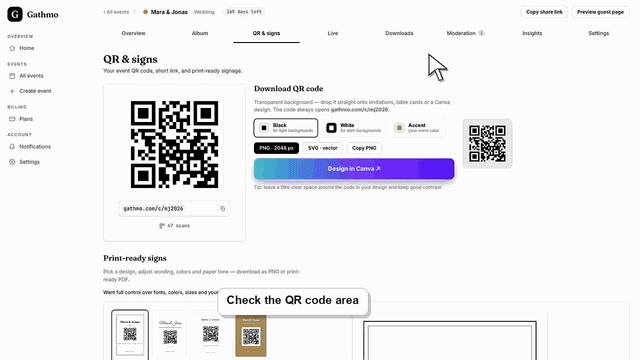
Fix Gathmo QR code scanning problems during an event, check print quality and lighting, and give guests a backup upload link.
Written by Martin Freiwald · Updated Jul 8, 2026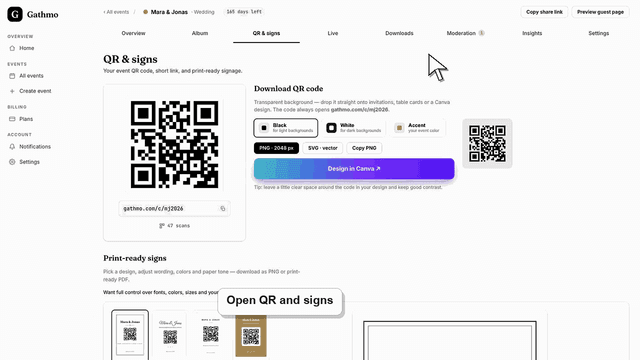
Add a Gathmo QR code to signs, invitations, and table cards with clear instructions, enough contrast, and a phone scan test.
Written by Martin Freiwald · Updated Jul 8, 2026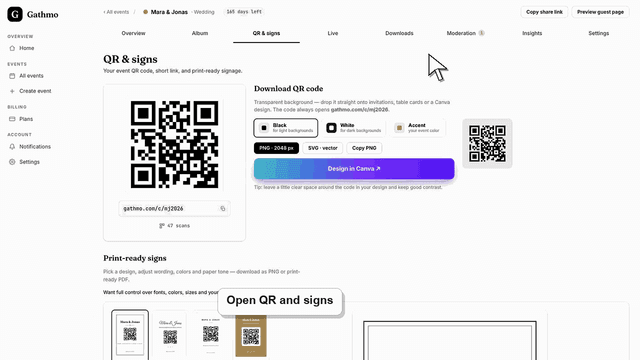
Download your Gathmo event QR code with a transparent background as a 2048 px PNG or vector SVG, in black, white, or your accent colour, ready for any design.
Written by Martin Freiwald · Updated Jul 9, 2026
Invite guests with a Gathmo QR code, test the scan on a phone, and place clear instructions before printing or sharing event materials.
Written by Martin Freiwald · Updated Jul 8, 2026The QR code is how guests find the event. Every event has one from the moment it is created: download it as a PNG or a transparent SVG, drop it into a sign, a menu card or an invitation, and print it at whatever size the room needs. There is nothing to configure and nothing that expires before the event does.
Most scanning problems are physical rather than technical. A code printed too small, placed behind a candle, or laid flat under glare will not scan, however correct it is. The articles here cover the sizes that work, where to put the sign so people actually see it, and what to do for a guest whose camera will not read it.
The code itself does not change over the life of the event, so a sign printed weeks in advance still works on the day and a second print run is never needed for technical reasons. One event has one code: if you are running two celebrations, they need two, and mixing up which sign belongs to which is the single most common reason a scan lands on the wrong album.
Related areas